TR7600 SIII_Hardware_en_v_2_0_4 - 第18页
Test Research, Inc . 8 TR7600 SIII Seri es User Gu ide – Hardw are Auto Width Click to move the conveyor to the correc t po sition based on the value y ou input in the f ield. Input the conveyor widt h in this field and …
Test Research, Inc.
TR7600 SIII Series User Guide – Hardware 7
3.1 Actions
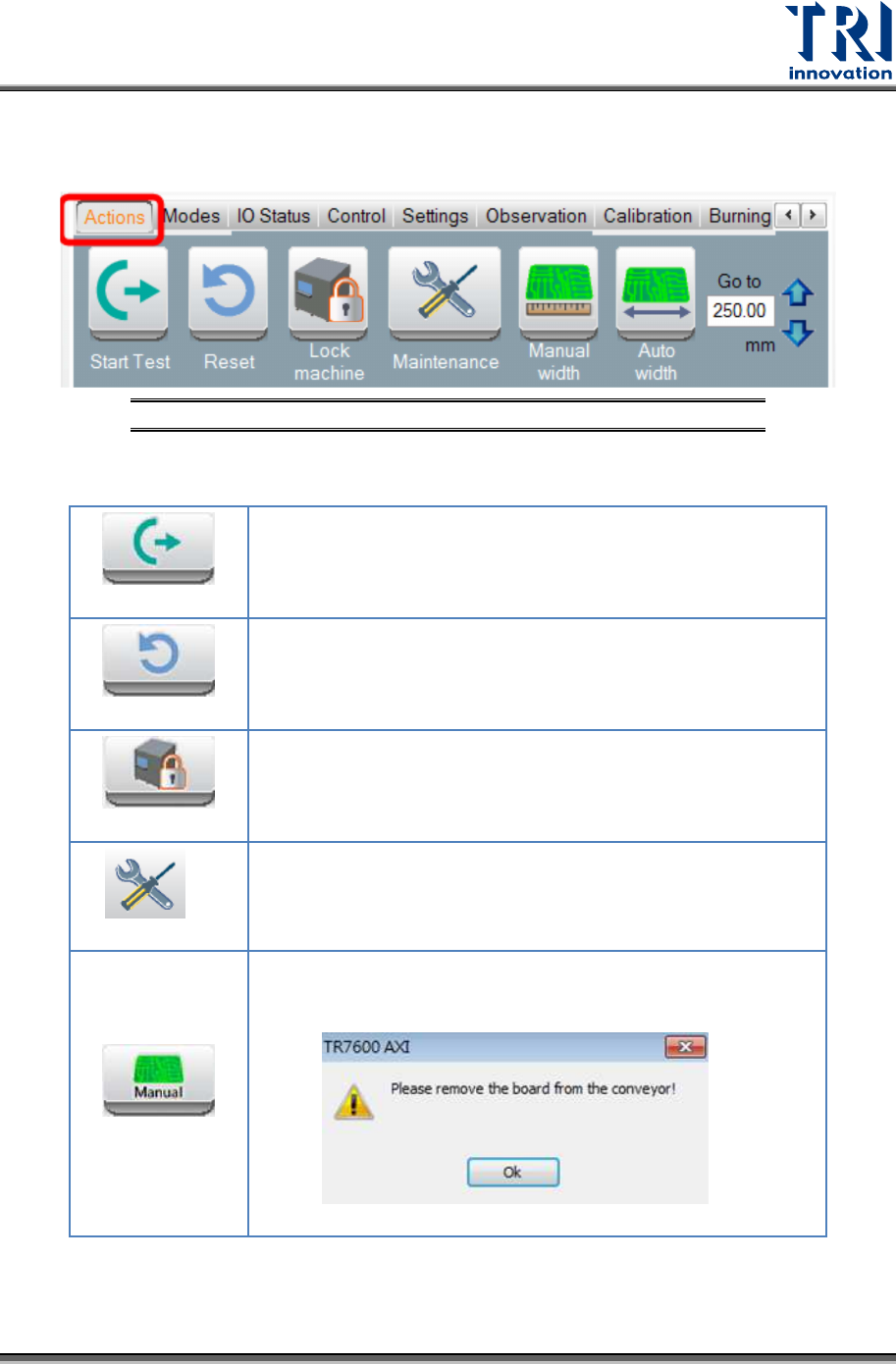
Click [Action] to change the conveyor width and scan the board.
Figure 7: VPLC/Control Toolbar/Actions
In the [Actions] menu, the following options will be displayed:
Start
The conveyor sends the board to the default position and
clips it. Left and right gates will be closed.
Reset
The conveyor releases the board. The machine opens the
gate and sends the board to the gate.
Lock
The machine locks the front and rear doors and both gates.
The conveyor clips the board.
Maintenance
Open the front door and let the conveyor release the board.
Manual Width
Click to change the conveyor width manually. Another window
will pop up to remind you to remove the board from the
conveyor first.
Test Research, Inc.
8 TR7600 SIII Series User Guide – Hardware
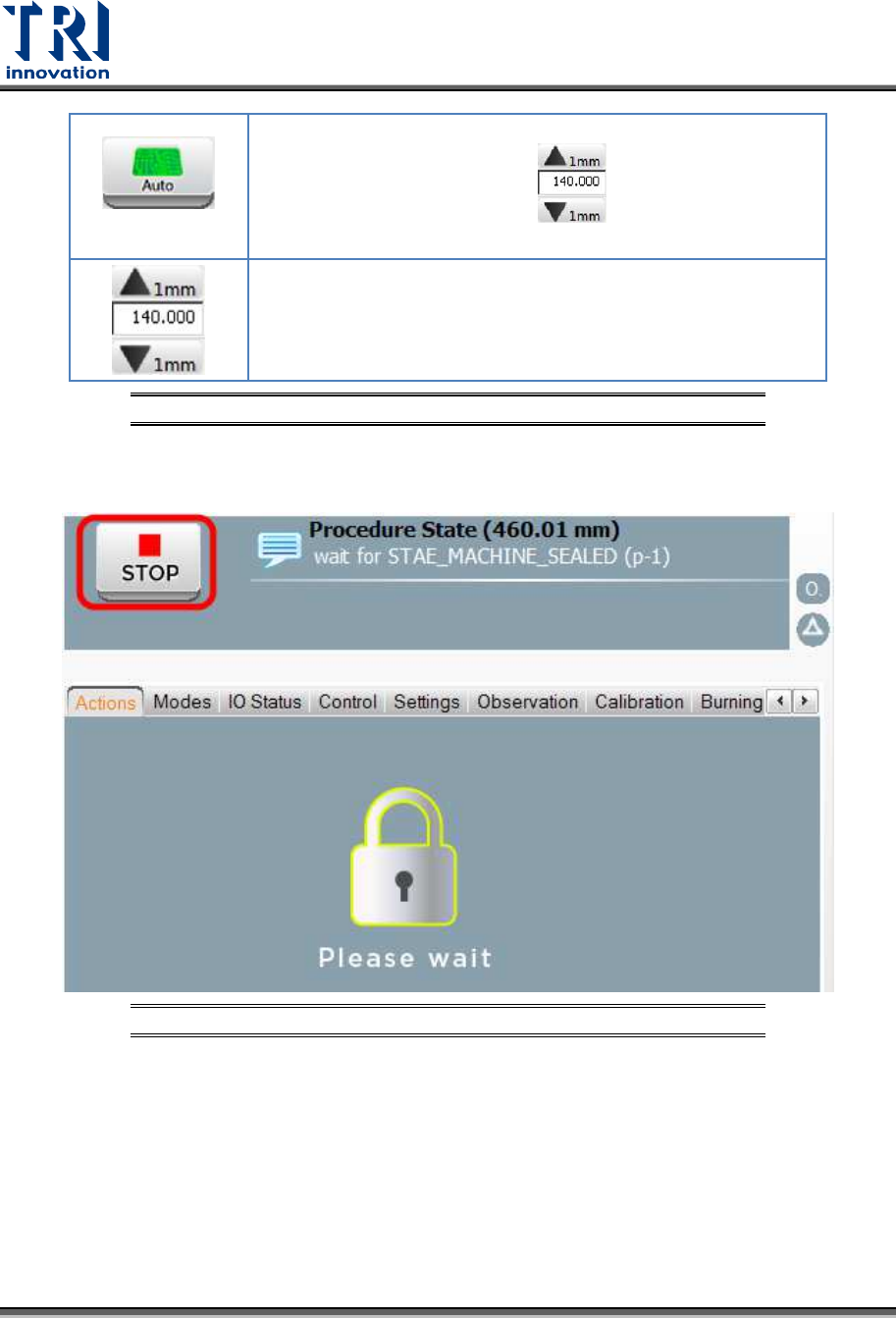
Auto Width
Click to move the conveyor to the correct position based on
the value you input in the field.
Input the conveyor width in this field and click on the [Auto
Width] button to move the conveyor to the correct position.
You also can use the [Up Arrow] and [Down Arrow] buttons to
change the width 1mm for each step.
Figure 8: VPLC/Actions
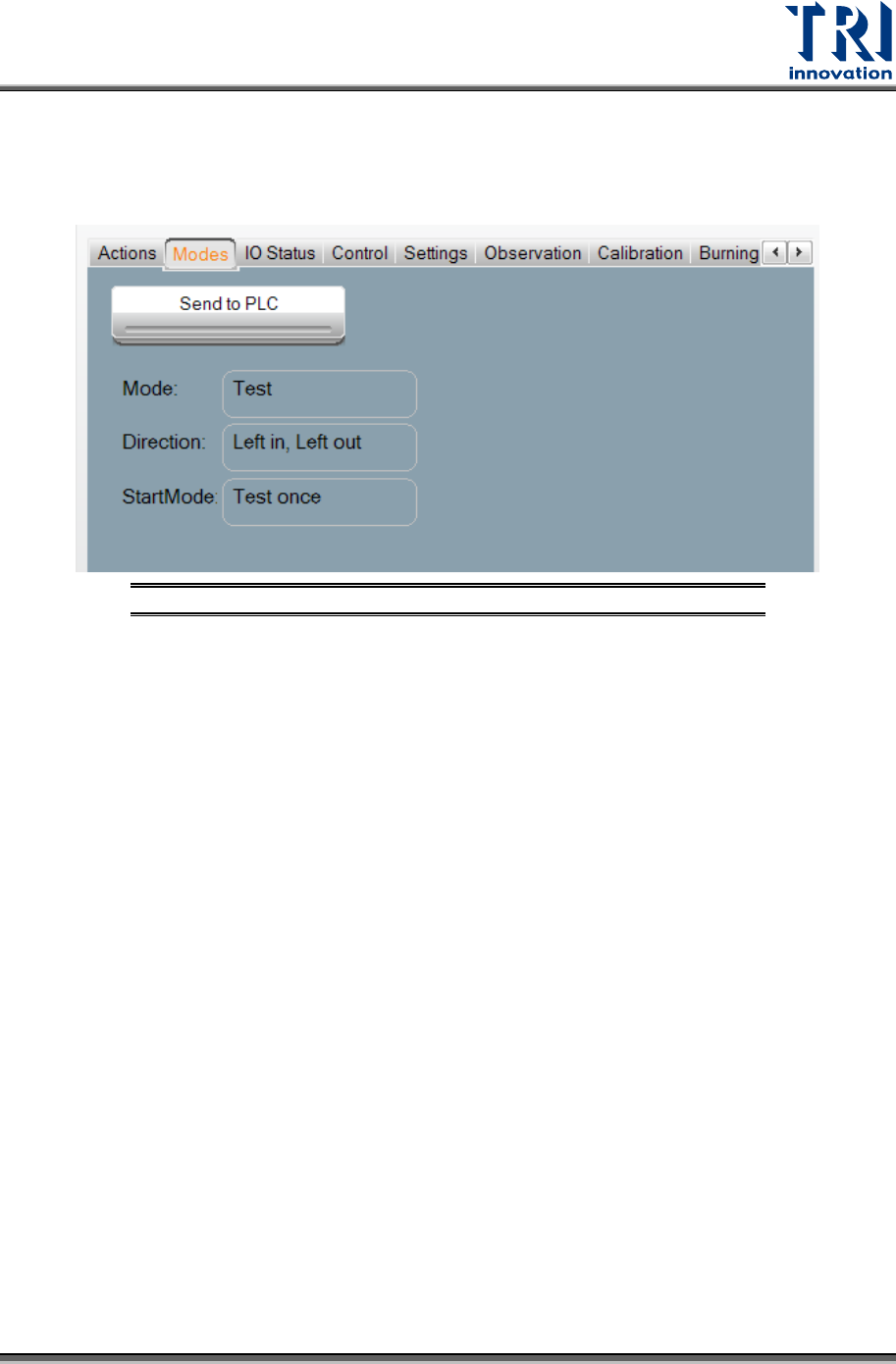
After clicking any button above, users can click the [Stop] button to terminate the process
and go back to the previous window.
Figure 9: VPLC/Stop
Test Research, Inc.
TR7600 SIII Series User Guide – Hardware 9
3.2 Modes
Select [Modes] to choose the test mode and I/O settings. After choosing [Modes], the window
below will appear
Figure 10: VPLC/Modes
Press [Mode] to choose in between three modes: [Stand Along
],
[In-Line], or [Test]. The
setting will be automatically stored during shut down, and automatically loaded at the next
power on.
Stand Along: The machine is not connected to external equipment for testing. This mode
requires manual loading and unloading.
a) If the Mode is set to [Stand Along], [Direction] menu has [Left-In-Right-Out], [Left-In-
Left-Out], [Right-In-Left-Out] and [Right-In-Right-Out] options. For example, [Left-In-
Right-Out] means that the tested board will be delivered into the machine form the left
gate and sent out from the right gate.
b) If the Mode is set to [Stand Along], then [Start Mode] menu has [Test Once] and
[Continuous Test] options.
In-line: The machine connects to external equipment for inline testing.
a) If the Mode is set to [In-line], [Direction] menu has [Left-In-Right-Out], [Left-In-Left-
Out], [Right-In-Left-Out] and [Right-In-Right-Out] options.
b) If the Mode is set to [In-line], then [Start Mode] menu has [Start Test] option.
Test: Single board test. The machine does not connect to external equipment.
a) If the Mode is set to [Test], [Direction] menu has [Left-In-Left-Out] and [Right-In-Right-
Out] options.
b) If the Mode is set to [Test], then [Start Mode] menu has [Test Once] option.