Portal_Manual_1.2.1_Rev_H-1.pdf - 第22页
Portal PVA Revisio n H ( 2018 ) 22 of 93 6.1 Device S election Fig ure 9 : Device Selection , Manual Mode Workcells with devices have De vi ce Selection m o de. Select the acti ve head or val ve fro m the dro p - dow n m…
Portal
PVA
Revision H (2018)
21 of 93
6 Manual Mode
The options shown in Portal depend on the workcell configuration. Refer to your
machine specific manuals and appendices for more information.
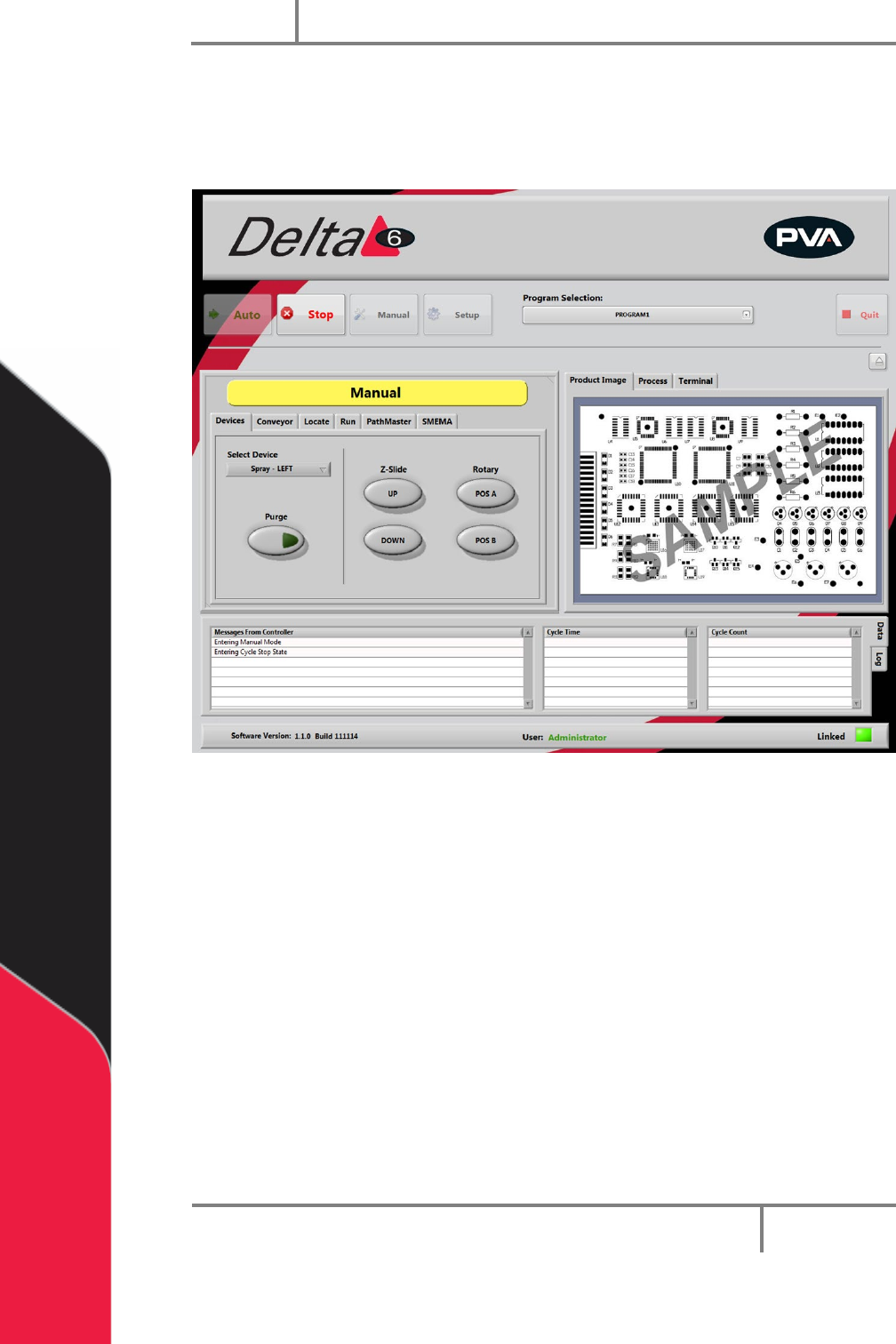
Figure 8: Manual Mode
In manual mode the operator has manual control of all devices on the workcell. There
are tabs in manual mode that are used for different Portal functions. A trackball can be
used to move the axes, operate the devices, and teach positions to PathMaster®. Only
qualified personnel should operate the machine in manual mode.
You can program a path with the PathMaster® software when in manual mode in Portal.
For more information refer to the separate PathMaster® manual.
• Select “Stop” to leave Manual mode and return to Cycle Stop.
The options that most workcells have are shown in the sections that follow.
Portal
PVA
Revision H (2018)
22 of 93
6.1 Device Selection
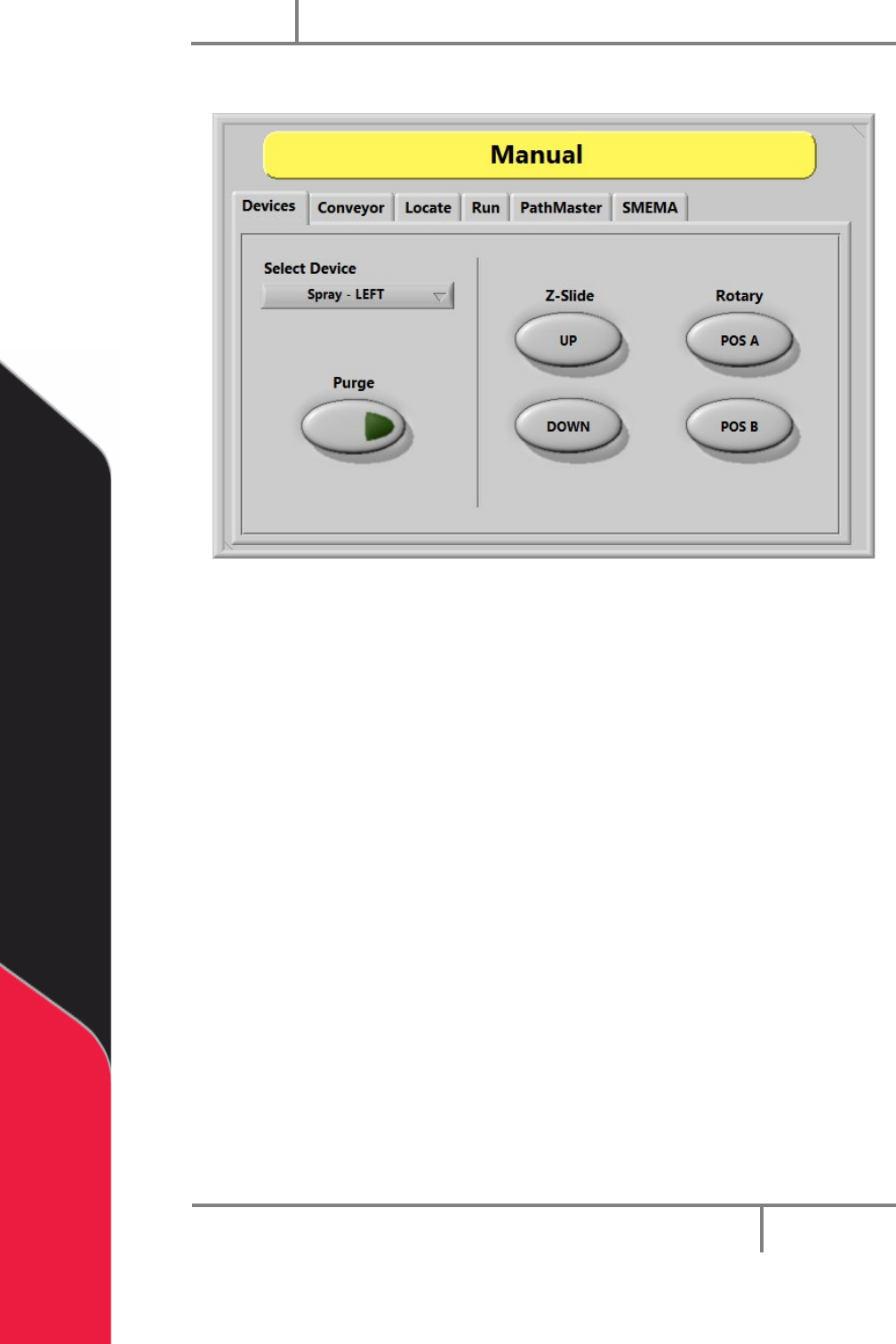
Figure 9: Device Selection, Manual Mode
Workcells with devices have Device Selection mode. Select the active head or valve from
the drop-down menu under the “Devices” tab. The pneumatics Z-slide(s) and rotary(s)
(if equipped) can be operated with the applicable buttons.
NOTE: When you program or operate the workcell, do not use the valve to
move components or boards. Precision Valve & Automation is not responsible
for damages caused from operating the valves incorrectly.
1. Select the “Devices” tab.
2. Select a device from the Select Device drop down menu.
3. Select “Purge” to operate the valve selected. The valve will purge until you
release the “Purge” button so it is no longer selected.
4. Select Z-Slide “UP” or “Down” to raise or lower the pneumatic Z-slide for the
active head.
5. Select Rotary “POS A” or “POS B” to put the rotary in the home position
(Default, A), or the auxiliary position (B).
Portal
PVA
Revision H (2018)
23 of 93
6.2 Conveyor Control
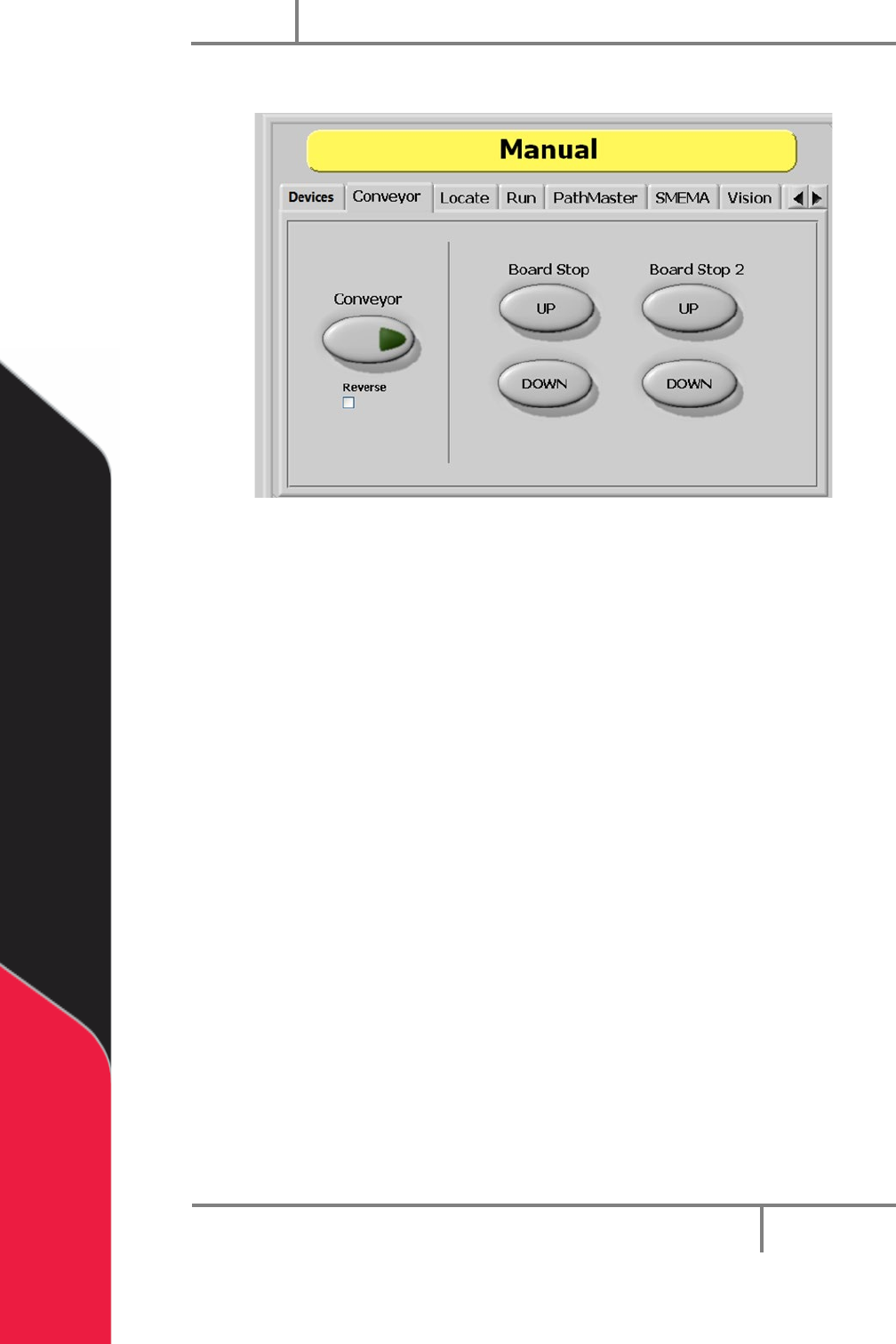
Figure 10: Conveyor Control, Manual Mode
The conveyor and the board stops are controlled under the “Conveyor” tab so the
operator can adjust the position of boards in the workcell. Only workcells with
conveyors will have this option.
1. Select the “Conveyor” tab.
2. Select the “Conveyor” button to toggle the conveyor on or off.
3. Select the “Reverse” (Bi-directional systems ONLY) checkbox to reverse
conveyor direction.
4. Select Board Stop “UP” to turn the board stops off.
5. Select Board Stop “DOWN” to turn the board stops on.
6. Board Stop 2 operates the upstream board stops for bi-directional systems. Do
steps 4 and 5 for Board Stop 2 to operate the upstream board stop. Could also
be for any additional stops like a buffer, queue zone, or conveyor.