Portal_Manual_1.2.1_Rev_H-1.pdf - 第27页
Portal PVA Revisio n H ( 2018 ) 27 of 93 6.6 SMEMA Statu s Fig ure 15 : SMEMA St atus, Manual Mode When the workcell is put in - line, SMEMA signals communicate with upstre am and do wnst ream machi nes. You can che ck t…
Portal
PVA
Revision H (2018)
26 of 93
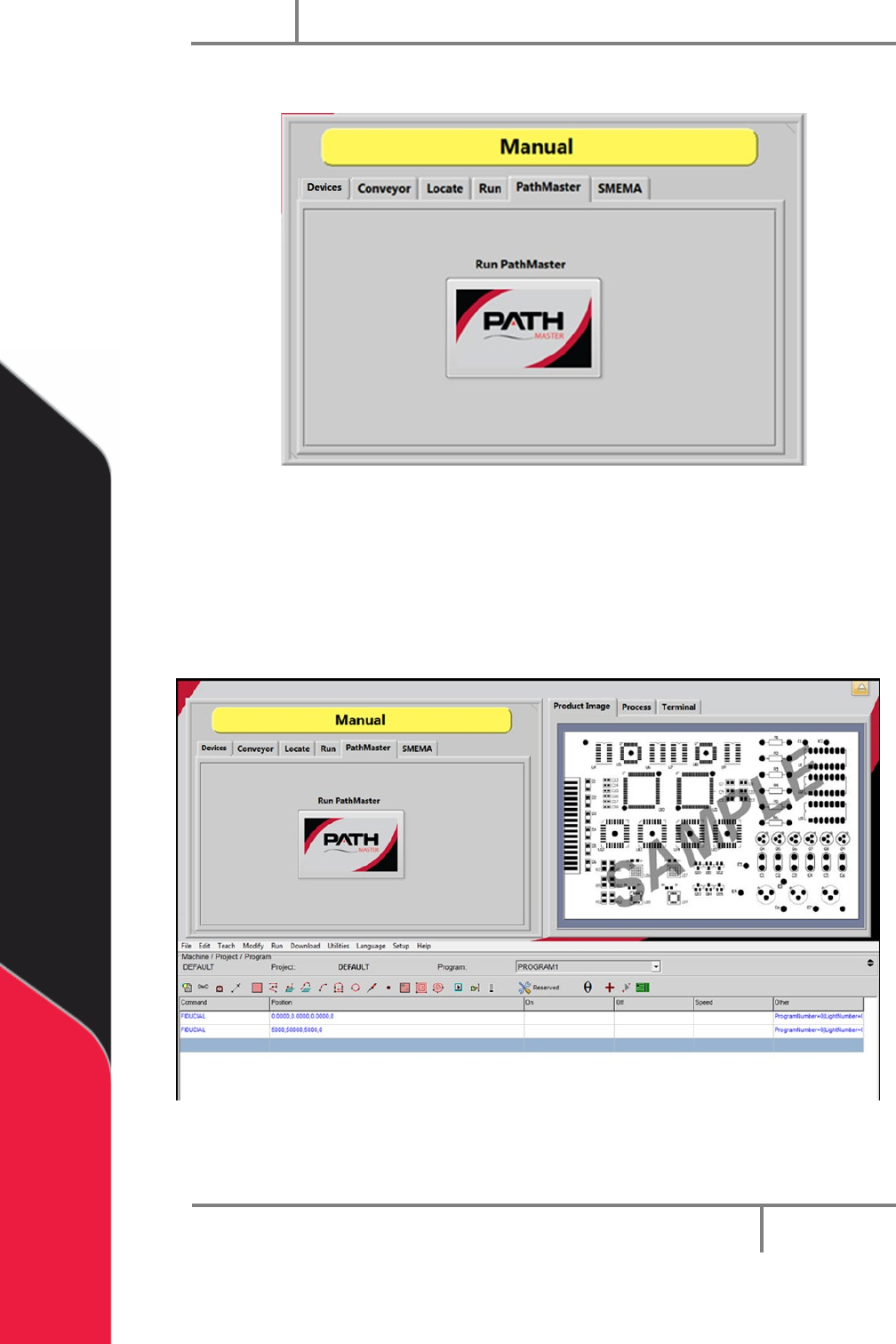
6.5 PathMaster®
Figure 13: Launch PathMaster from Manual Mode
This tab contains a button that launches the included PathMaster® software.
1. Select the PathMaster tab.
2. Select “Run PathMaster” to open the PathMaster®. The PathMaster window
will open below the Portal screen.
Figure 14: PathMaster Open in Manual Mode of Portal
Portal
PVA
Revision H (2018)
27 of 93
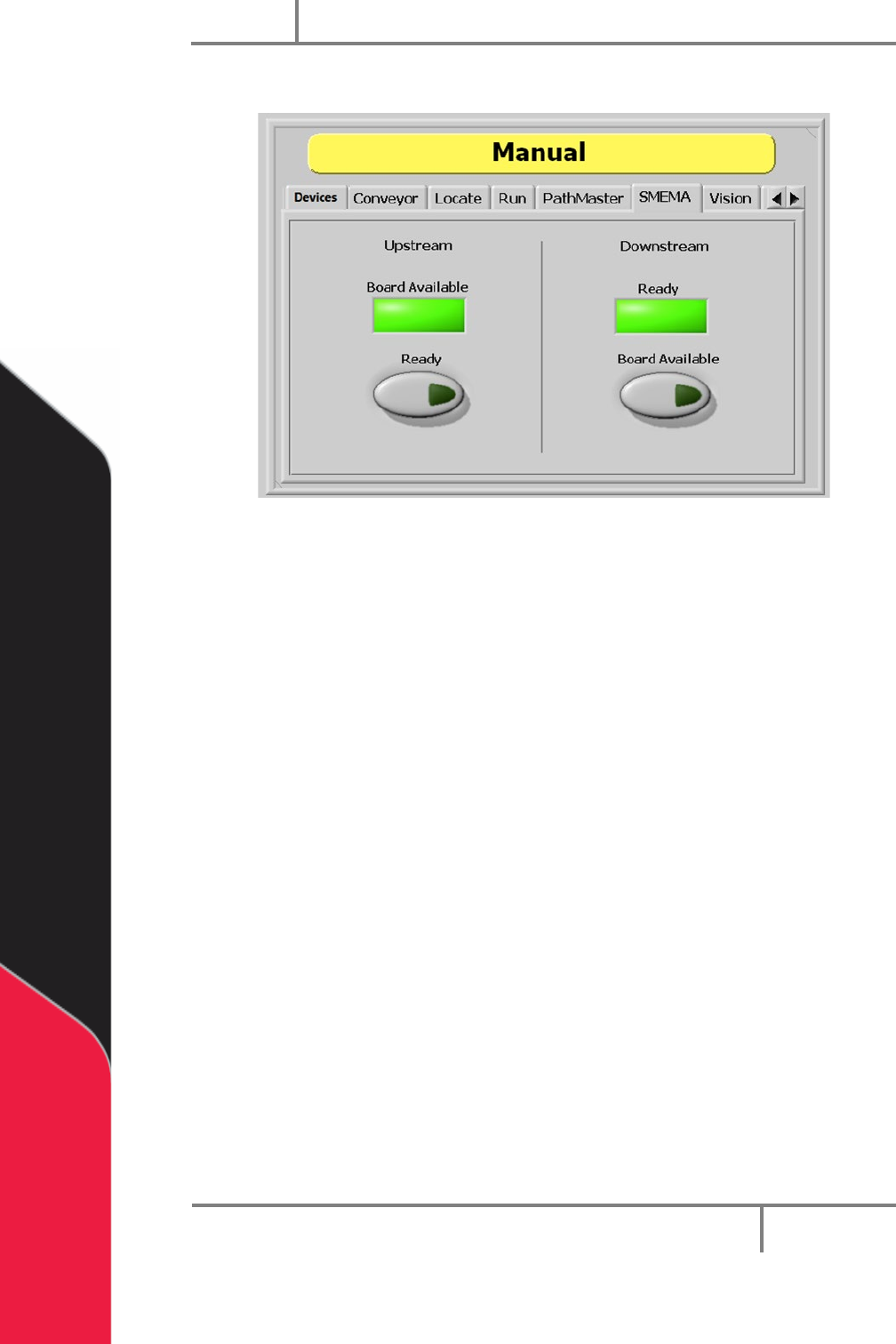
6.6 SMEMA Status
Figure 15: SMEMA Status, Manual Mode
When the workcell is put in-line, SMEMA signals communicate with upstream and
downstream machines. You can check the inputs to the workcell and change the
Upstream Ready and Downstream Board Available output signals under the “SMEMA”
tab.
1. Select the “SMEMA” tab.
The Upstream “Board Available” signal turns on when the upstream machine sends a
board available signal.
2. Select Upstream “Ready” to toggle the Ready output to the upstream machine
on or off. When on, the workcell can receive parts.
The Downstream “Ready” signal turns on when the downstream machine sends a ready
signal.
3. Select Downstream “Board Available” to toggle the Board Available output to
the downstream machine on or off. When on, the workcell can send parts.
Portal
PVA
Revision H (2018)
28 of 93
6.7 FIS
The PVA integrated factory information system (FIS) is an optional add-on. It is
configurable and will interface and handshake with the majority of factory information
systems. If necessary, messages can be customized.
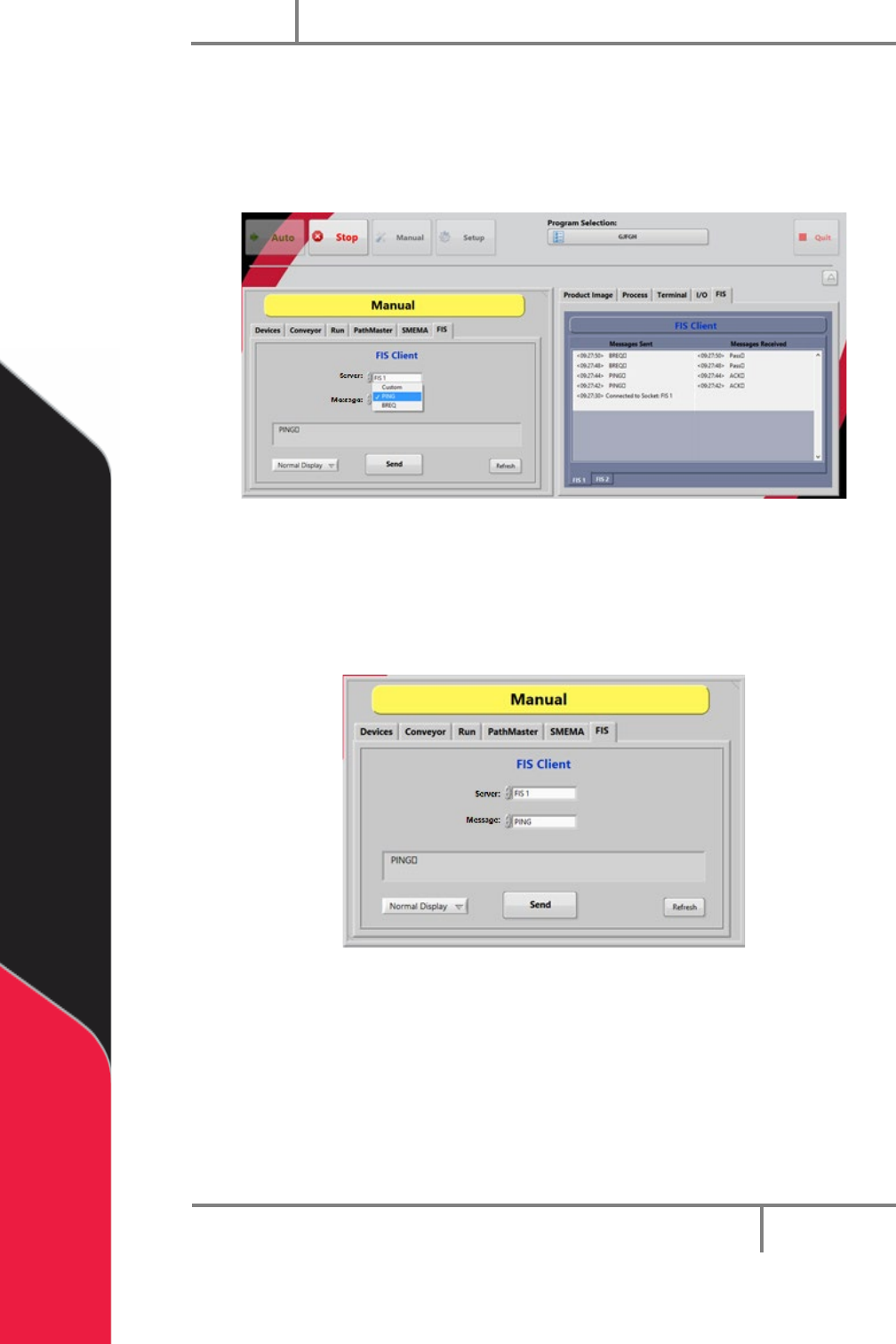
Figure 16: FIS Client Mode and Messages Screens
6.7.1 FIS Client Mode Screen
1. The FIS Client mode screen can be seen in manual mode when the FIS tab is
selected.
Figure 17: FIS Function
2. To change the display format, select an option from the Display drop down
menu (Normal, ‘\’ Code, Hex Code).
3. Select the Server menu to select the sever you want to send a message to. This
list is specific to each workcell.
4. Select the message you want to send from the Message drop down menu. The
message will be shown in the message box.