Portal_Manual_1.2.1_Rev_H-1.pdf - 第32页
Portal PVA Revisio n H ( 2018 ) 32 of 93 6.8.2 Manual Mode Vision Window The visio n window is used to set inspecti on attribu tes, create new fiducials ( from template), edit and test ins pections. Fig ure 21 : Manual V…
Portal
PVA
Revision H (2018)
31 of 93
6.8 Vision
For more information on vision and fiducials, refer to your vision manual.
6.8.1 Camera Window
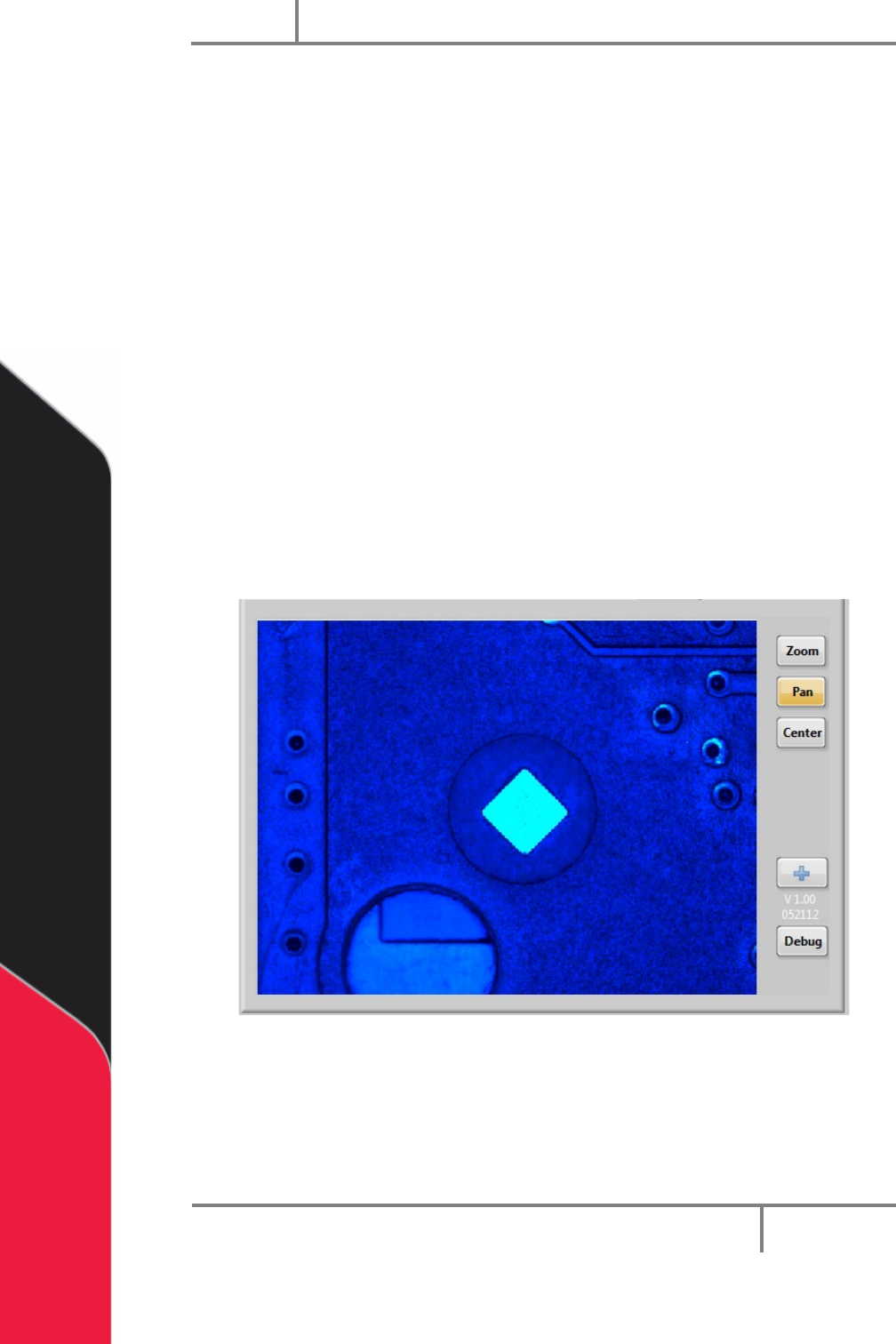
Shown below is the standard camera window. Each available function in the vision
window is explained below. To access the vision window select the Vision tab from the
system tab section of the screen.
• Select the “Zoom” button to zoom in, or increase the size of the image on the
screen. This is available for static or live images.
• Select the “Pan” button to move across the zoomed image.
• Select the “Center” button to make the image the original size and align it with
the center of the screen.
• Select the “+” (Crosshair) button to toggle the crosshair overlay on and off. This
is available for live and static images.
• Select the “Debug” button to toggle the debug message window on and off. To
hide the “Debug” button use the Vision.ini key.
Figure 20: Vision Window
Portal
PVA
Revision H (2018)
32 of 93
6.8.2 Manual Mode Vision Window
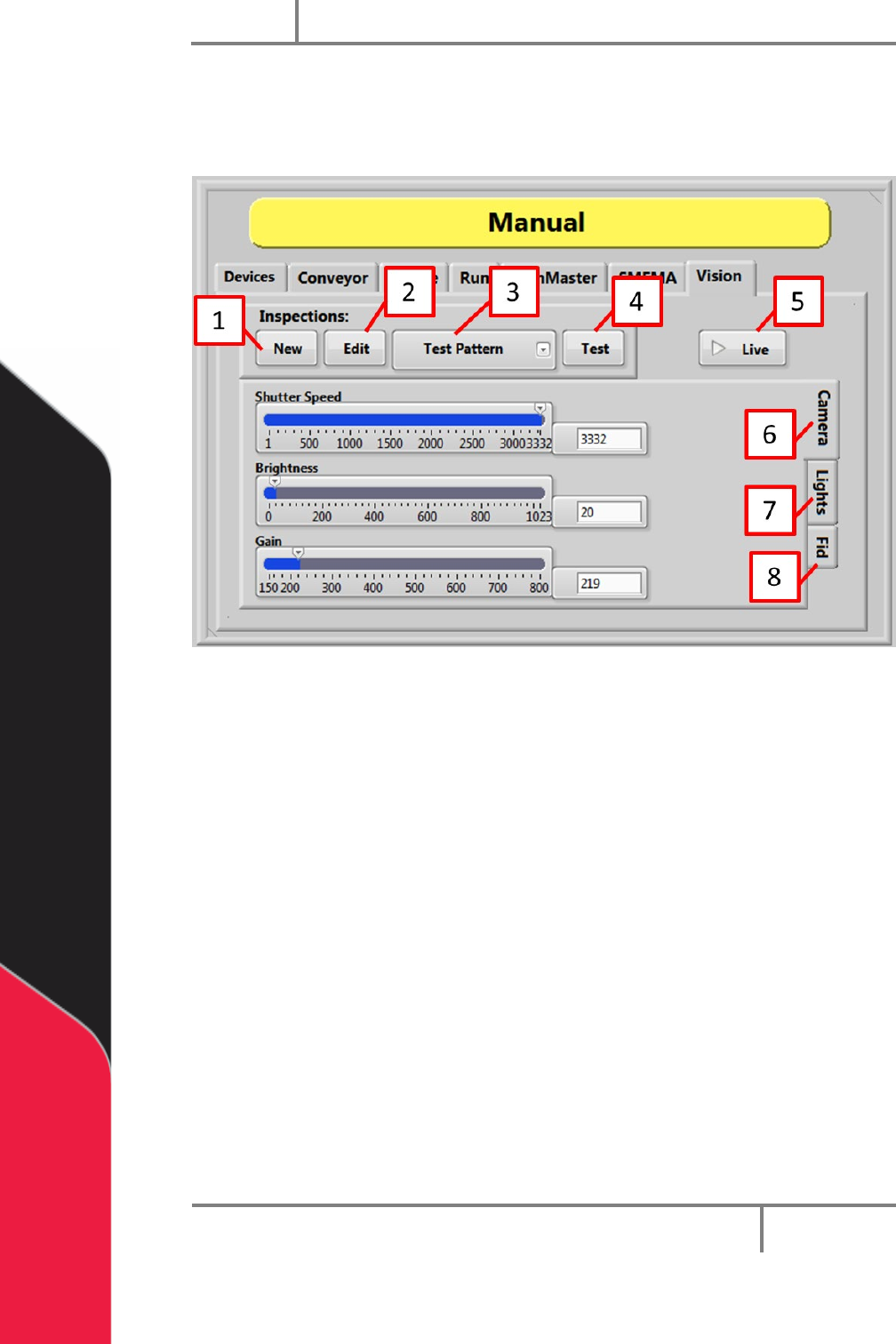
The vision window is used to set inspection attributes, create new fiducials (from
template), edit and test inspections.
Figure 21: Manual Vision, Camera
1. Select the “New” button to create a new inspection from a list of templates.
2. Select the “Edit” button to take the current image and open NI Vision Builder to
edit the steps of the current inspection.
3. Select the Select Inspection drop down menu to select the current inspection.
4. Select the “Test” button to take the current image and run the current
inspection.
5. Select the “Live” to toggle camera live mode on and off.
6. Select the “Camera Tab” to set the camera attributes related to the current
inspection. Also set the shutter speed, brightness, and gain.
Warning: The selected program is changed as soon as you change the image
adjustments for shutter speed, brightness, and gain.
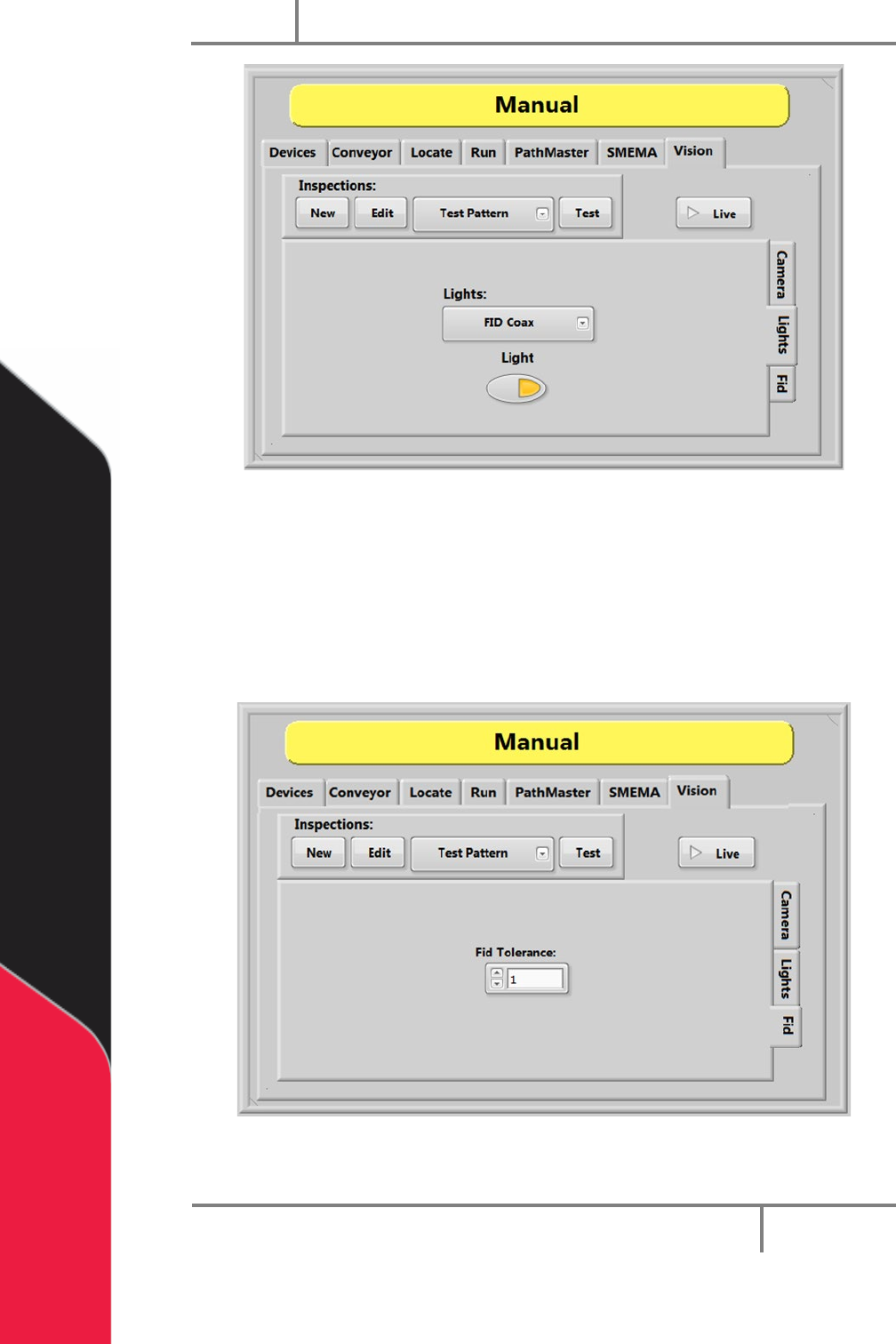
7. Select the “Light Tab” to toggle the selected light on and off. This is a manual
only function that does not change on the automated inspection.
Portal
PVA
Revision H (2018)
33 of 93
Figure 22: Manual Vision, Lights
8. Select the “Fid Tab” to set the tolerance for the B fiducial for the current
inspection.
NOTE: An inspection can be used for an A or B fiducial or general inspection
type. Fiducial tolerance is the radial tolerance from nominal for a fiducial B
type inspection. Refer to the PathMaster Vision manual for more information.
Figure 23: Manual Vision, Fid