Portal_Manual_1.2.1_Rev_H-1.pdf - 第48页
Portal PVA Revisio n H ( 2018 ) 48 of 93 9.2.2 Process P ressure The Pressu re tab is on the r ight side of the syste m tabs scre ens under th e Pr oc e ss tab. This sc reen shows the proces s pressure . Fig ure 36 : Pro…
Portal
PVA
Revision H (2018)
47 of 93
9.1.1 Adding Product Images
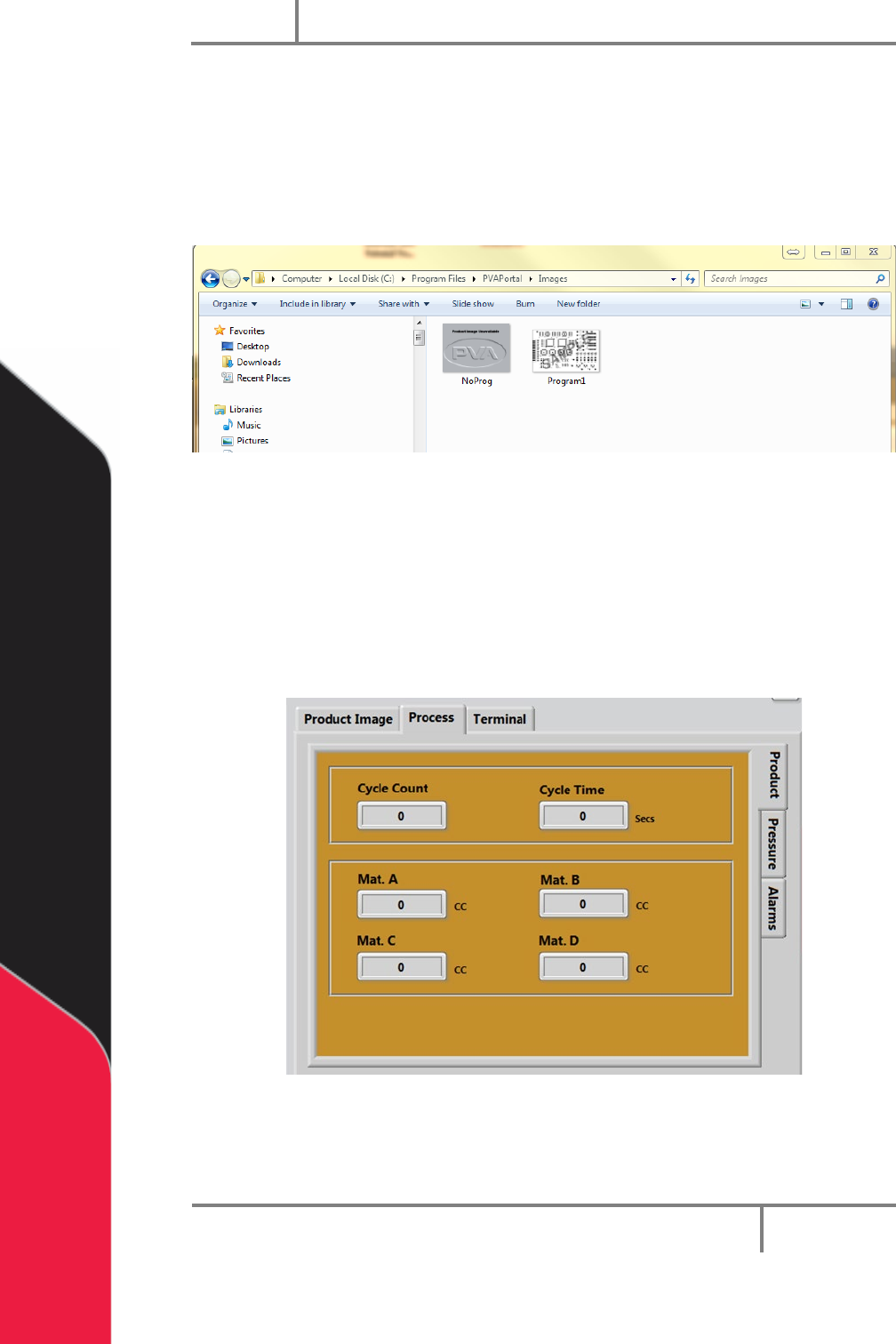
1. Copy and Paste the Product Image to the following Directory:
C:\Program Files\PVAPortal\Images
Note: The images must be JPEG/JPG file type.
2. Rename the file to match the PathMaster Program Name.
Figure 34: Product Image Directory
9.2 Process
9.2.1 Product
The Product tab is on the right hand side of the system tabs screens under the Process
tab. This screen shows the cycle count and cycle time. It also shows the material volume
from the previous Auto Cycle or One Shot Run. The data is updated after every run.
Figure 35: Process Product Tab
Portal
PVA
Revision H (2018)
48 of 93
9.2.2 Process Pressure
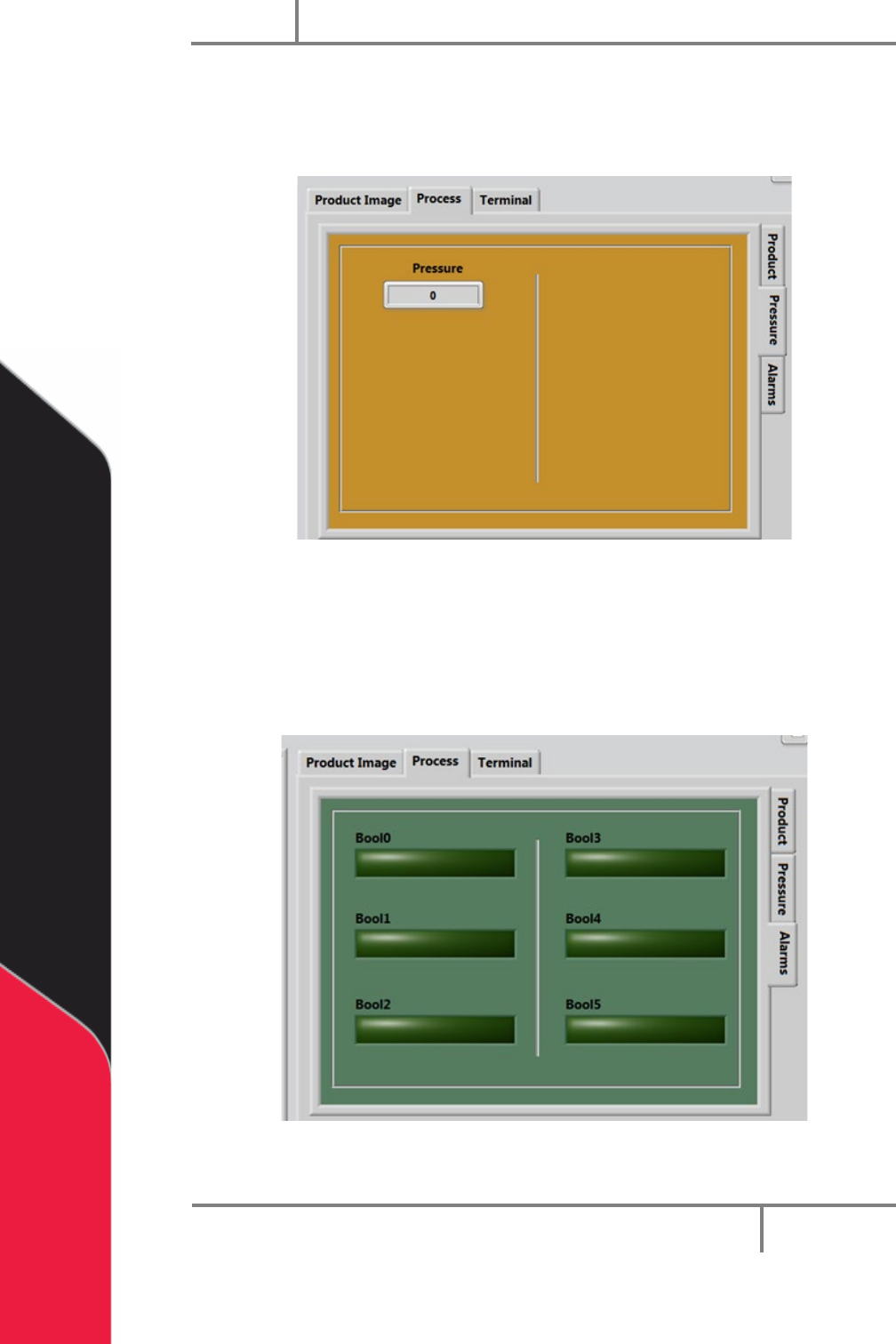
The Pressure tab is on the right side of the system tabs screens under the Process tab.
This screen shows the process pressure.
Figure 36: Process Pressure Tab
9.2.3 Process Alarms
The Alarms tab will show the operator any preconfigured system faults/warnings. These
alarms are process dependent. Refer to your workcell specific manual for more
information.
Figure 37: Process Alarms Tab
Portal
PVA
Revision H (2018)
49 of 93
9.3 Terminal
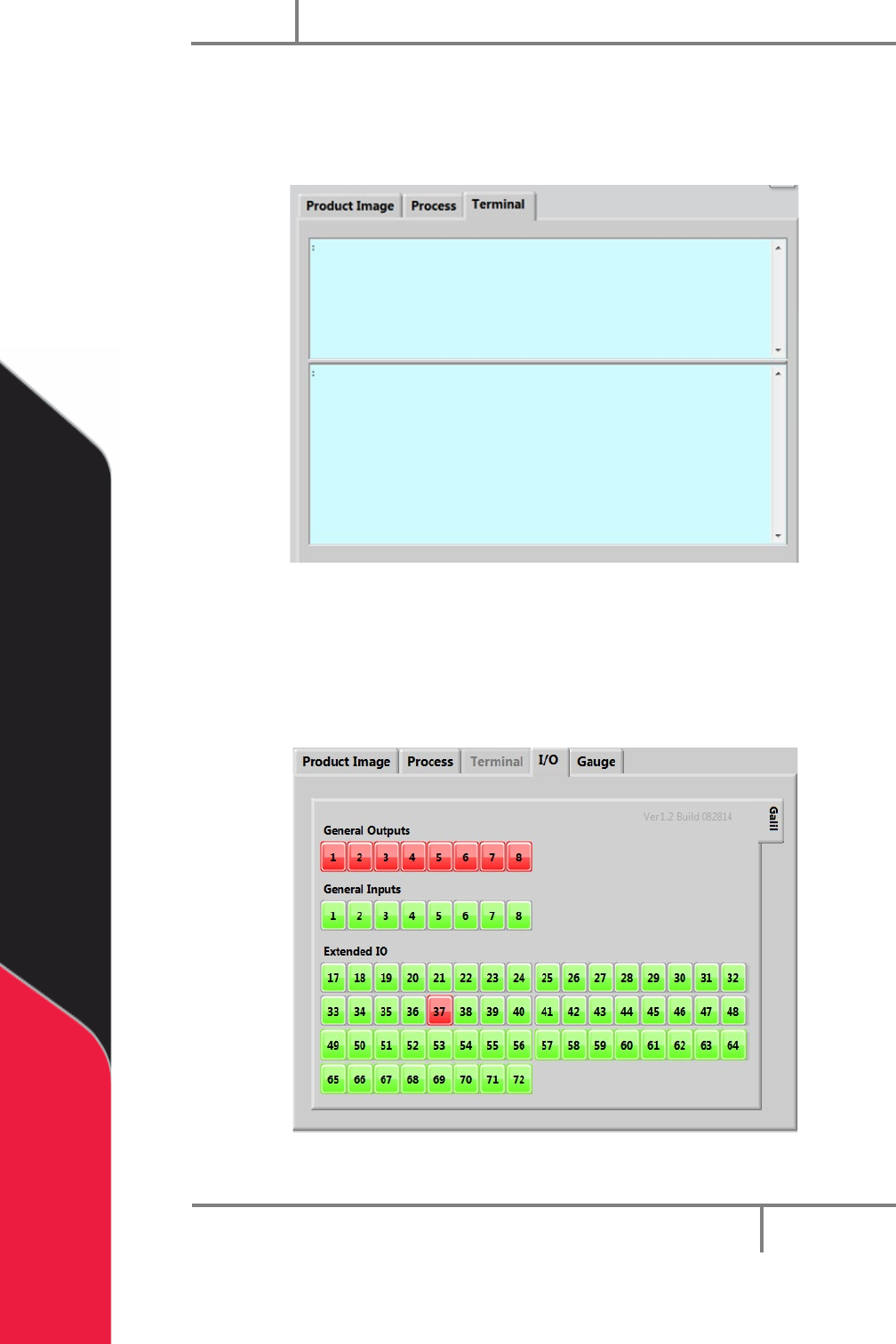
The terminal is used to communicate with the controller. The terminal is used as a
debug tool.
Figure 38: Terminal
9.4 I/O
The outputs can be toggled on and off and inputs can be verified in this window. Refer
to the electrical schematics for I/O designation.
Figure 39: I/O Screen