Portal_Manual_1.2.1_Rev_H-1.pdf - 第57页
Portal PVA Revisio n H ( 2018 ) 57 of 93 Fig ure 51 : Portal S hutdown Opti ons NOTE: Make sure t hat the PC has be en correctl y shutdown BEFOR E you stop power to the workce ll! Refer to your workcell man ual for addit…
Portal
PVA
Revision H (2018)
56 of 93
10.7 Shut Down Procedure
If the machine is in cycle, wait for the cycle to finish and then return to Cycle Stop mode.
The machine must be in Cycle Stop mode to shut down.
NOTE: If your system needs to be flushed before it is shutdown, you must flush
the system before you shutdown Portal.
1. If you are in auto cycle wait for the cycle to finish.
2. Select the “Stop” button.
3. Close PathMaster.
4. Select “Quit” on the Portal interface, on the right side of the window.
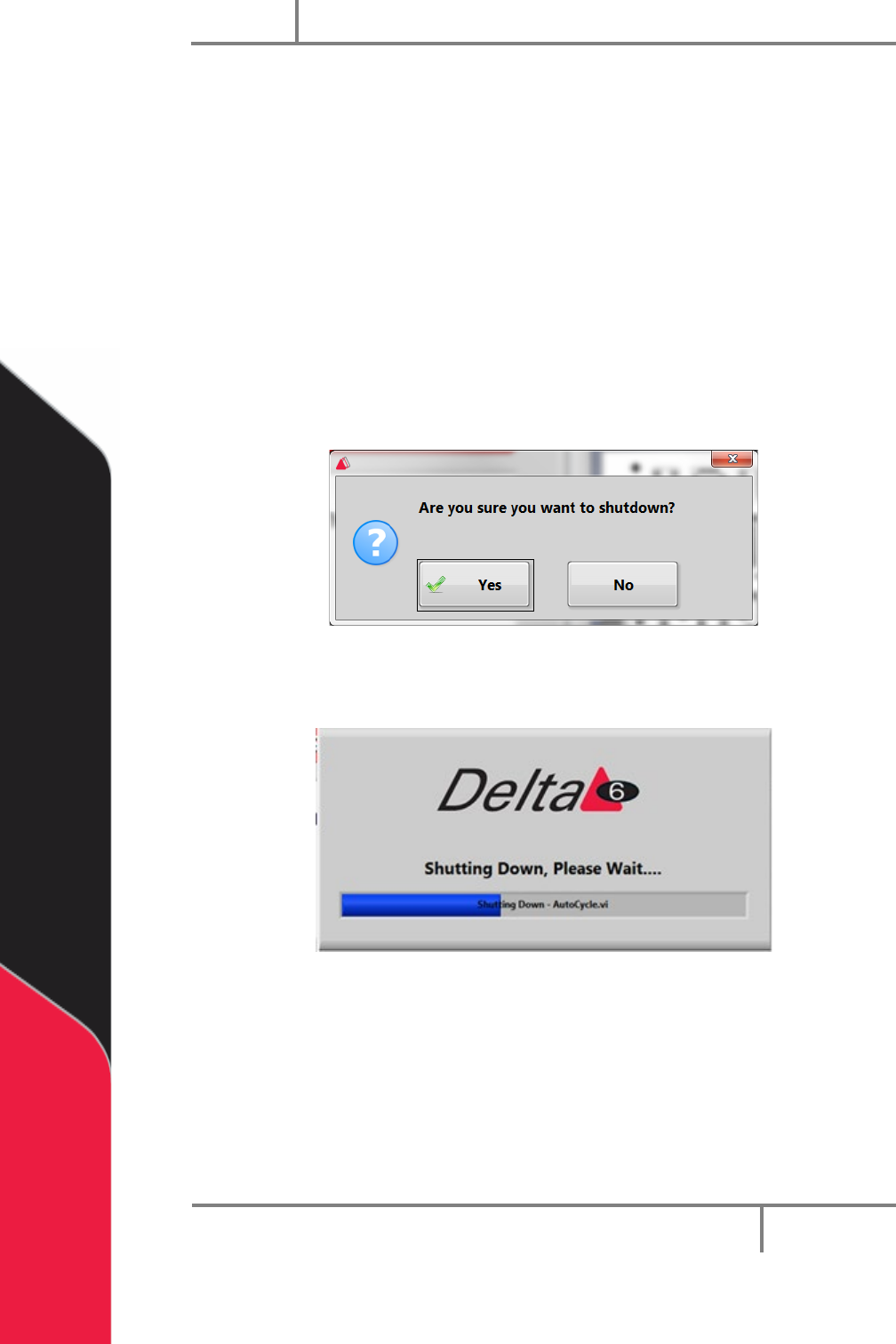
5. The screen below will be shown, select “Yes”.
Figure 49: Portal Shutdown Question
A screen will show that Portal is shutting down.
Figure 50: Portal Shutdown Screen
6. When Portal is closed the Portal Shell window will be shown. Select the
“Shutdown” button to shut down the attached PC.
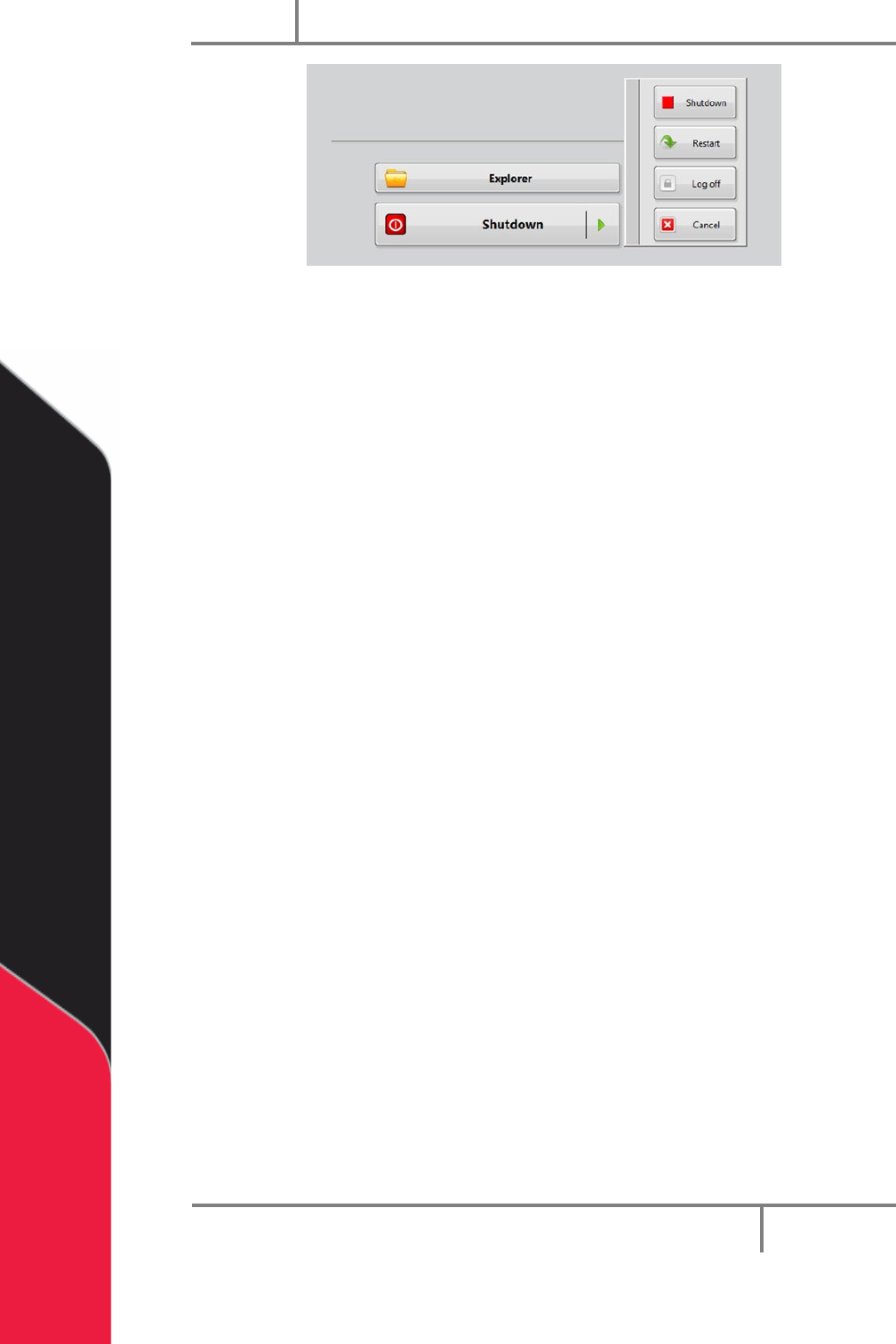
7. To restart or log off select the green arrow on the Shutdown button and select
the For a list of ways to exit the Portal Shell screen without turning off the
computer, push the “F1” button on your keyboard. A window with shortcuts to
exit the Portal Shell will be shown.
Portal
PVA
Revision H (2018)
57 of 93
Figure 51: Portal Shutdown Options
NOTE: Make sure that the PC has been correctly shutdown BEFORE you stop
power to the workcell!
Refer to your workcell manual for additional information on how to shut down your
workcell.
Portal
PVA
Revision H (2018)
58 of 93
11 Portal Permissions
Each user must have a password and user name. After any changes are made you must
log out and log back in for any changes to be seen. To add a user or make changes to the
password or user permissions do the steps that follow:
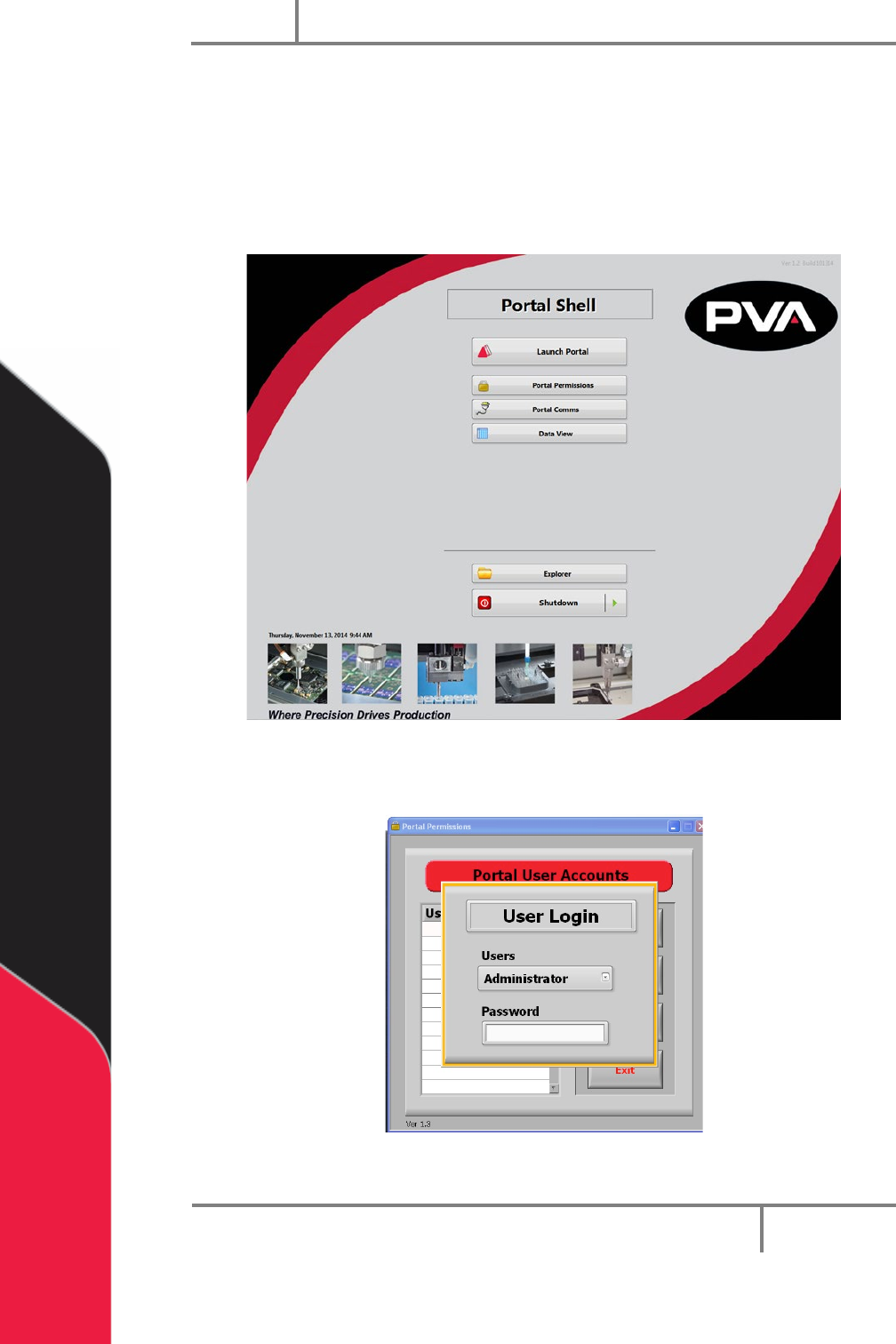
1. Select Portal Permissions from the Portal Shell screen.
Figure 52: Portal Permissions
2. The administrator must login.
Figure 53: Administrator Login