Portal_Manual_1.2.1_Rev_H-1.pdf - 第59页
Portal PVA Revisio n H ( 2018 ) 59 of 93 3. When t h e a dmini st rator is logged in , you h ave ac cess to portal user accounts and can select the perm is sio ns for eac h u se r. Fig ure 54 : User Accounts
Portal
PVA
Revision H (2018)
58 of 93
11 Portal Permissions
Each user must have a password and user name. After any changes are made you must
log out and log back in for any changes to be seen. To add a user or make changes to the
password or user permissions do the steps that follow:
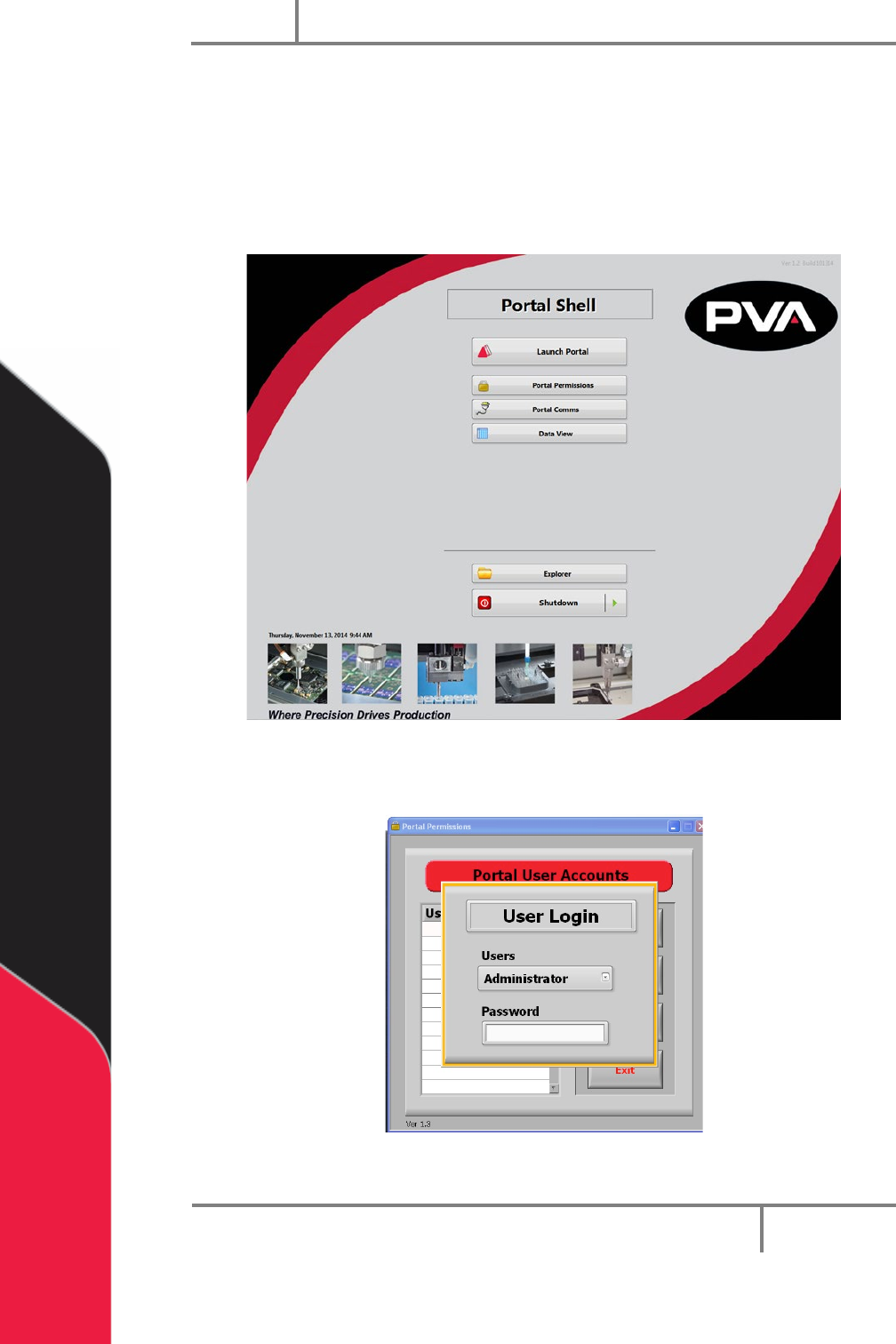
1. Select Portal Permissions from the Portal Shell screen.
Figure 52: Portal Permissions
2. The administrator must login.
Figure 53: Administrator Login
Portal
PVA
Revision H (2018)
59 of 93
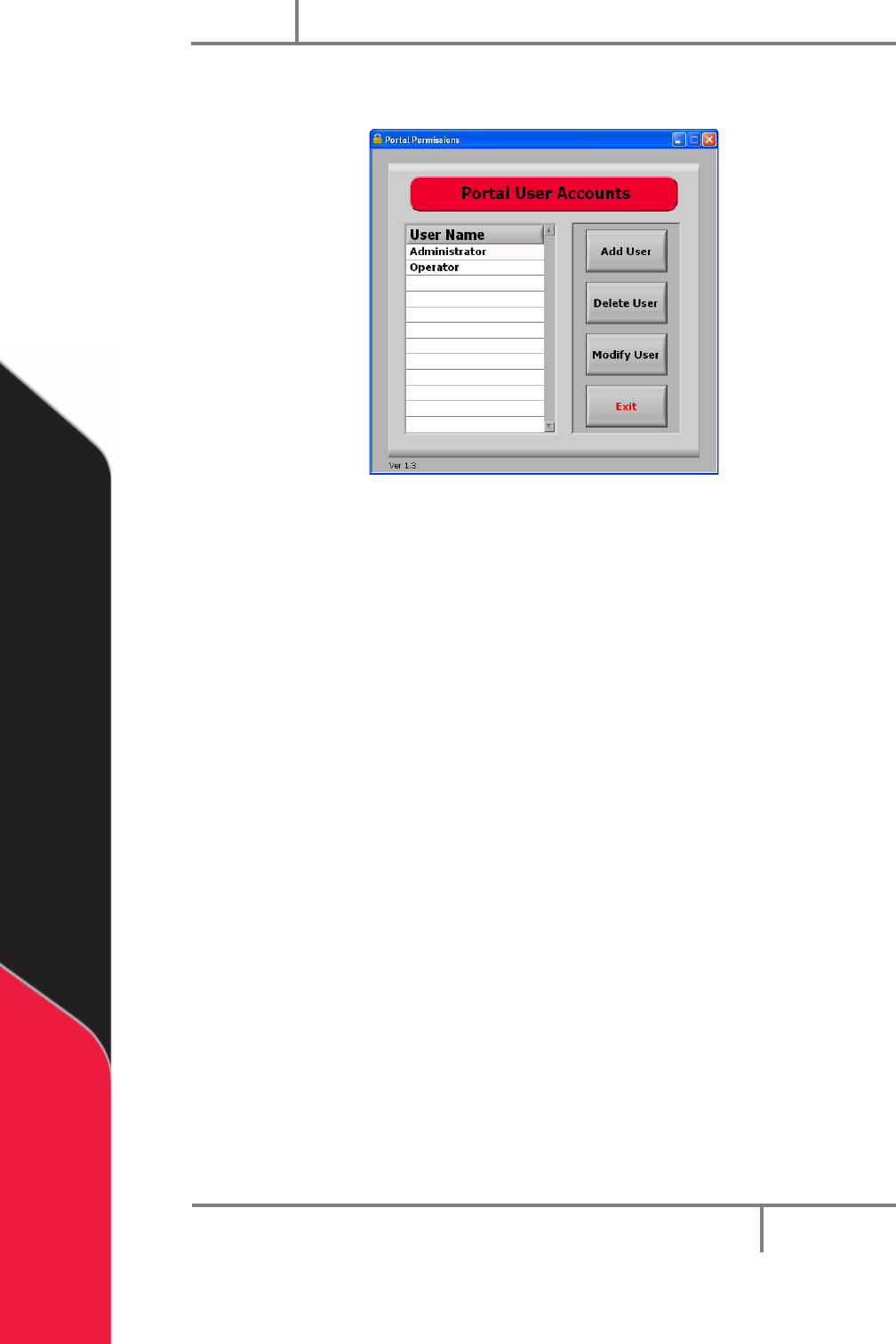
3. When the administrator is logged in, you have access to portal user accounts
and can select the permissions for each user.
Figure 54: User Accounts
Portal
PVA
Revision H (2018)
60 of 93
11.1 To Add a User Account
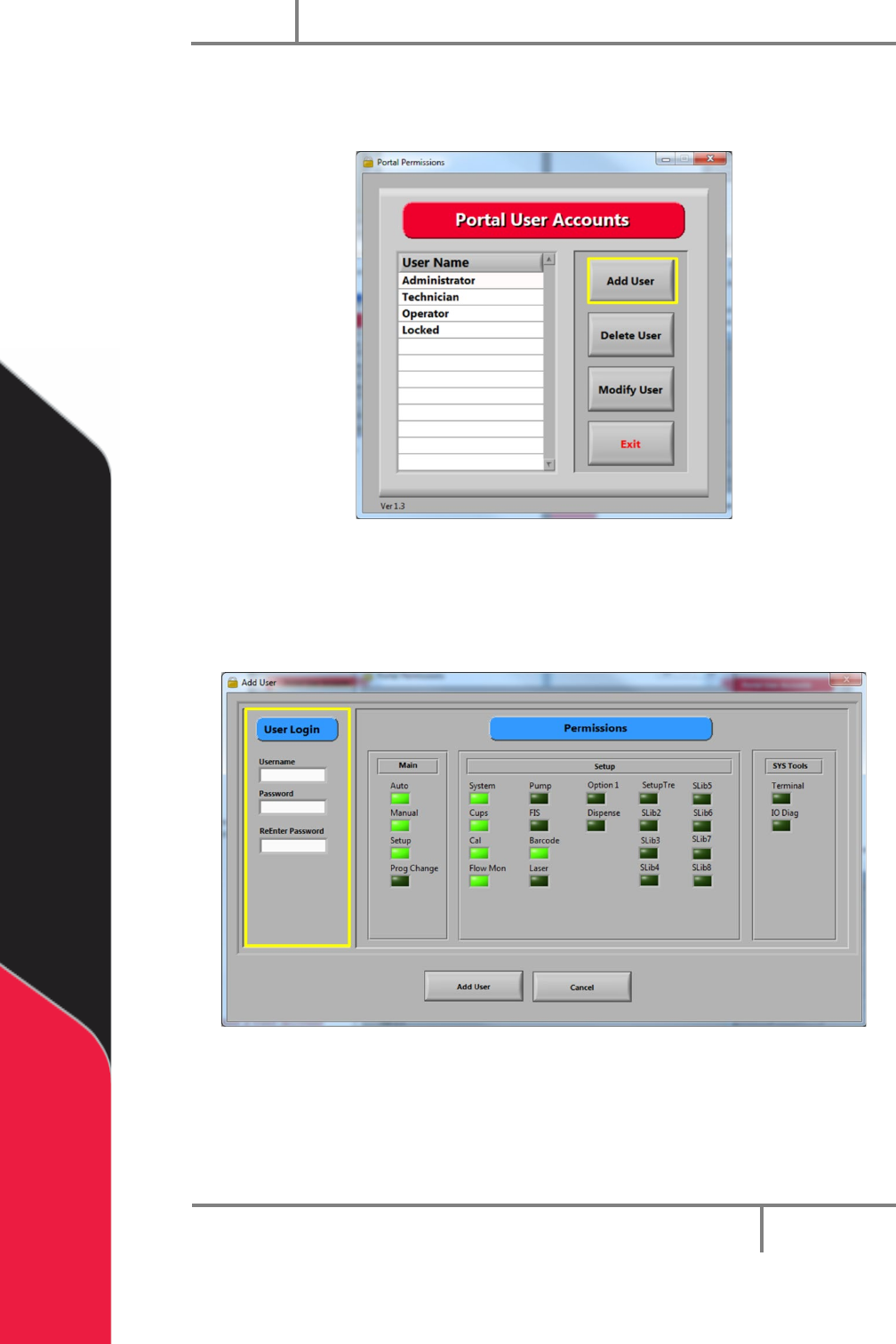
1. Select “Add User”.
Figure 55: Select "Add User"
2. Under User Login, type the Username, Password, and ReEnter Password.
3. Select the correct Permissions for the user, click on the related permissions
boxes. When selected, the boxes will be bright green.
Figure 56: Add User and Permissions
4. Select “Add User”.
5. Do steps 1-4 as many times as necessary to set up all users.
6. Select “Exit” to save and close portal user accounts.