Portal_Manual_1.2.1_Rev_H-1.pdf - 第61页
Portal PVA Revisio n H ( 2018 ) 61 of 93 11.2 To Mo dify Use r Accou nts 1. Select the U ser Name you want to change . Fig ure 57 : Select a User 2. Select “ Modify User ”. Fig ure 58 : Modify User 3. Change the user set…
Portal
PVA
Revision H (2018)
60 of 93
11.1 To Add a User Account
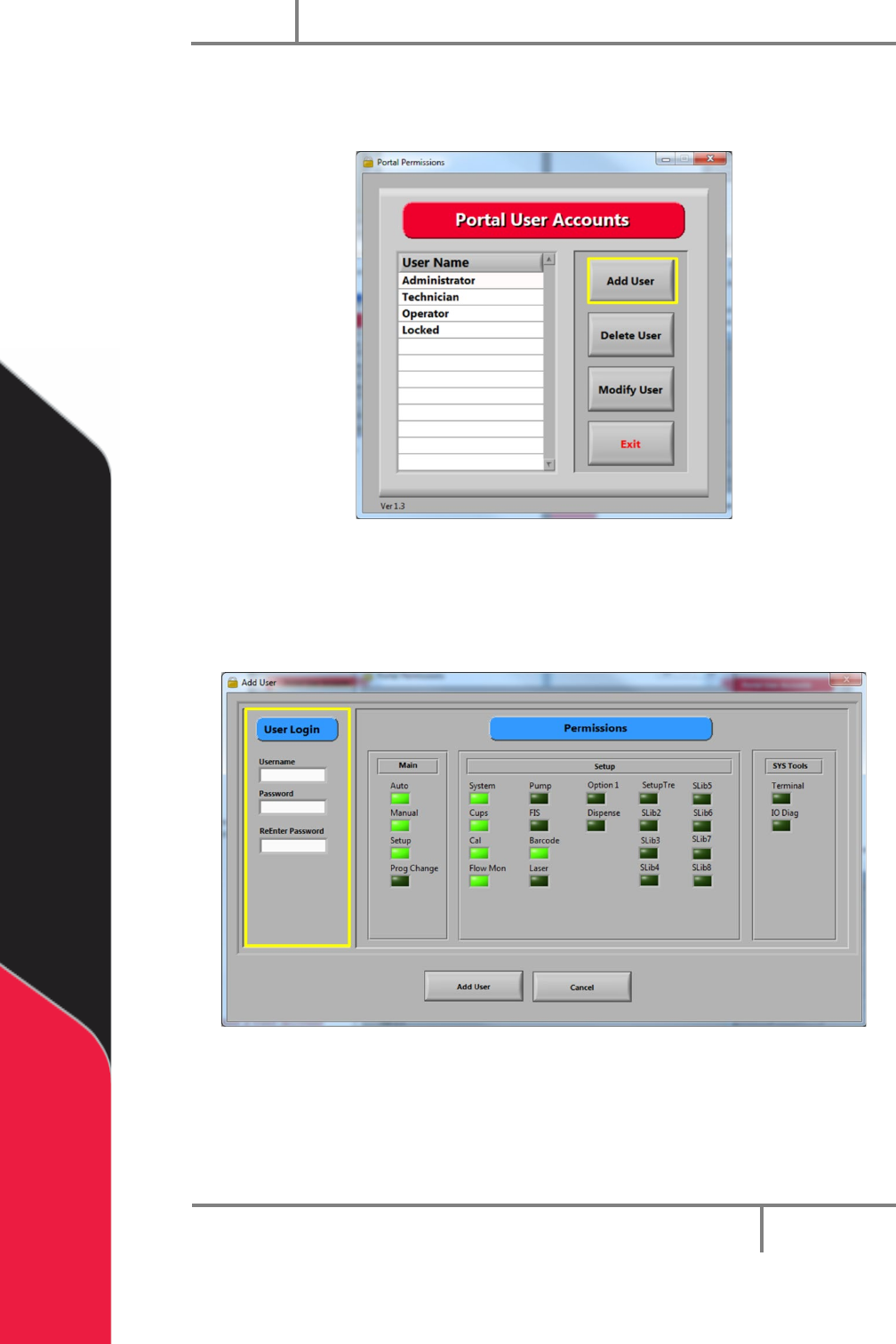
1. Select “Add User”.
Figure 55: Select "Add User"
2. Under User Login, type the Username, Password, and ReEnter Password.
3. Select the correct Permissions for the user, click on the related permissions
boxes. When selected, the boxes will be bright green.
Figure 56: Add User and Permissions
4. Select “Add User”.
5. Do steps 1-4 as many times as necessary to set up all users.
6. Select “Exit” to save and close portal user accounts.
Portal
PVA
Revision H (2018)
61 of 93
11.2 To Modify User Accounts
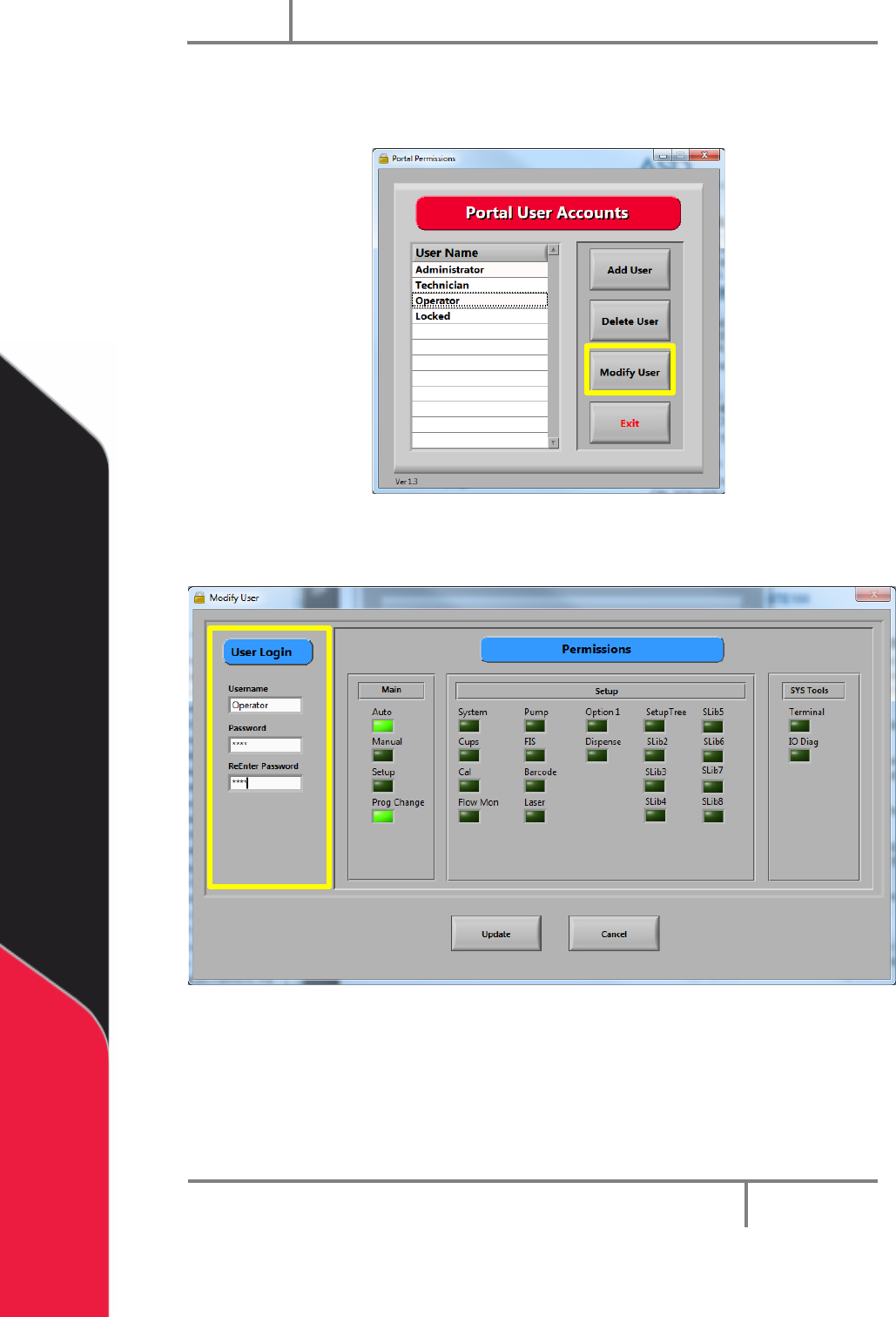
1. Select the User Name you want to change.
Figure 57: Select a User
2. Select “Modify User”.
Figure 58: Modify User
3. Change the user settings. Select new permissions, or change the user password.
4. Select “Update” to save.
Portal
PVA
Revision H (2018)
62 of 93
12 Portal Communications
Portal communications contains the parameters for communicating between Portal and
the galil. There are two virtual communications established with the controller, the
Primary Connection, and the Unsolicited Connection.
NOTE: Changing the IP Address, Port, or Handle will cause communications
issues unless main program modifications are done correctly. Contact PVA
before you change any default values.
12.1 Communications
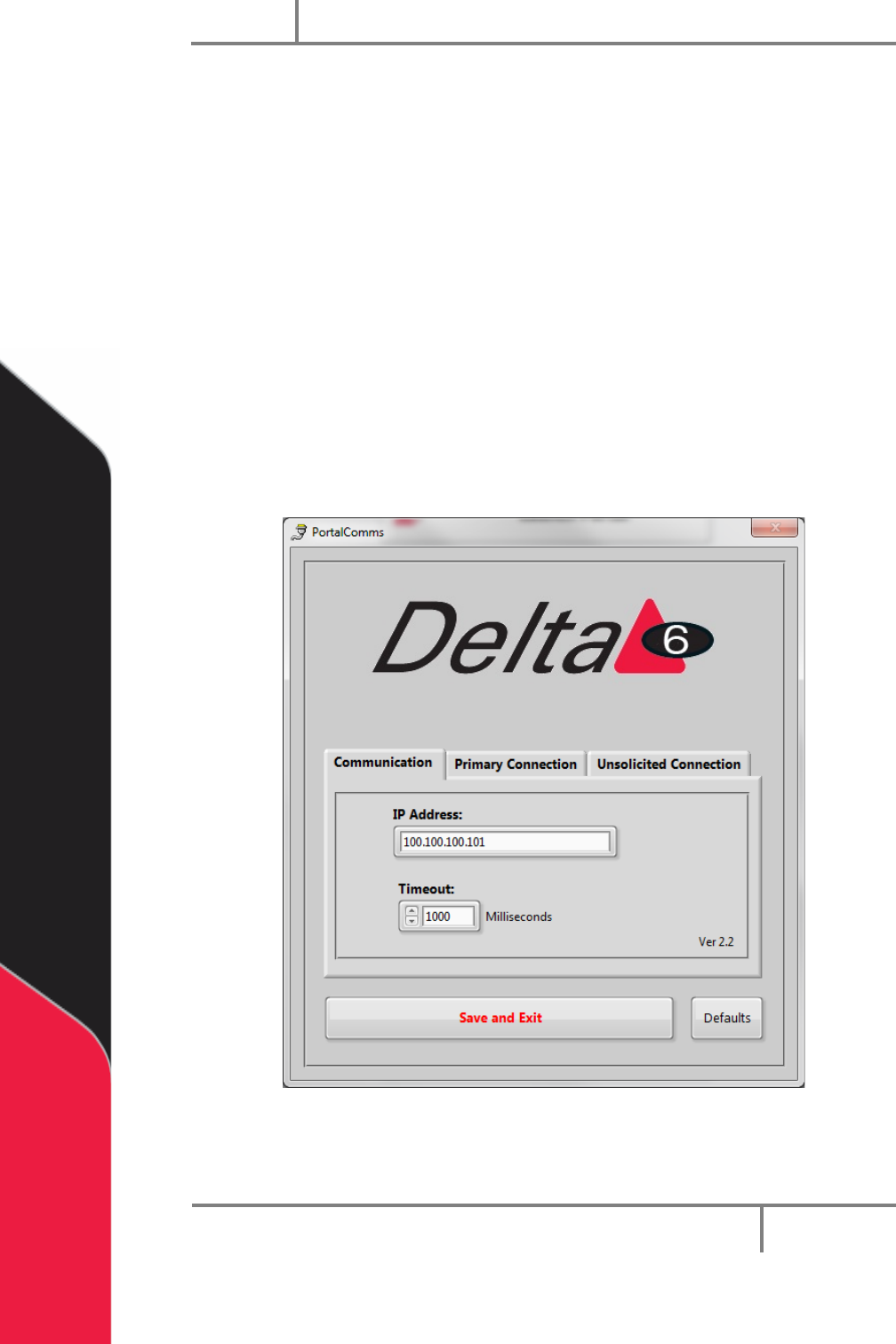
The communications tab has the IP Address and the Timeout.
1. To change the IP Address, type the value in the box.
2. To change the Timeout value, type a new value in the box or use the arrows to
increase or decrease the value.
Figure 59: PortalComms Communication