Portal_Manual_1.2.1_Rev_H-1.pdf - 第65页
Portal PVA Revisio n H ( 2018 ) 65 of 93 13 Data View The Portal Dataview application can ru n as a standalone application or as an embedded version wi thin PVA Portal. The standalone version c an be resized, maxim ized …
Portal
PVA
Revision H (2018)
64 of 93
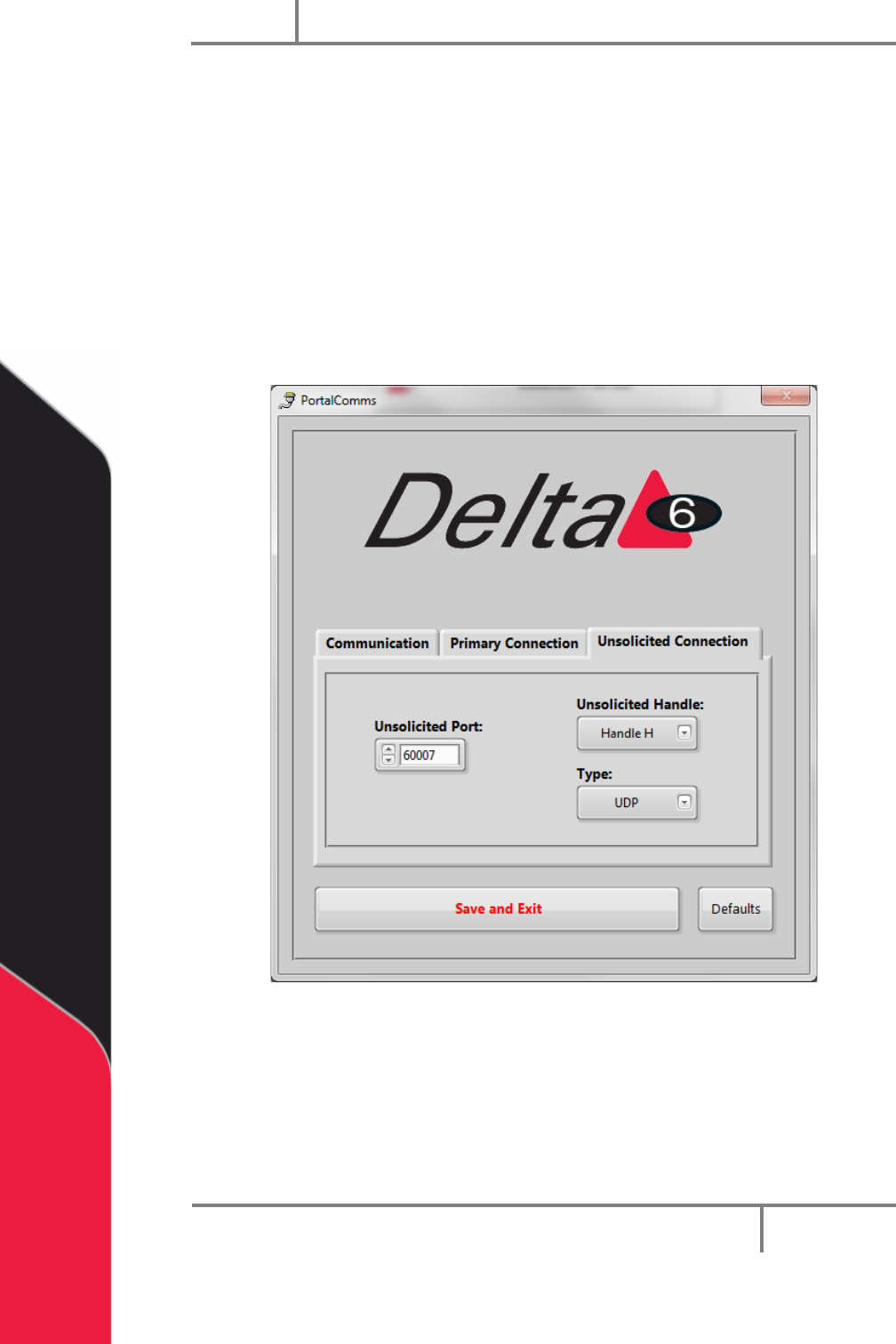
12.3 Unsolicited Connection
The Unsolicited Connection tab has the settings for the system messages
communication between the Galil and Portal.
• The Unsolicited Handle and Type must be different from the settings for the
primary connection.
• Select the arrow next to the setting to select a setting from the drop down
menu.
• You can select “Defaults” at any time to return the Unsolicited Connection
settings to the default factory settings.
Figure 61: PortalComms Unsolicited
Portal
PVA
Revision H (2018)
65 of 93
13 DataView
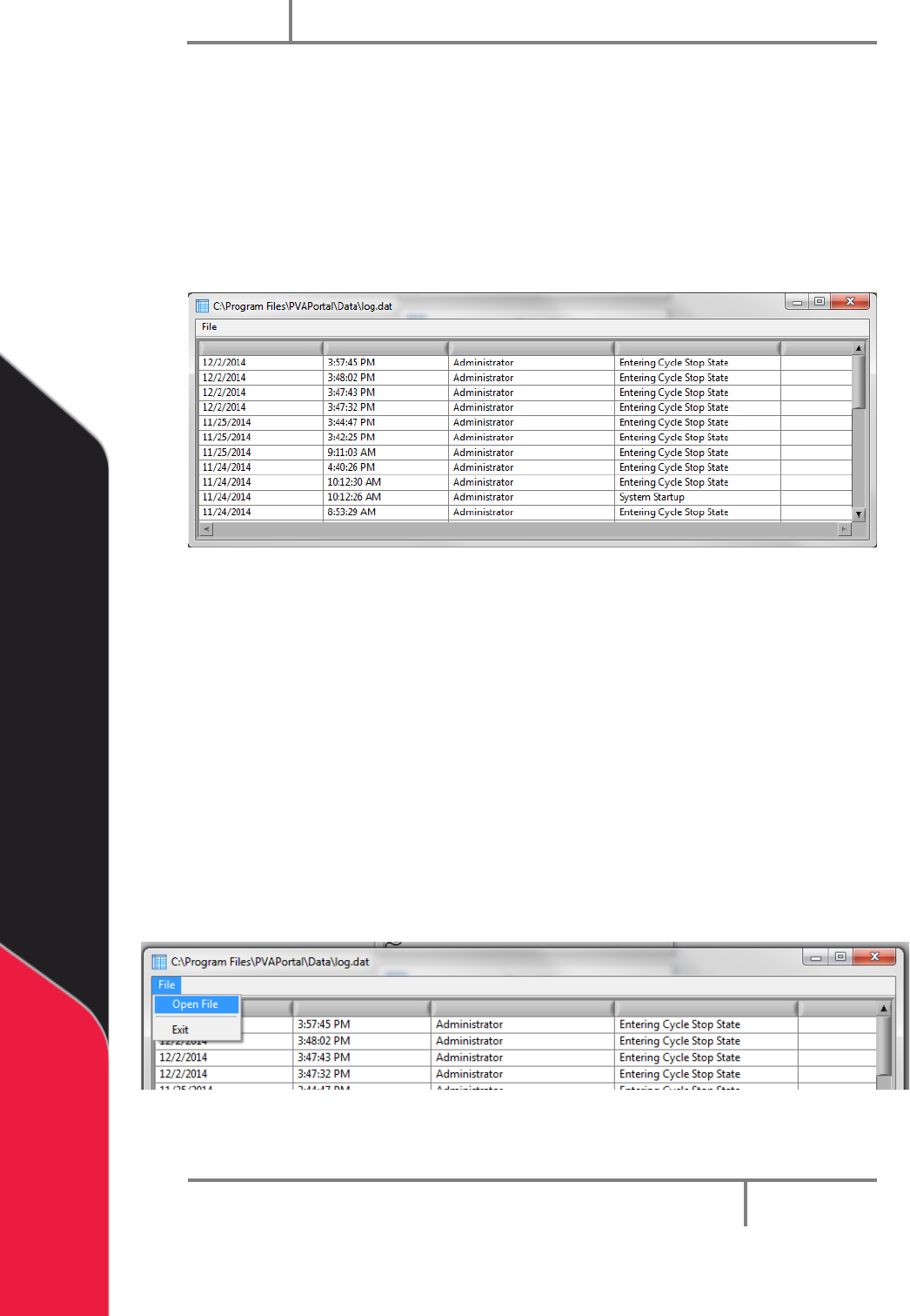
The Portal Dataview application can run as a standalone application or as an embedded
version within PVAPortal. The standalone version can be resized, maximized or
minimized. The embedded version in the Log tab on the main Portal screen and has a
fixed dimension that is sized accordingly. Additional configuration of each version of the
DataView app is handled in the Portal Sysconfig.ini file. Refer to the ini configuration
parameters listed below for more information.
Figure 62: Log File
13.1 Startup Log File
PVAPortal can write data to any of 10 different log files, however, DataView can only
Display the content of one log file at a time. On startup, the default log file is loaded
into DataView.
The default log is configured by setting the ‘InitialLogFile’ key in the [DataView] section
of the configuration files.
To load a log file other than the initial log file:
1. With DataView is running in the standalone version, select the File -> Open File
on the menu bar.
Figure 63: Open File from Standalone DataView
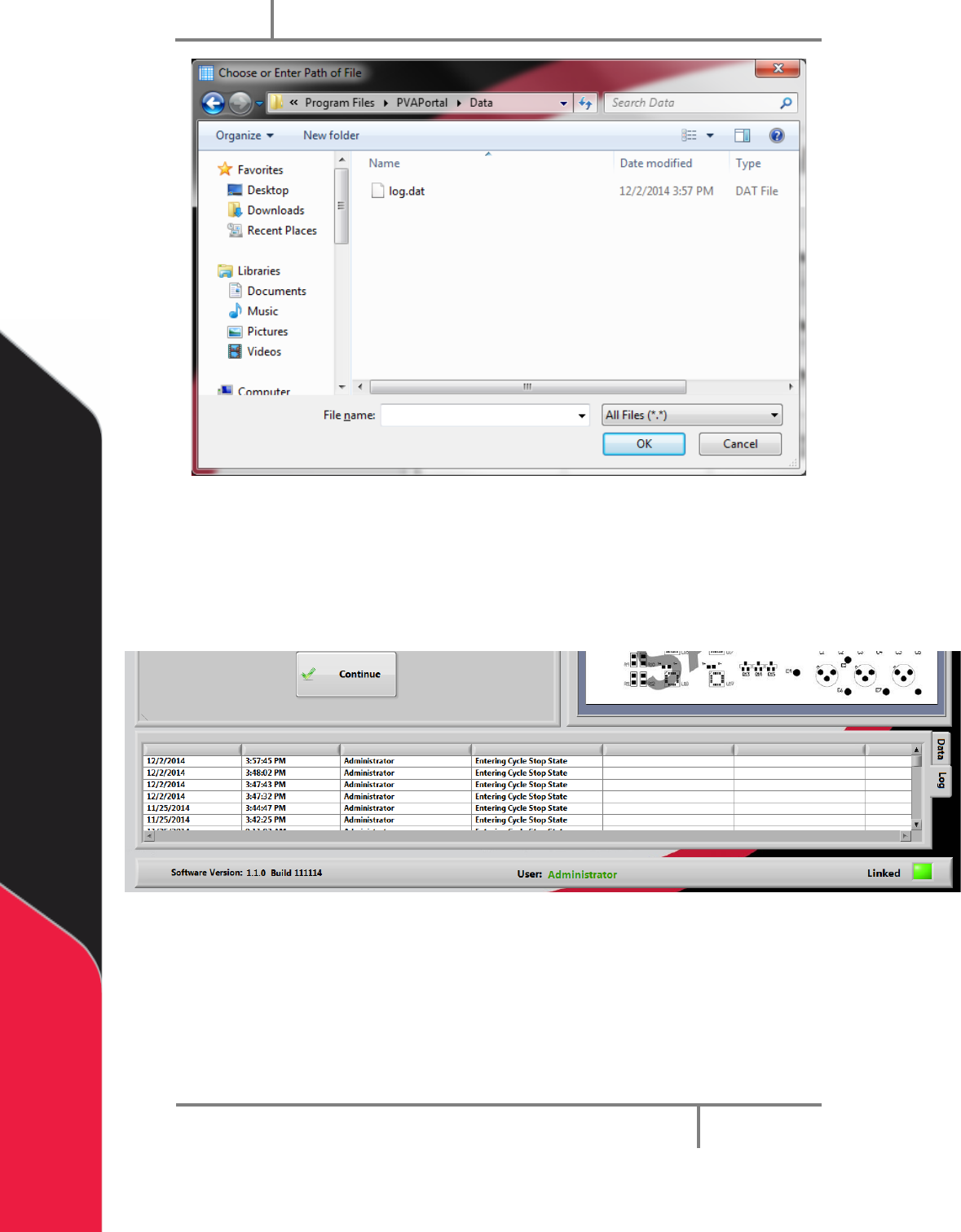
2. Select the log file you want to view.
Portal
PVA
Revision H (2018)
66 of 93
Figure 64: Log File Selection
3. For the embedded version, press and hold the ‘CTRL’ key while ‘double clicking’
the data grid to select a log file to view. The Standalone version can be
launched from within Portal by pressing and holding the ‘ALT’ key while ‘double
clicking’ the data grid.
Figure 65: Embedded DataView