Portal_Manual_1.2.1_Rev_H-1.pdf - 第68页
Portal PVA Revisio n H ( 2018 ) 68 of 93 Fig ure 68 : Column He ader 3. Select “ OK ” t o accept the selected highligh ted part. Fig ure 69 : Se lec t "O K" 4. Use the arrows to expand or collapse the window to…
Portal
PVA
Revision H (2018)
67 of 93
14 Part Manager
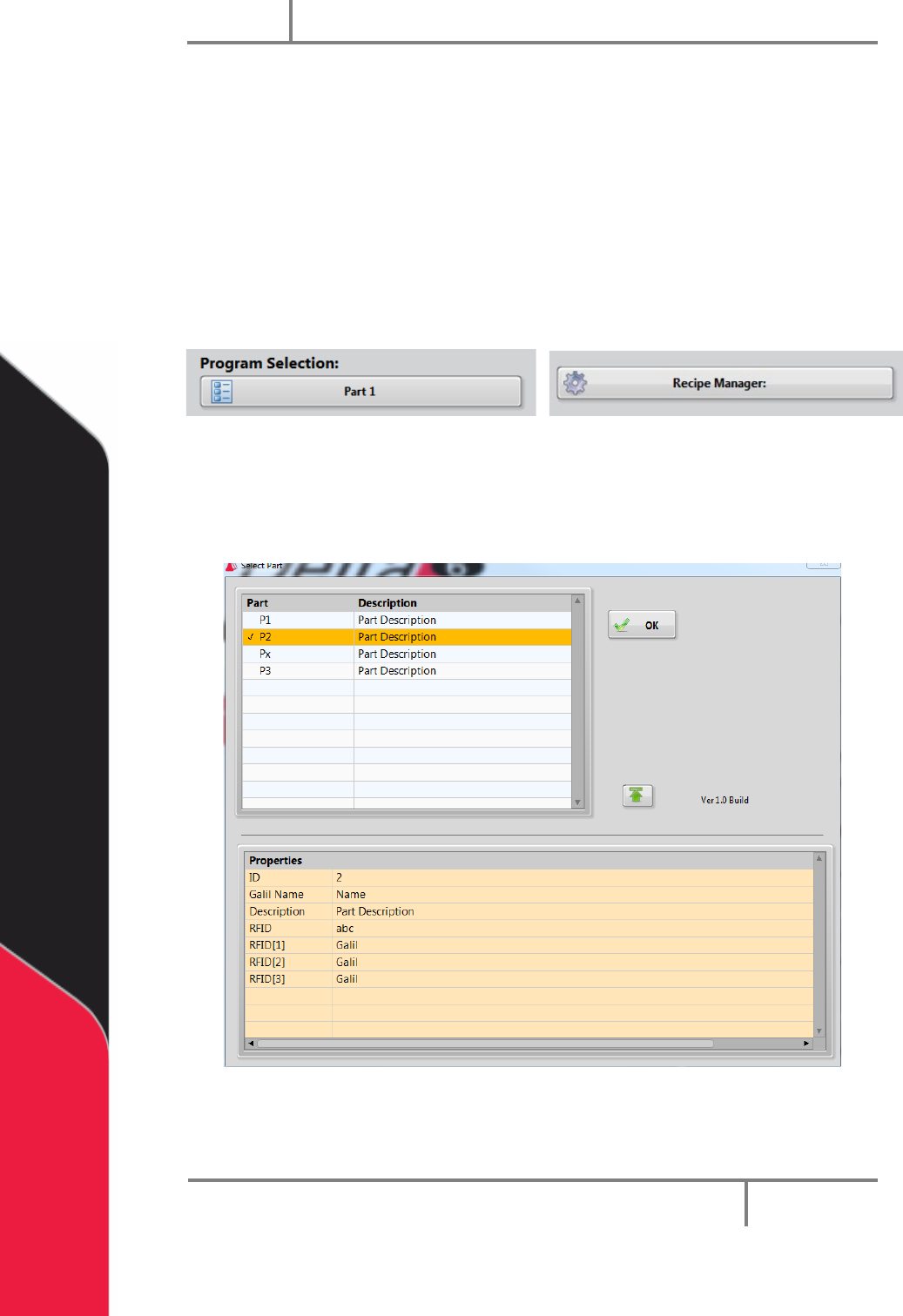
Part Manager is an embedded library used to manage Portal Part Selection and
Part Recipes. Part recipes can be configured in the Recipe Manager window. The
Recipe Manager window is accessible from the Portal Part Selection field when
in the workcell is in Setup mode. The structure of a recipe can be defined from
the ‘PartDataType.cfg’ file.
In Setup Mode you will have the Recipe Manager drop down menu. In every other
mode, the drop down menu will say Program Selection.
Figure 66: Recipe Manager and Program Selection
14.1 Part Selection Console
1. To see the part selection console, select the drop down menu and select a part.
Figure 67: Part Selection Console
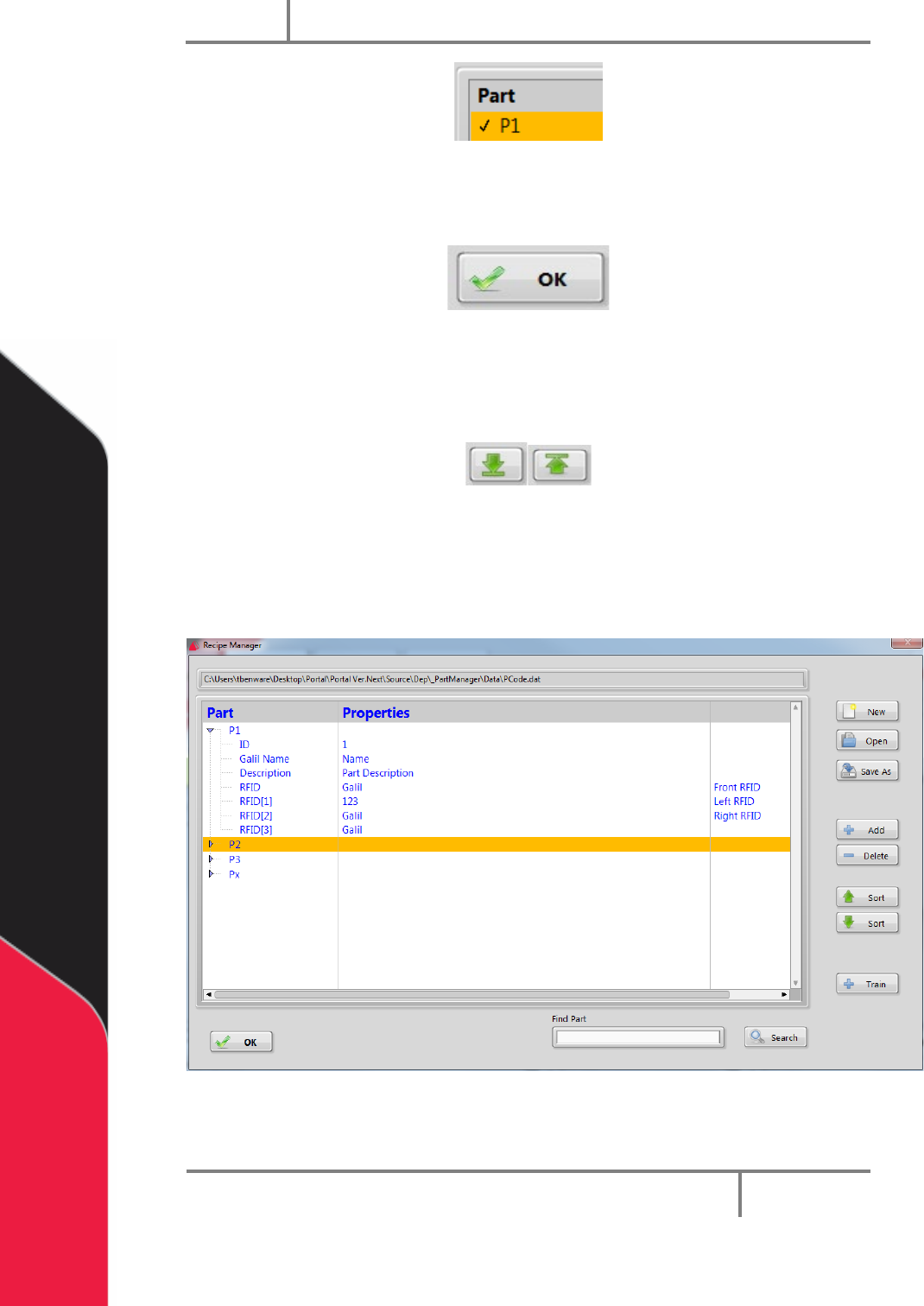
2. Select the column header to sort the part view.
Portal
PVA
Revision H (2018)
68 of 93
Figure 68: Column Header
3. Select “OK” to accept the selected highlighted part.
Figure 69: Select "OK"
4. Use the arrows to expand or collapse the window to view or hide Current Part
Properties.
Figure 70: Expand or Collapse Window
14.2 Recipe Manager
1. In Setup Mode, select “Recipe Manager” to go to the recipe manager.
Figure 71: Recipe Manager
2. Select the “New” button to create a new Dataset file.
Portal
PVA
Revision H (2018)
69 of 93
3. Select “Open” to open an existing Dataset file.
4.
Select “Save As” to save the current Dataset file as a new Dataset file
(Make a copy).
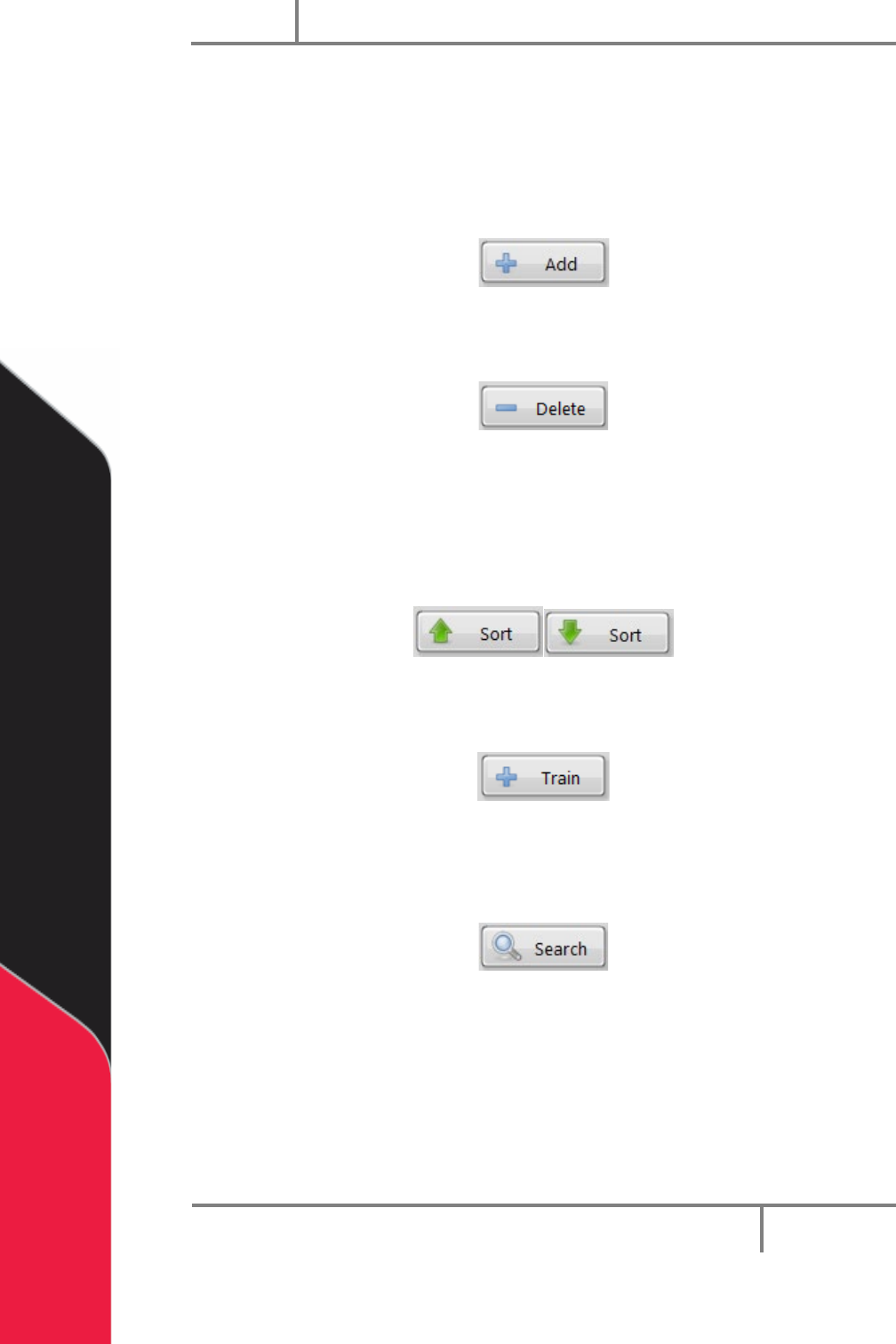
5. Select “Add” to add a new part to the current data set. Make sure the new part
name is unique.
Figure 72: Add
6. Select “Delete” to delete the selected part record.
Figure 73: Delete
7. The part record can be viewed in ascending or descending order. To view the
part record in ascending order, select the “Sort” button with the up arrow. To
view the part record in descending order, select the “Sort” button with the
down arrow.
Figure 74: Sort
8. Select “Train” to add a new part record based on a trained part code.
Figure 75: Train
9. Select “Search” to search for a part by name in the current dataset. The search
is case sensitive.
Figure 76: Search
14.2.1 To Edit Part Name or Part ID
• To edit a Part Name or Part ID, hold the CTRL key down and double click the
necessary field. This prevents accidental edits to these fields.