Portal_Manual_1.2.1_Rev_H-1.pdf - 第71页
Portal PVA Revisio n H ( 2018 ) 71 of 93 14.3 To Tr ain A Ne w Part T o make a new part record, you must train a partcode. A partcode coul d be a b arcode, RFID t ag, etc. Partcode s must be unique to the datase t. I f t…
Portal
PVA
Revision H (2018)
70 of 93
14.2.2 To Edit a Property Field
1. To edit a property field, click on the part name to expand the property list.
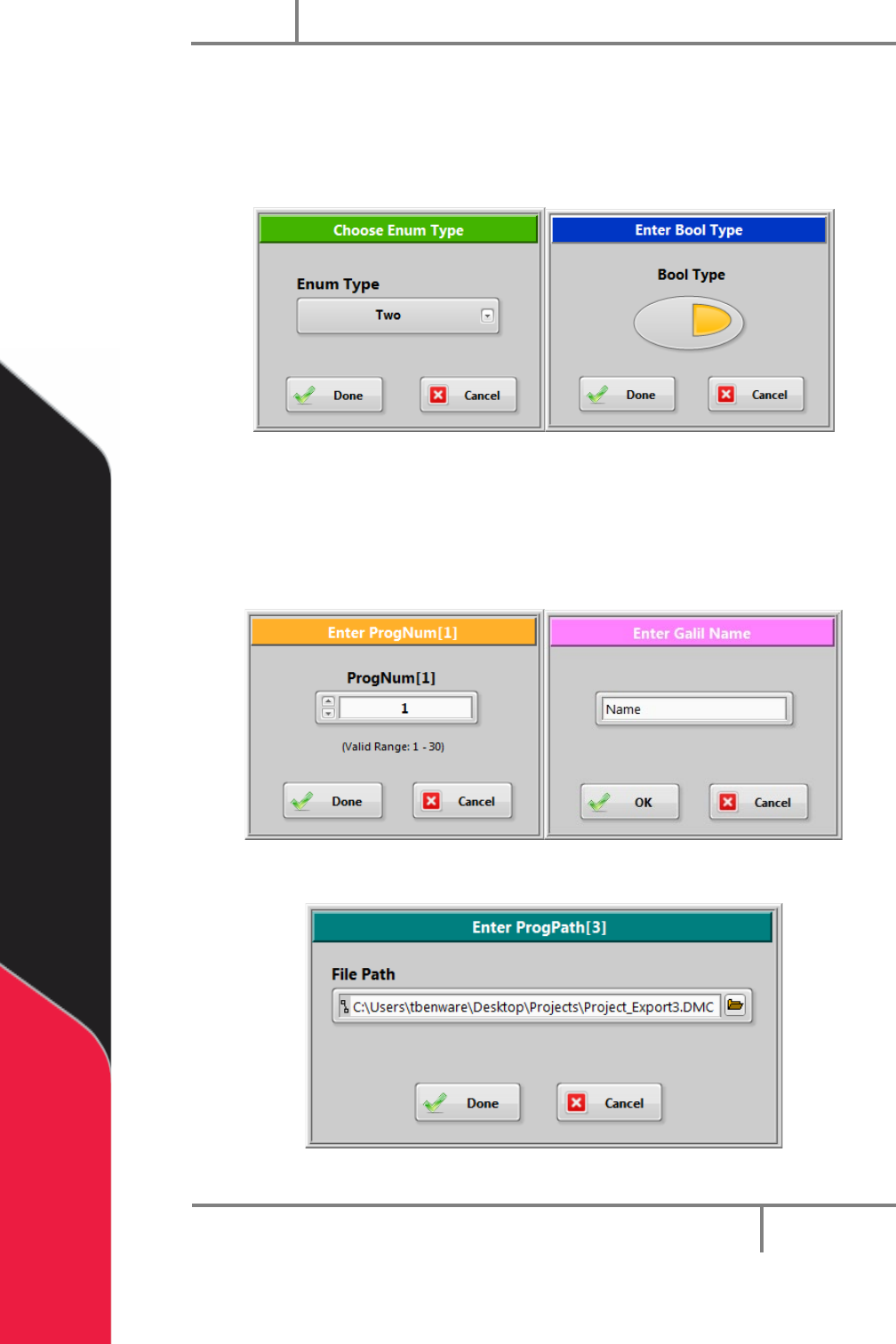
2. Double click on the property to be edited. The edit property window shown will
depend on the data type of the selected property.
Figure 77: Example Windows
3. The edit field May have limits on what you can enter. For example a property of
type ‘String’ may be restricted to a length of 12 characters and some characters
may not be allowed. A property of type ‘Num’ may only allow numbers in the
range of 1-30 to be entered.
Figure 78: Num and String Window Examples
Figure 79: Path Program File
Portal
PVA
Revision H (2018)
71 of 93
14.3 To Train A New Part
To make a new part record, you must train a partcode. A partcode could be a
barcode, RFID tag, etc. Partcodes must be unique to the dataset. If the trained
partcode is found in the dataset, the Train window will close and the part
matching the partcode will be selected.
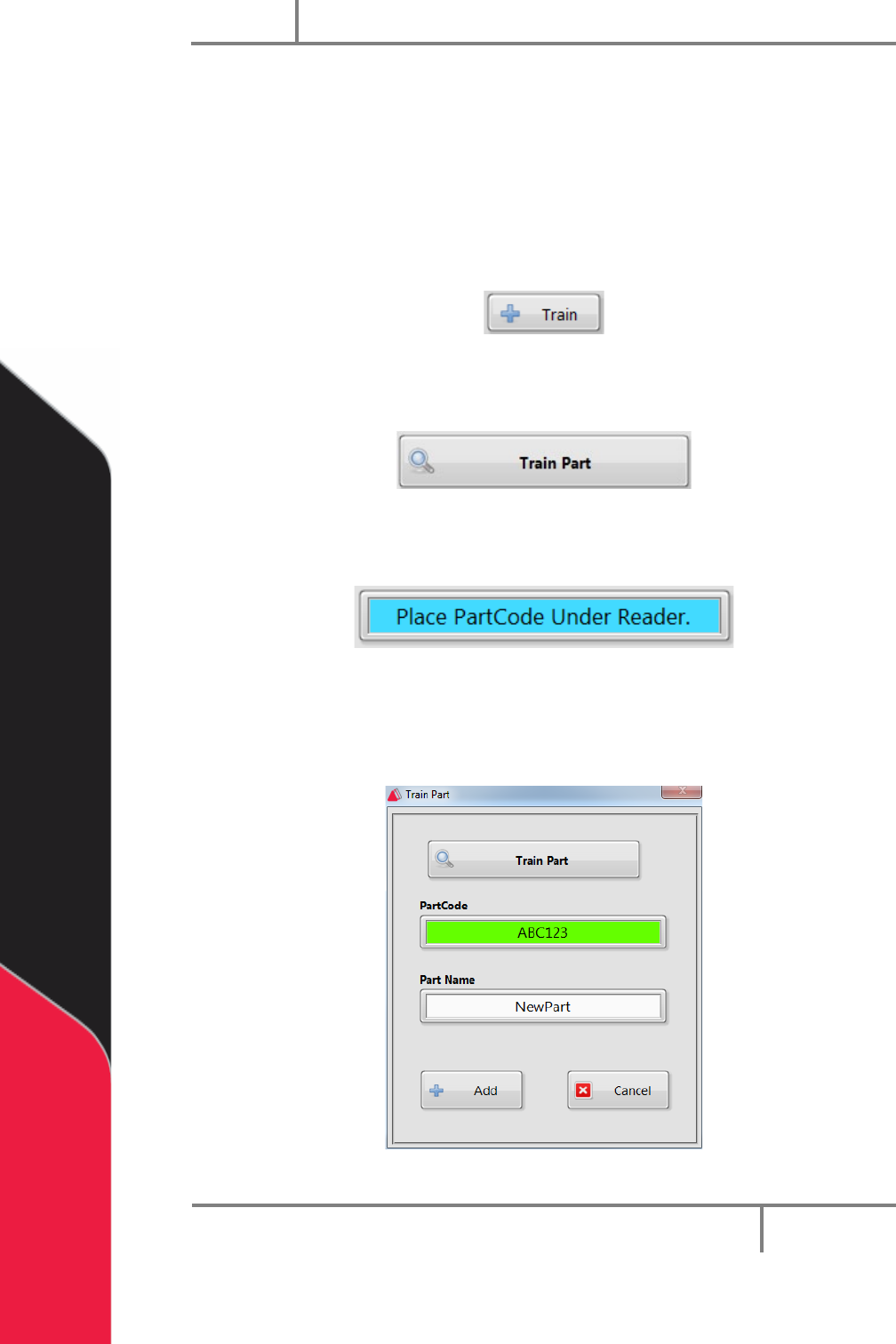
1. Select the “Train” button from the Recipe Manager window.
Figure 80: Train
2. The train window will open. Select “Train Part”.
Figure 81: Train Part
3. The Train window will prompt you to put the partcode under the reader.
Figure 82: Partcode Prompt
4. After the partcode is read, the value is shown in the Partcode field.
5. Enter a unique part name in the part name field.
Figure 83: Train Part Window
Portal
PVA
Revision H (2018)
72 of 93
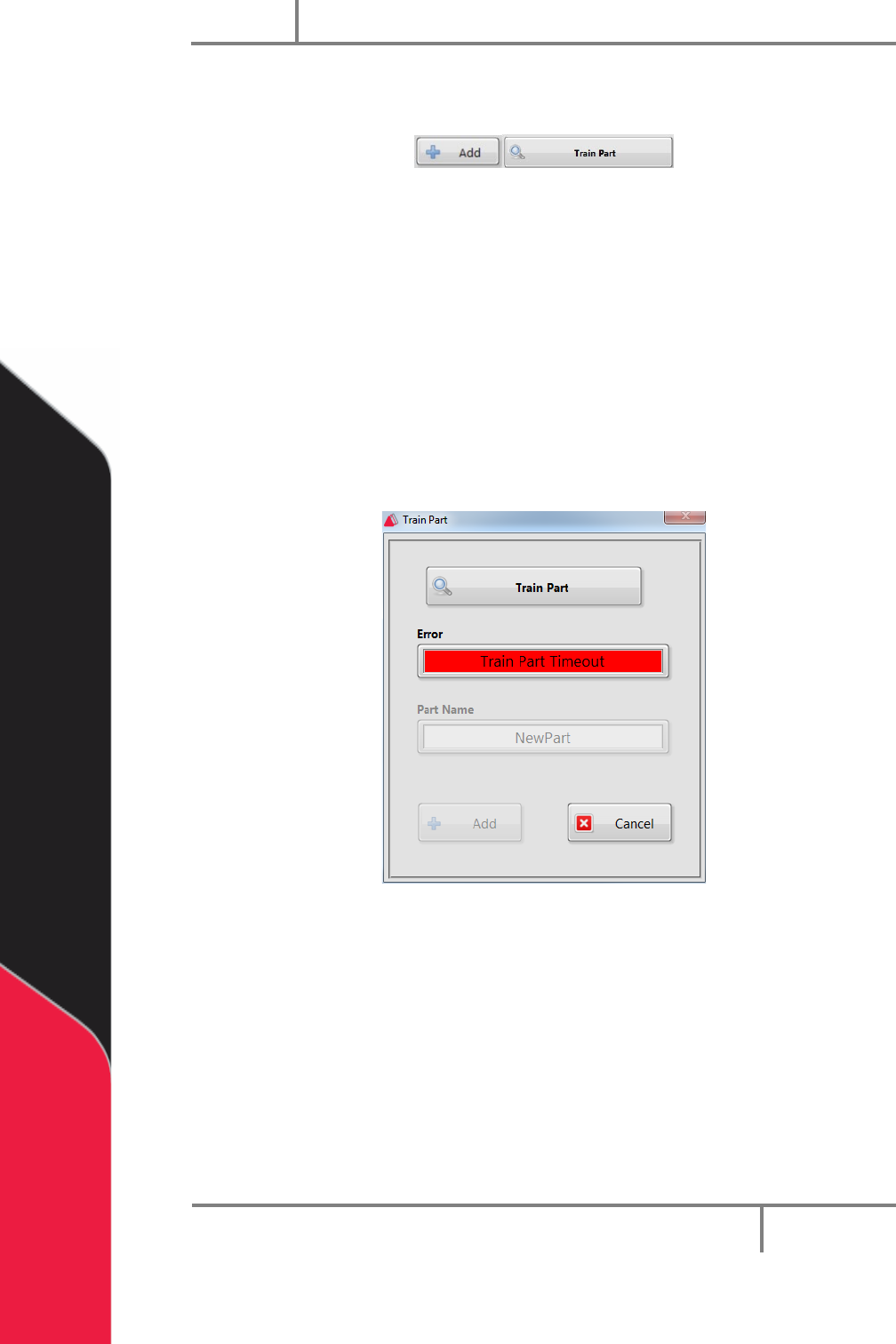
6. Click “Add” to add the new part to the dataset or click Train Part to train
the partcode.
Figure 84: Add
NOTE: If you need to correct an error in the partcode you scanned, or if the
partcode scan was incomplete, select “Train Part”.
14.3.1 Train Part Faults
There are two types of faults that can happen when you train a part.
Train Timeout
A timeout fault happens when the user clicked “Train Part” to request a
partcode but the system did not respond within the 10 second timeout period.
Figure 85: Train Part Timeout Error