OM-1078-002.pdf - 第105页
*4 Mode Selection Buttons V arious actions can be selected. The following buttons are provided. [All Beam (Incl. NC Axis) Heads Zero] Button When this button is pressed, all X/Y beams are zeroed. When the [ENABLE] button…
• Sheet Composition
*1 Set Status
When the "P.E.C. Dsbl." or the "Comp. Recognition Dsbl." check
box in the "Test Run" tab sheet is turned on (checked), the back-
ground color of "Recognition Dsbl." turns light red (No background
color in normal cases).
No recognition processing is made even if a teaching op-
eration is performed when each check box is turned on
(checked) in the "Test Run" tab sheet. Therefore, various
teaching operations will get incorrect results.
When all beams are zeroed completely, the background color of "All
Beam Zero" turns green. Otherwise, the background has no color.
(a) When each section is not set up and a teaching opera-
tion is performed, note that the offset values may not
be taught correctly.
(b) Before performing a teaching operation, be sure to zero
all beams.
*2 Fdr. No. Tray Set
Set the feeder No. to be taught.
When the [Fdr. No.] button is pressed, the "Feeder No. Set" sheet
appears.
Refer to "5.3.6 "Feeder No. Set" Sheet" for details.
*3 [Teach Ecc. Pick-Up Pos] Button
When the [ENABLE] button on the operation panel is pressed in 2
seconds after this button and the [ON] button (entitled "MOVE"), the
P.E.C. recognition camera moves to the pick-up location corrective
position (based on the component center position (Design Position
+ Feeder (B) Offset) of the pertinent feeder) specified in the compo-
nent library, making it possible to capture an image.
Proceed to the operation of the pointing device and execute the
manual alignment operation.
Before the eccentric pick-up position adjustment is made,
it is necessary to correctly teach the center position of the
required component.
0311-002 2-31
AHI01EGP
5.3 "TEACHING" Window (Submenu)
Note
Note
Note

*4 Mode Selection Buttons
Various actions can be selected.
The following buttons are provided.
[All Beam (Incl. NC Axis) Heads Zero] Button
When this button is pressed, all X/Y beams are zeroed.
When the [ENABLE] button on the operation panel is pressed in 2
seconds after this button and the [ON] button (entitled "MOVE"), the
zeroing operation starts.
[Teach Ecc. Pick-Up Pos [Pickup Loc. Adj.]] Button
When a component has a groove, a protrusion, etc., and cannot be
picked up at the center with any hindrance, perform the teaching
operation on the pick-up position correction data (the parameters to
be specified in the "X [mm]" and "Y [mm]" text boxes of the label
"Pickup pos correction" in the component library data).
*5 Offset Values
Displayed are the current values and the adjusted ones after teach-
ing.
*6 [Nozzle Set/Reset] Button
When this button is pressed, the "Nozzle Set/Reset" sheet appears.
Refer to "4.3 "Nozzle Change" Tab" in "Section 6" (the instruction
manual (Vol. 2) of the main machine) for details.
*7 [Tray Unit Adj.] Button
When this button is pressed, the "Tray Unit Adj." sheet appears.
The "Tray Unit Adj." tab sheet enables the manual ascending or de-
scending operations for the elevator and a cycle of traverse drawout
and storage operation.
Refer to "5.3.7 "Tray Unit Adj." Sheet" for details.
*8 [Clear Adj.] Button
When this button is pressed, the following "Confirmation" dialog box
opens.
Fig. B20
When the [YES] button is pressed, the adjusted values are cleared.
When the [NO] button is pressed, the adjusted values are not cleared.
0311-002 2-32
AHI01EGP
5.3 "TEACHING" Window (Submenu)
*9 [Cancel] Button
When pressed, this button cancels the results of the teaching op-
eration without reflecting them on the offset data.
*10 [End] Button
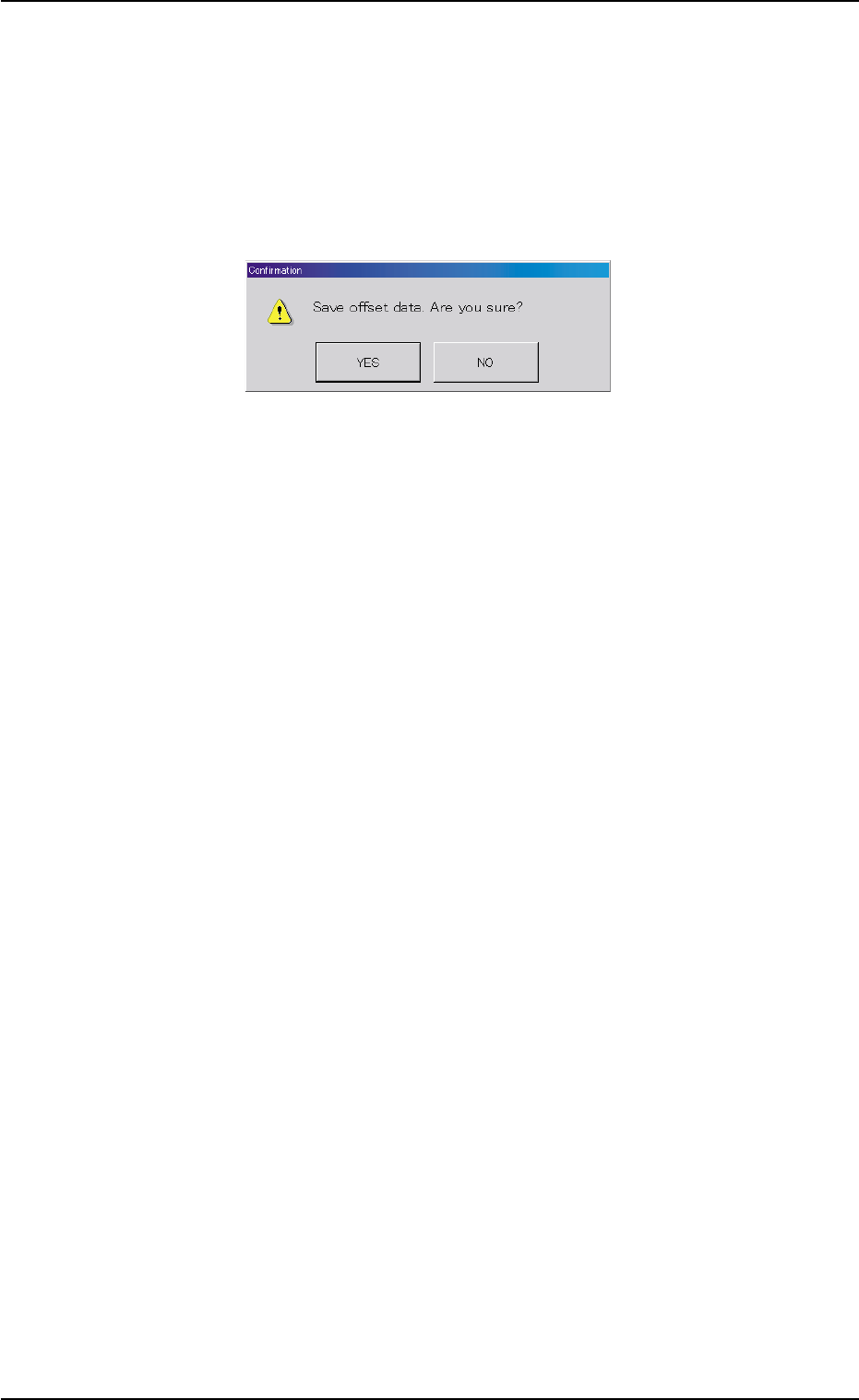
When this button is pressed, the following "Confirmation" dialog box
opens.
Fig. B21
When the [YES] button is pressed, the results of teaching operation
are reflected on the component library data and the dialog box closes.
When the [NO] button is pressed, the dialog box closes without re-
flecting the results of the teaching operation on the component li-
brary data.
*11 "Control Switch" Group Box
When the [ENABLE] button on the operation panel is pressed in 2
seconds after one of the mode selection buttons (*4) and the [ON]
button (entitled "MOVE"), the selected action takes place.
*12 [Return] Button
When this button is pressed, the "Pick-Up Location" tab sheet ap-
pears.
0204-001 2-33
AHI01EGP
5.3 "TEACHING" Window (Submenu)