OM-1078-002.pdf - 第106页
*9 [Cancel] Button When pressed, this button cancels the results of the teaching op- eration without reflecting them on the offset data. *10 [End] Button When this button is pressed, the following "Confirmation"…
*4 Mode Selection Buttons
Various actions can be selected.
The following buttons are provided.
[All Beam (Incl. NC Axis) Heads Zero] Button
When this button is pressed, all X/Y beams are zeroed.
When the [ENABLE] button on the operation panel is pressed in 2
seconds after this button and the [ON] button (entitled "MOVE"), the
zeroing operation starts.
[Teach Ecc. Pick-Up Pos [Pickup Loc. Adj.]] Button
When a component has a groove, a protrusion, etc., and cannot be
picked up at the center with any hindrance, perform the teaching
operation on the pick-up position correction data (the parameters to
be specified in the "X [mm]" and "Y [mm]" text boxes of the label
"Pickup pos correction" in the component library data).
*5 Offset Values
Displayed are the current values and the adjusted ones after teach-
ing.
*6 [Nozzle Set/Reset] Button
When this button is pressed, the "Nozzle Set/Reset" sheet appears.
Refer to "4.3 "Nozzle Change" Tab" in "Section 6" (the instruction
manual (Vol. 2) of the main machine) for details.
*7 [Tray Unit Adj.] Button
When this button is pressed, the "Tray Unit Adj." sheet appears.
The "Tray Unit Adj." tab sheet enables the manual ascending or de-
scending operations for the elevator and a cycle of traverse drawout
and storage operation.
Refer to "5.3.7 "Tray Unit Adj." Sheet" for details.
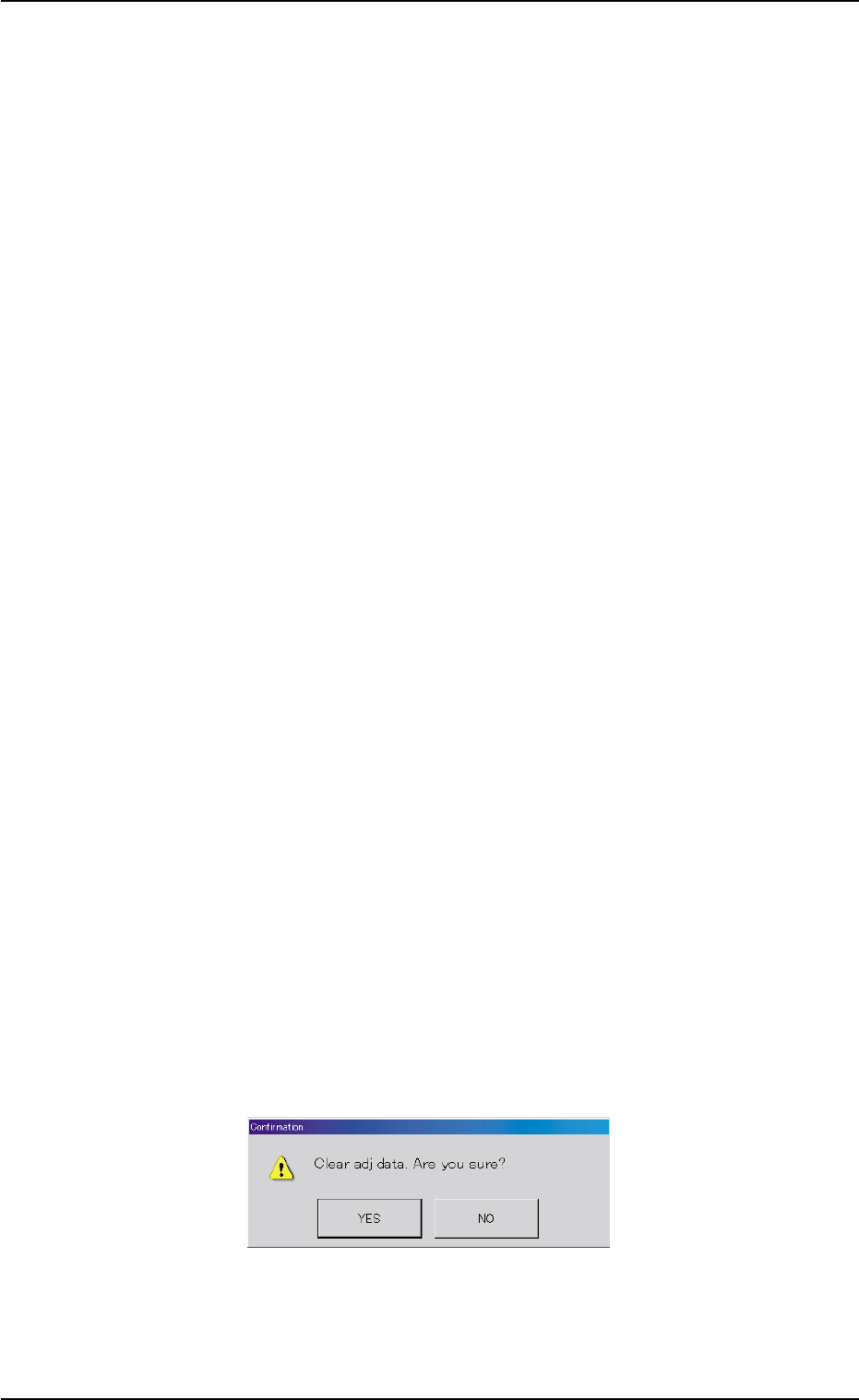
*8 [Clear Adj.] Button
When this button is pressed, the following "Confirmation" dialog box
opens.
Fig. B20
When the [YES] button is pressed, the adjusted values are cleared.
When the [NO] button is pressed, the adjusted values are not cleared.
0311-002 2-32
AHI01EGP
5.3 "TEACHING" Window (Submenu)
*9 [Cancel] Button
When pressed, this button cancels the results of the teaching op-
eration without reflecting them on the offset data.
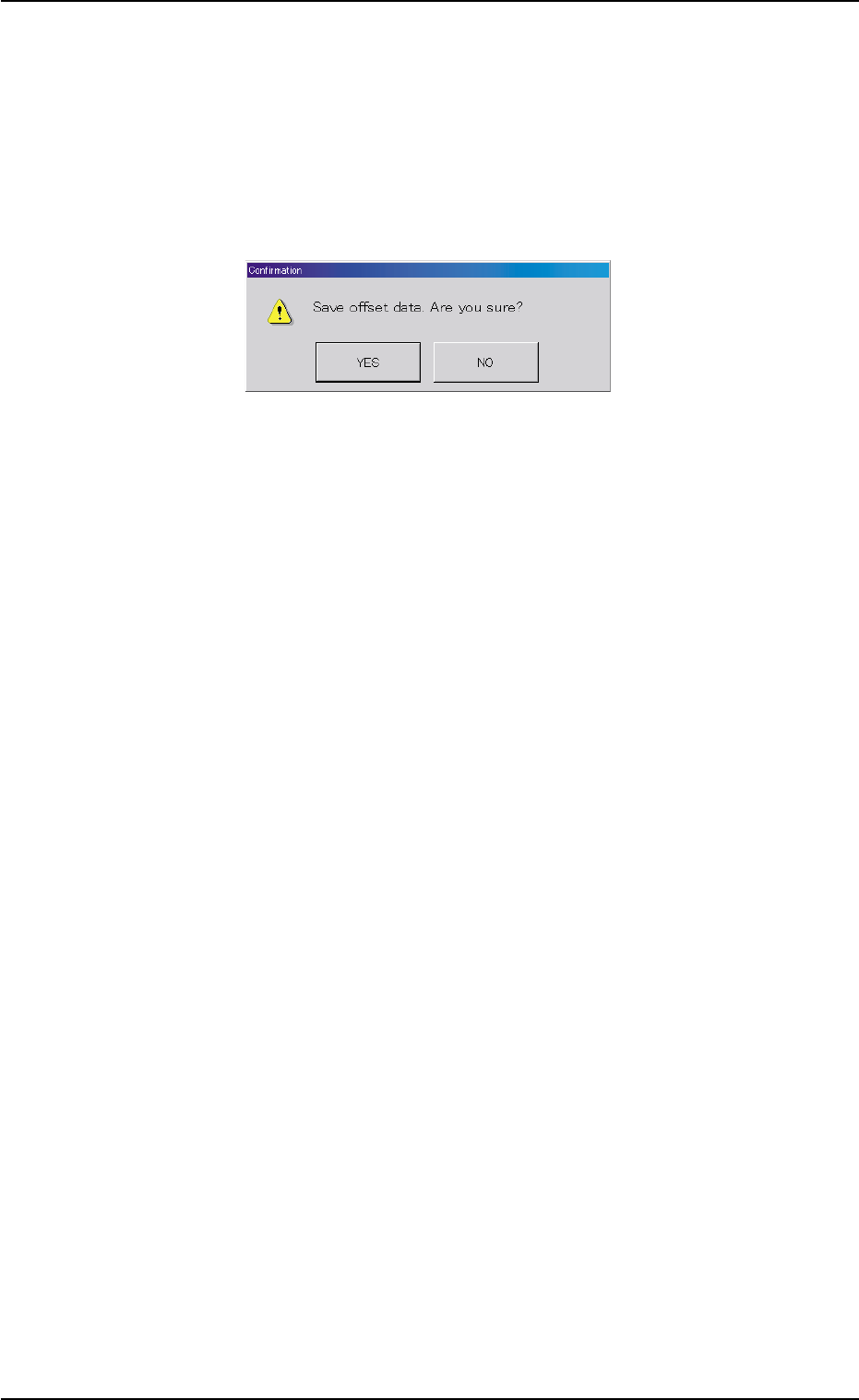
*10 [End] Button
When this button is pressed, the following "Confirmation" dialog box
opens.
Fig. B21
When the [YES] button is pressed, the results of teaching operation
are reflected on the component library data and the dialog box closes.
When the [NO] button is pressed, the dialog box closes without re-
flecting the results of the teaching operation on the component li-
brary data.
*11 "Control Switch" Group Box
When the [ENABLE] button on the operation panel is pressed in 2
seconds after one of the mode selection buttons (*4) and the [ON]
button (entitled "MOVE"), the selected action takes place.
*12 [Return] Button
When this button is pressed, the "Pick-Up Location" tab sheet ap-
pears.
0204-001 2-33
AHI01EGP
5.3 "TEACHING" Window (Submenu)
• Teaching Operation for Eccentric Pick-Up Setting against Hin-
drance in Component Picks at Center
Perform this teaching operation when a component has a groove, a
protrusion, etc., and cannot be picked up at the center.
(1) Follow the teaching procedure in Fig. B14 and perform a teaching
operation on the component center position.
(2) Follow the teaching procedure in Fig. B22 and perform a teaching
operation on the pick-up location corrective position.
Before teaching the data for "Pickup pos correction" in the compo-
nent library data to intentionally shift the pick-up location from the
component center, it is premised that the component center posi-
tion should be grasped first. Therefore, be sure to select the [Teach
Pick-Up Pos. [Comp. Center Pos.]] button and perform the teach-
ing operation on the component center position. After that, select
the [Teach Ecc. Pick-Up Pos. [Pickup Loc. Adj.]] button.
When the center position is not grasped correctly and the
teaching operation is performed on the eccentric pick-up
location, improper values are fed back to the "X [mm]" and
"Y [mm]" text boxes of the label "Pickup pos correction" in
the component library data, causing the component library
data to lose its generality.
0311-002 2-34
AHI01EGP
5.3 "TEACHING" Window (Submenu)
Note