OM-1078-002.pdf - 第107页
• T eaching Operation for Eccentric Pick-Up Setting against Hin- drance in Component Picks at Center Perform this teaching operation when a component has a groove, a protrusion, etc., and cannot be picked up at the cente…

*9 [Cancel] Button
When pressed, this button cancels the results of the teaching op-
eration without reflecting them on the offset data.
*10 [End] Button
When this button is pressed, the following "Confirmation" dialog box
opens.
Fig. B21
When the [YES] button is pressed, the results of teaching operation
are reflected on the component library data and the dialog box closes.
When the [NO] button is pressed, the dialog box closes without re-
flecting the results of the teaching operation on the component li-
brary data.
*11 "Control Switch" Group Box
When the [ENABLE] button on the operation panel is pressed in 2
seconds after one of the mode selection buttons (*4) and the [ON]
button (entitled "MOVE"), the selected action takes place.
*12 [Return] Button
When this button is pressed, the "Pick-Up Location" tab sheet ap-
pears.
0204-001 2-33
AHI01EGP
5.3 "TEACHING" Window (Submenu)
• Teaching Operation for Eccentric Pick-Up Setting against Hin-
drance in Component Picks at Center
Perform this teaching operation when a component has a groove, a
protrusion, etc., and cannot be picked up at the center.
(1) Follow the teaching procedure in Fig. B14 and perform a teaching
operation on the component center position.
(2) Follow the teaching procedure in Fig. B22 and perform a teaching
operation on the pick-up location corrective position.
Before teaching the data for "Pickup pos correction" in the compo-
nent library data to intentionally shift the pick-up location from the
component center, it is premised that the component center posi-
tion should be grasped first. Therefore, be sure to select the [Teach
Pick-Up Pos. [Comp. Center Pos.]] button and perform the teach-
ing operation on the component center position. After that, select
the [Teach Ecc. Pick-Up Pos. [Pickup Loc. Adj.]] button.
When the center position is not grasped correctly and the
teaching operation is performed on the eccentric pick-up
location, improper values are fed back to the "X [mm]" and
"Y [mm]" text boxes of the label "Pickup pos correction" in
the component library data, causing the component library
data to lose its generality.
0311-002 2-34
AHI01EGP
5.3 "TEACHING" Window (Submenu)
Note
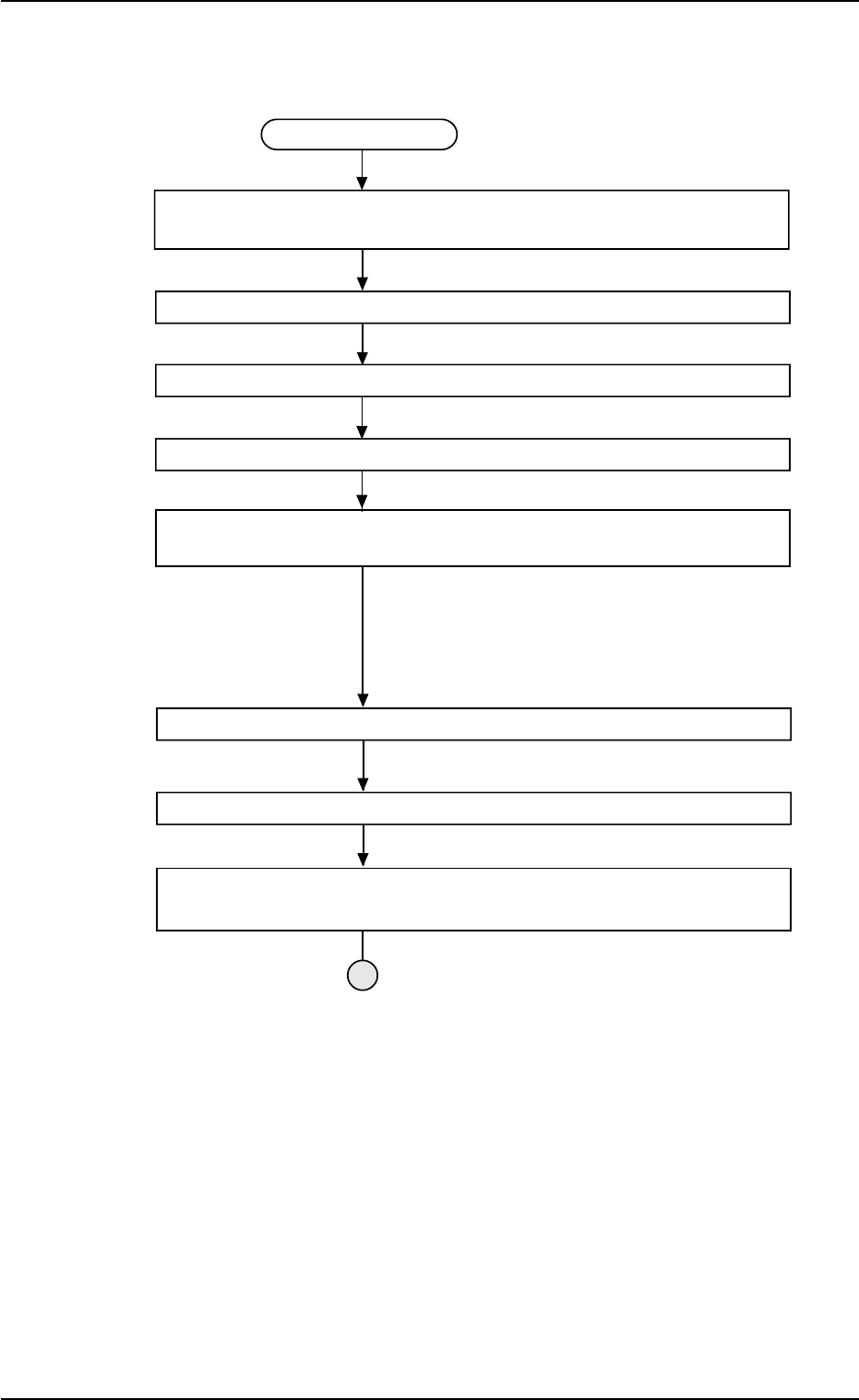
Teaching Procedure
Selection of [Tray Teach Ecc. Pick-Up Pos. [Pickup Loc. Adj]] Button in
Fig. B10
Selection of Head
Setting of Objective Feeder No. for Teaching
Refer to "5.3.6 "Feeder No. Set" Sheet" for details.
Select the [Teach Ecc. Pick-Up Pos. [Pickup Loc. Adj]] button.
Press the [ENABLE] button on the operation panel in 2 seconds after the
[ON] button (entitled "MOVE").
An image is taken into the pick-up location corrective po-
sition of the objective feeder for teaching by the P.E.C.
recognition camera.
The pickup position correction data set up at teaching
execution is reflected.
Positioning Operation with Pointing Device
Refer to "Pointing Device Operation" (described later) for
details.
Selection of [End] Button
Selection of [YES] Button in "Confirmation" Dialog Box for Replacement of
Component Library Data
Fig. B22
0204-001 2-35
AHI01EGP
5.3 "TEACHING" Window (Submenu)