OM-1078-002.pdf - 第82页
• • • • • Matrix Change Procedure for Pickup Position Example: Tray Condition as shown below (T ray in Middle of Process) Matrix Update Setting : X Direction Matrix Reference Setting : Right Fig. B5 T ray in Middle of Pr…

*3 Component Information
Displayed is the component information for each individual steps
and blocks.
Red (ON) : This indicates that the step is short of com-
ponents.
When several blocks are specified and there
is a tray which caused a component short-
age error even in one block, the related text
boxes turn red (ON).
Red (ON and OFF) : This indicates the step where the type of com-
ponents alarmed by a component shortage
error are set.
Green (ON) : This indicates the steps that are used in the
current program (production model) and are
not short of components.
Violet (ON) : When a step (the related text boxes) in red
(ON or ON and OFF) is selected, the text
boxes turn violet.
This indicates that the operator has selected
the step as an object one for component re-
plenishment.
--- : This indicates the steps that are not used in
the current program (production model).
*4 [Attach New Cmpnt] Button
When pressed, this button enables the operator to replenish com-
ponents.
0311-003 2-13
AHI01EGP
4.3 "Feeder Reload" Window (Submenu)
••
••
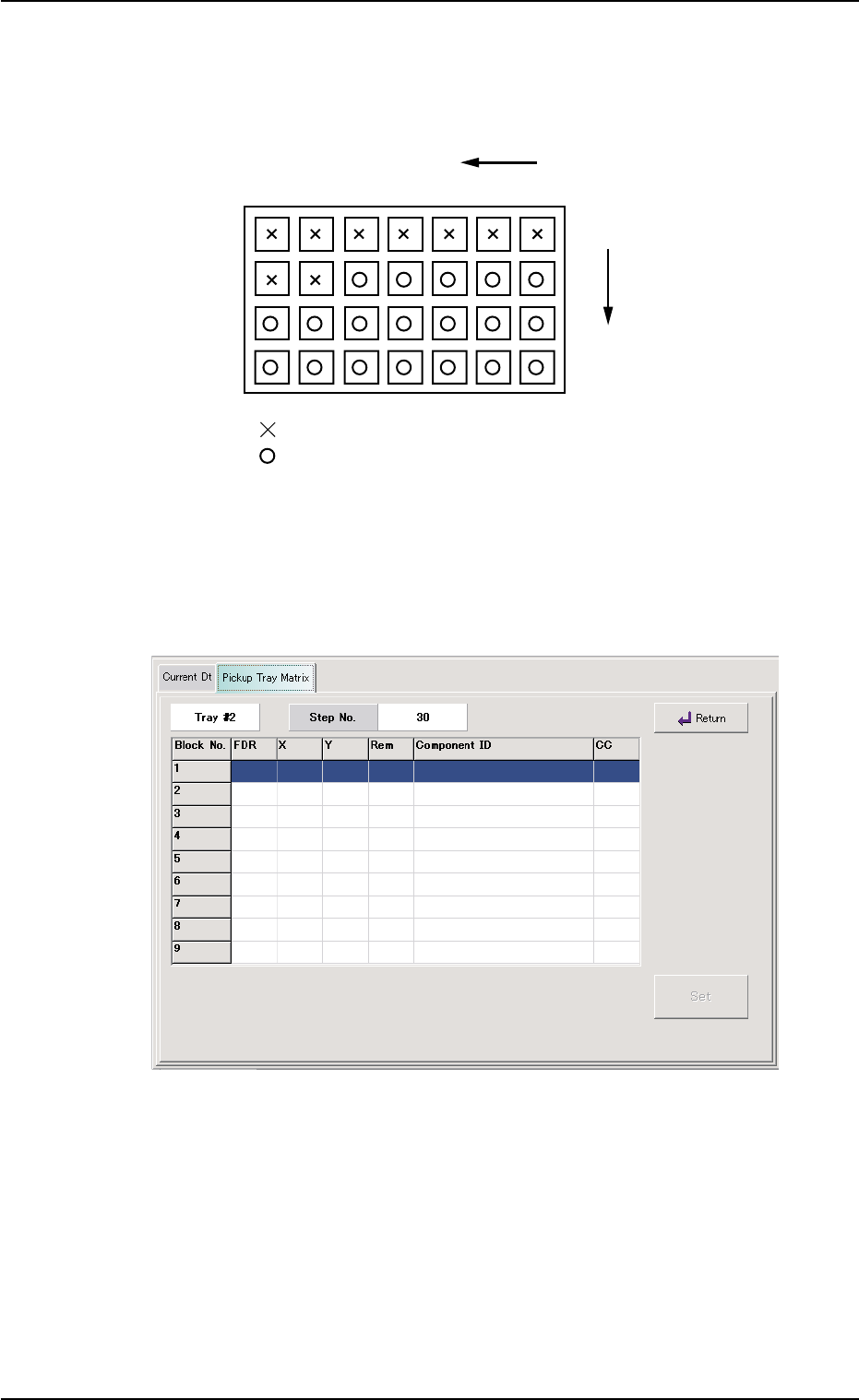
• Matrix Change Procedure for Pickup Position
Example: Tray Condition as shown below (Tray in Middle of Process)
Matrix Update Setting : X Direction
Matrix Reference Setting : Right
Fig. B5 Tray in Middle of Process
(1) Press the "Step No." button of the matrix data to be changed in the
"Pickup Tray Matrix" tab sheet.
The "Matrix" edit sheet appears.
Fig. B6 "Matrix" Edit Sheet
(2) Select the block No. of the matrix data to be changed.
(3) Enter "3" in the "X" text box and "1" in the "Y" text box. After that,
press the [Set] button.
The entered values become valid.
(4) Press the [Return] button.
The "Pickup Tray Matrix" edit tab sheet appears.
1
1
2
99
.
2
399
X
Y
.
.
.....
.
: No Components (Already taken out)
: Components
0311-003 2-14 AHI01EGP
4.3 "Feeder Reload" Window (Submenu)
4.4 "RECOVERY" Window (Submenu)
4.4.1 "Comp Carriage Dt Edit" Tab
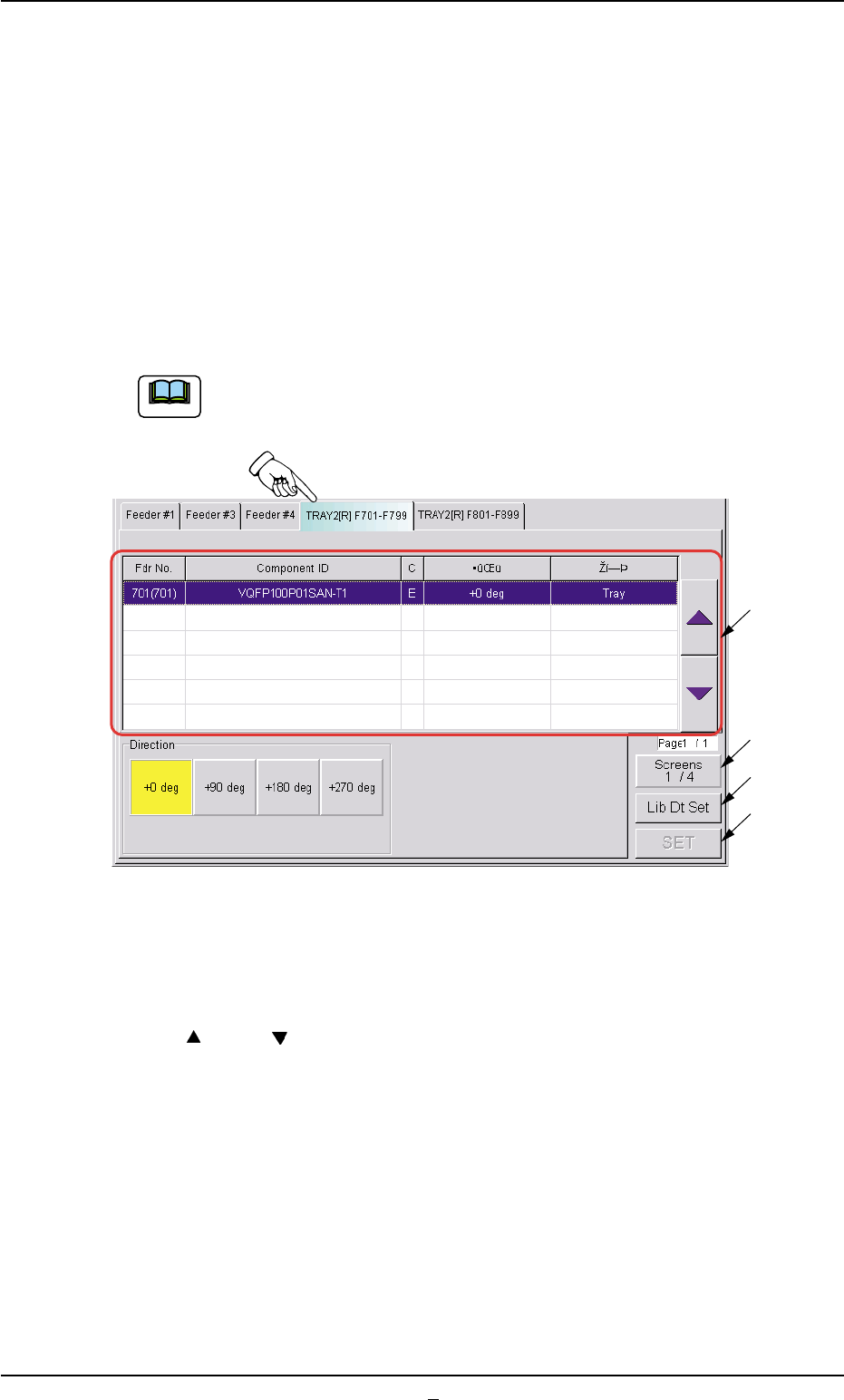
(1) "TRAY2 [R] F701-F799" Tab Sheet
• Sheet Layout
When the "TRAY2 [R] F701-F799" tab is pressed in the "Comp Car-
riage Dt Edit" tab sheet ("RECOVERY" Window (Submenu)), the fol-
lowing tab sheet appears.
Follow the same procedure to make the "TRAY2 [R] F801-
899" tab sheet visible.
Fig. B7 "TRAY2[R] F701-F799" Tab Sheet
• Sheet Composition
*1 [
] and [ ] Buttons
Select the component for which the component carriage data should
be changed.
When the registered components occupy more than 1 page, use
the scroll bar (up and down arrows) on the right edge of the tab
sheet to scroll up or down the list of components.
0311-003 2-15 AHI01EGP
Note
4.4 "RECOVERY" Window (Submenu)
*3
*4
*2
*1