OM-1078-002.pdf - 第86页
031 1-001 2-15-3 AHI01EGP 5. Menus for Maintenance 5. Menus for Maintenance • • • • • Windows Layout When the [MAINT .] button on the main menu bar is pressed, the fol- lowing window opens. Fig. B8 "MAINT ." Wi…
4.5 "RECALL" Window (Submenu)
4.5.1 "Servo Alarm" Tab
••
••
• Sheet Layout
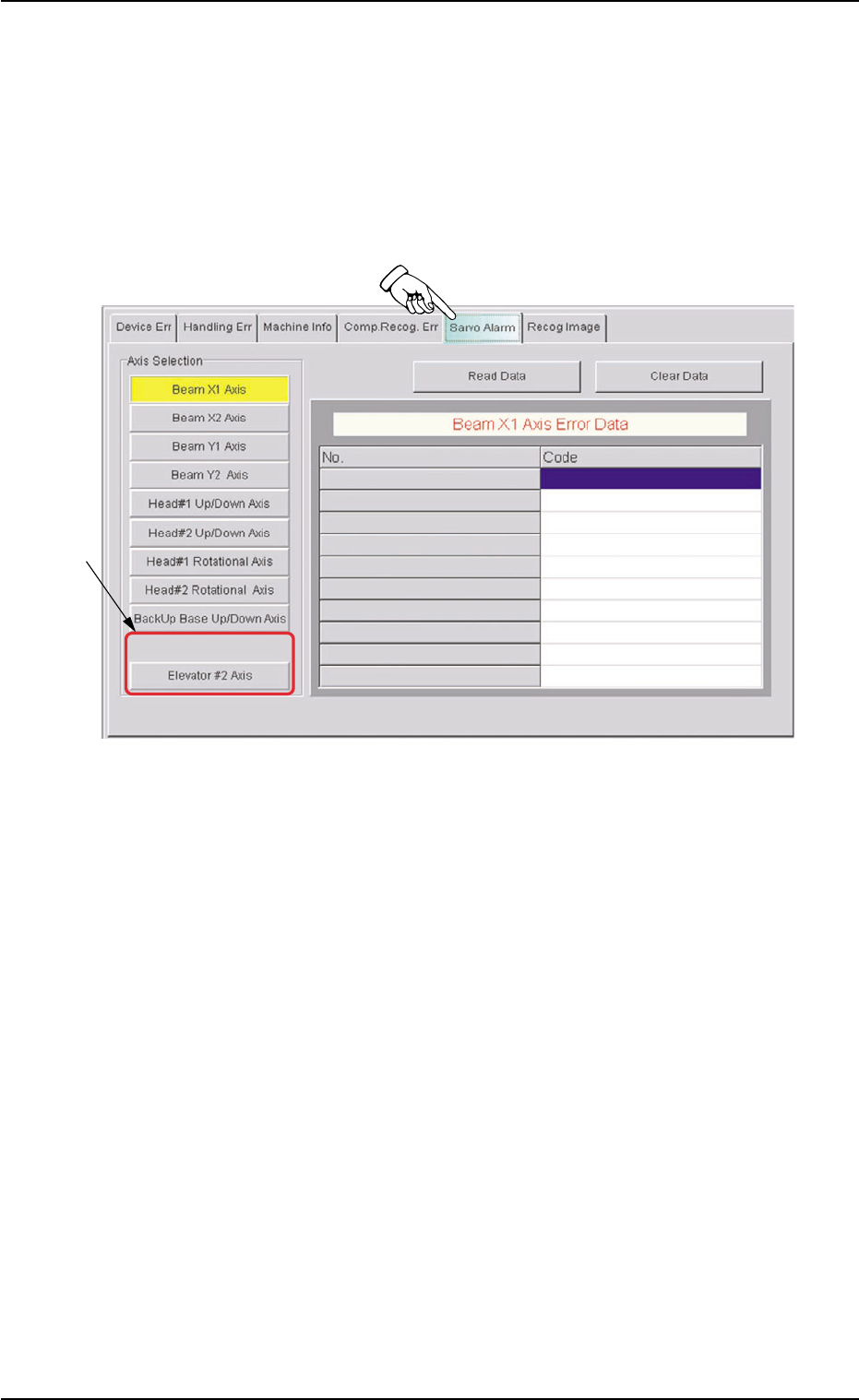
When the "Servo Alarm" tab is pressed in the "RECALL" window
(submenu), the following tab sheet appears.
Fig. B7-1 "Servo Alarm" Tab Sheet
••
••
• Sheet Composition
*1 Axis Selection
This sheet is provided with the following buttons.
[Elevator #1 Axis] Button
[Elevator #2 Axis] Button
When one of these button is pressed, the selected button turns yel-
low, indicating that the unit (axis) for which the alarm information
should be issued is selected.
Pressing the button again changes the background color to the origi-
nal one, indicating that the selection is canceled.
4.5 "RECALL" Window (Submenu)
*1
0311-001 2-15-2 AHI01EGP
0311-001 2-15-3 AHI01EGP
5. Menus for Maintenance
5. Menus for Maintenance
••
••
• Windows Layout
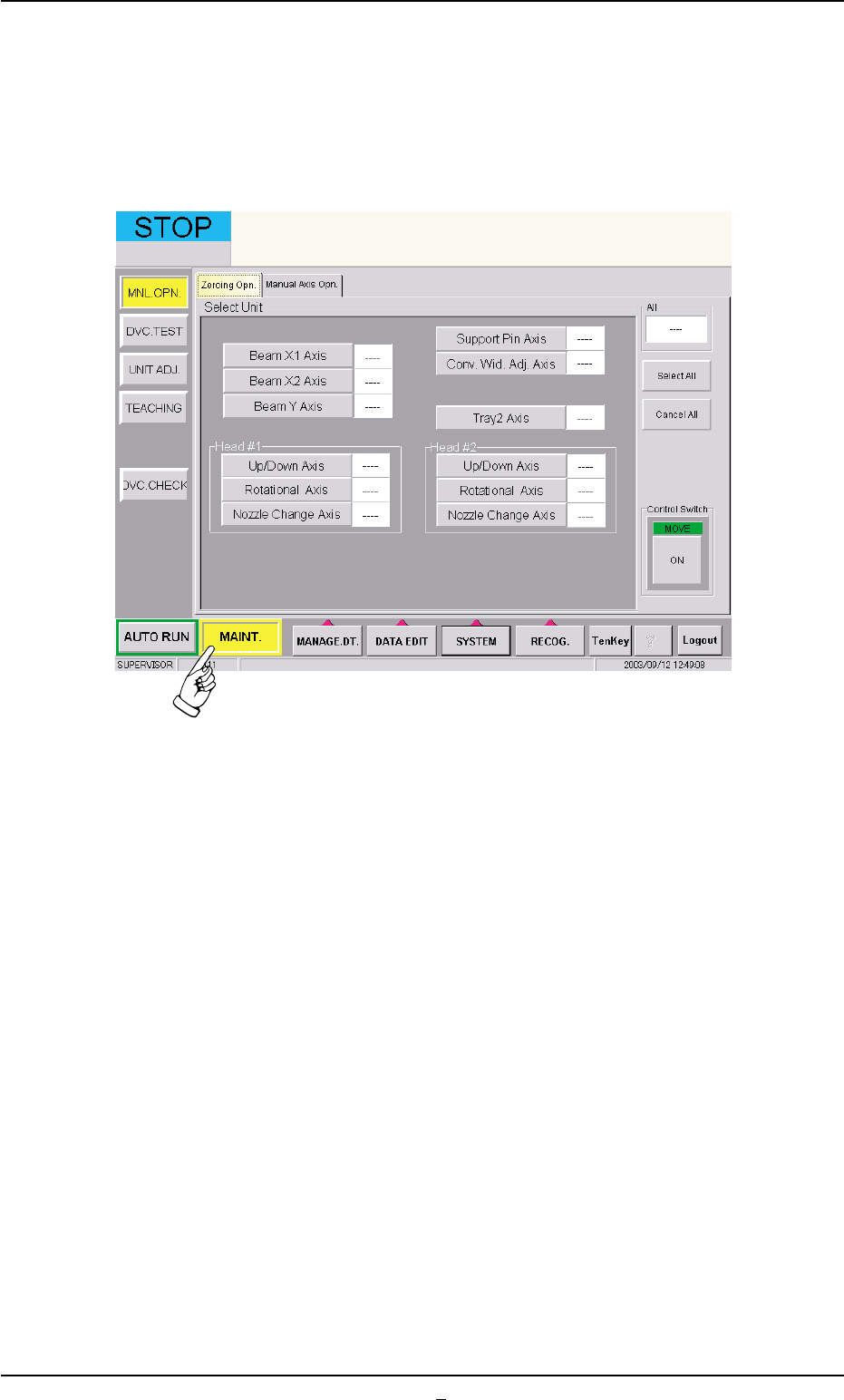
When the [MAINT.] button on the main menu bar is pressed, the fol-
lowing window opens.
Fig. B8 "MAINT." Window
5.1 "MNL. OPN." Window (Submenu)
5.1.1 "Zeroing Opn." Tab
The corresponding tab sheet enables the operator to zero each device
(axis).
• Sheet Layout
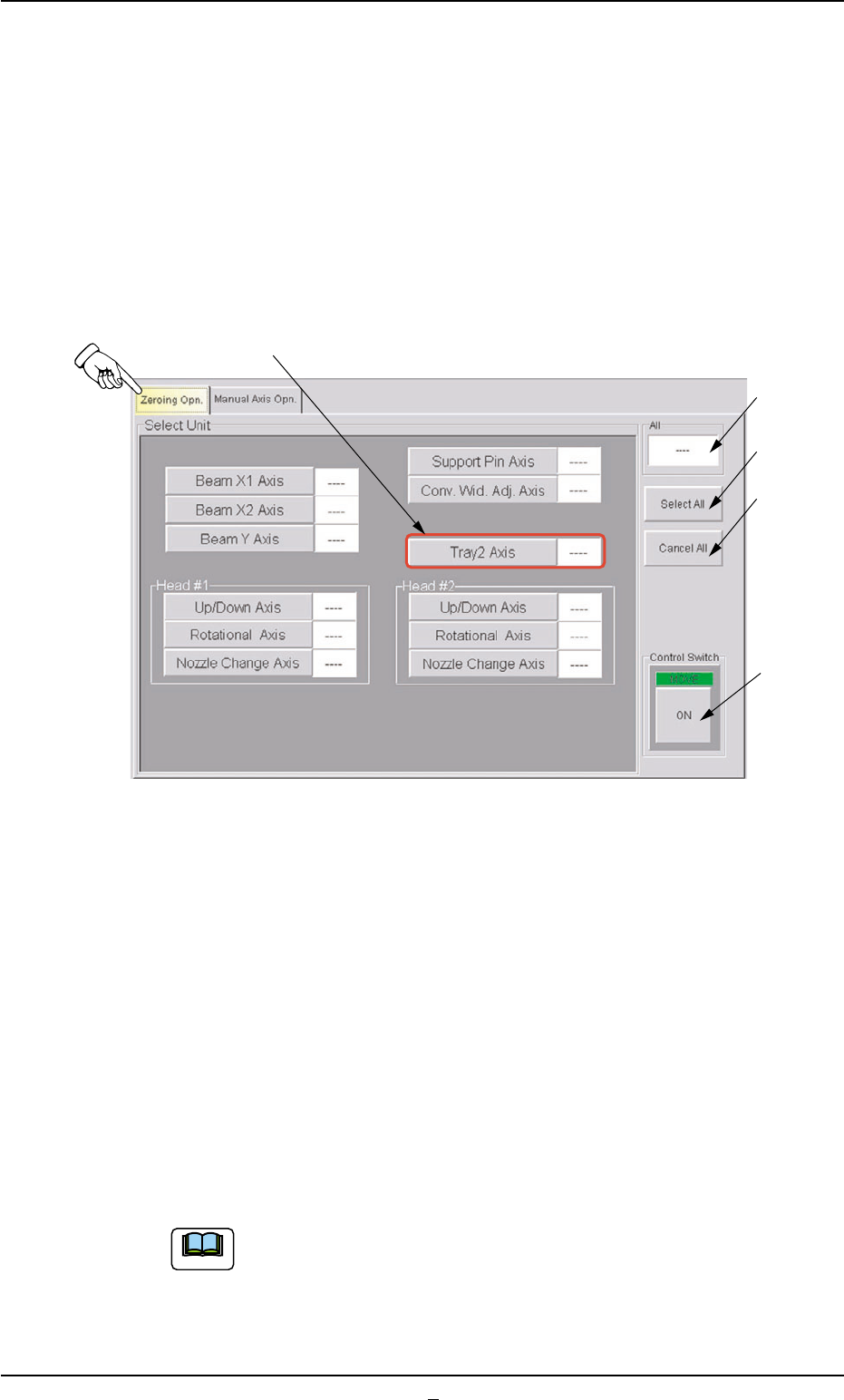
When the "Zeroing Opn." tab is pressed in the "MNL OPN." window
(submenu), the following tab sheet appears.
Fig. B8-1 "Zeroing Open." Tab Sheet (Provided with Multi-Layer Tray Feeder 2)
• Sheet Composition
*1 "Select Unit" Group Box
The following buttons are provided in this group box.
[Tray 2 Axis] Button
When a button is pressed, the background color turns yellow, indi-
cating that the device (axis) is selected.
Pressing the button again changes the background color to the origi-
nal one, indicating that the selection is canceled.
Each button has a box on the right side and the status of the corre-
sponding device is indicated in the box.
Two or more devices can be selected.
*2
*3
*4
*5
*1
0311-003 2-16 AHI01EGP
Note
5.1 "MNL. OPN." Window (Submenu)