OM-1078-002.pdf - 第89页
031 1-002 2-16-2 AHI01EGP 5.1.2 "Manual Axis Opn." T ab (1) "T ray" T ab The corresponding tab sheet enables the operator to perform an manual axis operation on the selected device. • Sheet Layout Whe…
*2 "All" Group Box
It is indicated whether or not all devices are zeroed.
"—" : All devices are not zeroed.
"Origin" : All devices are zeroed.
*3 [Select All] Button
When this button is pressed, all devices (possible to be returned to
their origins) are selected and the corresponding buttons turn yel-
low.
The [Select All] button cannot be used to select the [Sup-
port Pin Axis] and [Conv. Wid. Adj. Axis] buttons.
*4 [Cancel All] Button
When this button is pressed, the selection of all devices is can-
celed.
*5 "Control Switch" Group Box
When the [ENABLE] button on the operation panel is pressed in two
seconds after a device(s) is selected and the [ON] button (entitled
"MOVE") is pressed, the device is zeroed.
(a) After the zeroing operation is completed, "Origin" ap-
pears in the box on the right side of the corresponding
button.
(b) When the current position is being managed or indefi-
nite, "—" appears in the box.
0311-002 2-16-1
AHI01EGP
5.1 "MNL. OPN." Window (Submenu)
Note
Note
0311-002 2-16-2 AHI01EGP
5.1.2 "Manual Axis Opn." Tab
(1) "Tray" Tab
The corresponding tab sheet enables the operator to perform an
manual axis operation on the selected device.
• Sheet Layout
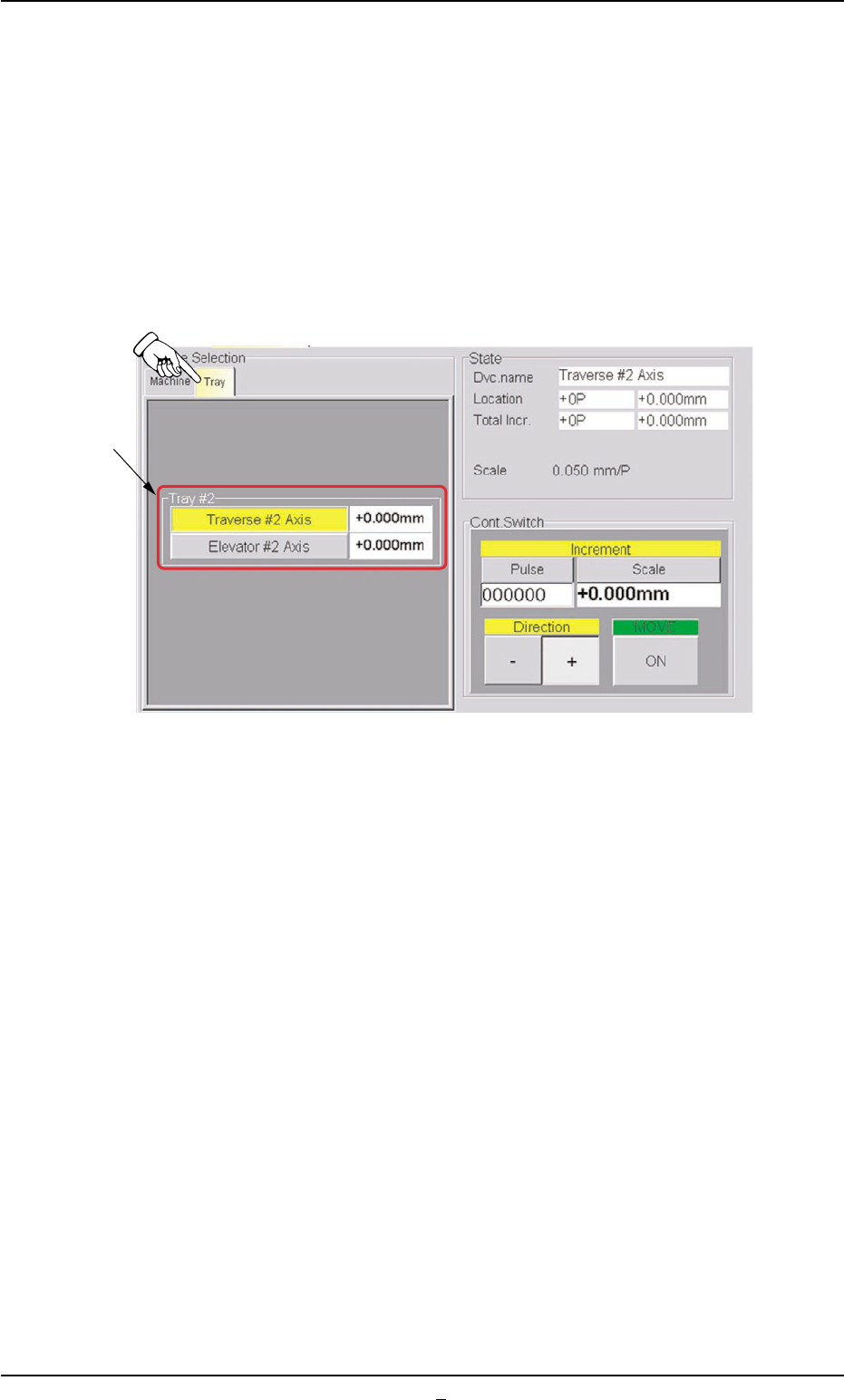
When the "Tray" tab is pressed in the "Manual Axis Opn." tab sheet,
the following tab sheet appears.
Fig. B8-2
• Sheet Composition
*1 "Tray #2" Group Box
The following buttons are provided in this group box.
[Traverse #2 Axis] Button
[Elevator #2 Axis] Button
When a button is pressed, the background color turns yellow, indi-
cating that the device (axis) is selected.
Pressing the button again changes the background color to the origi-
nal one, indicating that the selection is canceled.
Each button has a box on the right side and the current location of
the device appears in the box.
5.1 "MNL. OPN." Window (Submenu)
*1
5.2 "UNIT ADJ." Window (Submenu)
5.2.1 "Tray Unit" Tab
••
••
• Sheet Layout
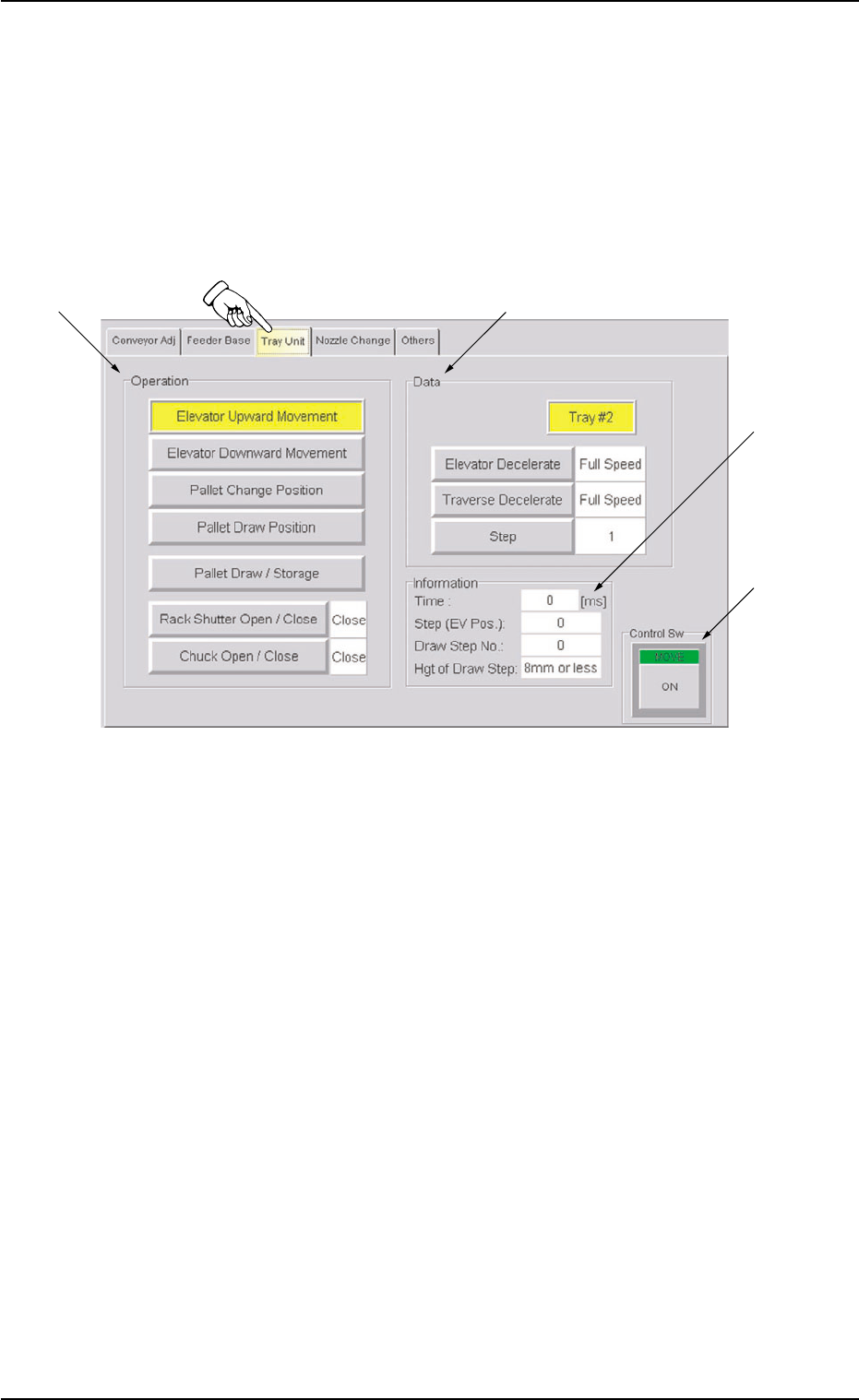
When the "Tray Unit" tab is pressed in the "UNIT ADJ." window
(submenu), the following tab sheet appears.
Fig. B9 "Tray Unit" Tab Sheet
• Sheet Composition
*1 "Operation" Group Box
[Elevator Upward Movement] Button
When this button is selected and the [ON] button (entitled "MOVE")
is pressed, the elevator shaft moves up as far as 1 pitch of the
pallet.
[Elevator Downward Movement] Button
When this button is selected and the [ON] button (entitled "MOVE")
is pressed, the elevator shaft moves down as far as 1 pitch of the
pallet.
[Pallet Change Position] Button
When this button is selected and the [ON] button (entitled "MOVE")
is pressed, the elevator shaft moves to the pallet change position.
[Pallet Draw Position] Button
When this button is selected and the [ON] button (entitled "MOVE")
is pressed, the elevator shaft moves to the pallet drawout position.
5.2 "UNIT ADJ." Window (Submenu)
*1
*2
*3
*4
0311-003 2-17 AHI01EGP