RS-1_instruction manual.pdf - 第117页
Part 1 B asic O peration Chapter 2 Pr oduction 2-6 ( 3) When you finish m aking the initial settin gs of the sy stem, the m ain screen a ppears, and t hen the “ Initial i ze ” dialog box a ppears over t he main scre en. …
Part 1 Basic Operation Chapter 2 Production
2-5
2.3 Start Up and Shut Down of The System
Starting up the system
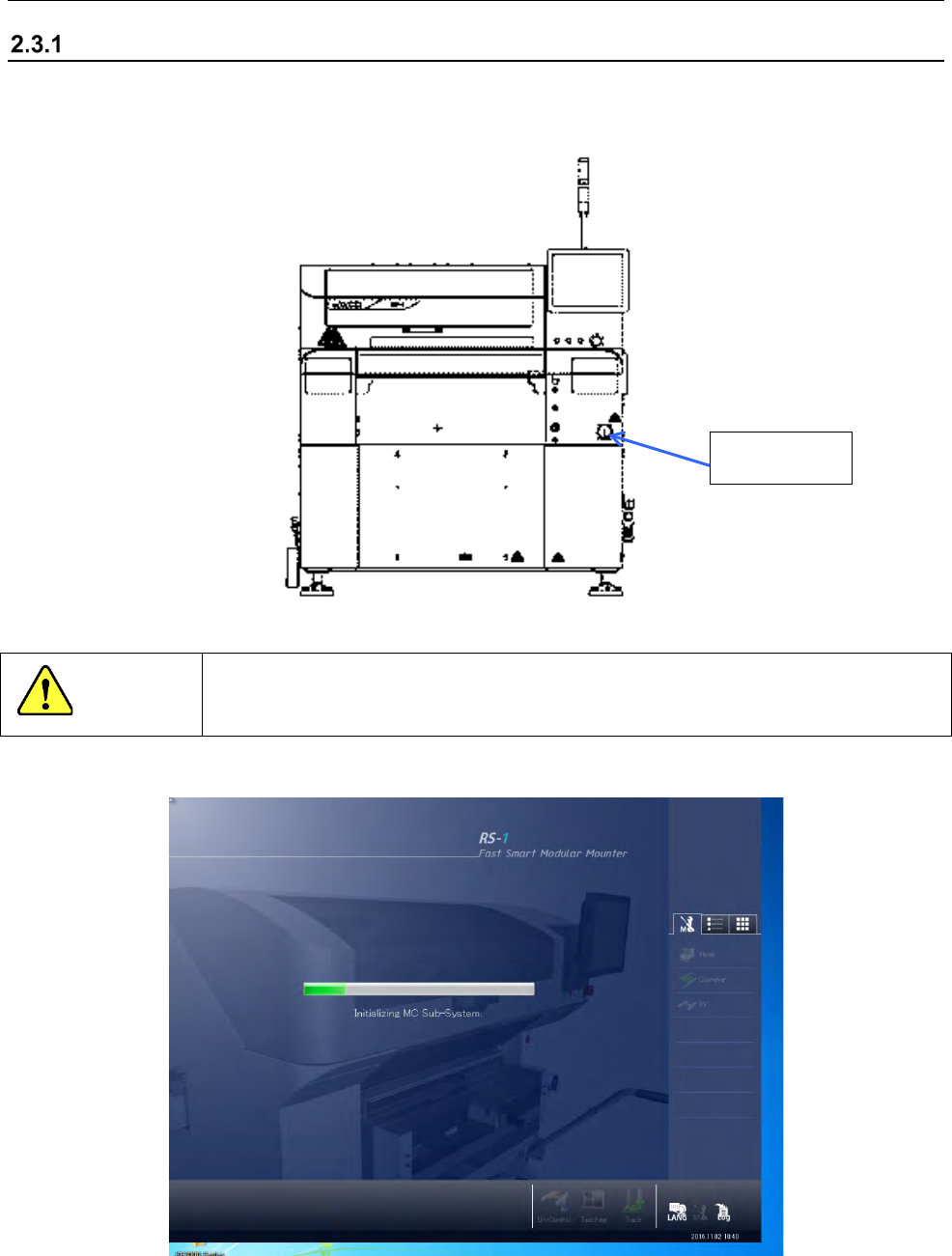
(1) Turn clockwise the “main switch” on the right side of the front of the main unit to turn on the
machine.
CAUTION
Do not turn off the main switch until the system operation is completed.
Otherwise the SSD may be damaged
(2) Windows starts up, and then the start-up screen appears.
Main switch
Part 1 Basic Operation Chapter 2 Production
2-6
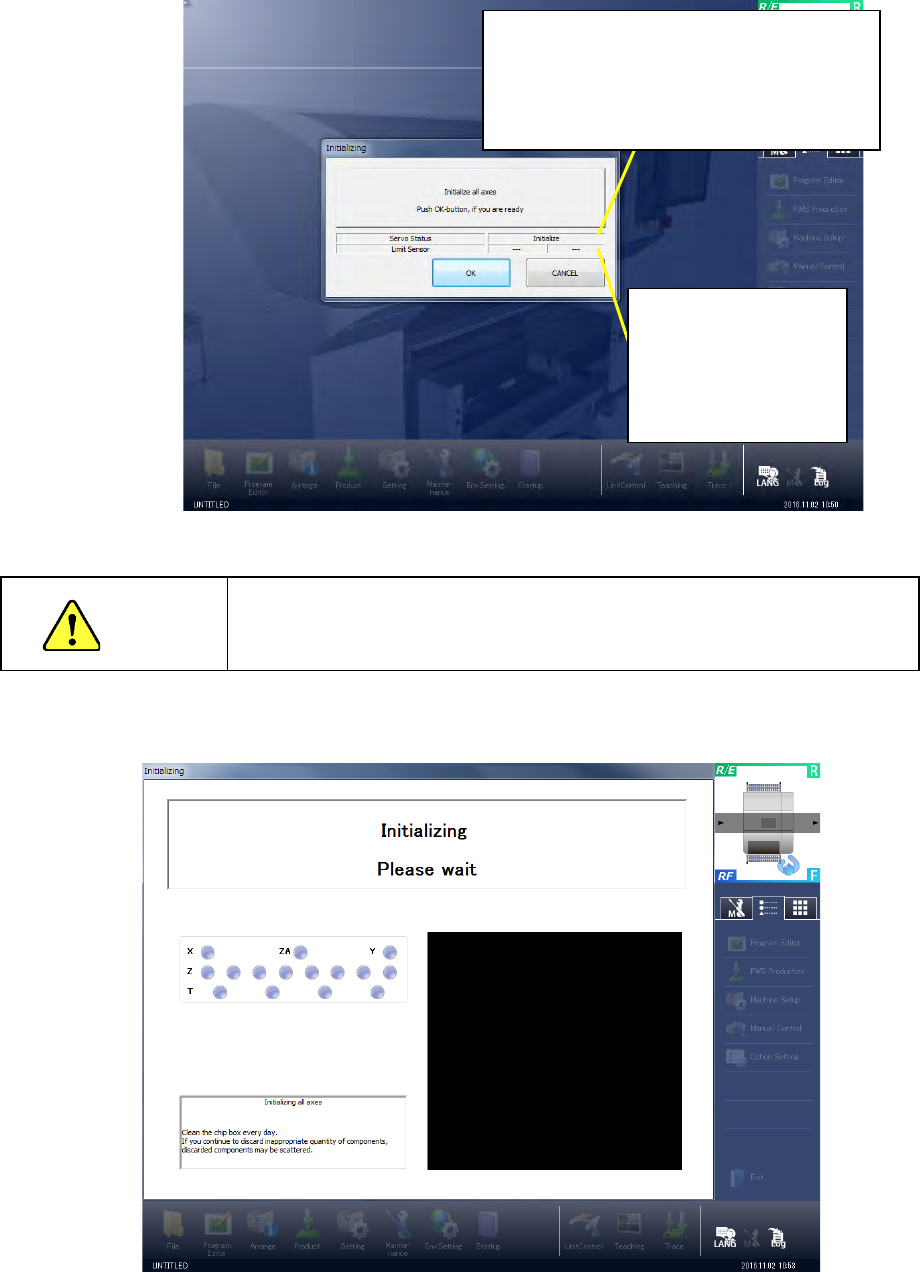
(3) When you finish making the initial settings of the system, the main screen appears, and then
the “Initialize” dialog box appears over the main screen.
When you click the <OK> button, the system executes the origin return function.
WARNING
When the system executes the origin return function, the machine
starts operating. Be sure to keep your hands or head away from the
inside of the machine to avoid injury.
(4) When the system finishes making initial settings, the mains screen appears, and then the
“Initializing” screen appears over the main screen.
Display of the servo status of all axes on the front
side
(When you have not initialized the axes: Initialize
When the servo mechanism can be set to ON:
Servo ON possible
When the servo mechanism is set to ON: OK)
Indication of limit sensor
status
When Y-axis limit sensor
is activated: Y
When X-axis limit sensor
is activated: X
Part 1 Basic Operation Chapter 2 Production
2-7
Shutting down the system
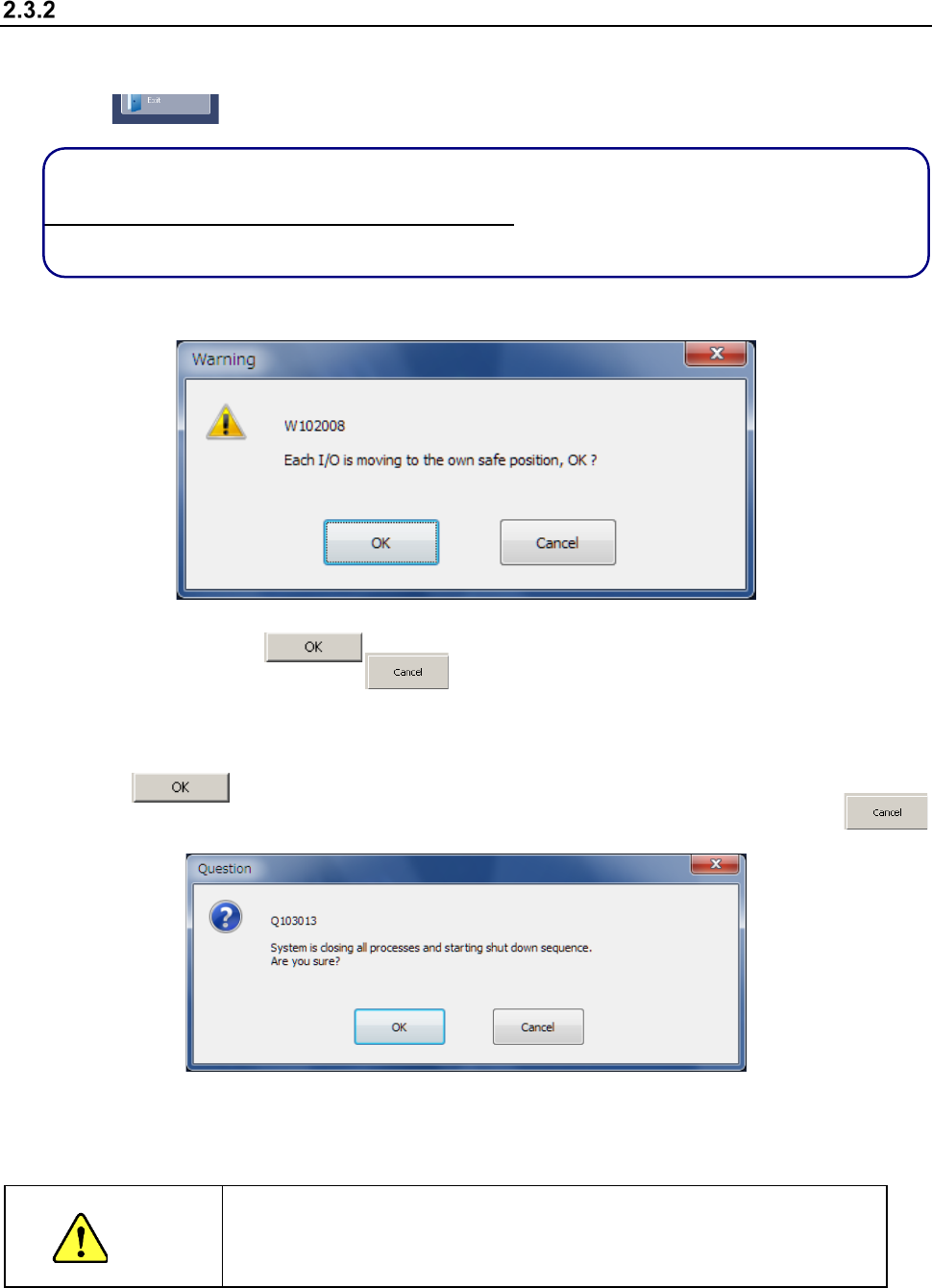
(1) Press the “Exit” button in the Information area on the right side of the desktop screen or that
displayed on the Application shortcut tab.
Press this button.
If there is any unsaved production program when you click the “Exit” command button, the
machine displays the message that informs you that the production program will be lost.
To save the production program, select <No> button. The machine aborts the exit process and
returns to the desktop screen.
(2) Before the system shuts down, the confirmation message for setting the safety direction of the
machine appears on the screen.
When you click the button, the system sets the various safety directions of the
machine. When you click the button, the system performs the next process without
setting any safety direction.
(3) The shutdown process confirmation dialog box appears on the screen.
Click the button.
The system performs the shutdown process, and shuts downs. When you click the
button on this dialog box, the system displays the main menu screen again.
(4) When the Windows finishes shutting down and the screen disappears, rotate the main switch
anticlockwise to turn off the power.
(Never use the breaker as the main switch.)
CAUTION
Be sure to perform the operations described above before turning off the
power (that is, turning the main switch anticlockwise).
If you turn off the power without performing the operations above, the
system may not start up the next time.