RS-1_instruction manual.pdf - 第132页
Part 1 B asic O peration Chapter 2 Pr oduction 2- 21 Saving a file This functi on saves pro duction program an d Manag ement Informatio n by overwriti ng i t. C lick the “ File ” button o n the menu, an d then the [S ave…
Part 1 Basic Operation Chapter 2 Production
2-20
2.6 File Operations
You have to open a production program file to produce PWBs.
You can save data that you changed on the “Production” screen or production management
information also.
Opening a file (to load a file)
This function loads a production program file already created into the system.
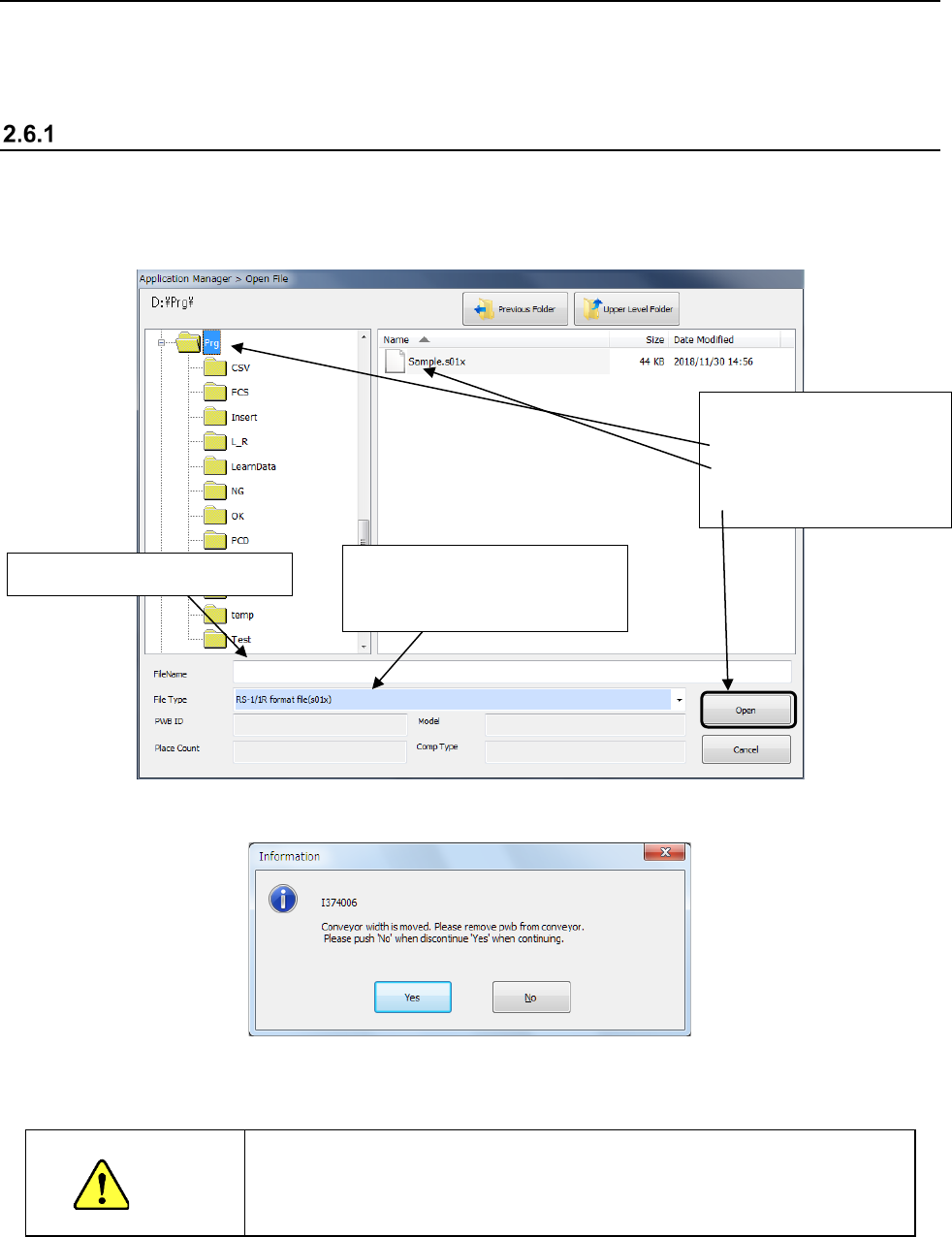
When you click the “File” button on the menu, then the [Open] command, the following dialog box
appears on the screen.
Select the desired file, and click the <Open> button. The selected file is loaded into the system.
Next, the following message appears on the screen.
When you click the <Yes> button, the “Automatic conveyor width adjustment” screen appears.
CAUTION
When you select the <Move> button on the “Automatic conveyor width
adjustment” screen, the conveyor starts operating. Be sure to check
to see if there is no substance on the conveyor movable section before
selecting this button.
* See Section 2.12.1.2 “Automatic PWB width adjustment” for details of an automatic PWB
width adjustment device.
<Procedure>
① Select a folder.
② Select a file.
③ Click the <Open> button.
The selected file name appears here.
To open a file created with another
machine, specify the model name
(file format) here.
Part 1 Basic Operation Chapter 2 Production
2-21
Saving a file
This function saves production program and Management Information by overwriting it.
Click the “File” button on the menu, and then the [Save] command.
The program is saved.
CAUTION
When you save a production program, the original contents are erased.
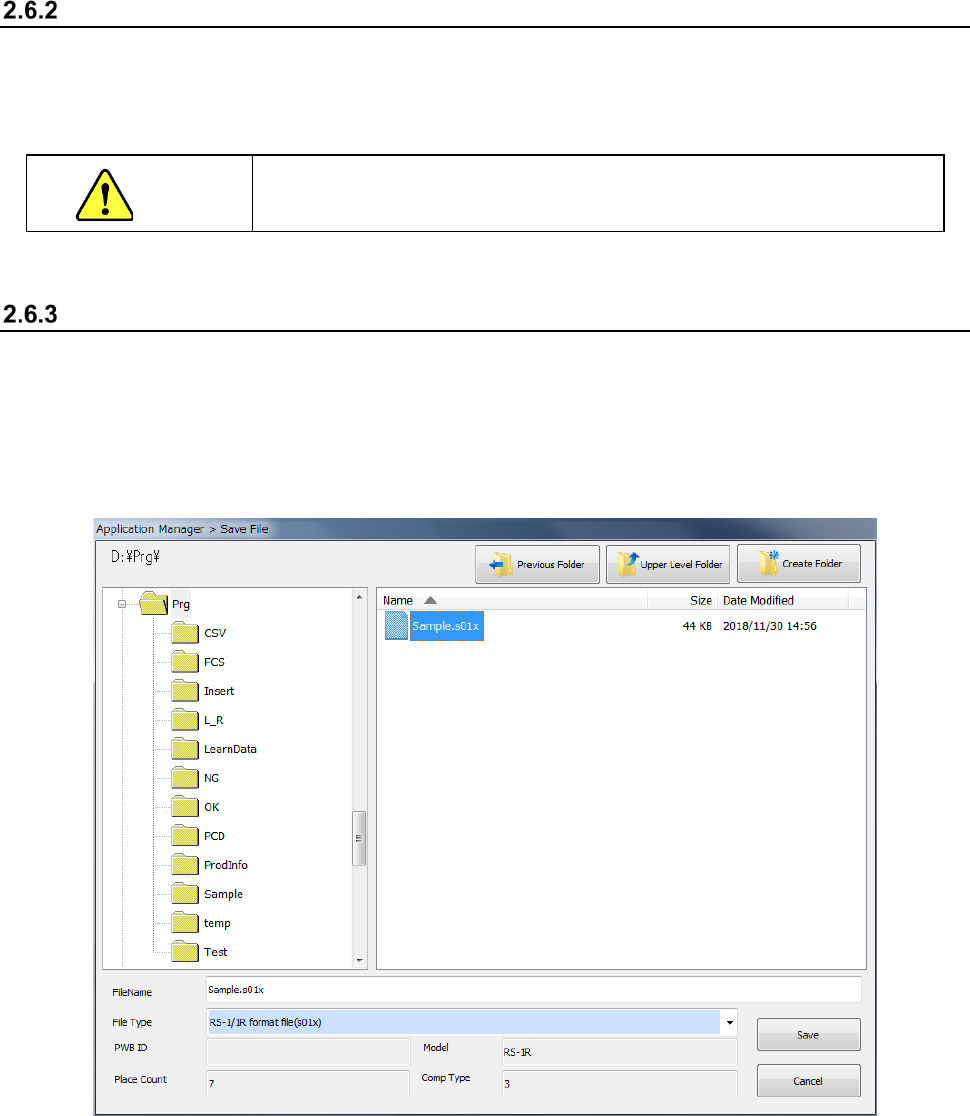
Saving a file with the desired name
Select the [Save as] command to save the edited production program in another folder or with a
new name you specify.
① Click the “File” button, and then the [Save as] command.
② Specify the desired folder and file name on the “Save File” screen, and click the <Save>
button.
Part 1 Basic Operation Chapter 2 Production
2-22
2.7 Preparation for PWB Production
Setting up a PWB
<Procedure>
How to set up each PWB production mode on the “Plan Support” screen *1 invoked from the
“Production” screen is described here.
The operations described below become available only after you start up the Production utility
unless otherwise noted.
*1 “Plan Support” screen invoked from the “Product” menu: When you select the [Support]
command from the menu invoked with the “Product” button of the main menu, and then the
[Plan Support] command, you can execute the function for selecting a check or adjustment to
be performed at preparation stage of PWB production by selecting the corresponding menu on
the “Production” screen. This improves the operability of the system.
See Section 4.5.2.5 “Transport” for the detailed description of transport of a PWB.
See Section 2.12.1 “Plan support” for the detailed descriptions of the plan support functions.
Note: You have to load a production program to the system in order to start up the Production
utility.
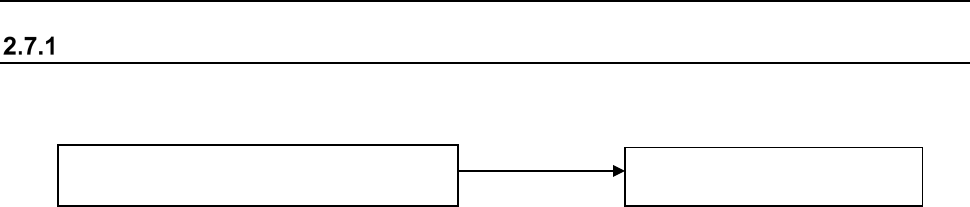
Positioning of the support pin
Adjustment of the PWB transport rail width