User Manual SIPLACE Head Care Station -.pdf - 第50页
4 Setting up and commissioning 4.3 Software HCS 50 User Manual SIPLACE Head Care Station 10/2017 ► Confirm the following Windows safety messages. ► Enable the “ Always trust software from xxxxxx ” check box. ► Click Inst…
4 Setting up and commissioning
4.3 Software HCS
User Manual SIPLACE Head Care Station 10/2017 49
4.3 Software HCS
4.3.1 Installing the operating system
To install the Windows Embedded Standard 7 (WES7) operating system, please follow the in-
stallation instructions in “Operating System Windows Embedded Standard 7”[00197737-xx].
4.3.2 Installing the HCS software
This section describes the installation of the HCS interface with a boot capable USB flash drive.
Other means for installing the interface may differ in the following procedure:
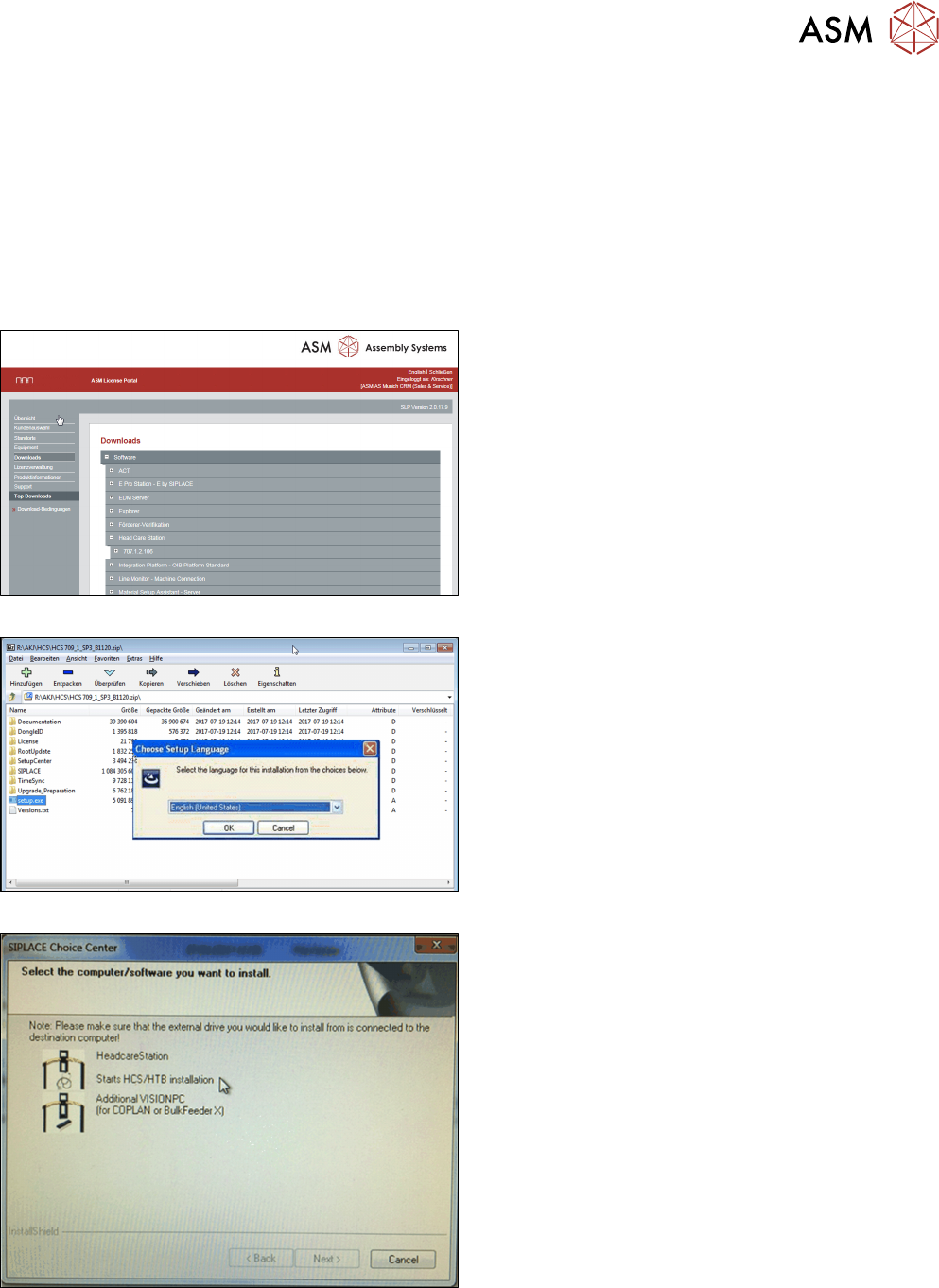
Fig.36: Software download
► Download the HCS software from the license
portal.
► Unzip the file onto a USB flash drive.
► Plug in the USB drive into a free slot at the con-
trol box.
Fig.37: Language selection
► To start the installation, double-click the
setup.exe on the USB flash drive and follow the
instructions on the screen.
► Choose the installation language.
► Click OK to continue.
Fig.38: HCS UI installation start screen
► Click on the HeadcareStation icon.
► Click Next to continue.
ð The software prepares and installs all neces-
sary software components. When the installa-
tion is complete, the Sirio installation starts
automatically.
4 Setting up and commissioning
4.3 Software HCS
50 User Manual SIPLACE Head Care Station 10/2017
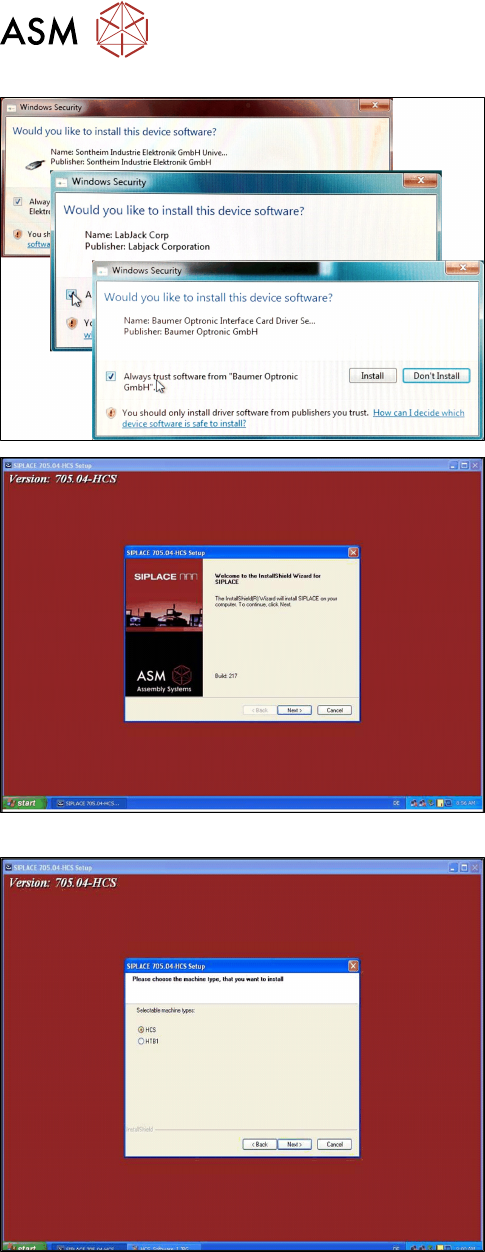
► Confirm the following Windows safety messages.
► Enable the “Always trust software from
xxxxxx” check box.
► Click Install to continue the installation.
Fig.39: HCS UI installation welcome screen
► Click Next to continue.
Fig.40: Machine type selection
► Select HCS as the machine type.
► Click Next to continue.
4 Setting up and commissioning
4.3 Software HCS
User Manual SIPLACE Head Care Station 10/2017 51
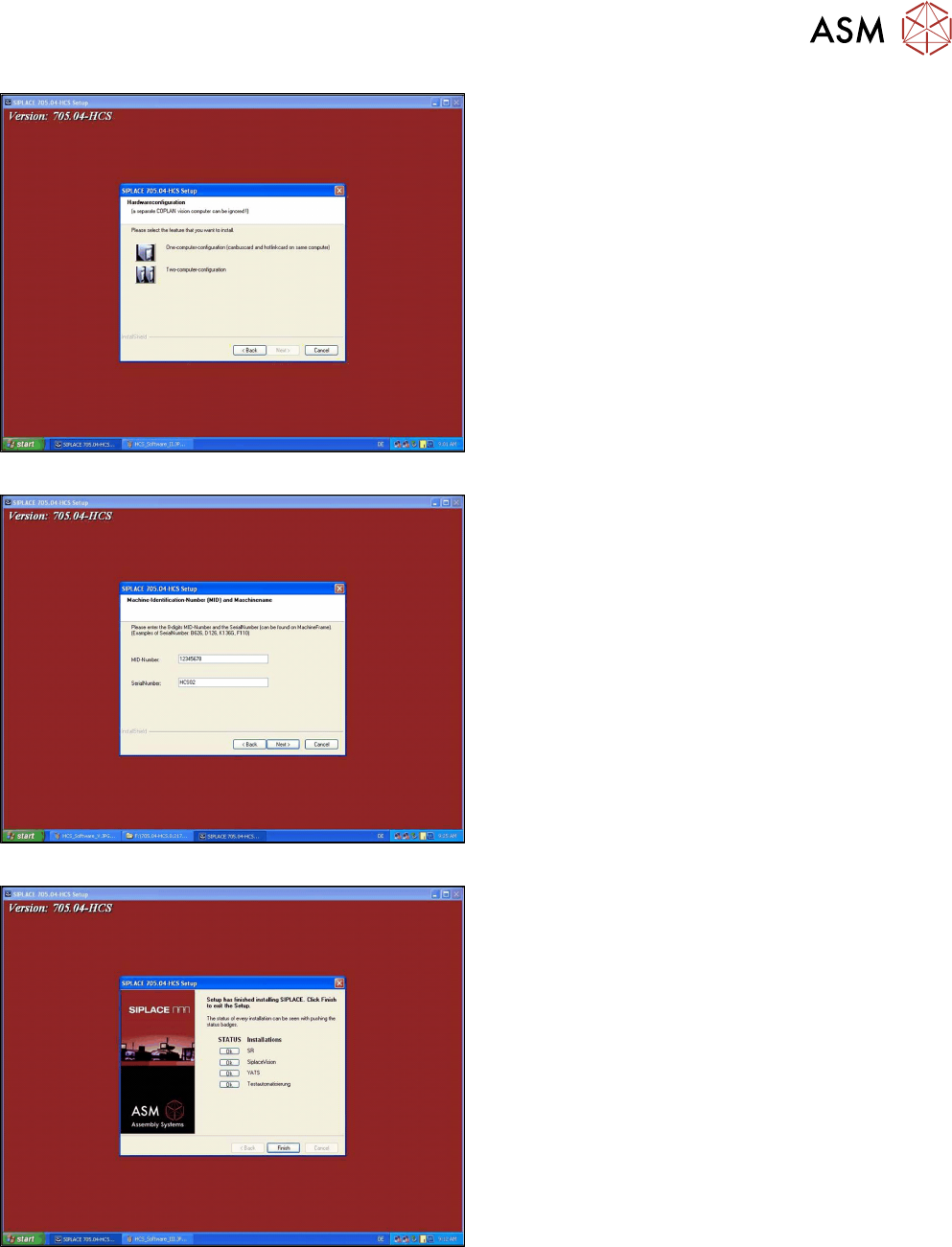
Fig.41: Hardware configuration
► Select One-computer-configuration.
► Click Next to continue.
Fig.42: Machine identification number
► Enter a random 8-digit number as MID-Number
(e.g. 12345678).
This entry is mandatory even if no MID-Number
is assigned to the HCS.
► In the SerialNumber field, enter the serial num-
ber of the HCS.
You can find the serial number on the type plate
on the right side of the head unit.
Fig.43: Completing the installation
► After the software is successfully installed, click
Finish.