User Manual SIPLACE Head Care Station -.pdf - 第52页
4 Setting up and commissioning 4.3 Software HCS 52 User Manual SIPLACE Head Care Station 10/2017
4 Setting up and commissioning
4.3 Software HCS
User Manual SIPLACE Head Care Station 10/2017 51
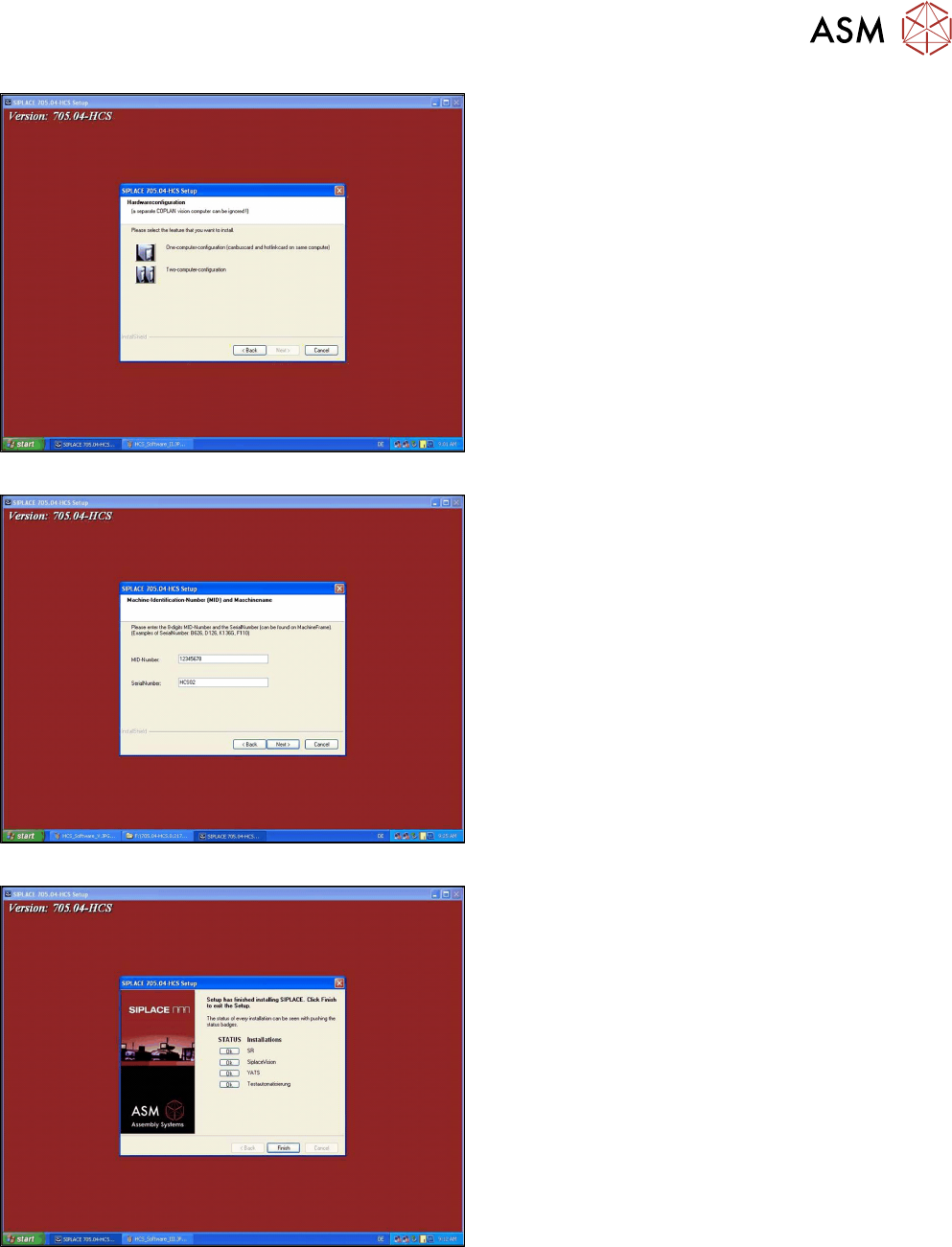
Fig.41: Hardware configuration
► Select One-computer-configuration.
► Click Next to continue.
Fig.42: Machine identification number
► Enter a random 8-digit number as MID-Number
(e.g. 12345678).
This entry is mandatory even if no MID-Number
is assigned to the HCS.
► In the SerialNumber field, enter the serial num-
ber of the HCS.
You can find the serial number on the type plate
on the right side of the head unit.
Fig.43: Completing the installation
► After the software is successfully installed, click
Finish.

4 Setting up and commissioning
4.3 Software HCS
52 User Manual SIPLACE Head Care Station 10/2017
5 Working with the HCS
5.1 Remote desktop operation
User Manual SIPLACE Head Care Station 10/2017 53
5 Working with the HCS
CAUTION
Qualified or adequately trained personnel
► No one may start up, operate or otherwise work on the HCS unless they have the rel-
evant qualification. Using the HCS not as prescribed, could endanger life and limb,
and result in material damage.
► The qualification must be proven by means of training courses or instructions for the
personnel. The instructions are to be given by personnel trained and authorized by
ASM SMT Solutions Team. For an overview of the training courses, refer to section
1.2 "Qualification and training of personnel" [}10].
1.1.5 "Failure to use as prescribed" [}9]
5.1 Remote desktop operation
Instead of using a separate monitor, keyboard and mouse, the HCS can also be operated remotely
using the Windows XP remote desktop function. To establish a remote desktop connection to the
HCS control box, proceed as follows:
► Connect your notebook or PC to the HCS control box with a LAN cable.
► When the network card is trying to obtain an IP address, you have to wait until this icon
is displayed in the taskbar of your desktop.
► Click Start > Programs > Accessories > Communications > Remote Desktop Connec-
tion.
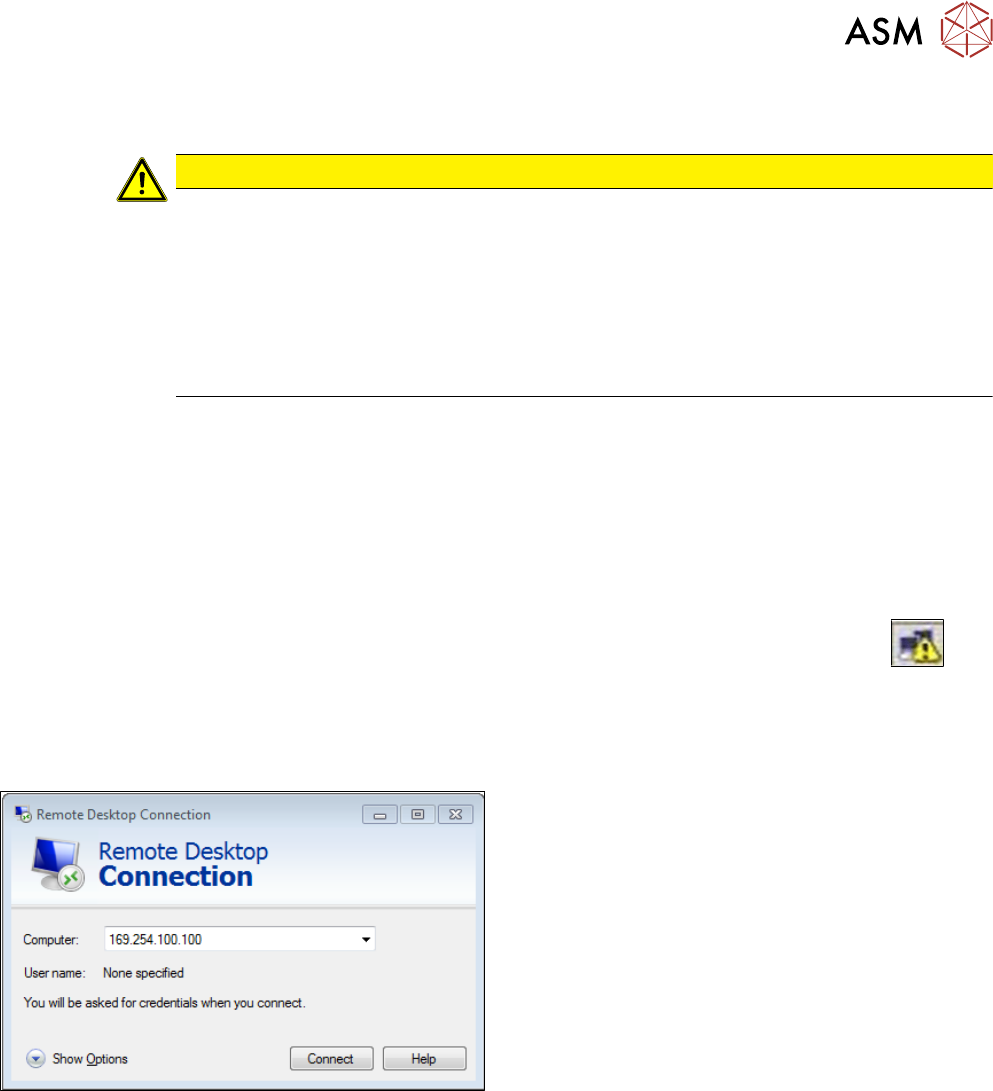
ð The Remote Desktop Connection dialog box is displayed:
► In the Remote Desktop Connection dialog box,
enter the standard IP-address 169.254.100.100
and click Connect.
ð A remote desktop connection is built up.
► In the HCS login dialog box, log on as follows:
Username: operator
Password: operator