3OM-1208-011_w.pdf - 第193页
5-6 AIVEDT -ID 0606-009 1.3 Outline of Bypass & Rate Data The corresponding tab sheet enables the operator to check the pickup rate calculated for each feeder or nozzle and based on each pickup rate specified in the a…
5-5
AIVEDT-ID
[4] [CrntPP] Button
When pressed, this button displays the current pattern program
(production model).
[5] [All] Button
When pressed, this button displays the names of all registered programs
in the "List of Model Names" pane.
[6] [Search] Button
When pressed, this button helps you fi
nd a model from the "List of
Model Names" pane.
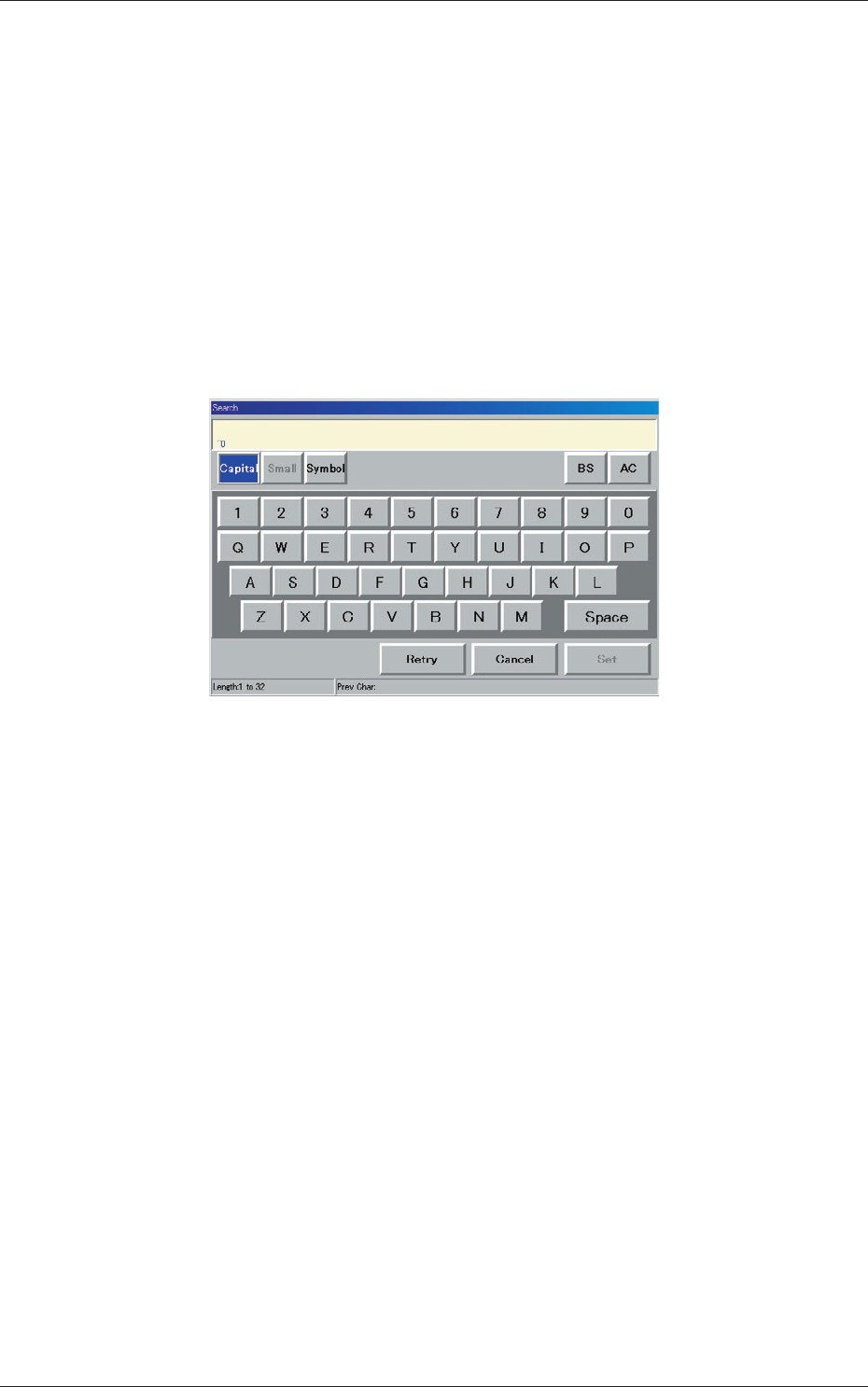
When this button is pressed, the "Search" window opens.
Fig. 3E3 "Search" Window
When the desired model name is entered in the entry box and the [Set]
button is pressed, the search function starts working and the result
appears in the "List of Model Names" pane.
"*" (asterisk) and "?" (question mark) can be used as wild cards.
abc* : The search function retrieves the program names which start
with "abc".
a?c :
The search function retrieves the program names which start
with "a" and contain "c" as the third character.
0606-009
1.2 Outline of Pattern Program Management Data
5-6
AIVEDT-ID
0606-009
1.3 Outline of Bypass & Rate Data
The corresponding tab sheet enables the operator to check the pickup rate
calculated for each feeder or nozzle and based on each pickup rate specified
in the auto operation setup data.
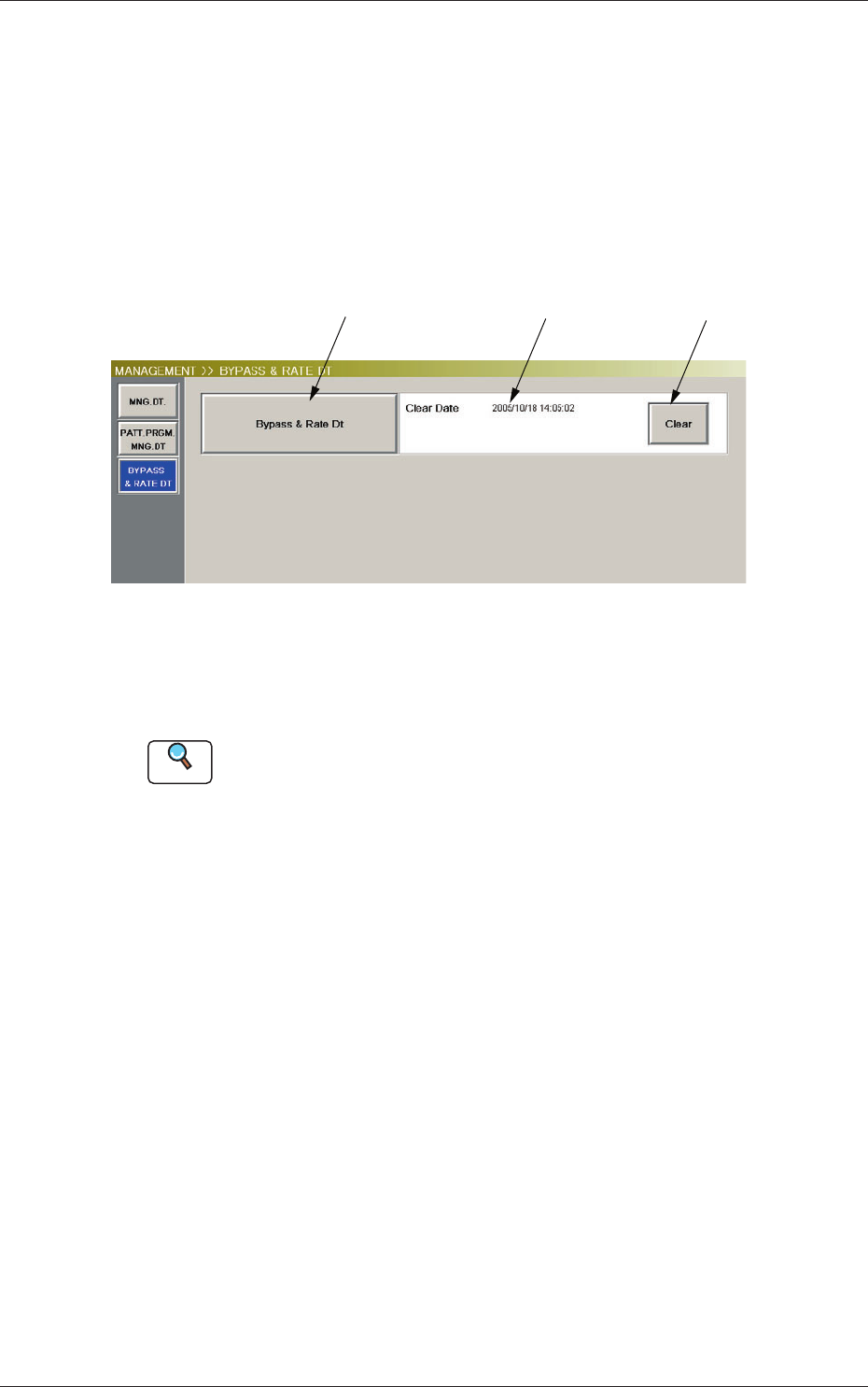
When the [Bypass & Rate Dt] button is pressed in the "MANAGEMENT
DATA" window, the following window opens.
[1] [2] [3]
Fig. 3E3 "Bypass & Rate Dt" Window
[1] [Bypass & Rate Dt] Button
When pressed, this button opens the "Bypass & Rate Data" window.
Reference
Refer to "4. Bypass & Rate Data" for the details of the "Bypass & Rate
Data" window.
[2] Clear Date and Comment
Displayed are the clear date and comment of the bypass & rate data.
[3] [Clear] Button
When this button is pressed, the all bypass & rate data is deleted and the
clear date is updated.
1.3 Outline of Bypass & Rate Data
5-7
AIVEDT-ID
2. Management Data
The corresponding window enables the operator to confirm the production
performance data covering the whole machine performance.
Note
The contents of "Type #1" are almost the same as "Type #2".
To use the required items, the management spans must be distinguished.
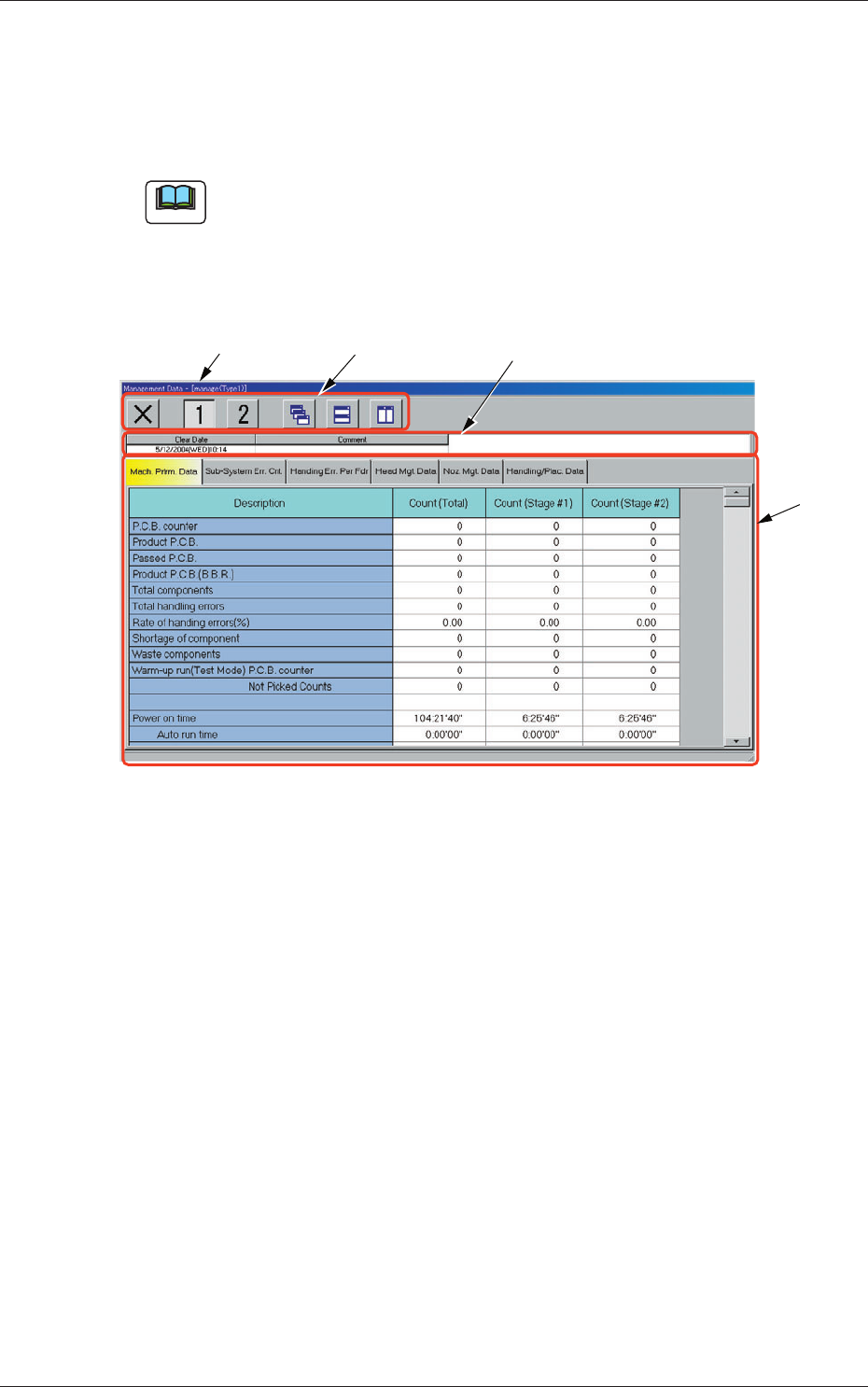
When the [Manage Dt.] button is pressed in the "MANAGEMENT DATA"
window, the "Management Data - [manage (Type1)]" window opens.
[3][2][1]
[4]
Fig. 3E5 "Management Data" Window
[1] Title Bar
The active window is titled "Management Data - [manage (Type1 or
Type2)]" on this bar, making it clear which data (Type #1 or #2) is
selected.
2. Management Data
0606-009