ConneX_Help.pdf - 第10页
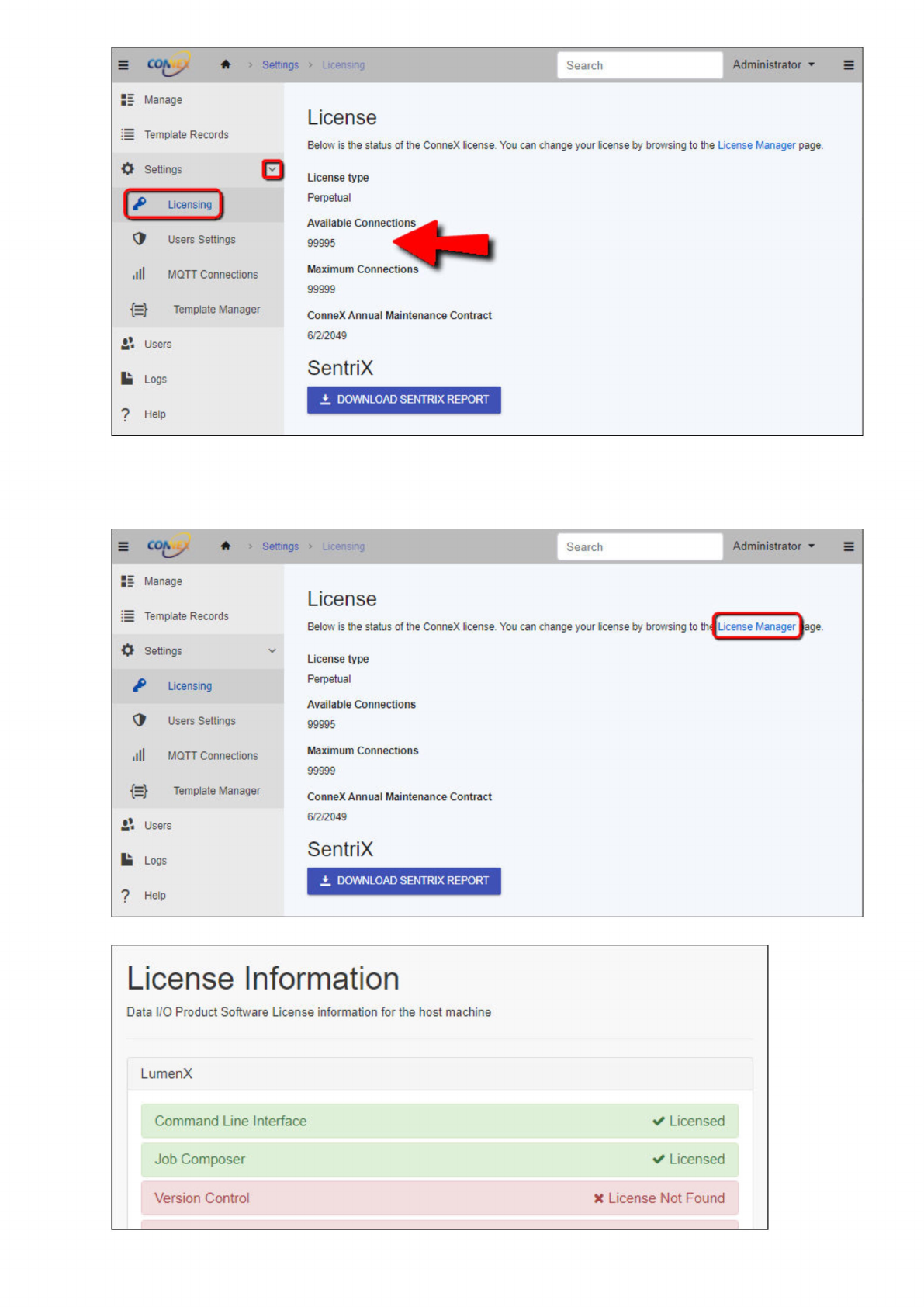
You ma y nee d to ref re sh the Lic e ns e Inf orm a tio n pa g e to d i spl a y any mod i f i c a tio ns to Conn eX li c ensi ng . Wi t h your Mac hi ne M ana g e r(s) and C onn e X S e rve r instal le d, proc ee d to s…
Note
You may need to refresh the License page to display any modifications to ConneX licensing.
3. If Available Connections shows unexpected information and/or to access Data I/O License Manager directly, click the License
Manager link.
4. On the License Information page, you can activate, deactivate, and refresh your Data I/O software licenses.
Note
Search
Administrator
Manage
:
=
Template
Records
0
Settings
G
Users
Settings
illl
MQTT
Connections
{=}
Template
Manager
Users
Logs
?
Help
License
Below
is
the
status
of
the
ConneX
license
You
can
change
your
license
by
browsing
to
the
License
Manager
page.
License
type
Perpetual
Available
Connect!
99995
Maximum
Connect
99999
ConneX
Annual
Maintenance
Contract
6/2/2049
SentriX
±
DOWNLOAD
SENTRIX
REPORT
=
Q
含
Search
Administrator
Manage
License
Template
Records
Below
is
trie
status
of
the
ConneX
license
You
can
change
your
license
by
browsing
to
License
Manager
0
Settings
#
Licensing
G
Users
Settings
illl
MQTT
Connections
License
type
Perpetual
Available
Connections
99995
Maximum
Connections
99999
{=}
Template
Manager
ConneX
Annual
Maintenance
Contract
£
Users
6/2/2049
!■
Logs
SentriX
7
Help
License
Information
Data
I/O
Product
Software
License
information
for
the
host
machine
LumenX
Command
Line
Interface
Job
Composer
V
Licensed
Licensed
Version
Control
*
License
Not
Found

You may need to refresh the License Information page to display any modifications to ConneX licensing.
With your Machine Manager(s) and ConneX Server installed, proceed to setup the programmers as described in the Configuration steps.
Configuration
This page provides instructions for configuring the programmers of a PSV System (Machine Manager instance) from the ConneX Server. To
establish connectivity between ConneX Server and each Machine Manager/PSV System, complete the steps under Adding a New System.
Configure Programmer Interface
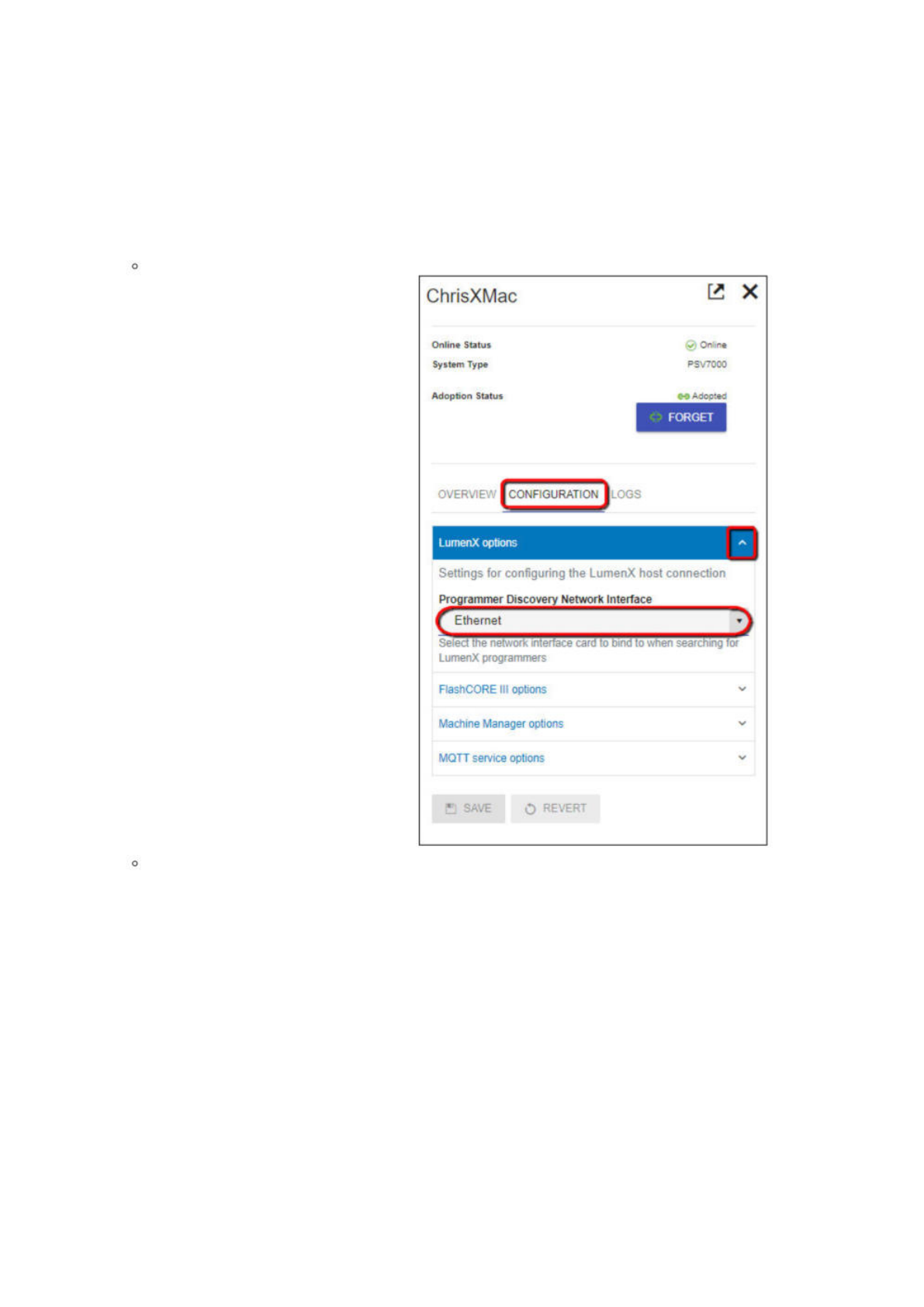
1. On the Manage page, select a PSV System to configure.
2. In the system tile, click the Configuration tab.
3. Now select the appropriate network interface for programmer communication:
For LumenX, click the LumenX options drop-down arrow, then select the appropriate option from the Programmer
Discovery Network Interface drop-down list.
For FlashCORE, click the FlashCORE III options drop-down arrow, then select the appropriate option from the Programmer
ChrisXMac
已
X
Online
Status
System
Type
Adoption
Status
>
On
me
PSV70O0
Adcoted
FORGET
OvERVIE
?/
CONFIGURATION
—
LumenX
options
人
Settings
for
configuring
the
LumenX
host
connection
Programmer
Discovery
Network
Interface
LumenX
programmers
FlashCORE
III
options
Machine
Manager
options
MQTT
service
options
H
SAVE
O
REVERT