ConneX_Help.pdf - 第16页
3. Cl ic k Sa v e . Con f i gu r e M QT T ser vi c e opt i on s S i m il a rl y, c li c k the M QTT ser vice o ption s drop -do w n li st to co nf igu re the Mach in e M an ag er M QT T por t ( de f ault is T CP port 90 …
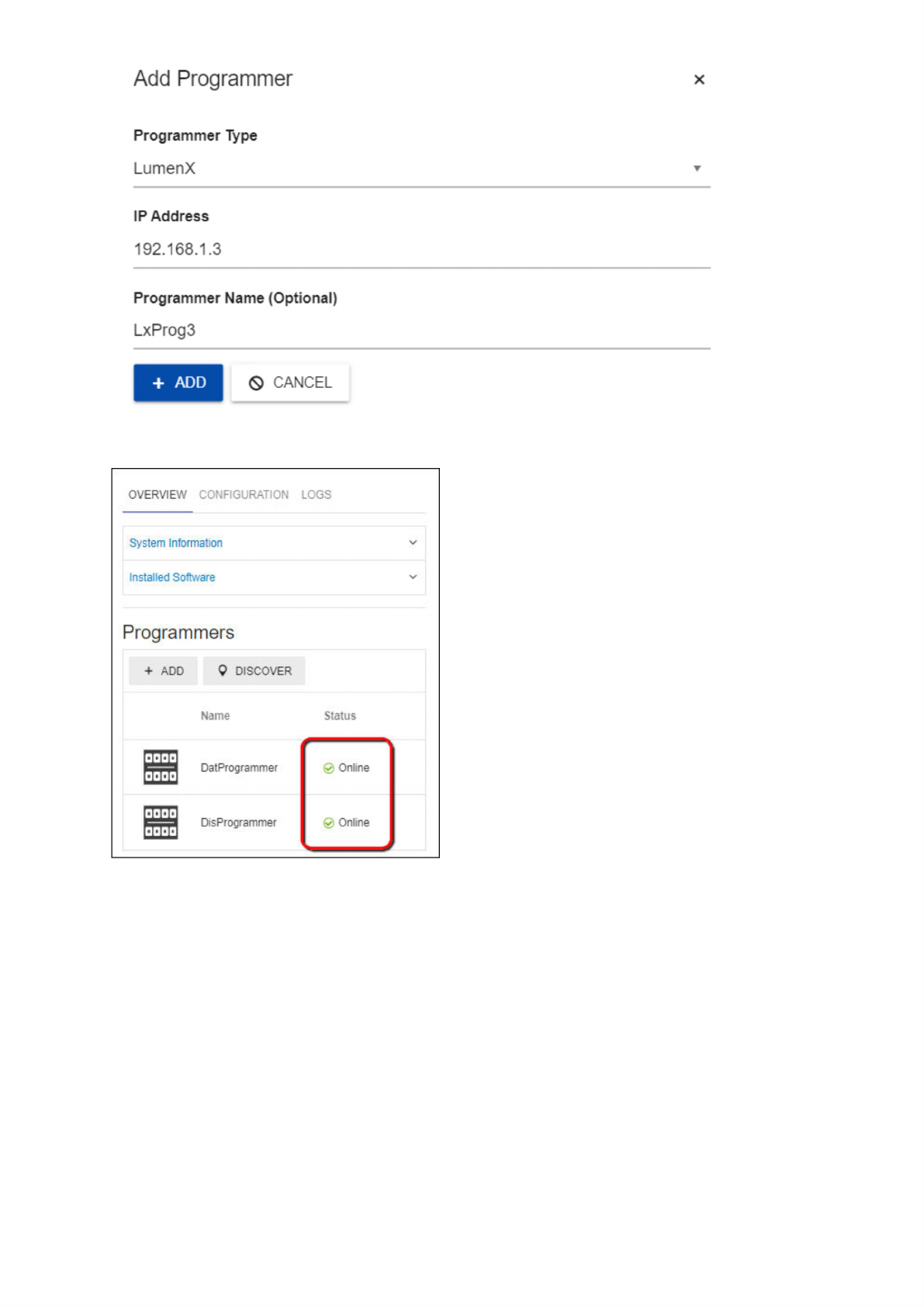
4. Now in the Programmers section, confirm that the added programmer appears in the list with a Status of Online (green color).
Configure Machine Manager options
To change the Machine Name, Factory Name, or Handler Type (all of which ConneX writes to logs and records):
1. On the Manage page, select a PSV System/Machine Manager to configure.
2. In the system tile, click the Configuration tab, then expand the Machine Manager options drop-down list.
Add
Programmer
X
Programmer
Type
LumenX
IP
Address
192.168.1.3
Programmer
Name
(Optional)
LxProg3
0
CANCEL
+
ADD
OVERVIEW
CONFIGURATION
LOGS
System
Information
Installed
Software
Programmers
+
ADD
9
DISCOVER
Name
DatProg
rammer
DisProgrammer
@
Online
Online
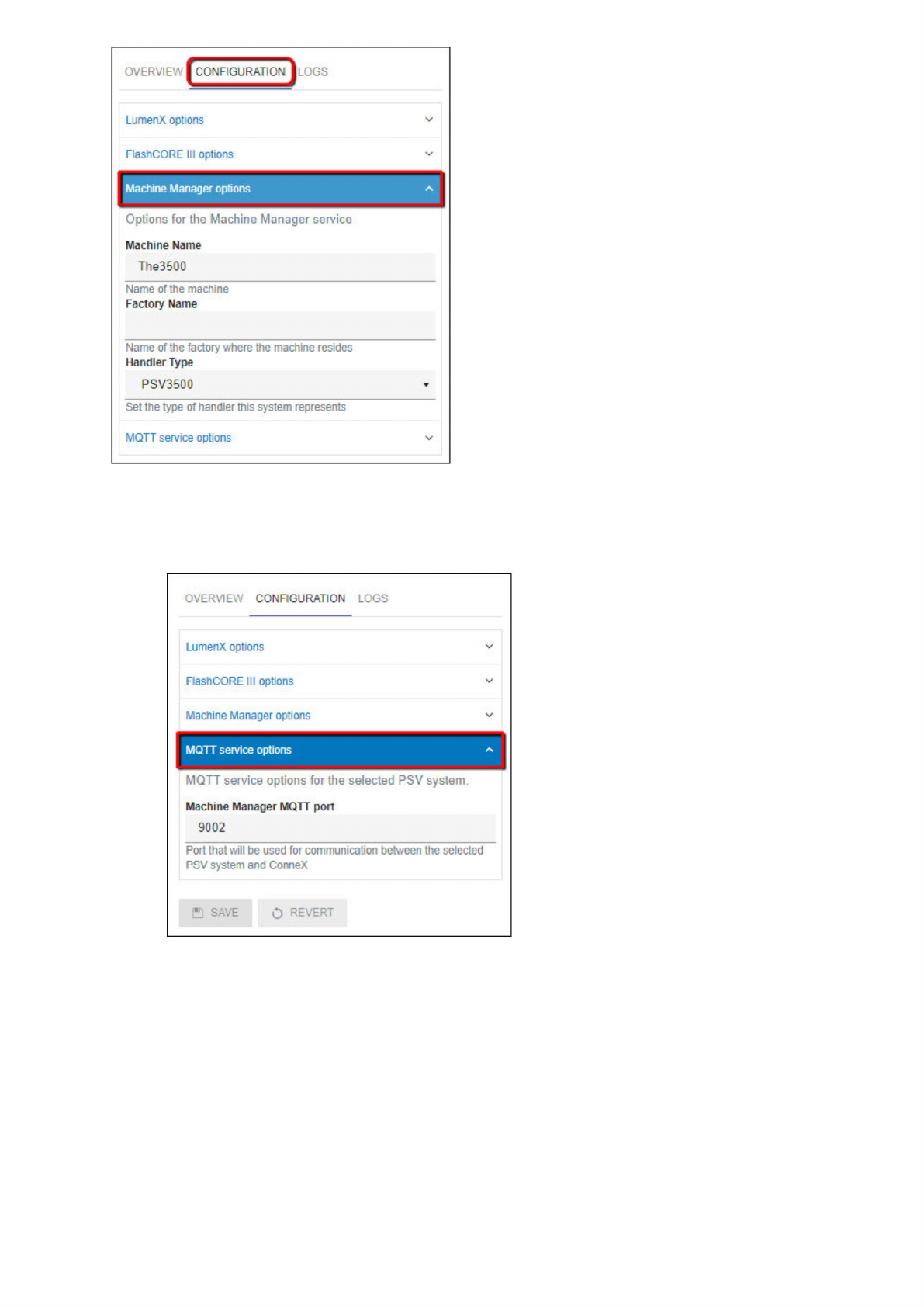
3. Click Save.
Configure MQTT service options
Similarly, click the MQTT service options drop-down list to configure the Machine Manager MQTT port (default is TCP port 9002), and
then click Save.
OVERVIE\":ONFIGURATIONj
LOGS
LumenX
options
FlashCORE
III
options
Machine
Manager
options
人
Options
for
the
Machine
Manager
service
Machine
Name
The3500
Name
of
the
machine
Factory
Name
Name
of
the
factory
where
the
machine
resides
Handler
Type
PSV3500
Set
the
type
of
handler
this
system
represents
MQTT
service
options
OVERVIEW
CONFIGURATION
LOGS
LumenX
options
FlashCORE
III
options
Mactiine
Manager
options
MQTT
service
options
MQTT
service
options
for
the
selected
PSV
system.
Machine
Manager
MQTT
port
9002
Port
that
will
be
used
for
communication
between
the
selected
PSV
system
and
ConneX
B
SAVE
O
REVERT
Manage
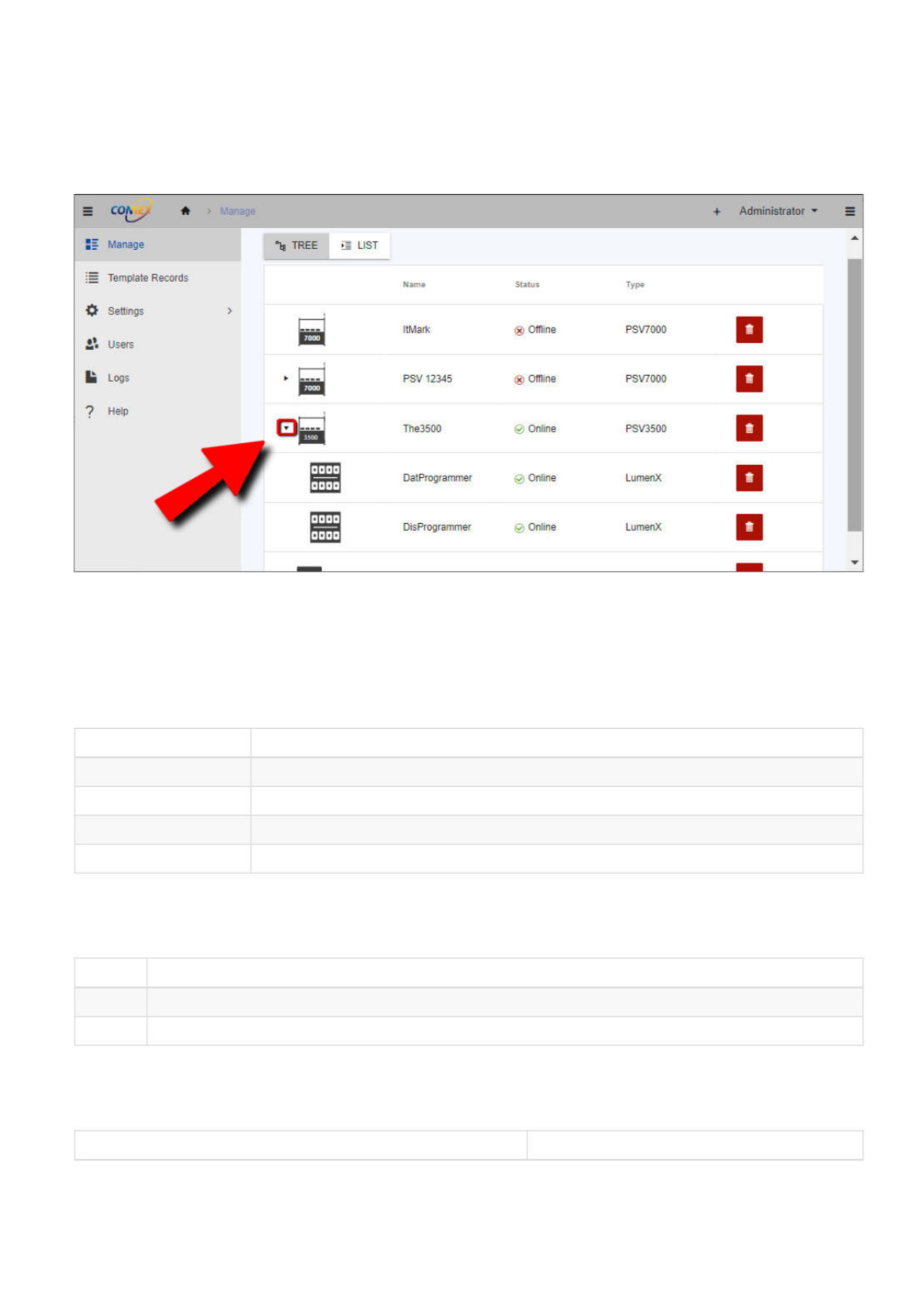
The Manage page displays all entities (such as systems, handlers, programmers, and associated programs) for the current instance. The
system and programs are organized in two views: tree view and flat view.
In the tree view, the systems are listed first and will expand, making it easy to see the hierarchical relationship between systems and their
associated programmers. This view is useful for understanding the layout of your programming systems and navigating quickly to the
system and programmer of interest.
In contrast, the flat view displays all systems and their associated programmers on the same level, making it easier to see all the systems
and programmers at once. This view is helpful when searching for a particular system or programmer and is a more condensed
representation of the programming systems.
Entity List
The manage grid shows the following for each entity (essentially a PSV System or programmer):
Column Description
Name The given name of the entity.
Online Status Indicates the status of the entity (Online or Offline).
Type Indicates the type of the entity (ex. PSV7000, PSV5000, etc.).
Adoption Status Indicates the adoption status of the system.
Online Statuses
Entities (PSV Systems or programmers) can have the following online statuses:
Status Description
Online The entity is online and is operational (sending information to ConneX Server)
Offline The entity is offline and is not operational (NOT sending data to ConneX Server)
Types
Systems can have the following types:
Type Description
*
Administrator
Manage
飞
TREE
遣
LIST
:
=
Template
Records
Name
Status
Type
*
Settings
>
储
Users
CT
ItMark
Offline
PSV7000
!■
Logs
口
ESI
PSV
12345
®
Offline
PSV7000
?
Help
盛
The3500
@
Online
PSV3500
n
三
DatProgrammer
@
Online
LumenX
Q
/
DisProgrammer
@
Online
LumenX
D