ConneX_Help.pdf - 第20页
N o te T he Av aila ble co n n ection s co unt on the Ad d syst em pa g e i nd i c a tes ho w ma ny Mac hi ne M an ag e r co nn ec t i on s you ca n ad d wi th t he c urre nt li c e nse . Co nf i rm you have avai l ab l …
The system tile helps you effectively monitor and manage your system by offering a clear view of your system's status, type, and adoption
status at the top of each tile.
Overview tab
On the Overview tab, you can find more details about your system configurations and installed software. For example, expanding the
System Information panel displays the following information:
Attribute Description
Hostname The system's assigned hostname.
Known IP Address(es) The IP address(es) assigned to the system.
Operating System The system's operating system.
Machine Manager Version The version of the Machine Manager software.
Machine Manager Identifier The unique identifier for this system.
Factory Name The name of the factory where the system is used.
While expanding the Installed Software panel displays a list of installed software including name, version, and installation directory.
The Programmers section allows you to easily add, discover, and manage programmers connected to the system. For information about
configuring programmers, see Configuration.
The Events section at bottom keeps track of system events in a table to simplify system monitoring activities.
Column Description
Timestamp The date and time when the event occurred.
Event Type The category of the event
Message A brief description of the event.
Click a row in the table to open a more detailed view of the event message (ex. additional information about the event and any related
actions).
Configuration tab
The Configuration tab lets you set options for the following (as described in the Configuration page):
LumenX options (Programmer Discovery Network Interface)
FlashCORE III options (FC3 communication port and Programmer Discovery Network Interface)
Machine Manager options (Machine Name, Factory Name, and Handler Type)
MQTT service options (Machine Manager MQTT port number)
Logs tab
The Logs tab allows you to remotely view and download Machine Manager logs for efficient troubleshooting and issue resolution.
Download the logs as a ZIP file to a directory of your choice, then review them on your local machine for in-depth analysis.
Adding a New System
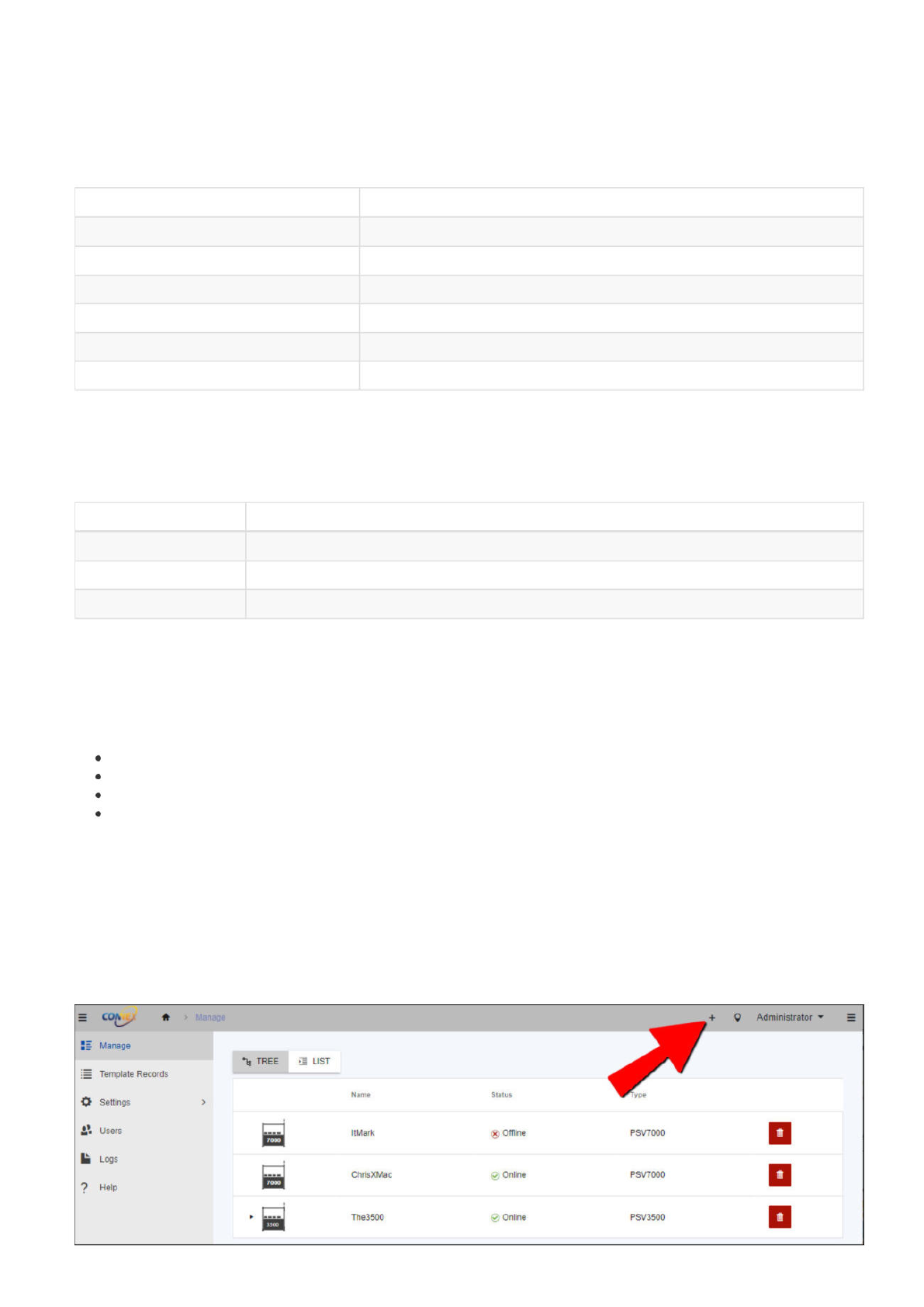
From the Manage page, click Add Connection (+ icon) in the upper-right corner.
=
c*
*
Manage
;=
Template
Records
*
Settings
2?
Users
!■
Logs
?
Help
ItMark
包
Offline
PSV7000
>
cd
工
ChrisXMac
The3500
©
Online
5
Online
PSV7000
PSV3500
Note
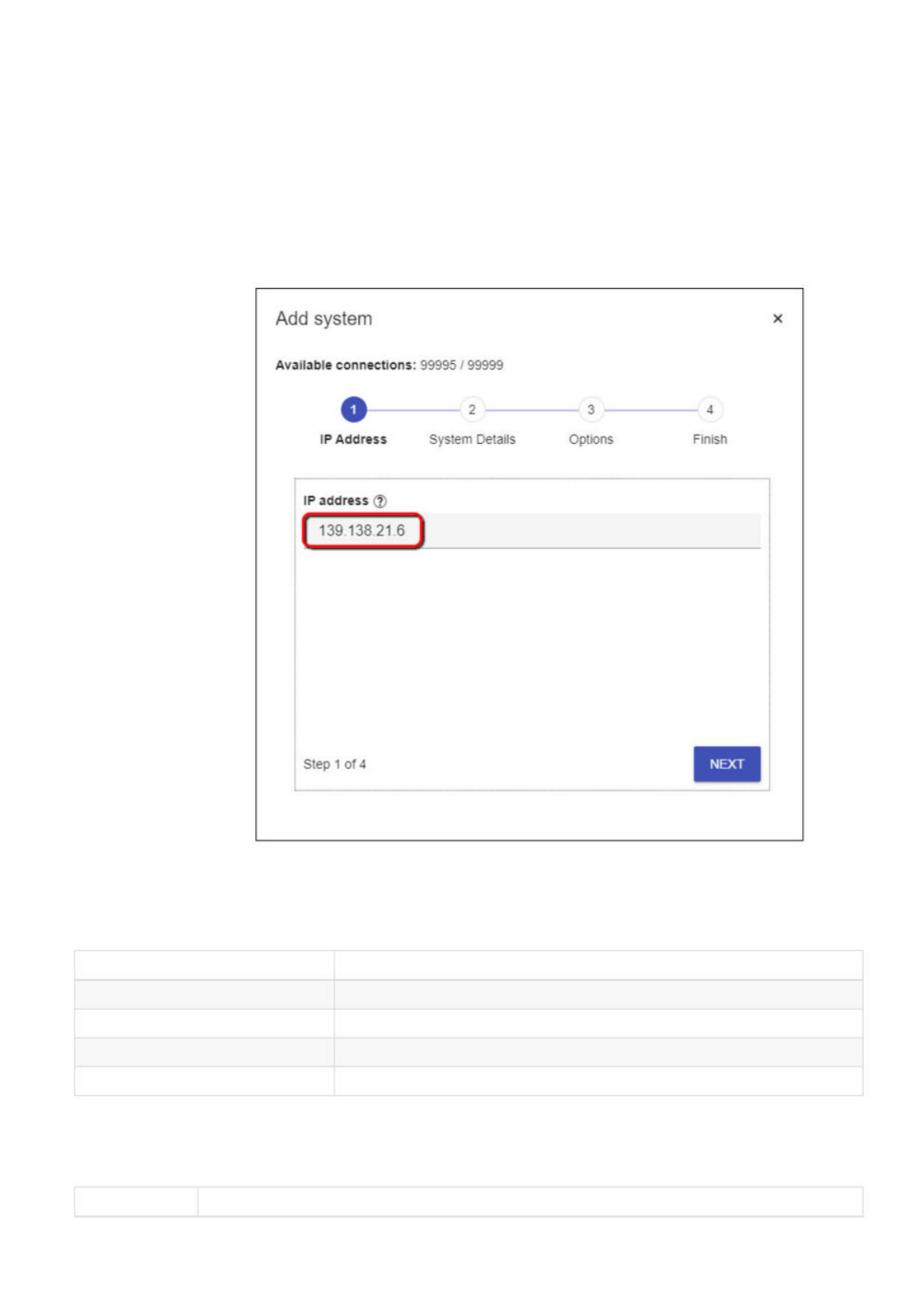
The Available connections count on the Add system page indicates how many Machine Manager connections you can add with the
current license. Confirm you have available connections to proceed.
Step 1: IP Address
Enter the IP address of the PSV system in the provided field. If you're unsure of the IP address, here's how you can find it on a Windows
computer:
1. On the PSV system (Machine Manager instance) to add to ConneX Server, open the Command Prompt by typing cmd in the
Windows search bar, then select Command Prompt from the results.
2. In the Command Prompt window, type the command ipconfig, and press Enter.
3. Look for the IPv4 Address entry for the network adapter used to connect to the PSV system (which is the IP address you enter into
the Add system wizard).
Step 2: System Details
If the connection to the PSV system is successful, the wizard displays a table with details of the new system. Confirm the table shows the
intended system to add; else click Back to confirm the IP address.
Detail Description
System Name The ConneX given name of the system.
Machine Serial Number The serial number of the system.
Hostname The name of the host used by Windows.
System Type The type of system (e.g. PSV7000, PSV5000, etc.)
Step 3: Options
Set additional options to customize the connection process.
Option Description
Add
system
X
Available
connections:
99995
/
99999
2
3
4
IP
Address
System
Details
Options
Finish
139
138.21.6
Step
1
of
4
NEXT
IP
address
Adopt system after
connecting?
Enable to adopt the system and allow ConneX Server to start receiving messages immediately; Disable to simply
add the system now (ex. ConneX data transfer to be enabled later)
System Name Type the name of the system.
Option Description
Step 4: Finish
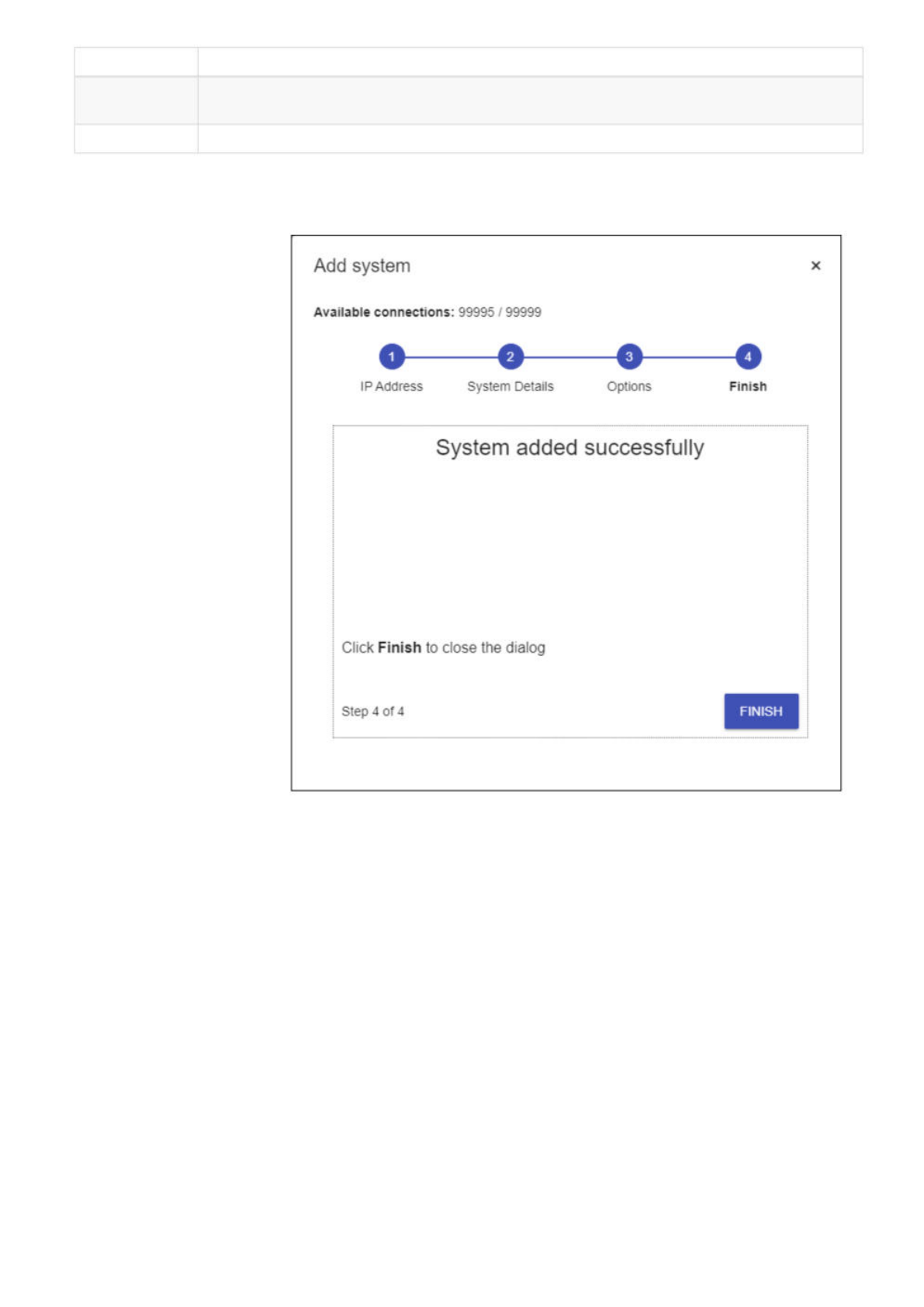
If the setup wizard displays the following page, then the Machine Manager system is successfully added to ConneX Server. At this point,
you can click Finish to exit the wizard.
However, in some cases, a warning message might appear indicating that the adoption was not successful because the system is already
adopted. In such cases, please follow the troubleshooting steps for System is adopted by another ConneX Service
A notification in the lower-right corner also indicates the success or failure of the add system operation.
To ensure/enable ConneX data transfer for the added Machine Manager, you must Adopt it from the ConneX Server (if not already
adopted):
1. From the Managepage, click the new Machine Manager/PSV System.
Add
system
X
Available
connections:
99995
/
99999
IP
Address
System
Details
Options
Finish
System
added
successfully
Click
Finish
to
close
the
dialog
step
4
0f
4
FINISH