ConneX_Help.pdf - 第22页
2. In the se le c ted syste m til e , c l i c k Adop t . D isable M a chine Man a ger D ata Trans f er T o d i sab l e Conne X data transf e r, g o to the M an age pa ge and se l ec t / c l i c k the PS V S ystem for wh …
Adopt system after
connecting?
Enable to adopt the system and allow ConneX Server to start receiving messages immediately; Disable to simply
add the system now (ex. ConneX data transfer to be enabled later)
System Name Type the name of the system.
Option Description
Step 4: Finish
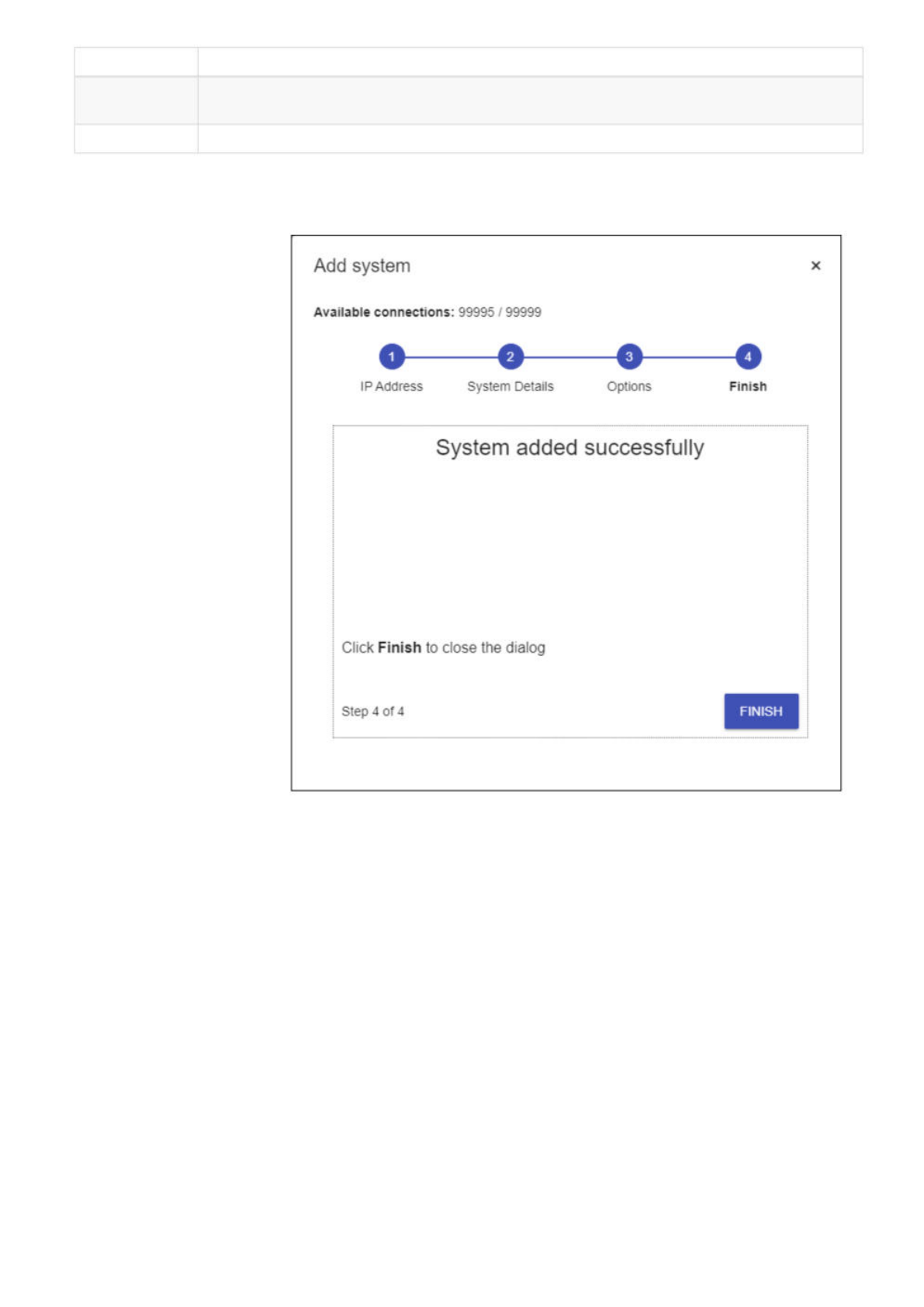
If the setup wizard displays the following page, then the Machine Manager system is successfully added to ConneX Server. At this point,
you can click Finish to exit the wizard.
However, in some cases, a warning message might appear indicating that the adoption was not successful because the system is already
adopted. In such cases, please follow the troubleshooting steps for System is adopted by another ConneX Service
A notification in the lower-right corner also indicates the success or failure of the add system operation.
To ensure/enable ConneX data transfer for the added Machine Manager, you must Adopt it from the ConneX Server (if not already
adopted):
1. From the Managepage, click the new Machine Manager/PSV System.
Add
system
X
Available
connections:
99995
/
99999
IP
Address
System
Details
Options
Finish
System
added
successfully
Click
Finish
to
close
the
dialog
step
4
0f
4
FINISH
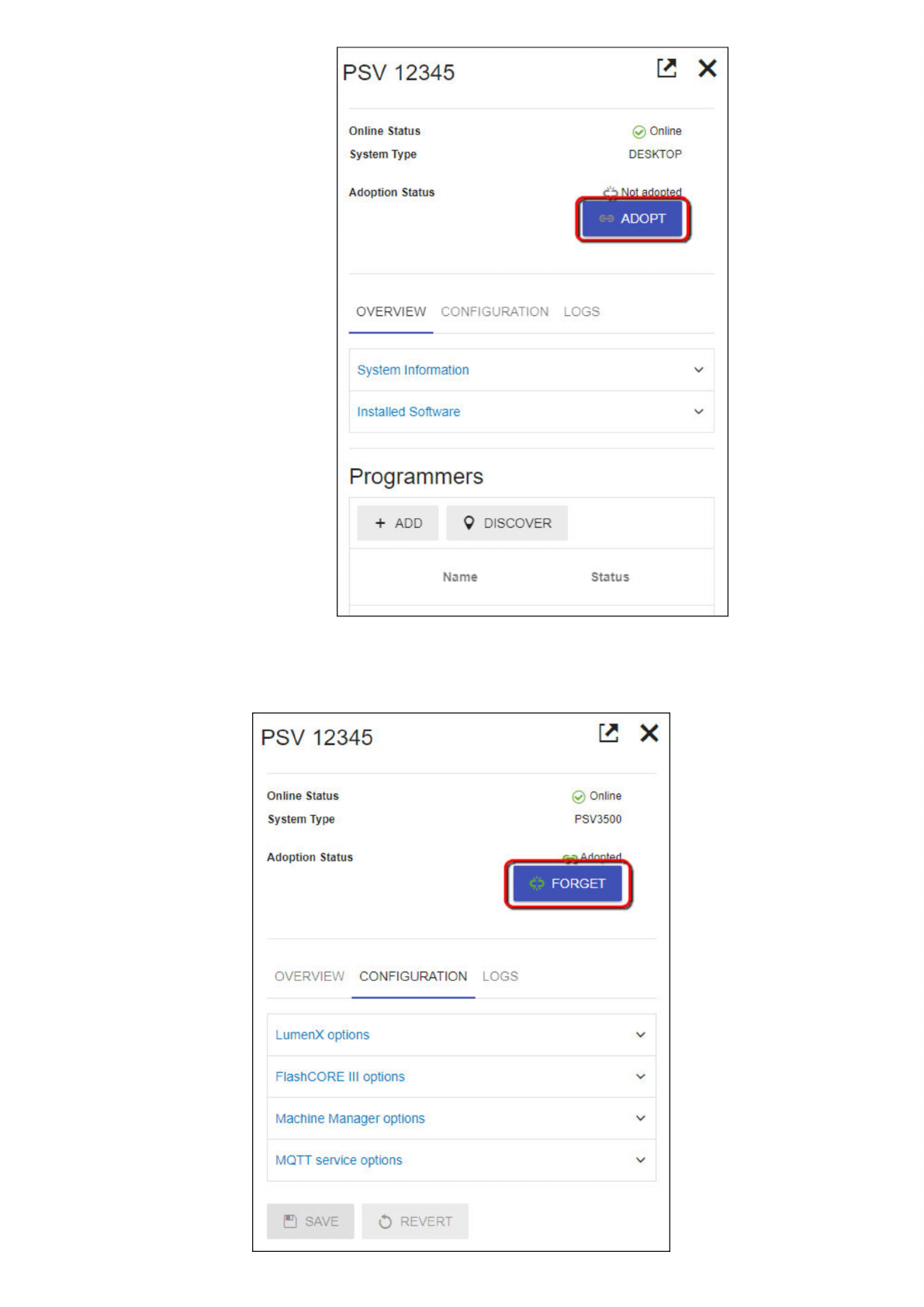
2. In the selected system tile, click Adopt.
Disable Machine Manager Data Transfer
To disable ConneX data transfer, go to the Manage page and select/click the PSV System for which to stop/pause data transfer.
In the system tile, click Forget.
PSV
12345
巳
X
Online
Status
System
Type
Adoption
Status
@
Online
DESKTOP
Not
adoDted
ADOPT
OVERVIEW
CONFIGURATION
LOGS
System
Information
Installed
Software
Programmers
+
ADD
9
DISCOVER
Name
Status
PSV
12345
Online
Status
System
Type
Adoption
Status
巳
X
6
;
Online
PSV3500
FORGET
|
OVERVIEW
CONFIGURATION
LOGS
LumenX
options
FlashCORE
III
options
Machine
Manager
options
MQTT
service
options
B
SAVE
O
REVERT
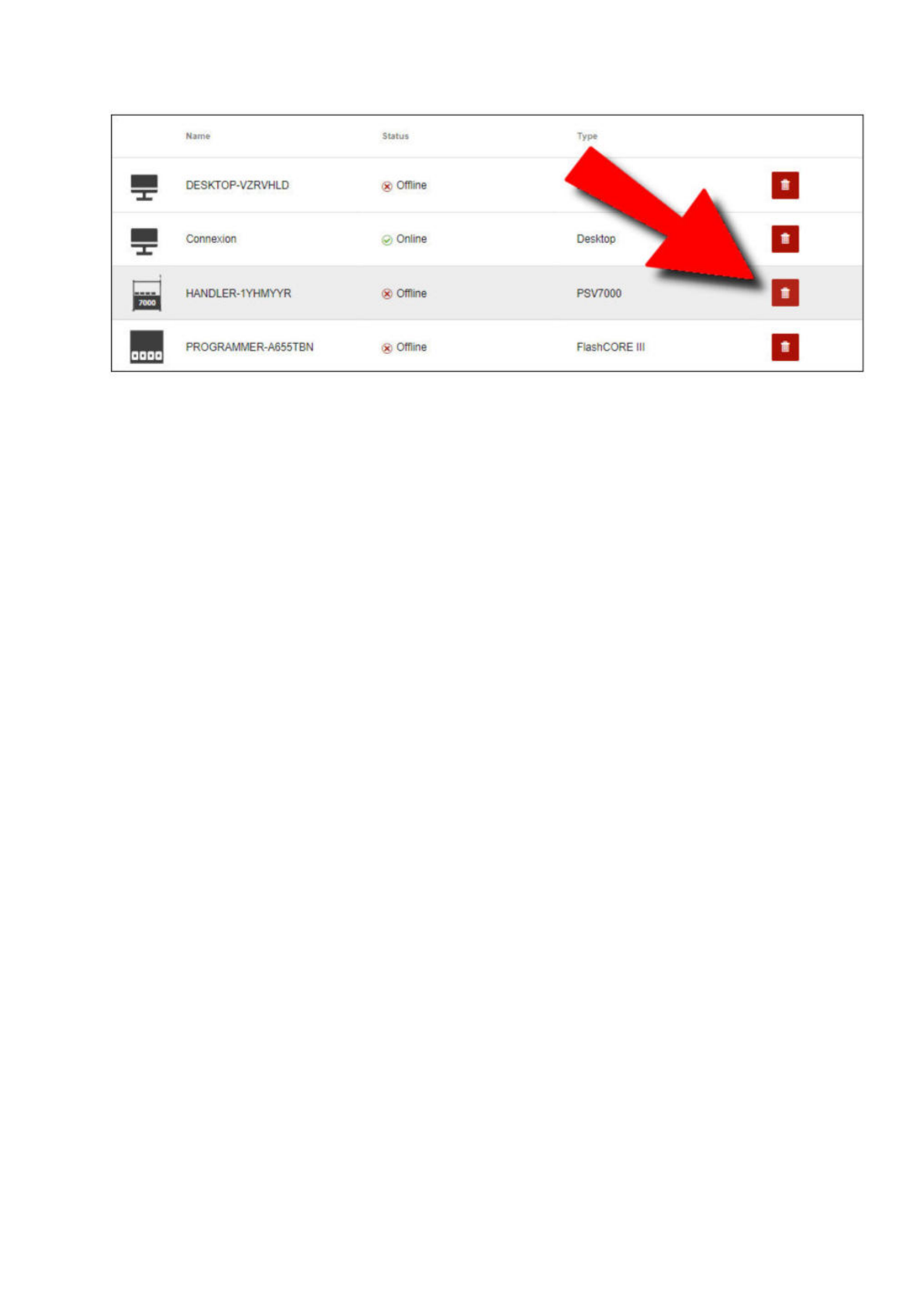
Removing a programming system/programmer
1. From the Manage page, locate the entity to remove and click Delete (garbage can icon).
2. In the Remove Entity dialog, click OK to confirm the removal.
Caution
Removing an adopted programming system results in future records and events being lost. Proceed with caution.
Name
Status
至
DESKTOP-VZRVHLD
(x:
Offline
Connexion
0
Online
HANDLER-1YHMYYR
Offline
PROGRAMMER-A655TBN
®
Offline
FlashCORE
III