ConneX_Help.pdf - 第27页
A dd Cust om Templ at e to Con n eX Com p le te the fo l l o wi ng step s to ad d your custom temp l a te ( usi ng .XML as an ex amp l e ) to Conn e X. 1. Ope n a brow se r wi n do w to ht tp:/ / l o c a l ho st:50 01 an…
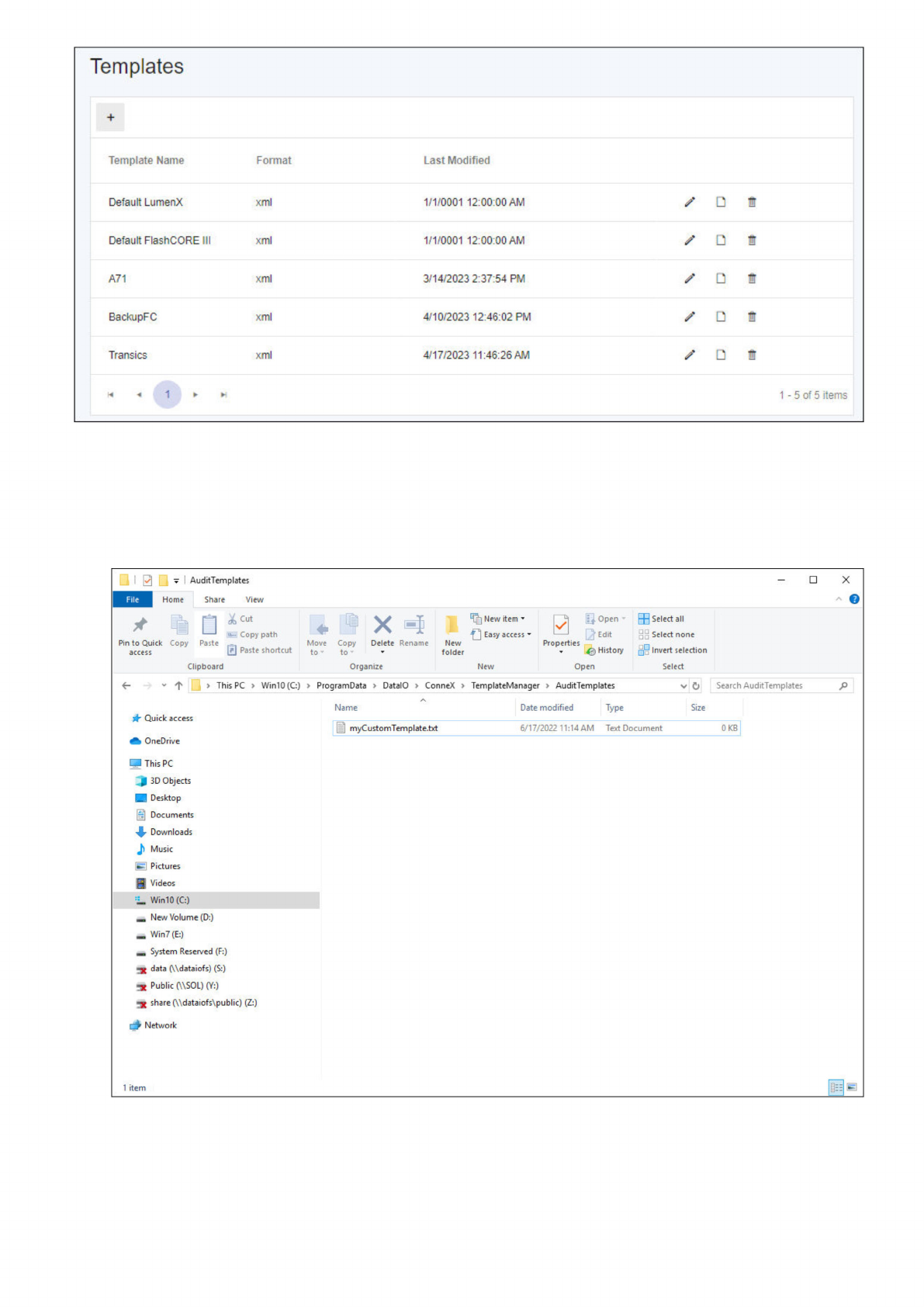
Customize a Default Template
Complete the following steps to create a custom template (using .XML as an example) using the fields from a default template.
1. Start Windows/File Explorer and navigate to C:\ProgramData\DataIO\ConneX\TemplateManager\AuditTemplates.
2. Right-click anywhere in the right pane, point to New, click Text Document, type a name for the custom template, and then press
ENTER.
3. Open a default template and copy all of its fields.
4. Now open your custom template file and paste the default fields into your custom template, then Save your template.
5. Modify the fields in your custom template as desired (ex. add, remove, reorder fields), then Save.
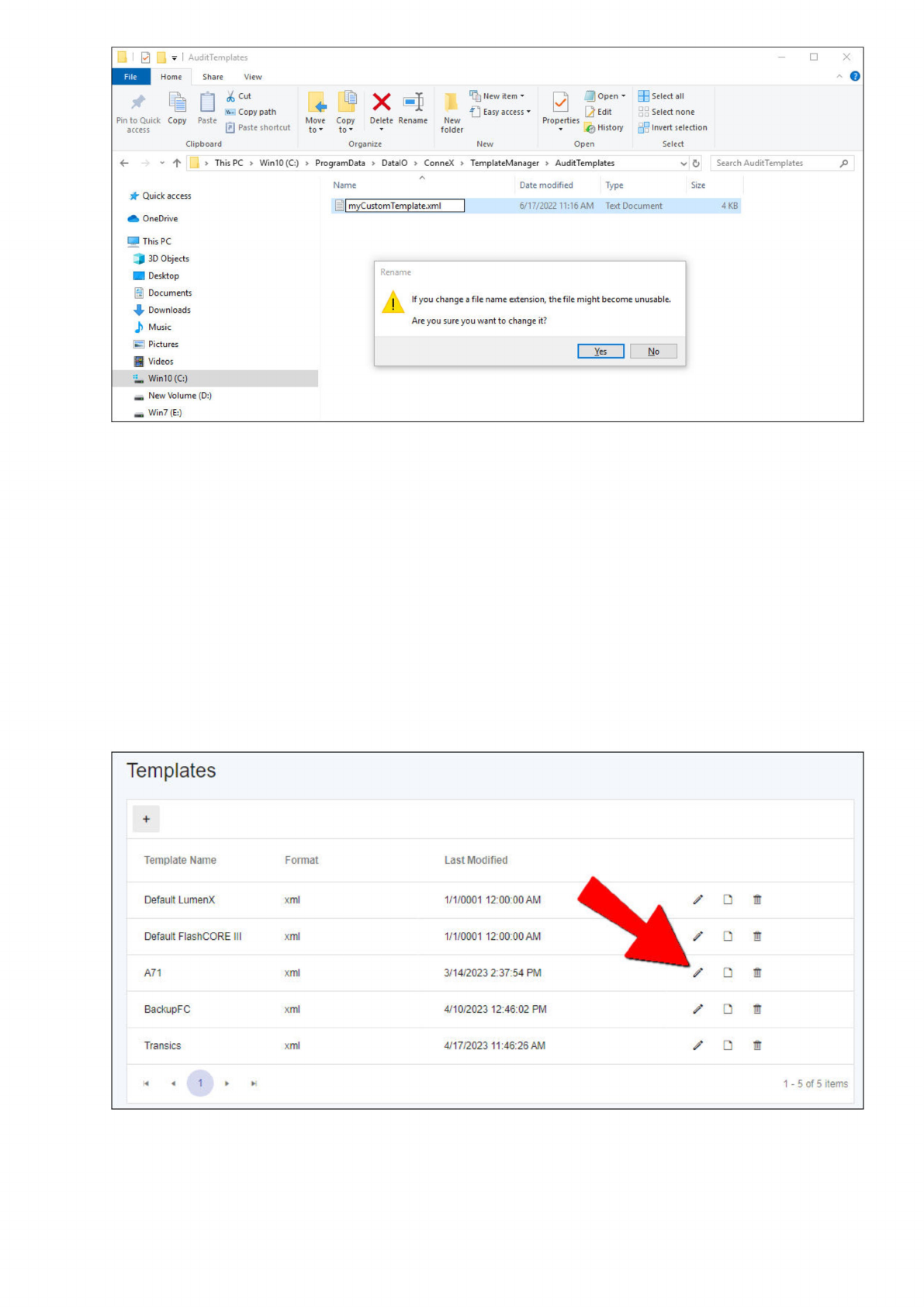
6. Finally, rename the custom template file from .TXT to .XML.
Templates
Template
Name
Format
Last
Modified
Default
LumenX
xml
1/1/0001
12:00:00
AM
z
D
Default
FlashCORE
III
xml
1/1/0001
12:00:00
AM
A71
xml
3/14/2023
2:37:54
PM
z
BackupFC
xml
4/10/2023
12:46:02
PM
z
Transics
xml
4*17/2023
11:46:26
AM
z
ur
Y
<
1
»
*
1
-
5
of
5
items
i
g
v
Au
ditTem
plates
Home
Share
View
File
才嚼口
Pin
to
Quick
Copy
Paste
access
'、…
Copy
path
回
Paste
shortcut
Clipboard
x
Move
Copy
Delete
Rename
to
to
•
Organize
哈
New
item
口
Easy
access
New
folder
New
B
UJOpen
2
Edit
Properties
«
History
Open
田
Select
all
Select
none
比
Invert
selection
Select
±
This
PC
>
Win10
(C:)
>
ProgramData
>
DatalO
>
ConneX
>
TemplateManager
>
AuditTemplates
U
Search
AuditTemplates
人
Name
Date
modified
Type
Size
Quick
access
[J
myCustomTemplate.txt
6/17/2022
11:14
AM
Text
Document
0
KB
OneDrive
This
PC
|
3D
Objects
Desktop
怜
Documents
,
Downloads
』
Music
面
Pictures
.
Videos
J
Win10(C:)
一
New
Volume
(D:)
一
Win7
(E:)
一
System
Reserved
(F:)
data
(Wdataiofs)
(S:)
-X
Public
(\\SOL)
(Y:)
1
share
(\\dataiofs\public)
(Z:)
沙
Network
1
item
i
三
碣
Add Custom Template to ConneX
Complete the following steps to add your custom template (using .XML as an example) to ConneX.
1. Open a browser window to http://localhost:5001 and login.
2. In the left pane, expand Settings, and then click Template Manager.
3. On the Templates page, click the add template (+) button near the upper-left corner.
4. Type a Template Name, and then click Select File.
5. In the Open dialog box, browse to and select your custom template, then click Open.
6. Click Save.
Set ConneX to Use Added Custom Template
Complete the following steps to set your custom template as the format for ConneX to generate and output its programming statistics.
1. In the Templates table, click the Pencil icon/button for the specific template that you want to change (default templates cannot be
changed). For example:
2. Click the Select File button, browse and select your new custom template, and then click Open.
X
AuditTemplates
Home
X
或
Clipboard
Organize
New
Open
Select
New
folder
0
Properties
J
Open
[2
Edit
公
History
尸」
New
item
口
Easy
access
^Select
all
Select
none
出
Invert
selection
Move
Copy
Delete
Rename
Share
View
才
墉
口
《
1
―
1
1—1
~
・
Copy
path
Pin
to
Quick
Copy
Paste
access
回
Paste
shortcut
v
个
>
This
PC
>
Win10
(G)
>
ProgramData
>
DatalO
>
ConneX
>
TemplateManager
>
AuditTemplates
V
U
Search
AuditTemplates
Q
Quick
access
OneDrive
里
This
PC
『
3D
Objects
Desktop
图
Documents
,
Downloads
力
Music
A
Name
Date
modified
Type
Size
myCustomTumpEt
巳
xml
6/17/2022
11:16AM
Text
Document
4
KB
Rename
।
If
you
change
a
file
name
extension,
the
file
might
become
unusable.
Are
you
sure
you
want
to
change
it?
匿
Pictures
舞
Videos
Yes
No
工
Win10
(C:)
—
New
Volume
(D:)
一
Win7
(E:)
Templates
Template
Name
Format
Last
Modified
Default
LumenX
xml
1/1/0001
12:00:00
AM
/Dm
Default
FlashCORE
川
xml
1/1/0001
12:00:00
AM
ZD®
A71
xml
3/14/2023
2:37:54
PM
,口
7
BackupFC
xml
4/10/2023
12:46:02
PM
,口
0
Transics
xml
4/17/2023
11:46:26
AM
,口
逋
M
4
1
>
M
1
-
5
of
5
items
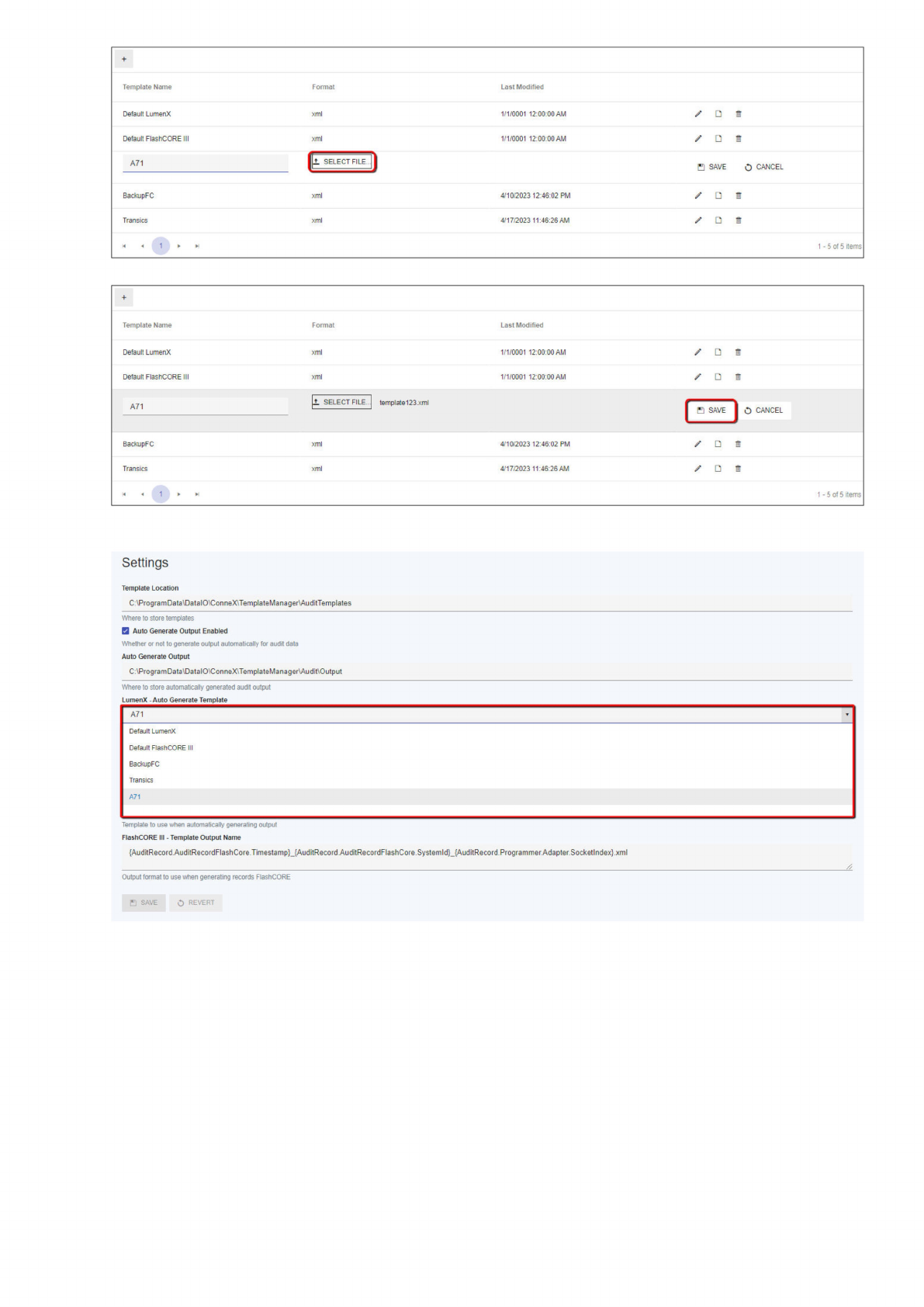
3. In the right-most column, click Save.
4. Scroll down to the Settings section and from the Auto Generate Template drop-down list, select the custom template for the
respective programmer type (LumenX or FlashCORE).
Test Output to Custom Template
Before running a device programming job in production, first complete the following steps to test and ensure that your custom template is
working (that ConneX writes its programming data using the custom template you created and specified).
1. Run a job with Pass Limit of one or two devices.
2. After the job completes, return to http://localhost:5001, and click Template Records.
3. In the right pane, click the plus (+) button to expand the audit record.
Template
Name
Format
Last
Modified
Default
LumenX
1/1/0001
12:00:00
AM
xml
Default
FlashCORE
III
xml
1/1/0001
12:00
00
AM
工
SELECT
FILE
.
A71
O
CANCEL
B
SAVE
BackupFC
xml
4/10/2023
12:46:02
PM
Transics
xml
4/17/2023
11:46:26AM
1
-5of
5
items
Template
Name
Format
Last
Modified
Default
LumenX
xml
1/1/0001
12:00:00
AM
Default
FlashCORE
川
xml
1/1/0001
12:00:00
AM
工
SELECT
FILE...
template
123.xml
A71
BackupFC
xml
4/10/202312:46:02
PM
Transics
4/17/2023
11:46:26
AM
xml
1
-
5
of
5
items
Settings
Template
Location
C:\ProgramData\DatalO\ConneX\TemplateManager\AuditTemplates
Whether
or
not
to
generate
output
automatically
for
audit
data
Auto
Generate
Output
C:\ProgramData\DatalO\ConneX\TemplateManager\Audit\Output
Where
to
store
automatically
generated
audit
output
LumenX
-
Auto
Generate
Template
A71
Default
LumenX
Default
FlashCORE
川
BackupFC
Transics
A71
Template
to
use
when
automatically
generating
output
FlashCORE
HI
-
Template
Output
Name
{AuditRecord.AuditRecordFlashCore
Timestamp}_{AuditRecord.AuditRecordFlashCore.Systemld}_{AuditRecord.Programmer.Adapter
Socketlndex}.xml
/
Output
format
to
use
Men
generating
records
FlashCORE
O
REVERT
B
SAVE
CANCEL
Where
to
store
templates
Auto
Generate
Output
Enabled
m
sr
m
sr
m
z
n
,口
超