ConneX_Help.pdf - 第31页
Lu me n X Aut o Genera t e Temp late S pe ci f i e s whi c h tem pl a te to use fo r L ume n X j o bs Lu me n X Templa t e Out pu t Name S pe ci f i e s the ou tput fo rma t fo r fi e l d rec o rd s in the gen era te d L…
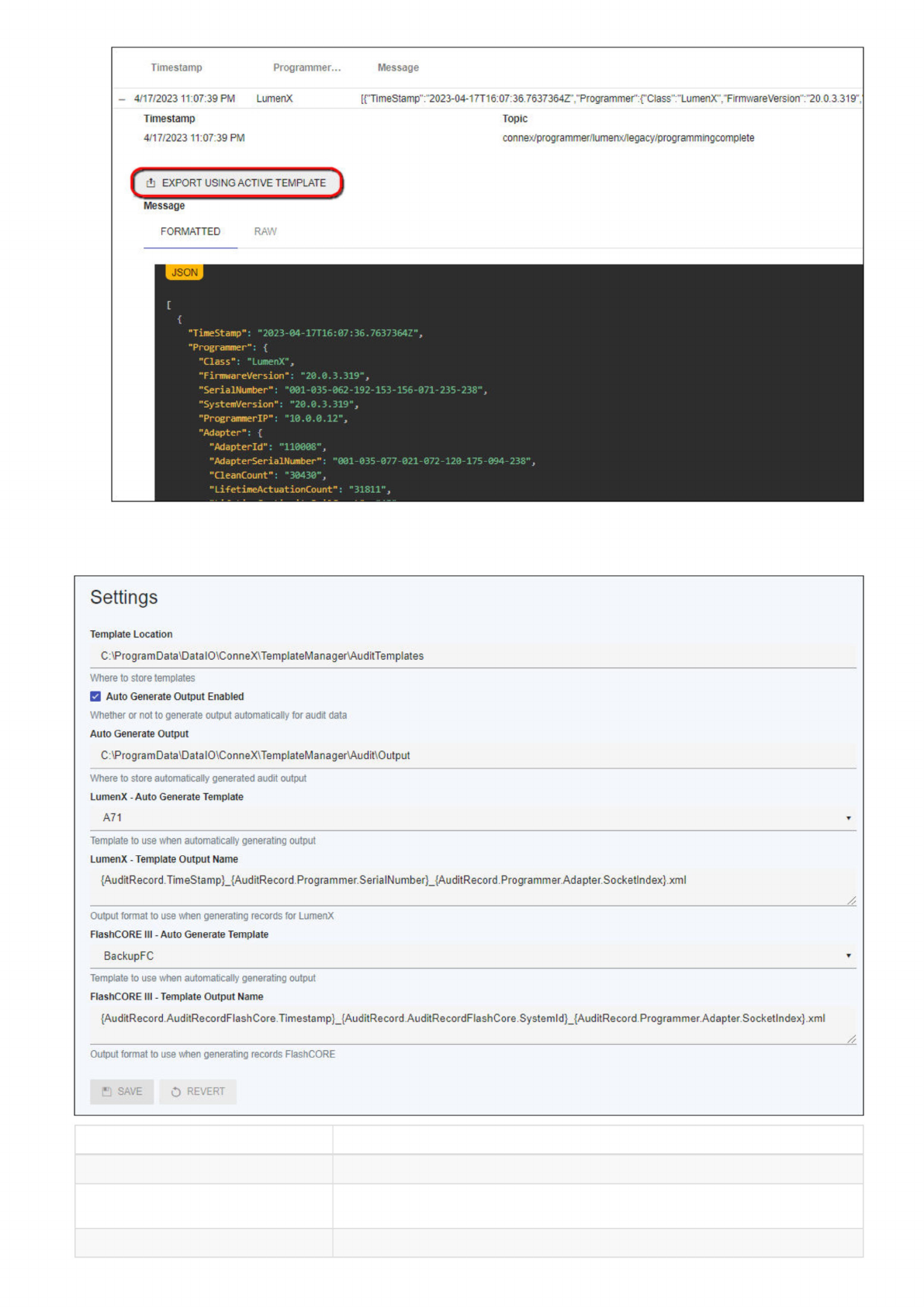
c. Repeat Step 3 above to view the same data in the new template (or go to
C:\ProgramData\DataIO\ConneX\TemplateManager\Audit\Output).
The Settings section allows you to review and/or modify existing Template Manager settings.
Field Description
Template Location The directory containing your template files
Auto Generate Output Enabled Check the box to enable automatic generation of audit output data; uncheck to disable
Auto Generate Output The directory containing your automatically generated audit output data
Timestamp
Topic
4/17/2023
11:07:39
PM
connex/programmer/lu
menx/legacy/prog
ramm
ingcomplete
Message
FORMATTED
RAW
JSON
"TimeStamp":
"2023-04-17716:07:
36.
7637364Z",
"Programmer":
{
"Class":
-LumenX",
-FirmwareVersion-:
"20.0.3.319",
"SerialNumber"
:
"001-035-062-192-153-156-071-235-238",
"SystemVersion":
"20.0.3.319",
"ProgrammerlP":
"10.0.0.12",
"Adapter":
{
"Adapterld"
:
"110008",
"AdapterSerialNuniber"
:
"001-035-077-021-072-120-175-094-238",
"aeanCount":
"
30430"
,
"LifetimeActuationCount"
:
"31811",
由
EXPORT
USING
ACTIVE
TEMPLATE
)
Timestamp
Programmer...
Message
-
4/17/2023
11:07:39
PM
LumenX
[{"TimeStamp":'2023-04-17T16:07:36.7637364Z'."Programmer:rciass,,:"Lu(nenX':"FirmwareVersion":"20.0.3.319".
Settings
Template
Location
C:\ProgramData\DatalO\ConneX\TemplateManager\AuditTemplates
Where
to
store
templates
Q
Auto
Generate
Output
Enabled
Whether
or
not
to
generate
output
automatically
for
audit
data
Auto
Generate
Output
C:\ProgramData\DatalO\ConneX\TemplateManager\Audit\Output
Where
to
store
automatically
generated
audit
output
LumenX
-
Auto
Generate
Template
A71
Template
to
use
when
automatically
generating
output
LumenX
-
Template
Output
Name
{AudrtRecord.TimeStamp}_{AuditRecord.Programmer.SerialNumber}_{AuditRecord.
Programmer.
Adapter.SocketlndexJ.xml
Z
Output
fonnat
to
use
when
generating
records
for
LumenX
FlashCORE
III
-
Auto
Generate
Template
BackupFC
Template
to
use
when
automatically
generating
output
FlashCORE
III
-
Template
Output
Name
{AuditRecord.AuditRecordFlashCore.Timestamp}_{AuditRecord.AuditRecordFlashCore.Systemld}_{AuditRecord.Programmer.Adapter.Socketlndex}.xml
Output
fonnat
to
use
when
generating
records
FlashCORE
SAVE
o
REVERT

LumenX Auto Generate Template Specifies which template to use for LumenX jobs
LumenX Template Output Name Specifies the output format for field records in the generated LumenX template
FlashCORE III Auto Generate Template Specifies which template to use for FlashCore jobs
FlashCORE III TEmplate Output Name Specifies the output format for field records in the generated FlashCORE template
Field Description

Overview
ConneX provides a built-in user authentication system to prevent unauthorized access and modification of the system.
Roles
ConneX has the following roles that users can be assigned:
Roles Description
AdminUnrestricted access to the ConneX portal.
User Read-only access to most pages.
Manage
Click here to be redirected to the user management page. There you will find a list of users for this instance of ConneX.
Adding a new user
ADMIN
1. From the Users page, click the Add User button in the upper right.
2. Set the username.
3. (optional) Enter first and last name.
4. Enter a password that conforms to the settings found here.
5. Choose a role from the available list of roles.
6. Click the Save button.
Editing a user
ADMIN
1. From the Users page, find the user in the table and click the Edit User button.
2. (optional) Enter first and last name.
3. (optional) Enter a new password that conforms to the settings found here.
4. Choose a role from the available list of roles.
5. Click the Save button.
Note
The Administrator user's role cannot be changed.
Deleting a user
ADMIN
1. From the Users page, find the user in the table and click the Delete User button.
2. Confirm the removal by clicking the Delete button in the dialog.
Note
The Administrator user cannot be deleted.