ConneX_Help.pdf - 第34页
Ov er view T he Tro ubl esho oti ng sec ti o n pro vi de s gu id anc e f o r ad dre ss in g c o mm o n iss ues tha t may a rise whi l e usin g the so f twa re. Thi s se c ti on ai m s to he l p use rs q ui c kl y id e nt…
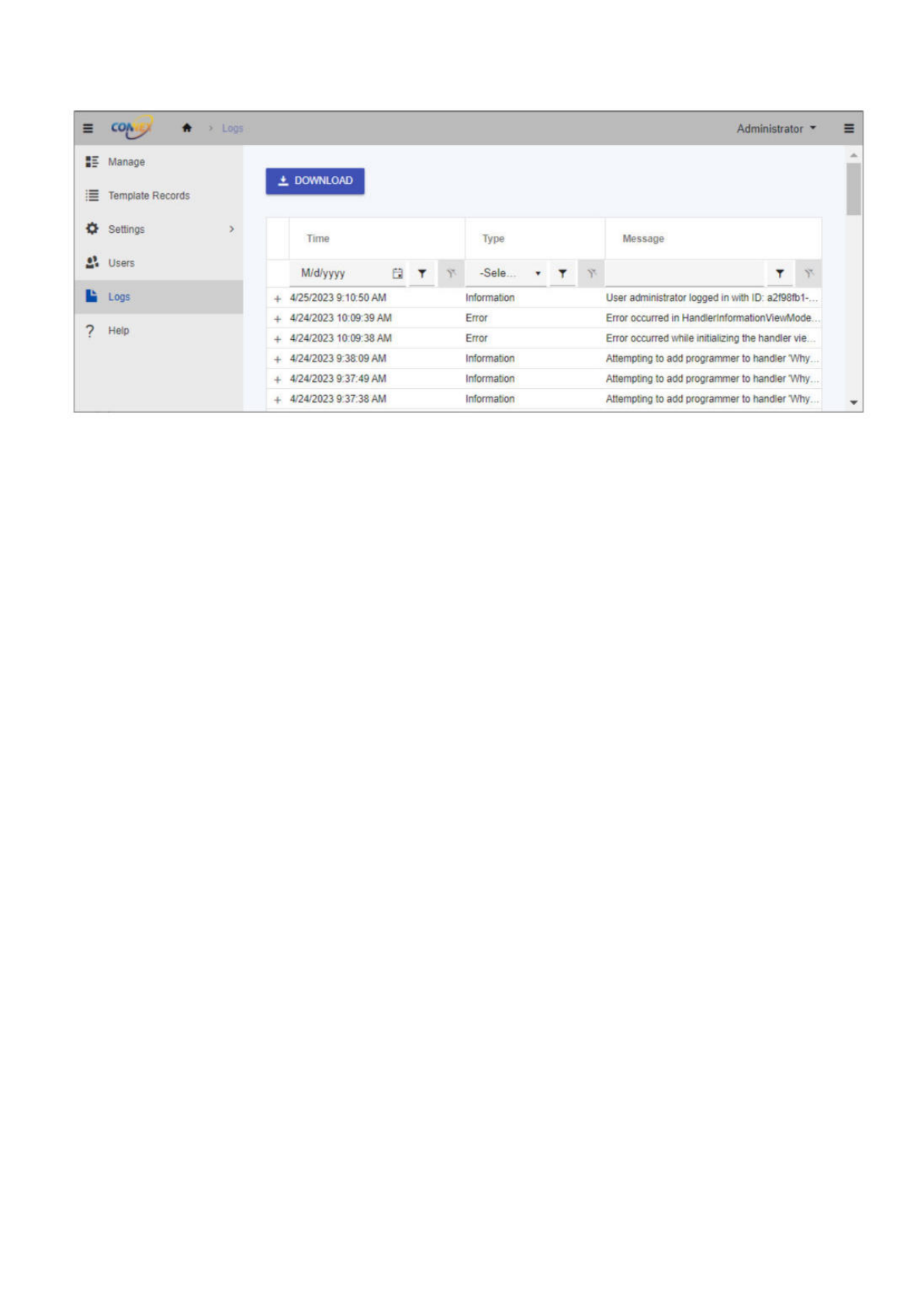
Logs
The Logs node shows a list of system events that you can sort and filter using the column controls at top.
To export a ZIP file of ConneX system log files, click the Download button, then choose a desired directory and filename.
Administrator
Si
Manage
:
=
Template
Records
0
Settings
>
2?
Users
la
Logs
?
Help
±
DOWNLOAD
Time
Type
Message
M/d/yyyy
白
T
-Sele...
T T
N
+
4/25/2023
9:10:50
AM
Information
User
administrator
logged
in
with
ID:
a2f98fb1-...
+
4/24/2023
10:09:39
AM
Error Error
occurred
in
HandlerlnformationVie'<vMode.
..
+
4/24/2023
10:09:38
AM
Error Error
occurred
while
initializing
the
handler
vie...
+
4/24/2023
9:33:09
AM
Information
Attempting
to
add
programmer
to
handler
M
,hy
…
+
4/24/2023
9:37:49
AM
Information
Attempting
to
add
programmer
to
handler
"Why
…
+
4/24/2023
9:37:38
AM
Information
Attempting
to
add
programmer
to
handler
"Why
…

Overview
The Troubleshooting section provides guidance for addressing common issues that may arise while using the software. This section aims to
help users quickly identify and resolve problems that may impact their workflow, minimize downtime, and ensure that the software
operates as intended.
The troubleshooting guidance in this section is organized into different categories that correspond to specific areas of the software. Each
category contains a list of issues, along with a description of the symptoms and recommended solutions.
Before proceeding with any troubleshooting steps, ensure that you have reviewed the relevant documentation and have met all software
requirements. In some cases, issues may be resolved simply by reviewing the documentation or performing basic troubleshooting steps.
If you are unable to resolve the issue using the guidance provided in this section, please contact technical support for additional assistance.

ConneX Service
Below you will find common issues found with the ConneX Service.
System is adopted by another ConneX Service
If you encounter an error indicating that a system has already been adopted by another ConneX service, there are two options to resolve
this issue.
Option 1: "Forget" the System in the other instance of ConneX Service
ADMIN
This option requires access to the other instance of ConneX Service that has already adopted the system. Follow these steps to "forget"
the system in the other instance of ConneX Service:
1. Open the other instance of ConneX Service that has already adopted the system.
2. Select the system that you want to adopt in the desired ConneX Service.
3. Click the Forget button to remove the system from the previous ConneX Service instance.
4. Once the system has been forgotten, it can be adopted by the desired ConneX Service.
Option 2: "Force Adoption" as an Administrator
ADMIN
This option allows the system to be adopted by the desired ConneX Service without requiring access to the other instance of ConneX
Service. However, it is important to note that forcing adoption may result in the loss of data. Follow these steps to force the adoption of
the system:
1. Open the ConneX Service on the system that you want to adopt in the desired ConneX Service.
2. Click the "Force Adoption" button.
Warning
Using the "Force adoption" option may result in the loss of data for the system, as any existing programming statistics for the system in
the previous instance of ConneX Service will not be transferred. It is recommended to use this option only as a last resort and to ensure
that all necessary backups are in place before proceeding.
No ConneX license found
If ConneX Server displays the "No ConneX license found" message), then complete the "Activate ConneX License" steps at the bottom of
Installation. If ConneX service is running on a Windows Server 2016 computer, ensure you install Microsoft .NET Framework 4.7.2.