ConneX_Help.pdf - 第6页
I n st a ll a tion T hi s pa ge p rovi de s st e p-b y- step in structi o ns on i nstal l i ng the la te st Conn eX versi o n and estab l i shi ng pro pe r c om m uni c ation b e twe e n e ac h Mac hi ne Manag e r i nsta…
Software Application
Version Notes
Windows 10 operating system Pro Either 32-bit or 64-bit
ConneX Machine Manager Latest Supports x86 and x64
Automated Handler (AH700/CH700) 3.3.x keep IP address as 127.0.0.1; default Port is TCP 9002
For more information about Automated Handler software, see Automated Handling software.
ConneX Server Requirements
To use the latest ConneX version, the ConneX Server must meet the following minimum requirements.
Software
Application Version Notes
Windows 10
operating system
Pro x64 only
or Windows Server
2016/2019/2022
x64 only
ConneX Server Latest x64 only
Data I/O License
Manager
1.0.0.61 requires .NET Framework 4.7.2
Chrome browser 100.0.x browser cookies required for user login/authentication (supports either Allow all cookies or Block third-
party cookies; does not support Block all cookies); Internet Explorer NOT supported
Installation
This page provides step-by-step instructions on installing the latest ConneX version and establishing proper communication between each
Machine Manager instance and the ConneX Server.
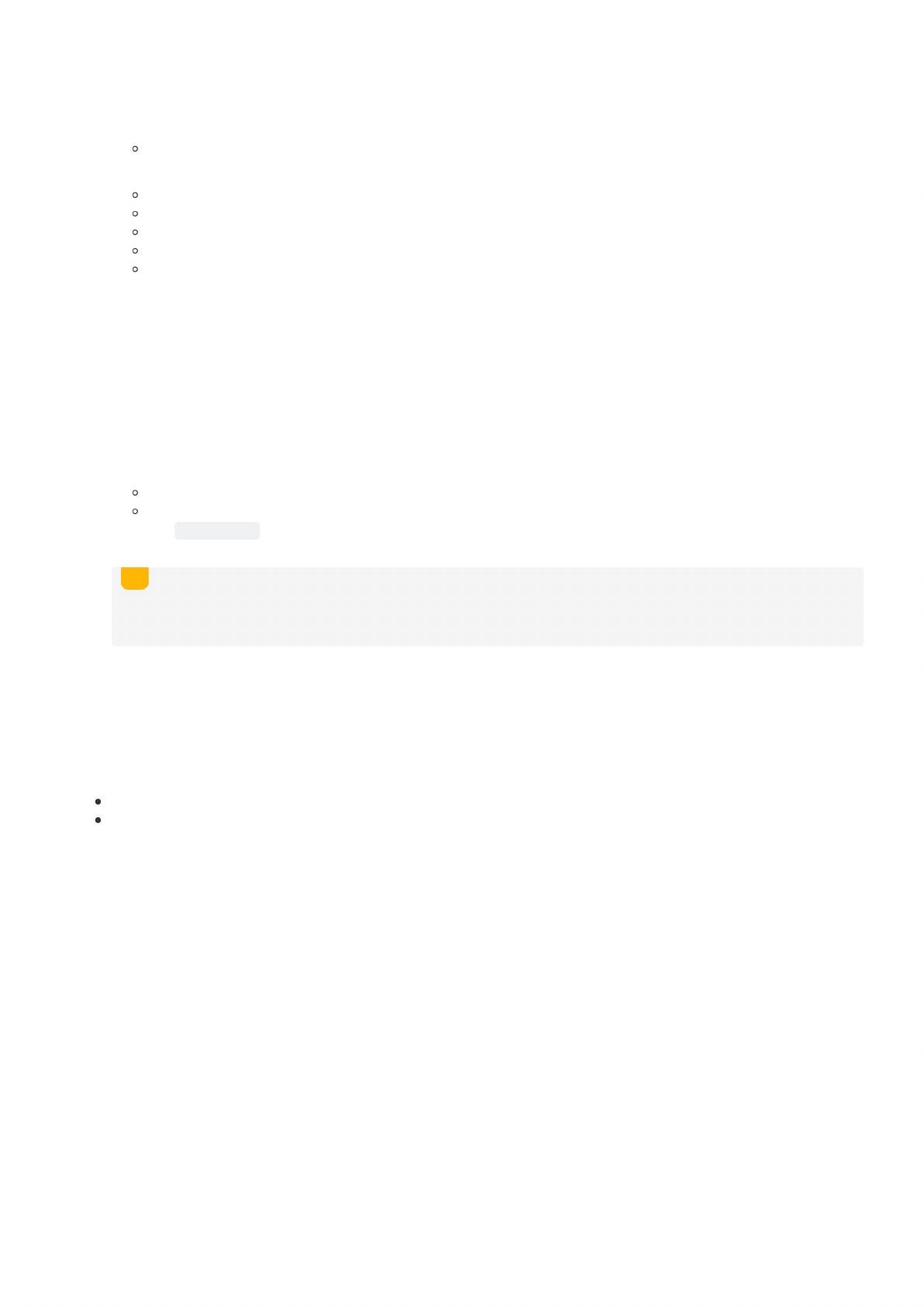
The latest ConneX version provides separate installers for ConneX Server and Machine Manager: install ConneX Server on a centralized
'data reporting' computer, then install Machine Manager on each 'client' computer (essentially, the Handler/Host PC in a PSV System). This
separation is designed to optimize the management and handling of data and event collection from system components. By running
ConneX Server on a separate PC, data can be aggregated and analyzed in a central location while the Machine Manager(s) focuses on data
aggregation and event messaging between ConneX and various PSV system components.
Before proceeding with installation, ensure the computer(s) meet the ConneX requirements as described at the bottom of the Introduction
page.
Machine Manager Installation
Run the setup wizard for Machine Manager to install the Machine Manager Service:
ConneX Machine Manager Service, for handling data aggregation and event messaging between multiple PSV Systems.
Machine Manager requires specific network ports to be open for proper communication with ConneX Server; the setup wizard for Machine
Manager automatically opens the following ports in Windows Defender Firewall:
Service/Inbound Rule Required Port
Machine Manager gRPC port TCP 5000
Machine Manager LumenX Discovery Port ReceiveUDP 9081
Machine Manager LumenX WCF port TCP 9000
Machine Manager MQTT port TCP 9002
Machine Manager SSDP port UDP 1900
Note
If you change the MQTT port(s), then also restart the ConneX Machine Manager Service (see below).
GraphQL
Reporting
API
Web
App
MES
MQTT
Event
MsgQueue
Machine
Mgr1
(Adopted}
ConneX
Service
Msg/Event
Broker
Machine
Mgr
2
(Adopted}
Machine
Mgr
3
(Adopted)
TaskLink
LumenX
Software
AH700/
CH700
ConneX
Database
ConneX
Client(s)
LX/FC3
Programmers
Machine
Manager
0
(Loca/)
LEGEND
system
component
O
=
internal
data
flow
italics
=
conceptual
term
包
=
Windows
service
<-►
=
external
data
flow
ConneX
Data
Flow
SysComp
>
MachineMgr
>
ConneX_Svc
>
ConneX_Db
X
Q
C
U
PSV
Sysf
em
A
After installing Machine Manager, reboot and double-check that the Machine Manager service is running on the PSV Handler/Host
computer:
1. Click Start > type Run (hit ENTER) > services.msc
2. In the Services window, start the following service if needed (right-click > Start):
ConneX Machine Manager Service
3. If the Machine Manager Service is not already started (and set to start automatically):
Right-click the service
Select Start
Right-click the service again
Click Properties
On the General tab, from the Startup Type drop-down list, select Automatic
Note
Beyond this point, you remotely manage each Machine Manager instance/client/computer from the ConneX Server because Machine
Manager is essentially "headless" (requires no user interface).
Handler Software Configuration
To configure the "AH700/CH700" handler software of a PSV System (Machine Manager instance) for ConneX, keep the same IP address of
127.0.0.1 with default port TCP 9002. If you change the Machine Manager port, then also reflect the same change in the 'WinAH400.ini'
file.
1. On the Handler/Host PC of a PSV System (Machine Manager instance), open File/Windows Explorer to the following directory:
If Machine Manager is running on a PSV7000, open 'C:\AH700'
If Machine Manager is running on a PSV3000/3500/5000, open 'C:\CH700'
2. Locate the
WinAH400.ini
file and open it with a text editor (such as Notepad).
3. Find the following lines in the file. If they are not present, then add them:
4. Save the change(s).
ConneX is now set to communicate with the respective handler software (AH700 or CH700) over the specified IP address and port number.
ConneX Server Installation
Run the setup wizard for ConneX Server to install the main ConneX Service and Data I/O License Manager:
ConneX Service, the primary ConneX handler service for managing data and event collection from system components.
Data I/O License Manager, for validating the propriety of authorized Data I/O software products, features, and services.
The centralized ConneX Server requires specific network ports to be open for proper communication with each Machine Manager instance;
the setup wizard for ConneX Server automatically opens the following ports in Windows Defender Firewall:
Service/Inbound Rule Required Port
ConneX internal MQTT port TCP 9002
ConneX MQTT port TCP 1883
ConneX SSDP port UDP 1900
ConneX web port TCP 5001
License Manager Discover Port ReceiveUDP 9081
License Manager gRPC Service Port TCP 9003
License Manager WCF Service Port TCP 9000
License Manager Web Port TCP 5002
LicenseManagerServer UDP any
LicenseManagerServer TCP any
Template Manager MQTT port TCP 1883
Template Manager web port
TCP 5004
Note
If you change the MQTT port(s), then also restart the ConneX Machine Manager Service (see below).
After installing ConneX Server, reboot and double-check that the ConneX services are running:
1. Click Start > type Run (hit ENTER) > services.msc
2. In the Services window, start the following services if needed (right-click > Start):
CheckConneX=true
ConneX3=true IP=127.0.0.1 Port=9002
ini