TR7500E_Manual_en_v28 - 第112页
C h a p t e r 2 M a nu a l B a r i n t r o d u ce T R 7500 U S E R M A N U AL 1 05 7 . 3 . C a p t u r e F O V I m a g es l Y ou ca n r e ca p t u r e t h e F O V i m a g e s b y s e l e c ti ng t h e i t e m . T h e i m…
Chapter 2 Manual Bar introduce
TR7500 USER MANUAL
104
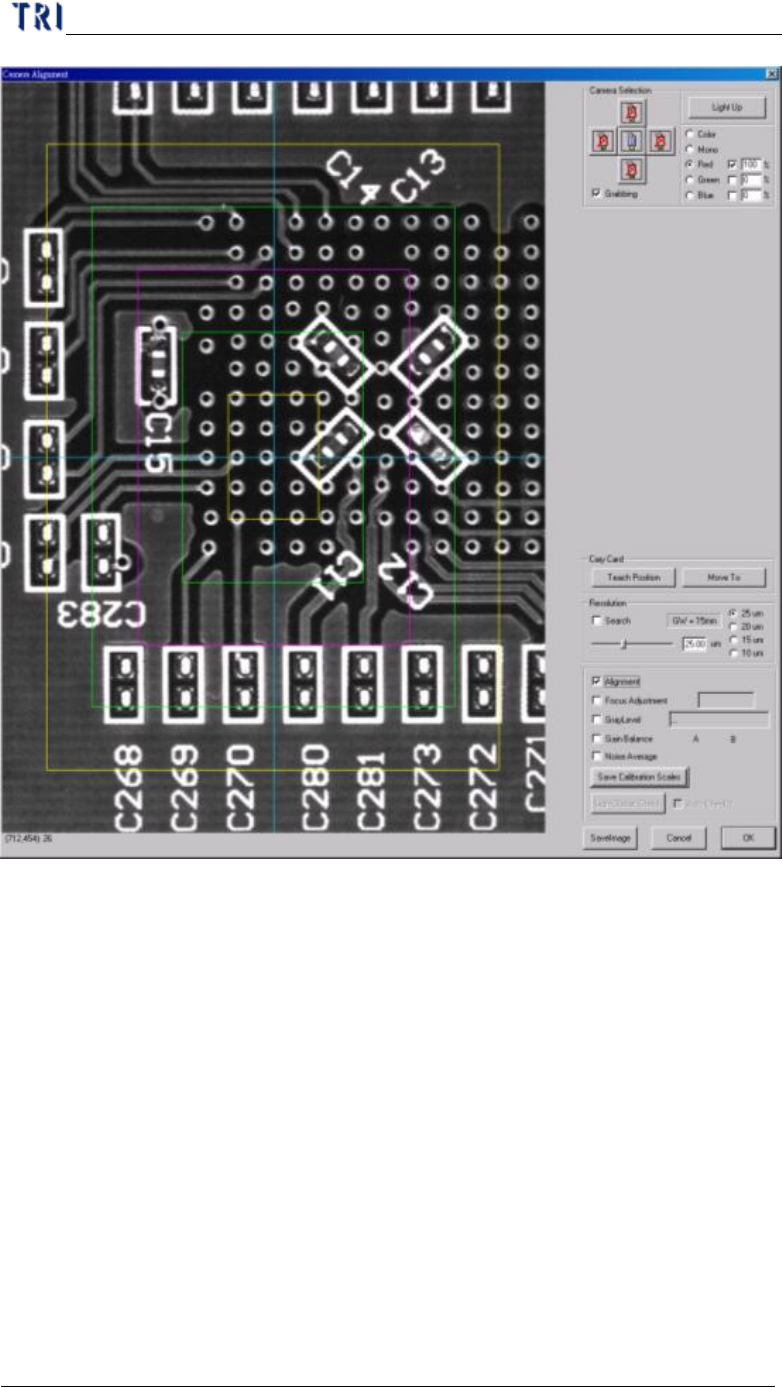
l The other functions are selected for camera alignment.
(5) Others
l SaveImage – Press the button to save the current image at the folder where
the project is saved in. If you don’t open the project the image will be saved
in [C:\AOI] folder.
l Cancel – Close the window.
l OK – Close the window and save settings.
7.2. Capture Panel Map
l You can recapture the panel map by selecting the item. The map file will be
saving in the folder where the project is saved in. The file names are “Model
Name.bmp”(backup file “Map.bmp”) and “Model Name_2X2.bmp”(backup file
“Map2X2.bmp”).
Chapter 2 Manual Bar introduce
TR7500 USER MANUAL
105
7.3. Capture FOV Images
l You can recapture the FOV images by selecting the item. The image file will be
saving in the folder where the project is saved in. The name is “FovImage”.
7.4. Fiducial Mark Alignment
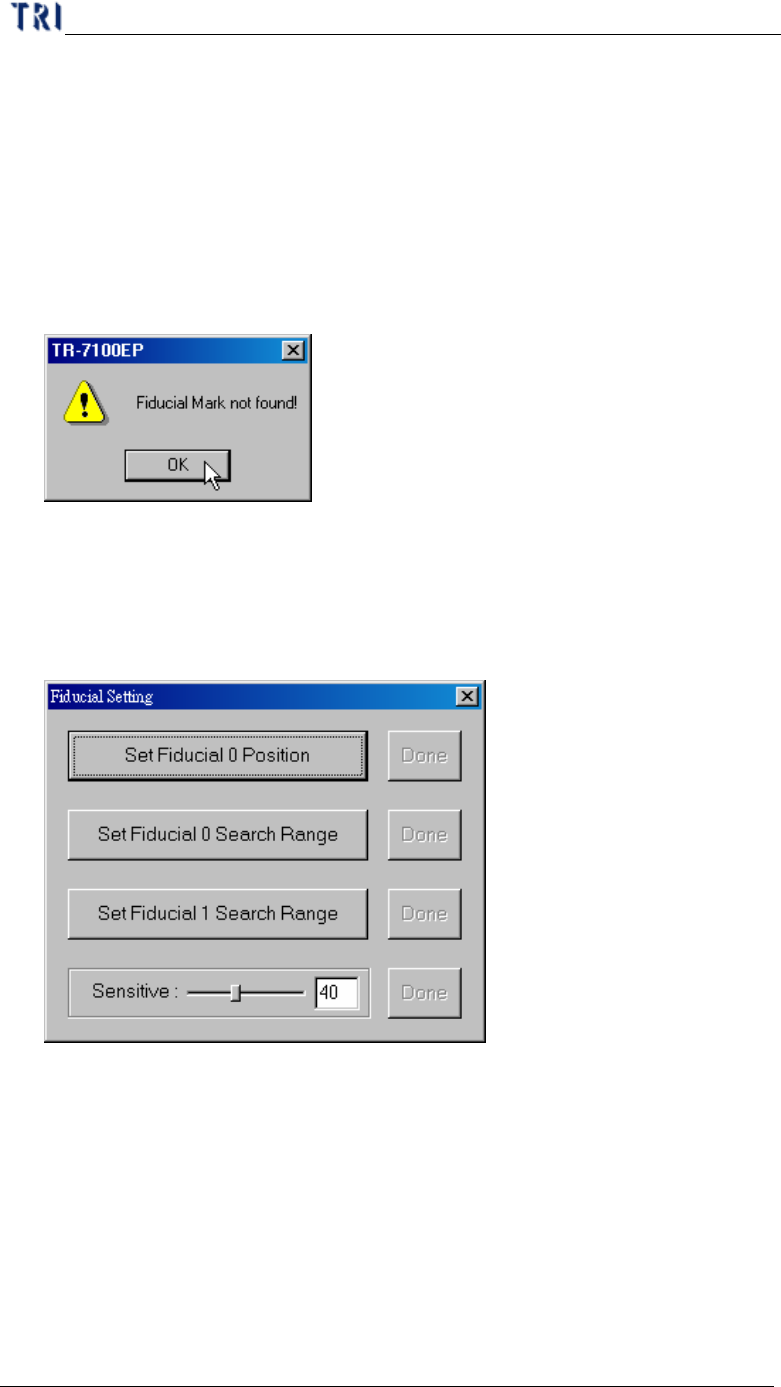
l When you press the item, X-Y Table move to find the fiducial mark. If the
system can’t find the fiducial mark, the warning message is appeared. You should
find the fiducial mark again.
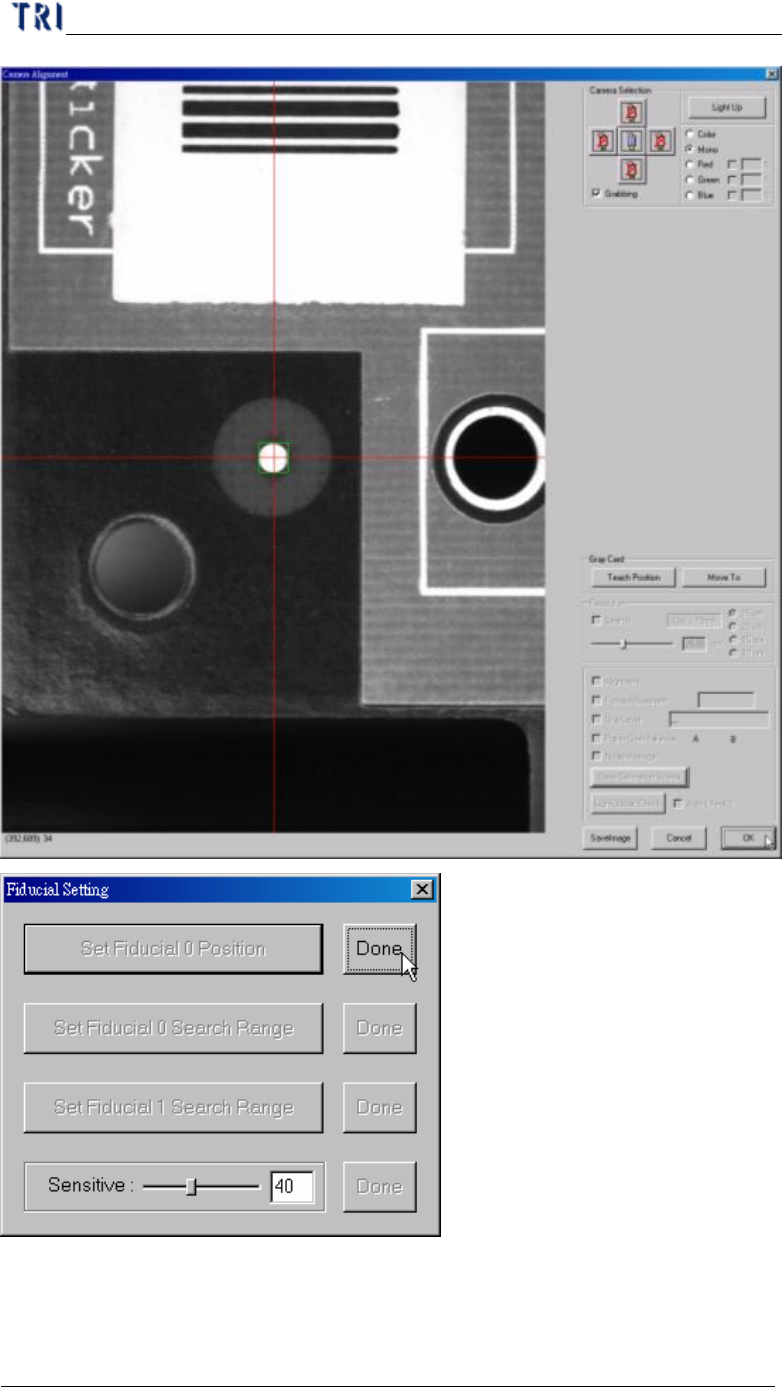
7.5. Fiducial Mark Setting
l You can set the position and search range for fiducial mark 0. If the relative
position of two fiducial marks has been changed, you should find the fiducial
marks again in ATPG. flow.
l Set Fiducial 0 Position – Move the camera on fiducial 0 and press [OK].
Chapter 2 Manual Bar introduce
TR7500 USER MANUAL
106