TR7500E_Manual_en_v28 - 第126页
C h a p t e r 2 M a nu a l B a r i n t r o d u ce T R 7500 U S E R M A N U AL 1 19 f u n c t i o n i s w o r k i ng . l T h e M a n a g e r c a n u s e t h i s f u n c t i o n t o c l a s s i f y a l l u s e r s . A l l …
Chapter 2 Manual Bar introduce
TR7500 USER MANUAL
118
l When you select this item and start to inspect, the system only displays the
passing [Missing] box at the result dialog.
7.20. Inspection Type Setting
l The function is to display only specified component when inspecting. The all
components on the board are still inspected but it shows the fail of specified
components only. You can start the function to help tuning.
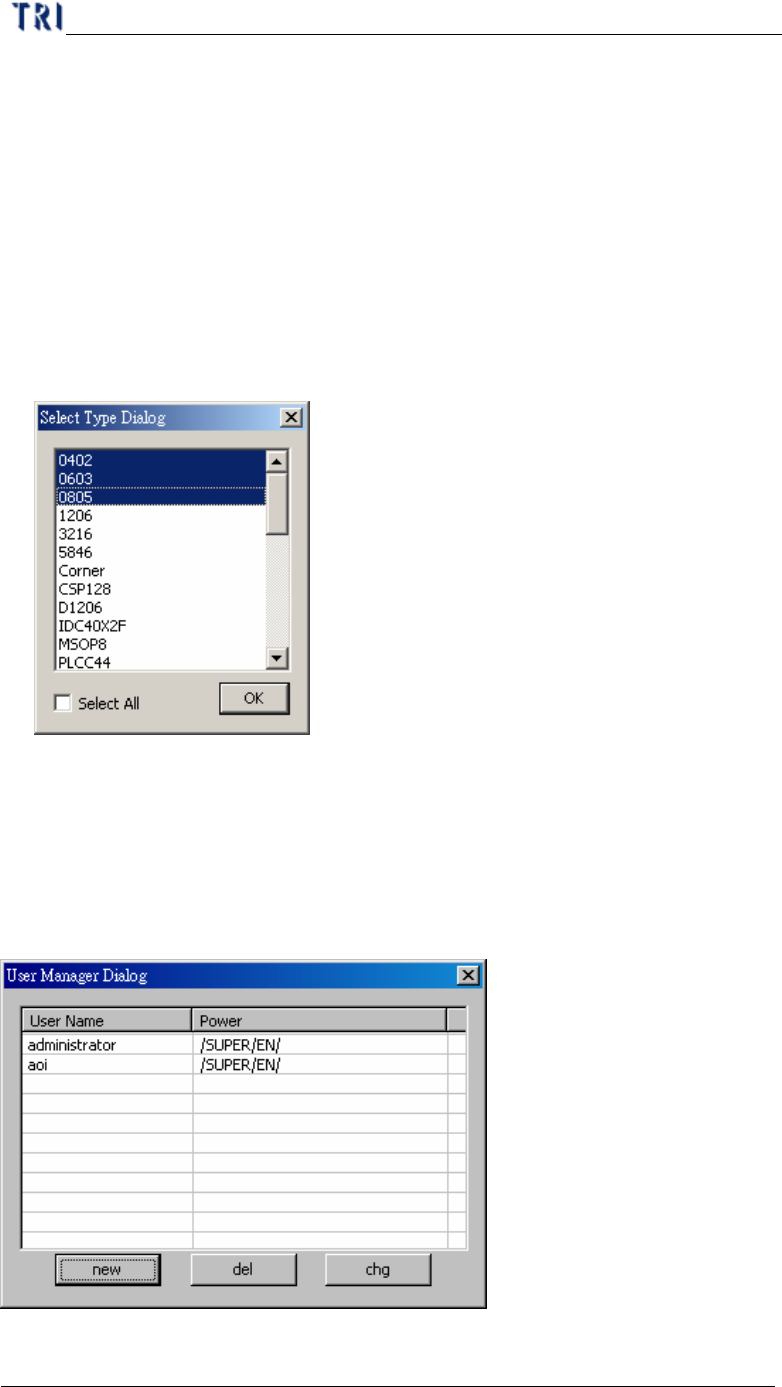
l When selecting [Inspection Type Setting], the following window shows. You can
select one or press [Ctrl] and select more components to enable. Then press [OK]
to complete the setting.
7.21. Auto Loading
l Project can be loaded by system automatically. The function is under
construction.
7.22. User Manager
l Only if there is a DWORD, [LoginFlag], and the value is [1] in registry, the
Chapter 2 Manual Bar introduce
TR7500 USER MANUAL
119
function is working.
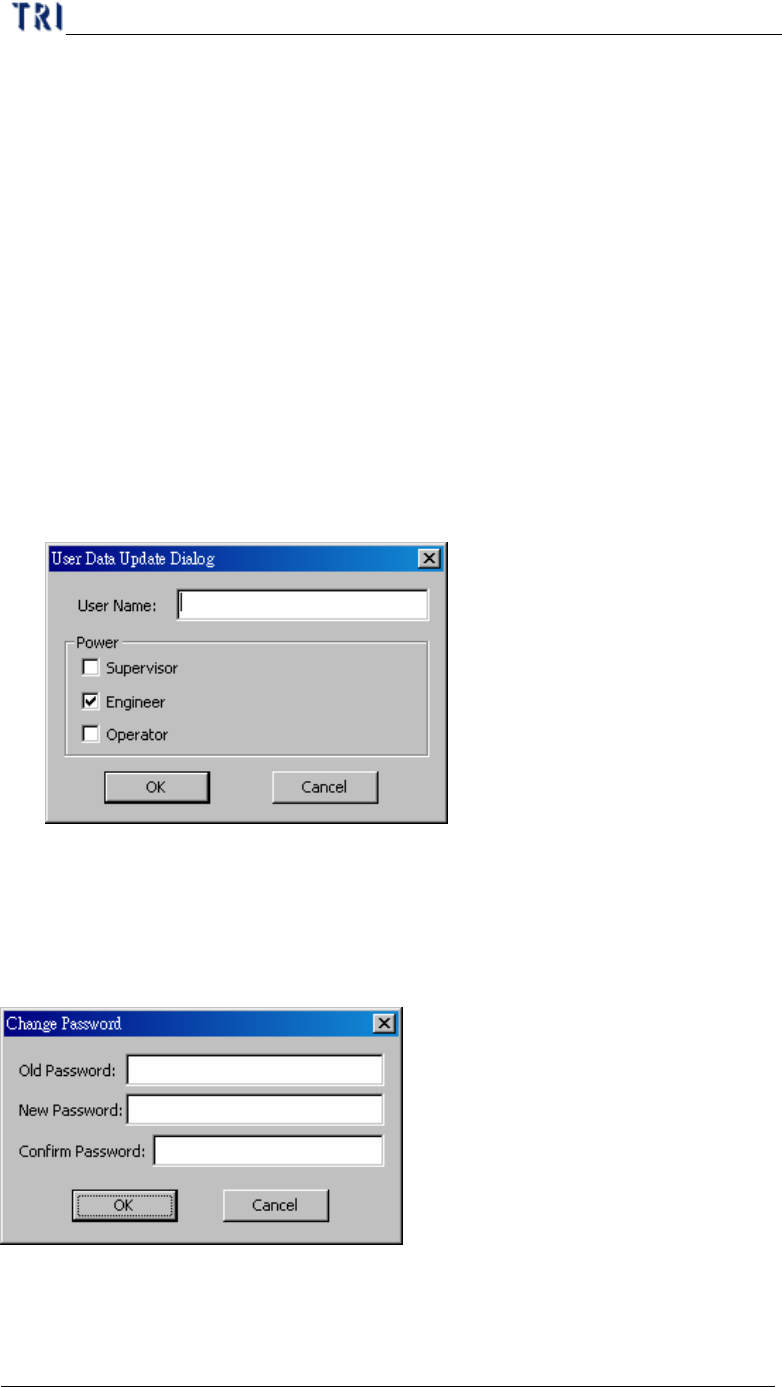
l The Manager can use this function to classify all users. All users have to input
name and password then they can enter the program. The time of login and
logout will be recorded in [login.txt] file under [C:\WINDOWS\system32].
l The default user name is [administrator] and password is [1234]. Only the user
with power of Supervisor can use this function to Add, Delete or Modify other
users.
l new – Input [User Name] and select a kind of powers then press [OK] to add a
new user. The password for a new user is [1234]. A new user can change his
password by [Change Password] function after logging in. The explanation for
all powers are followings:
n Supervisor – People can do all the functions.
n Engineer – People can do every function except [User Manager].
n Operator – The user has power to inspect only and can’t modify the project.
l del – After selecting an user, you can press [del] to delete the user.
l chg –After selecting an user, you can press [chg] to modify the power of the user.
7.23. Change Password
l Use this function to change the password for the current user.
7.24. Coverage Report
Chapter 2 Manual Bar introduce
TR7500 USER MANUAL
120
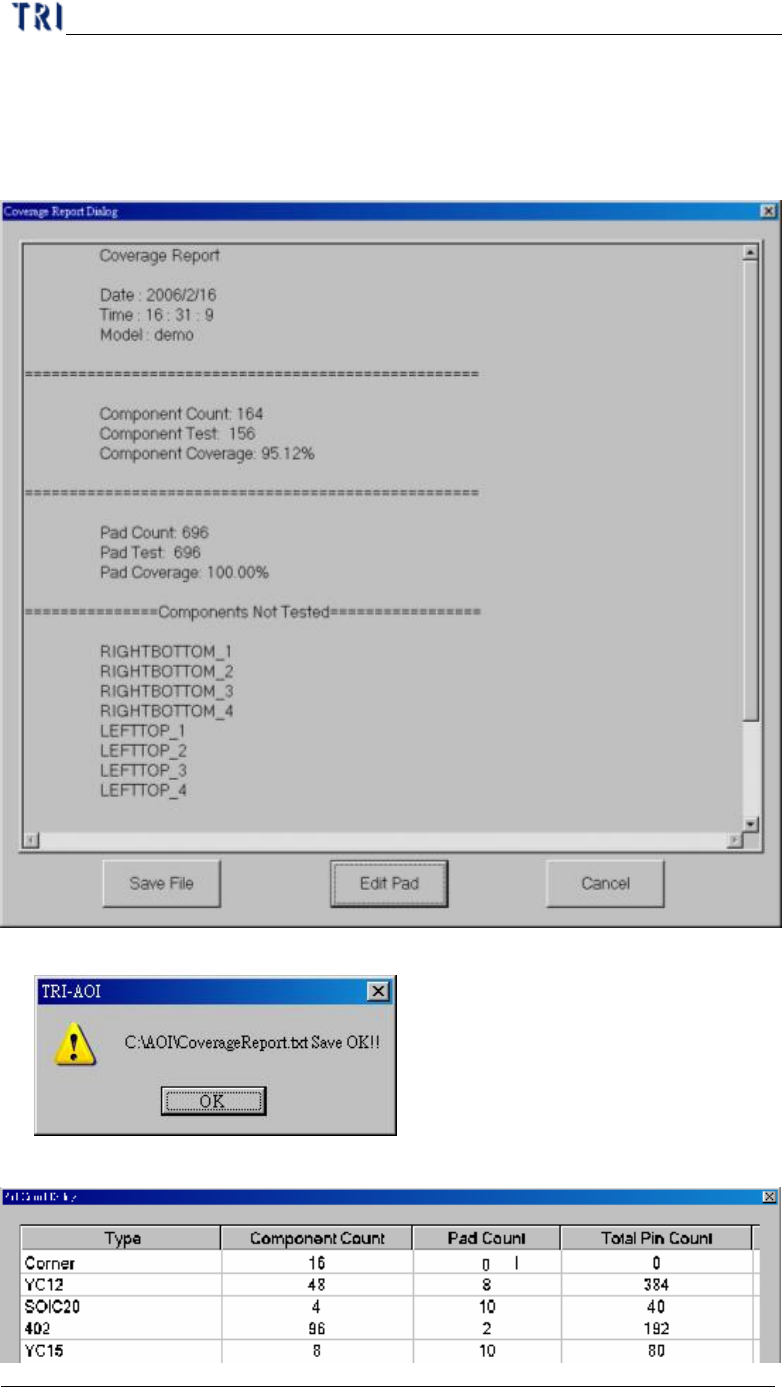
l To show the report for coverage as the following. System calculates the coverage
for component and PAD automatically. And the report displays the components
without [Missing] box, components that is with untest PAD and the components
that is not tested.
l Save File – Exports the report in text file.
l Edit Pad – You can edit the number of PAD.