TR7500E_Manual_en_v28 - 第171页
C h a p t e r 3 A O I A T P G F u n c t i o n i n s t r u c t i on T R 7500 U S E R M A N U AL 1 64 l S e l e c t Y E S : R 0 8 0 5 wil l b e s a v e d a s s e c o n d a r y n a m e a n d t h e m o d i f i e d l i b r a …

Chapter 3 AOI ATPG Function instruction
TR7500 USER MANUAL
163
l Kind– System classifies all components into IC, CHIP, Other and so on
automatically.
l Pin– You can input the number of pins as a condition, and input “-1” to
search library with all pins.
l Name– You can search library with keying a part of the type name.
l Path– Input the path of library folder. The default is
“C:\AOI\PackageLibrary”.
l Find– Press to start finding.
(4) Reload– Press to refresh the library information.
(5) Previous, Next– Press to show the previous and the next library.
(6) OK– Press to load the selected library to current type. This function is the same
as double clicking the objective library on sketch area.
(7) Cancel– Exit the dialog.
10.1.2.2 Load library procedure
Step1. Input the conditions and press “Find” to search the suitable library.
Step2. Double clicking the sketch or press ok to load the library.
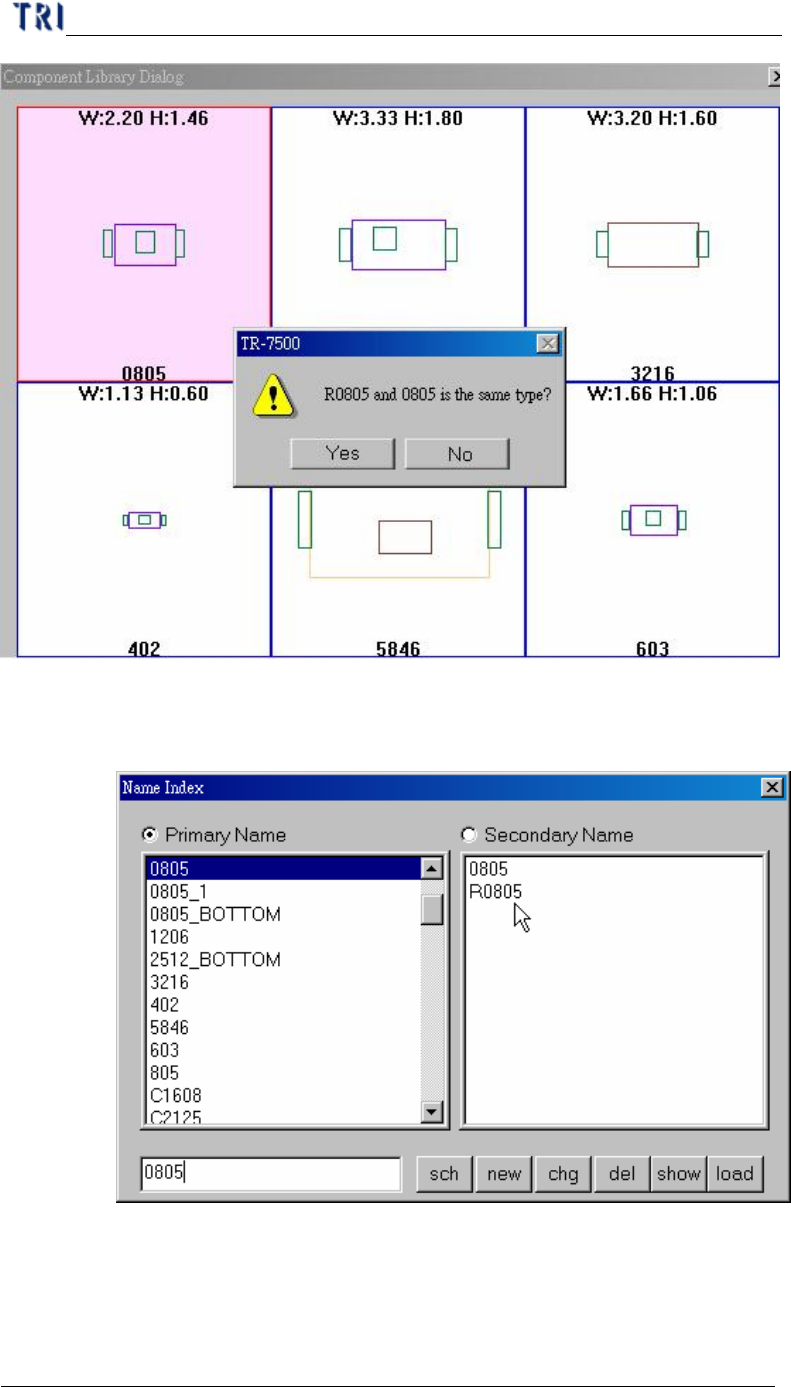
Step3. Answering the question “Is the current type the same as the objective library?”
If you press “YES” (means the current type is the same as the selected library),
the current type will be listed as a child type of selected type. Otherwise the
current type will copy the library and build a new library with its own type
name. For example you want to load library “0805” to type “R0805”. You can
see the difference as following.
Chapter 3 AOI ATPG Function instruction
TR7500 USER MANUAL
164
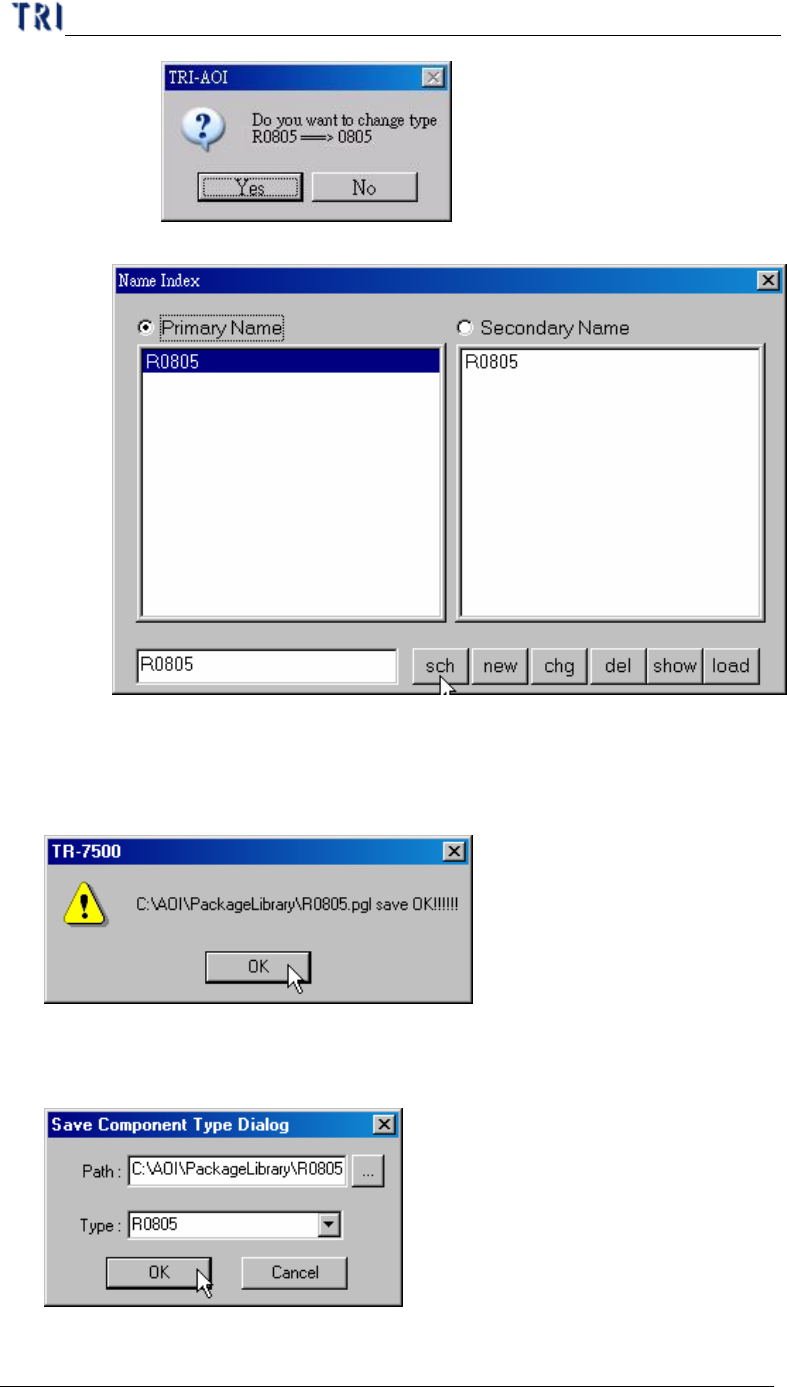
l Select YES: R0805 will be saved as secondary name and the modified
library will be saved in 0805.pgl. If you have the type “R0805” next time,
the system will use “0805.pgl” as its library automatically.
n Then system will ask if you want to change the type name form
[R0805] to [0805].
Chapter 3 AOI ATPG Function instruction
TR7500 USER MANUAL
165
l Select NO: R0805 will be saved as a new type R0805.pgl.
10.1.3. Save
l Save the type that you edit now to library. Press [Save] and the following
window will show. Confirm the path then press [OK] to save.
10.1.4. Save As..
l Saving the component to specified path or type.