TR7500E_Manual_en_v28 - 第238页
C h a p t e r 4 T r a i n d i a l og f u n c t i on T R 7500 U S E R M A N U AL 2 31 y o u h a v e t o s e l e c t [ E d it/ R o t a t e S i d e ] t o c h a ng e t h e d i r ec t i o n l S h o w D a t a C o l l e c t i o…
Chapter 4 Train dialog function
TR7500 USER MANUAL
230
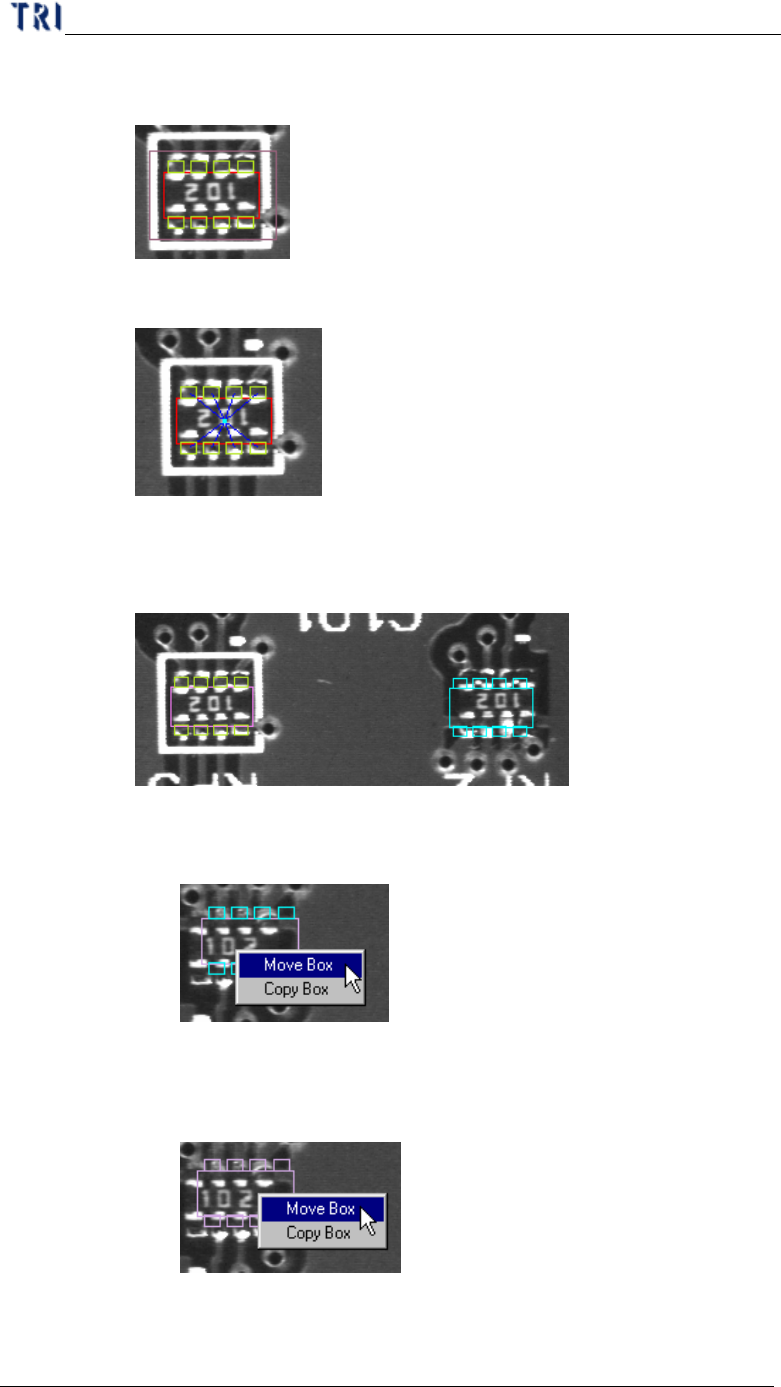
l Search range – Select to show the search range of inspection box that
is a kind of model image box.
l Link – Select to show the links between inspection boxes.
l Other Box – Select to see the inspection boxes which is in other FOVs
to inspect.
n Right click on the blue box to move the inspection box to the
current FOV.
n You can click right and left button at the same time on the
objective component then you can move all inspection boxes of
the component to the FOV.
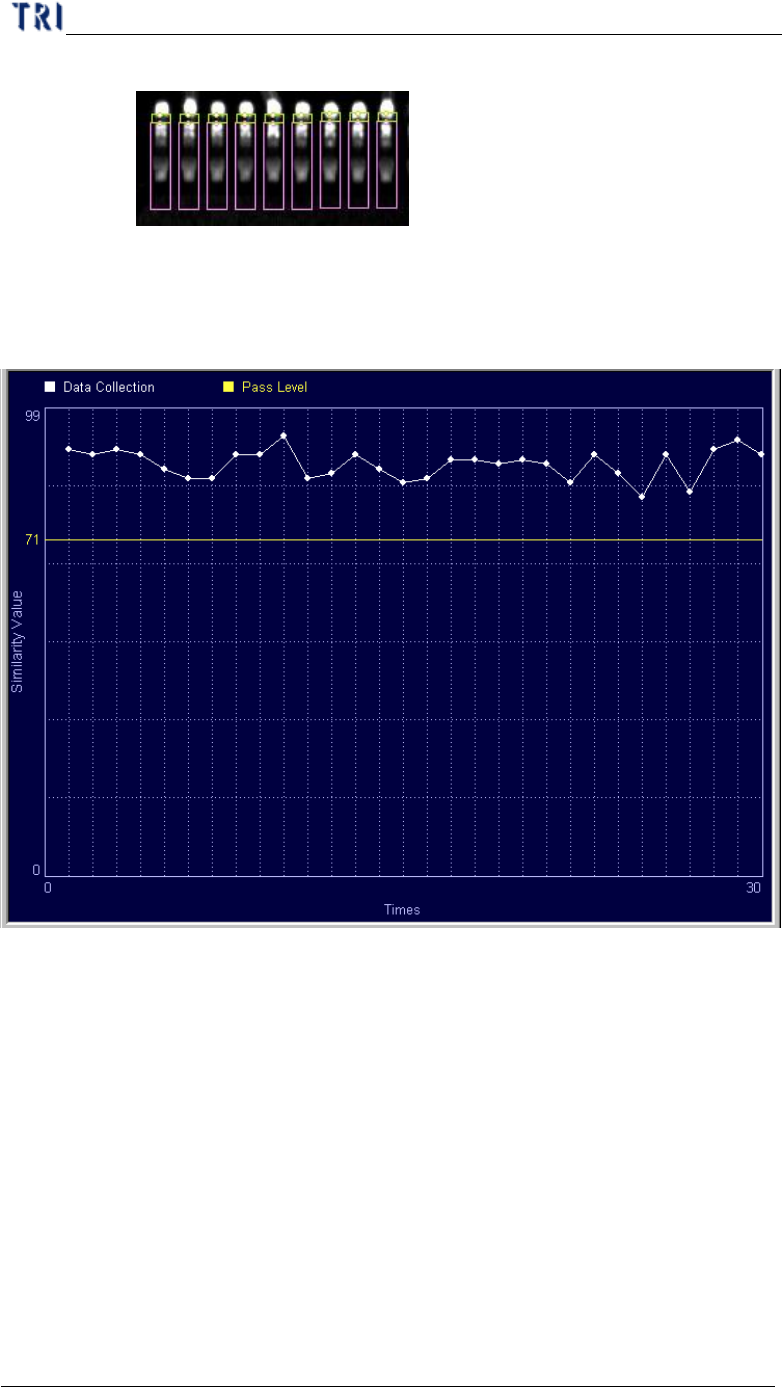
l Box Side – Show directionality of the pins with small circle. The
correct direction is shown as the following. If the direction is wrong,
Chapter 4 Train dialog function
TR7500 USER MANUAL
231
you have to select [Edit/Rotate Side] to change the direction
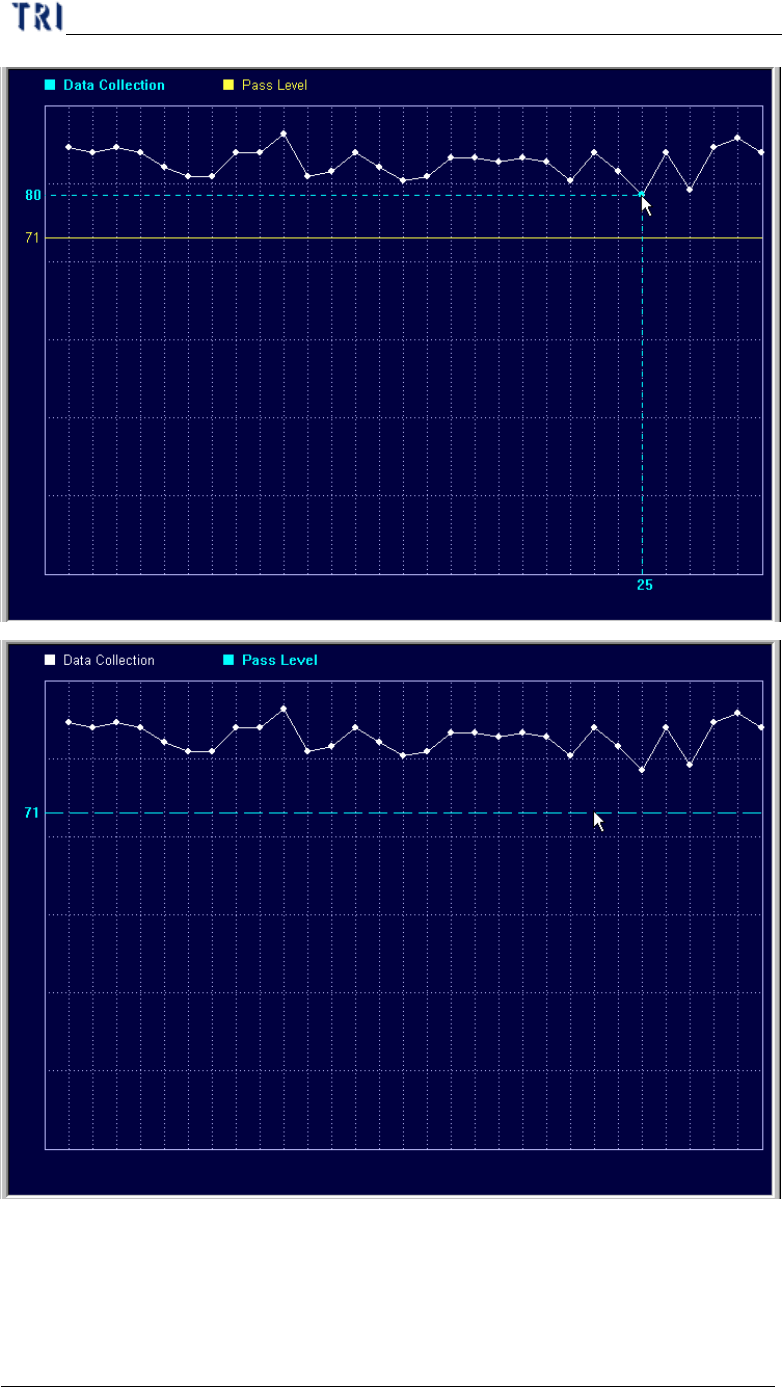
l Show Data Collection Chart of this Box – It is enabled only when you
select [Program/Auto Pass Level Setting/Inline Data Collection]. It
will show the recent 30 data. You can click the point to show the result
and drag the yellow line to change the pass level.
Chapter 4 Train dialog function
TR7500 USER MANUAL
232
(2) Copy – You can copy the size or position to the other components with
same type.