TR7500E_Manual_en_v28 - 第246页
C h a p t e r 4 T r a i n d i a l og f u n c t i on T R 7500 U S E R M A N U AL 2 39 l O n l y f o r t h i s – O n l y s e t o n t h e s e l ec t e d c o m po n e n t . l B y B o a r d – A p p l y t o t h e a c t i v e b…
Chapter 4 Train dialog function
TR7500 USER MANUAL
238
6.2. Component List
6.2.1. Set Rng
l Change the search range for inspection box (Missing / Missing Polarity / Lead /
/Align/Warp). The system will find the inspection box in the search range.
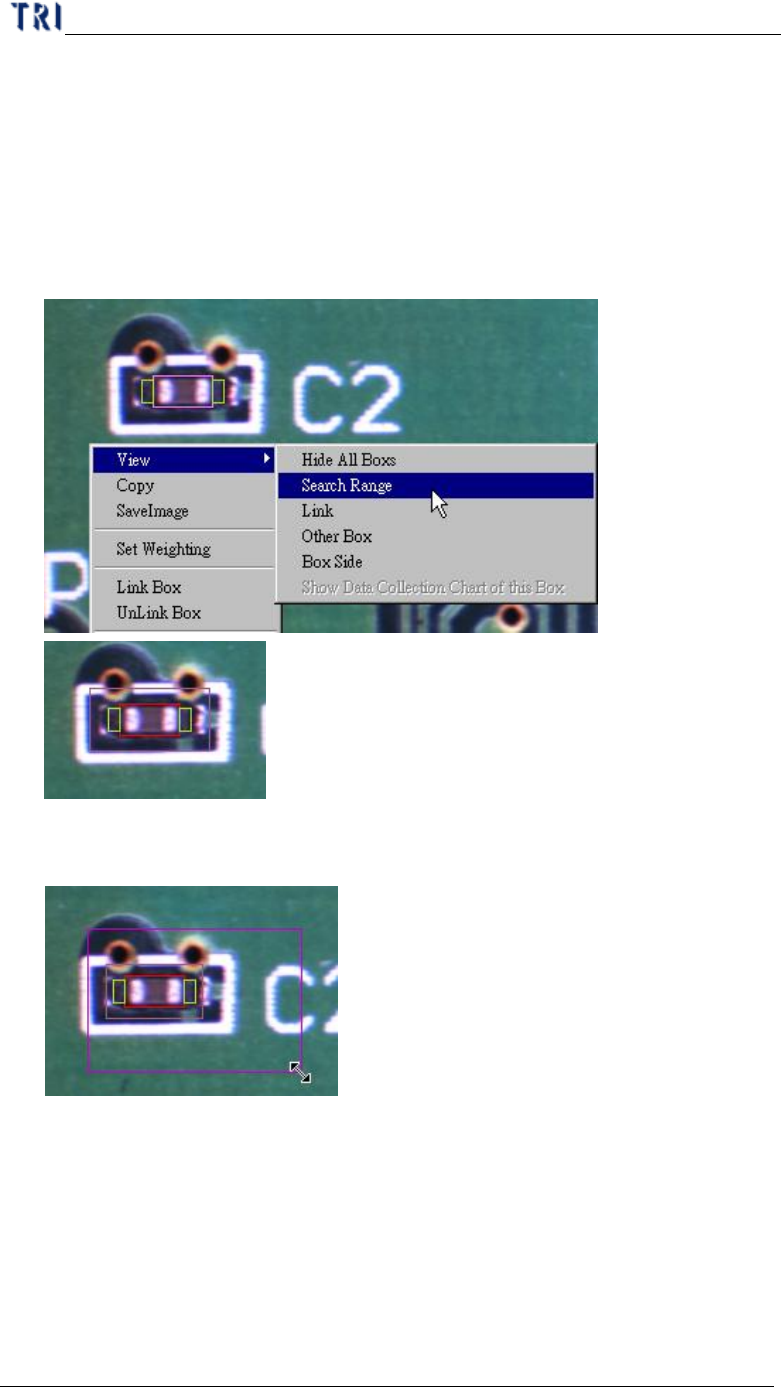
l Setting Steps
Step1. Right click on the image area and select [View/Search Range] to review
the inspection box.
Step2. Adjust the multi-function window to suit the search range then press
[Set Rng].
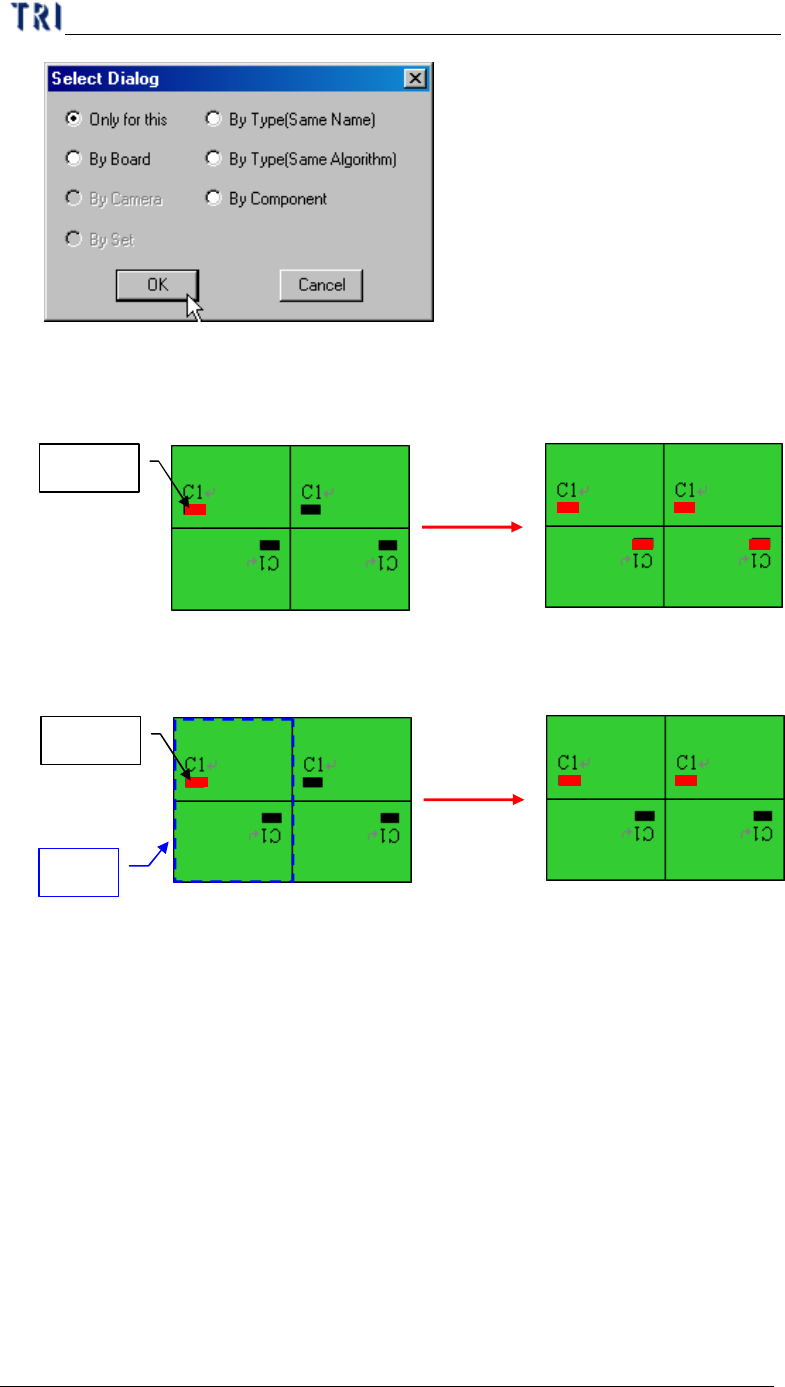
Step3. Select the copy condition.
Chapter 4 Train dialog function
TR7500 USER MANUAL
239
l Only for this – Only set on the selected component.
l By Board – Apply to the active box of component with same name on
multi-board.
l By Camera – Apply to the component with the same camera.
l By Set – Apply to the relative box by set.
l By Type (Same Name) –The component with same type will be applied at
the inspection box with same window name.
l By Type (Same Algorithm) –The component with same type will be applied
at the same kind of inspection box.
l By component – Apply to all the same kind of inspection boxes on this
component.
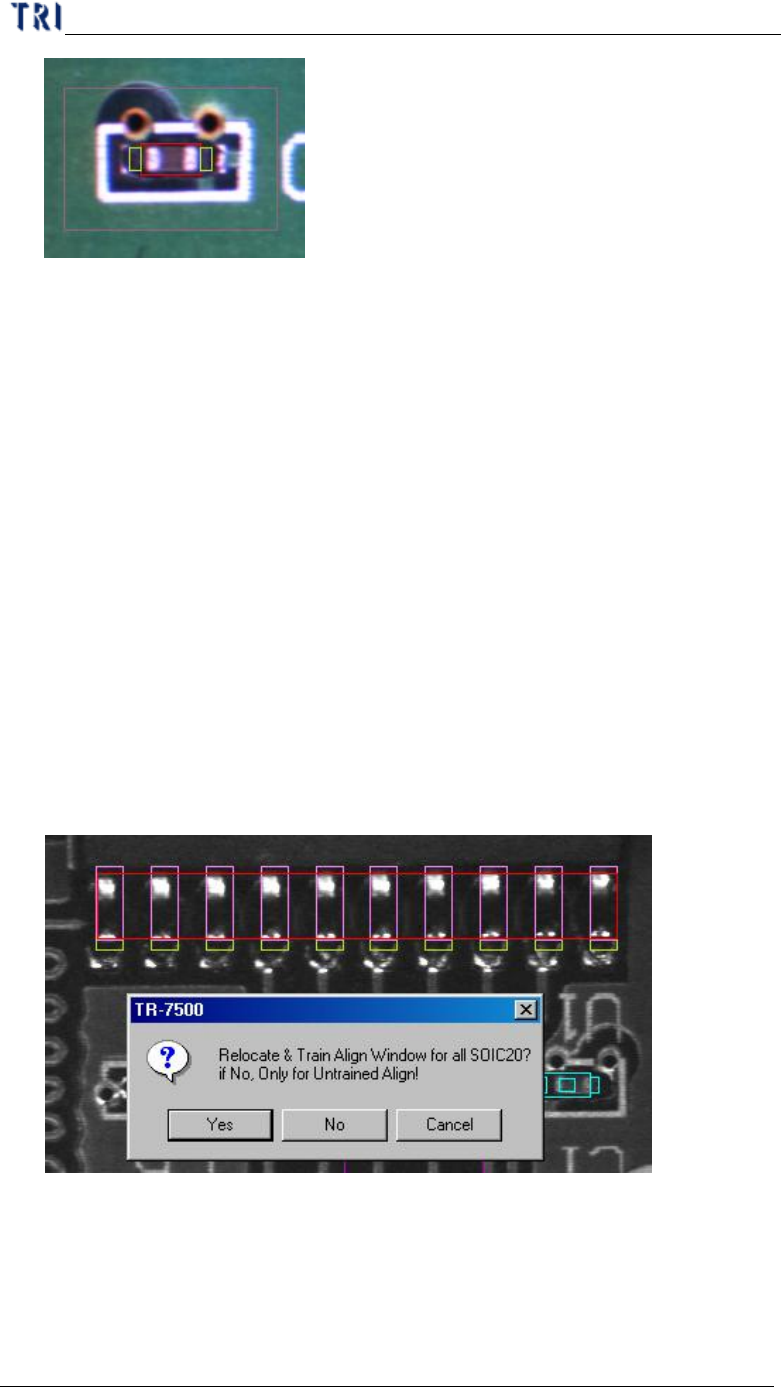
Step4. The system will search the range and measure the symmetrical
arrangement of frame position
Rotate:180
Rotate:180
Rotate:0
Rotate:0
Apply
Rotate:180
Rotate:180
Rotate:0
Rotate:0
Setting
By Board
Rotate:180
Rotate:180
Rotate:0
Rotate:0
Apply
Rotate:180
Rotate:180
Rotate:0
Rotate:0
Setting
By Set
A Set
Chapter 4 Train dialog function
TR7500 USER MANUAL
240
6.2.2. Train
l Train the selected components. It shows that applies mechanically standard
image, the parameter and other settlement on this component to train, the system
will only inspect in having component trained.
6.2.3. Autoalig
l The system will automatically relocate the align box according to the selected
and trained align window. You should select a trained align window and press
[Autoalig] to relocate the other inspection boxes with same type. Only the
similarity is high enough the align window can be trained.
l Align is an auto positioning system that records the X, Y coordinates for graying.
When you Train, the graying in the X (or Y) direction should be 10 pins but the
search returns only 1 – 9 pins in alignment because there is no way to predict the
unknown (e.g. more than 11 pins). Therefore, when doing Align fixed
positioning, select more pins for searching and matching
l Just untrained align window can be [Auto alignment].
6.2.4. +Alternative
l Add alternative image to [Missing] or [Missing Polity] window. Adding an
alternative image is adding a standard image for the component. The box will be
regarded as pass if one or more images are passed. The number of the alternative