TR7500E_Manual_en_v28 - 第248页
C h a p t e r 4 T r a i n d i a l og f u n c t i on T R 7500 U S E R M A N U AL 2 41 i m a g e s h a s n o t b e e n li m i t e d , bu t y o u ca n j u s t a d d t o t h e i m a g e f o r o n e o f t h e s t a n d a r d …
Chapter 4 Train dialog function
TR7500 USER MANUAL
240
6.2.2. Train
l Train the selected components. It shows that applies mechanically standard
image, the parameter and other settlement on this component to train, the system
will only inspect in having component trained.
6.2.3. Autoalig
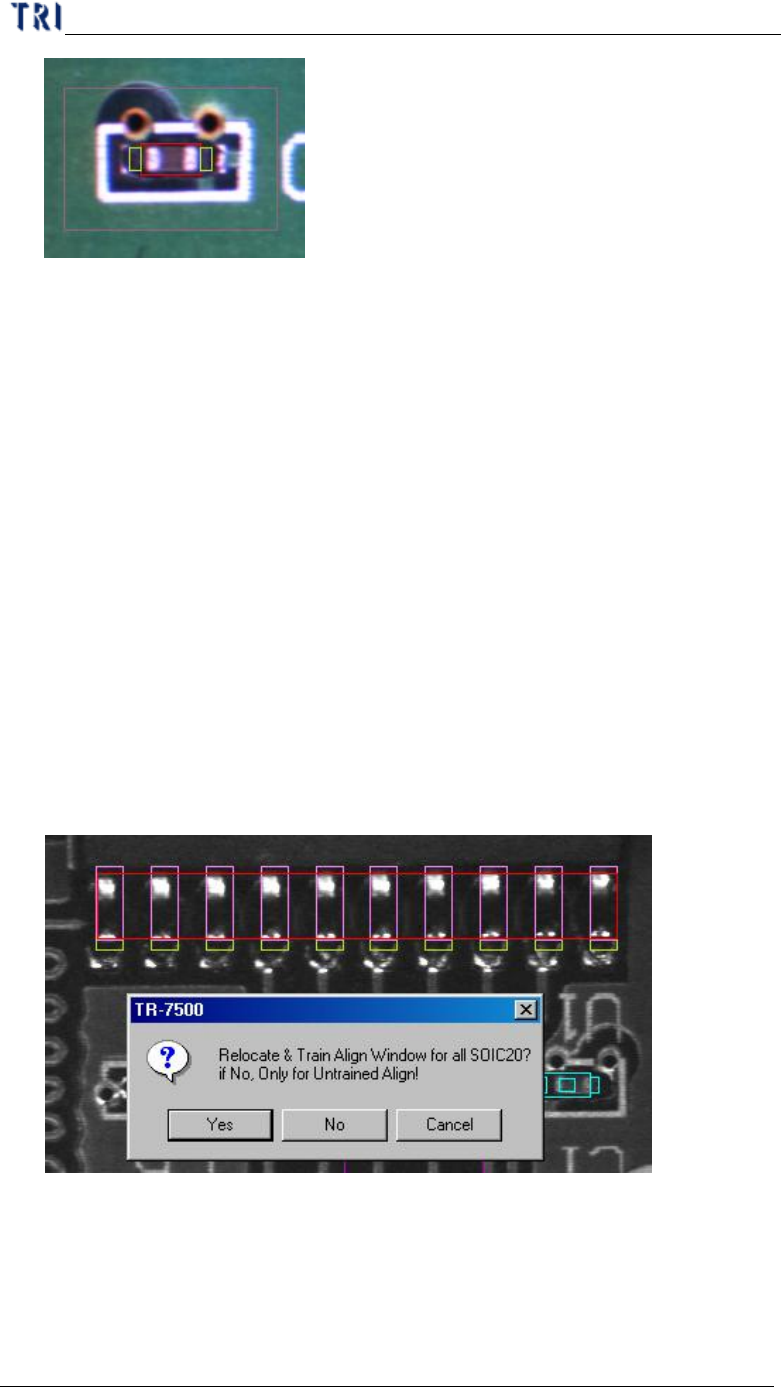
l The system will automatically relocate the align box according to the selected
and trained align window. You should select a trained align window and press
[Autoalig] to relocate the other inspection boxes with same type. Only the
similarity is high enough the align window can be trained.
l Align is an auto positioning system that records the X, Y coordinates for graying.
When you Train, the graying in the X (or Y) direction should be 10 pins but the
search returns only 1 – 9 pins in alignment because there is no way to predict the
unknown (e.g. more than 11 pins). Therefore, when doing Align fixed
positioning, select more pins for searching and matching
l Just untrained align window can be [Auto alignment].
6.2.4. +Alternative
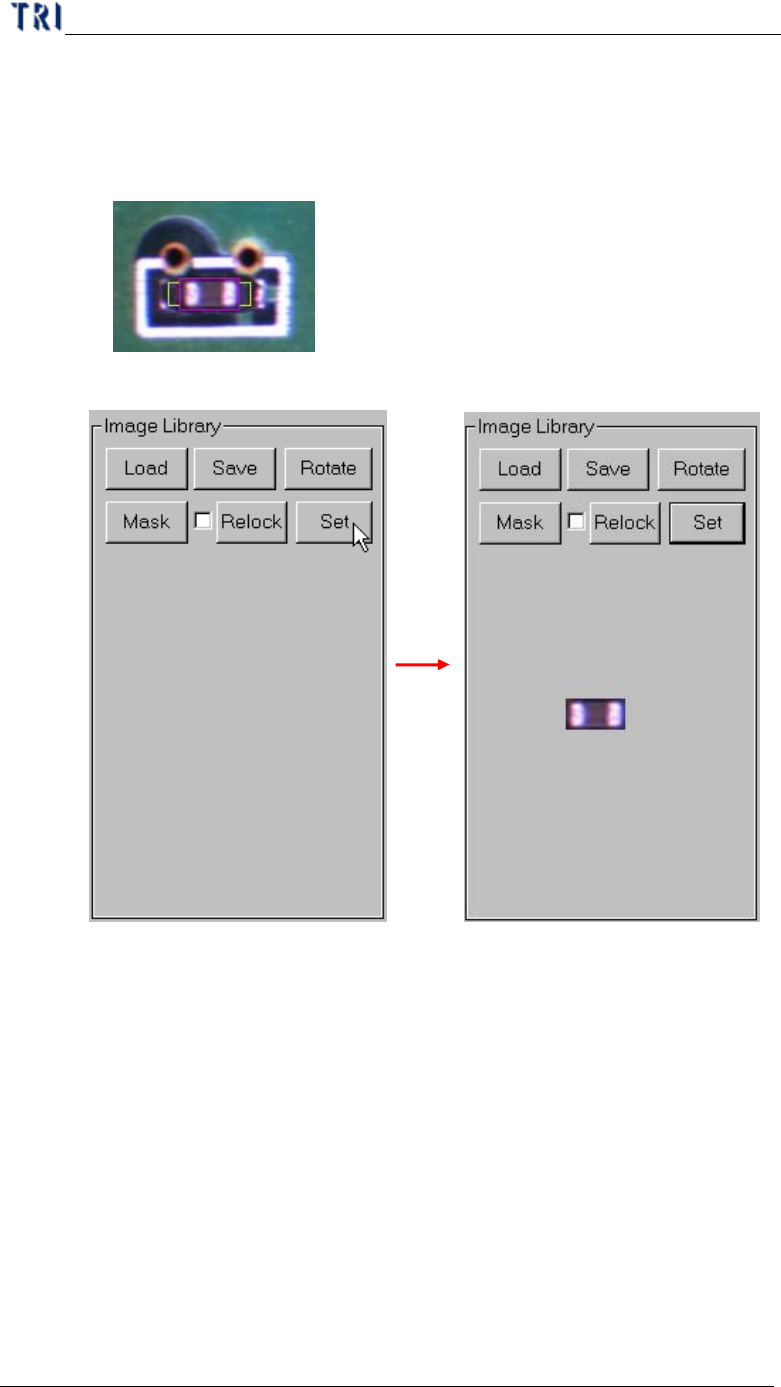
l Add alternative image to [Missing] or [Missing Polity] window. Adding an
alternative image is adding a standard image for the component. The box will be
regarded as pass if one or more images are passed. The number of the alternative
Chapter 4 Train dialog function
TR7500 USER MANUAL
241
images has not been limited, but you can just add to the image for one of the
standard images of this component carefully.
l Setting Steps
Step1. Move the multi-function box to the alternative image.
Step2. Press [Set] button.
Step3. Press [+Alternative] and select the applied rules.
Step4. You can press [View Model] to review the all alternative images.
6.2.5. EditComp
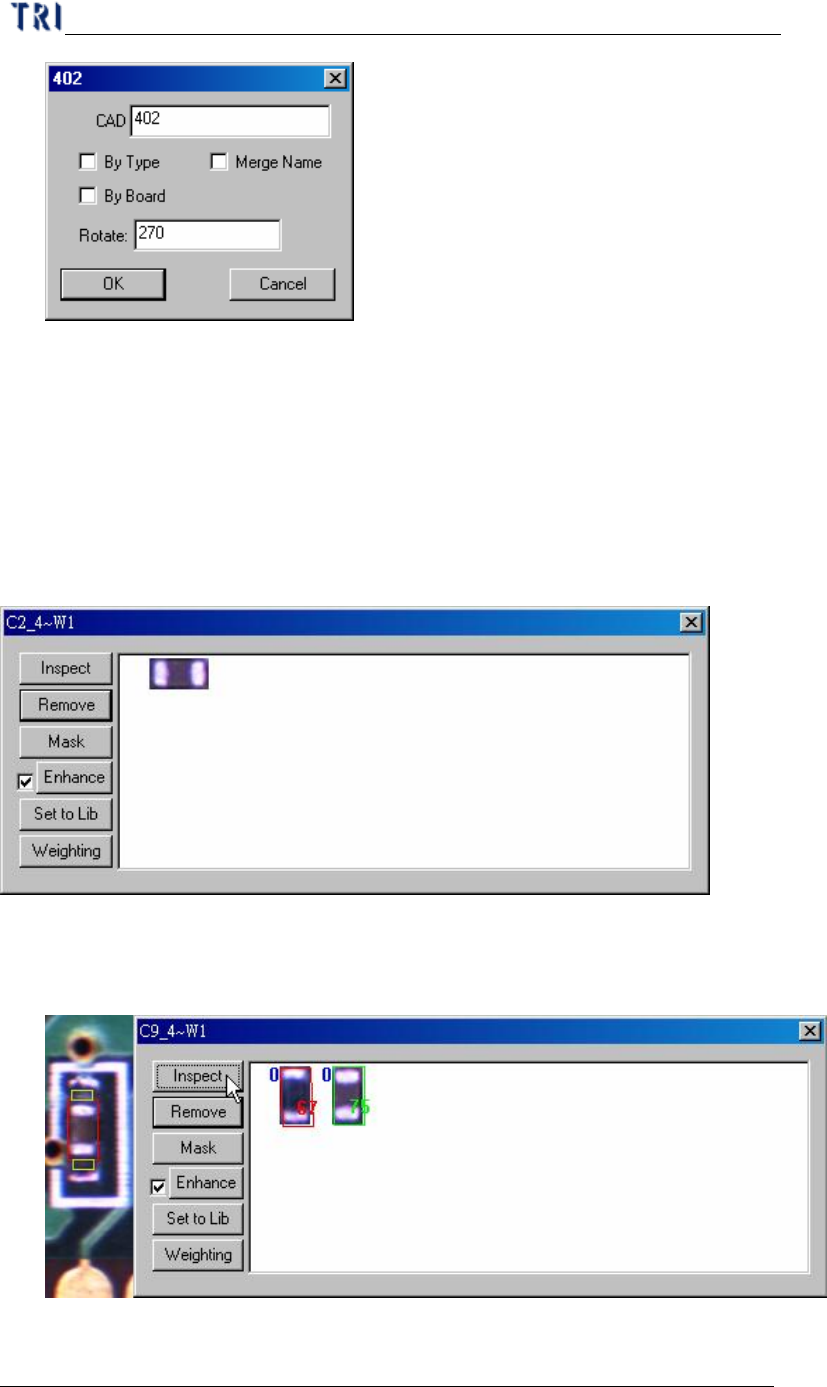
l Edit the component type and angle. When the inspection boxes of this
component are on more than one FOV, you can’t change the Rotate Angle here.
Chapter 4 Train dialog function
TR7500 USER MANUAL
242
n By Type – apply the type name to the components with same type.
n By Board – apply the type name or rotate angle to the same components on
multi-board.
n Merge Name – The initial character(s) of component combine with original
name to form the new type name.
6.2.6. View Model
l You can review the standard images here or modify the images.
n Inspect – Review the similarity between standard image and the image that
wait measuring. The blue figure of the upper left corner represents the
number of times of the enhancement.
n Remove – Remove the selected image.