TR7500E_Manual_en_v28 - 第258页
C h a p t e r 4 T r a i n d i a l og f u n c t i on T R 7500 U S E R M A N U AL 2 51 W h e n y o u s e l e c t t h e c h ec k bo x t h e [ W a r p ] w i ll b e i n s p ec t e d w i t h m e t h o d 1 ; w h e n y o u d on …
Chapter 4 Train dialog function
TR7500 USER MANUAL
250
6.4. Warp Setting
6.4.1. Setwarp/Delwarp
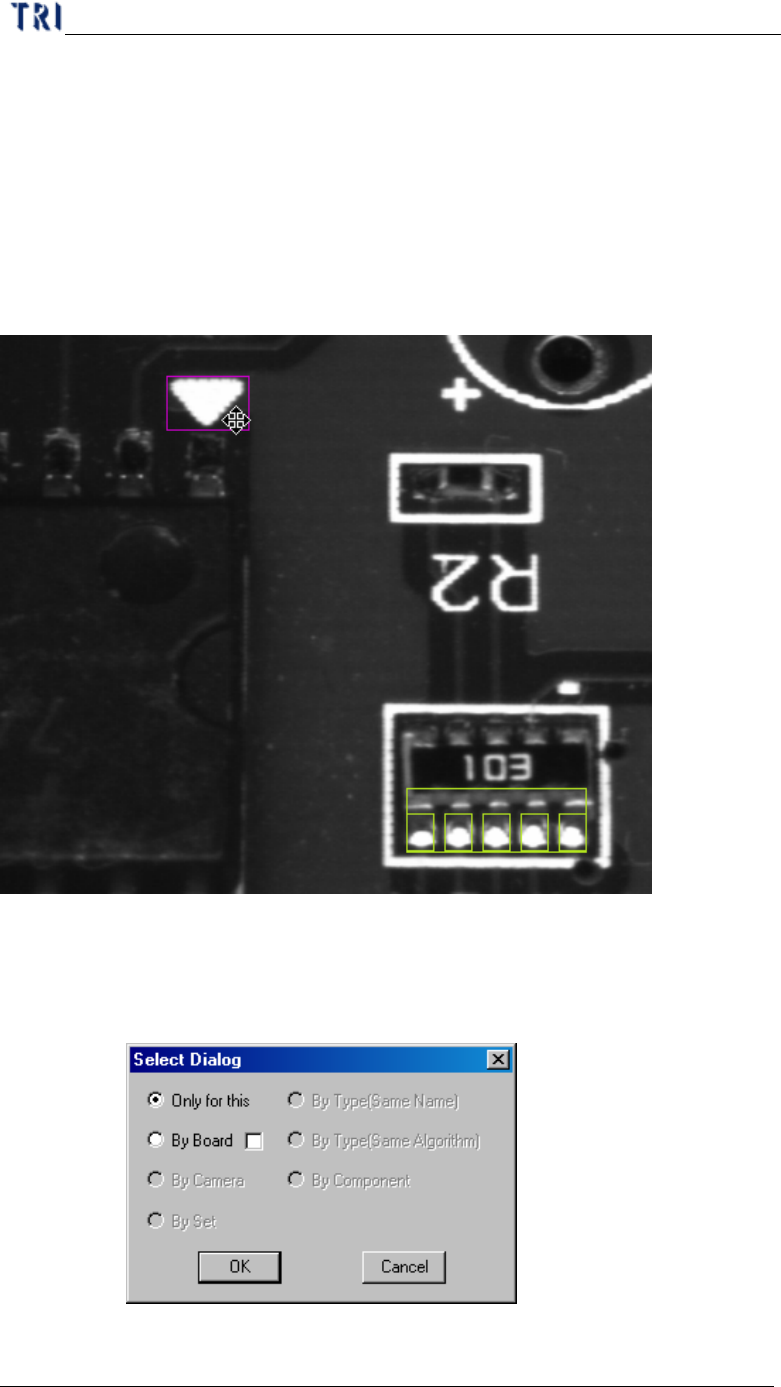
l Set a [Warp] for the current FOV. Move the multi-function window to the
suitable position and adjust the size. Then press [Setwarp] to set a warp window.
Chapter 4 Train dialog function
TR7500 USER MANUAL
251
When you select the check box the [Warp] will be inspected with method 1;
when you don’t select the check box the [Warp] will be inspected with method 2.
l You can select only one [Warp] for a FOV. When the [Warp] has set the character
on the button will be changed as [Delwarp]. You can select [Delwarp] to delete
the [Warp].
l Setting Steps
Step1. Adjust the position and size for multi-function window to suit the
objective.
Step2. Select the copy rules. [By Board] means copy the setting to relative
multi-board FOVs. Selecting the check box means the inspection boxes
will be moved a relative distance according the [Warp] position when
copy the [Warp] to other multi-boards.
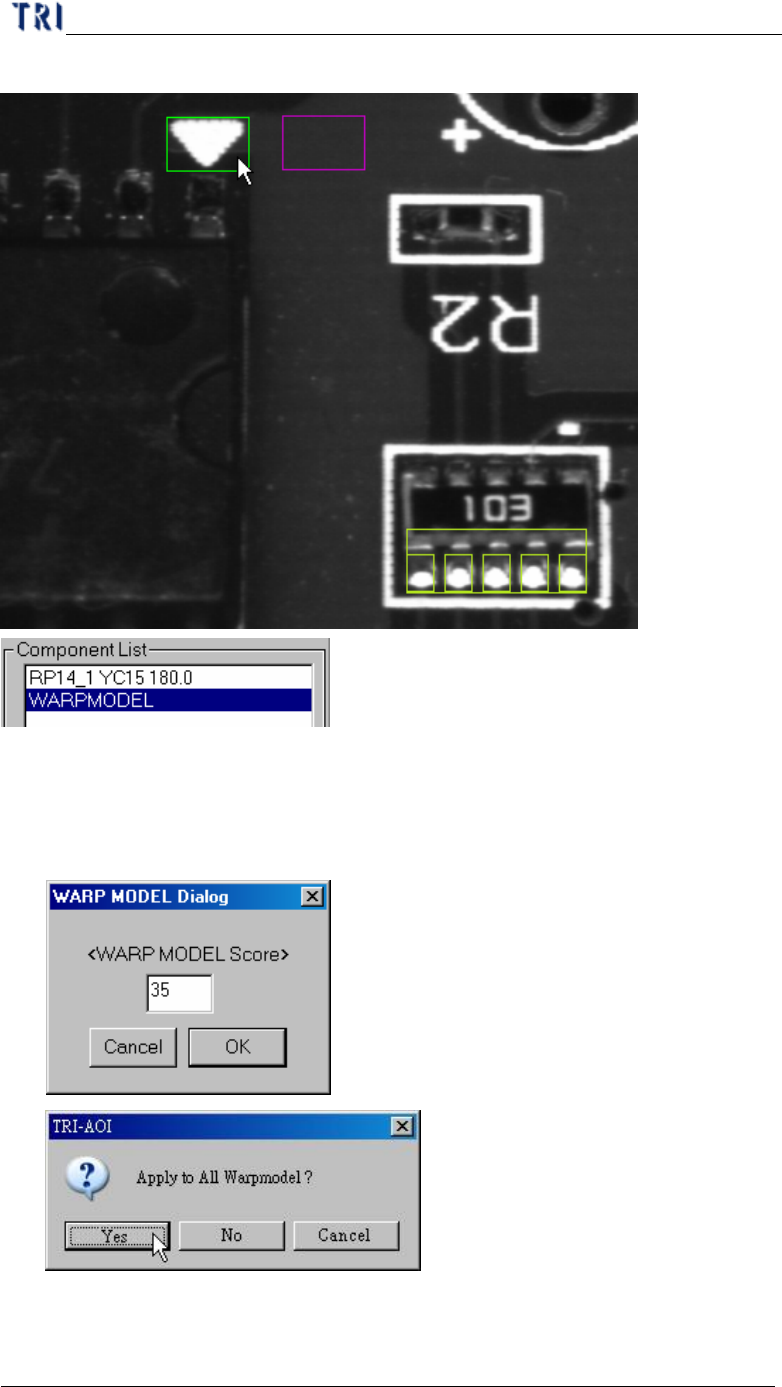
Step3. When finishing setting there is a warp on FOV image and a
Chapter 4 Train dialog function
TR7500 USER MANUAL
252
[WARPMODEL] component in component list.
6.4.2. Warp score
l Set the similarity score. When the similarity is higher than the score the
inspection window in the FOV will be relocated according the [Warp].
6.4.3. Warp Algorithm Modification