TR7500E_Manual_en_v28 - 第264页
C h a p t e r 4 T r a i n d i a l og f u n c t i on T R 7500 U S E R M A N U AL 2 57 l I n p u t t h e a n g l e a n d p r e ss [ R o t a t e ] t o r o t a t e t h e m u l t i - f u n c t i o n w i n d o w . 6.6.5. 2 X l…
Chapter 4 Train dialog function
TR7500 USER MANUAL
256
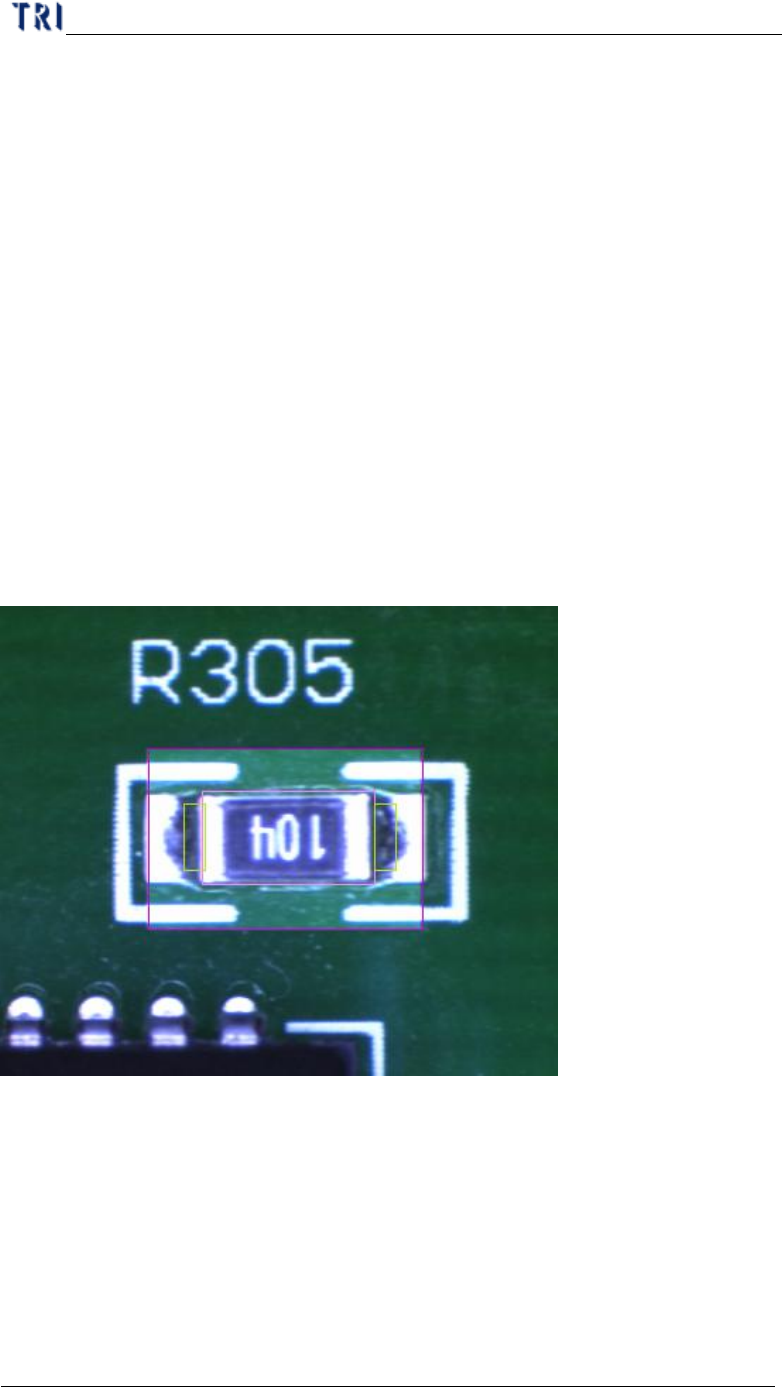
n Inspection Parameter – Set the parameter for inspection. The system only
inspects the area that is in ROI box and not masked.
u Inspect Sensitivity – Take 60 for example. If the difference of gray
level between neighbor pixels are larger than 40 (100-60) the two
pixels will be regarded as edges.
u Tolerance – Take 5 for example. If a group size of edges is more than 5
the inspection window should be regard as failed.
n The [Sensitivity] value must be bigger than [Inspect Sensitivity] or it will
result more false alarm.
6.5.3. Delete ROI
l Press the button to delete all ROI windows in the FOV.
6.6. Tool
6.6.1. Enhance
l To enhance the area in multi-function window the brightness and contrast.
6.6.2. Enable
l You can unselect the check box to cancel [enhance] function.
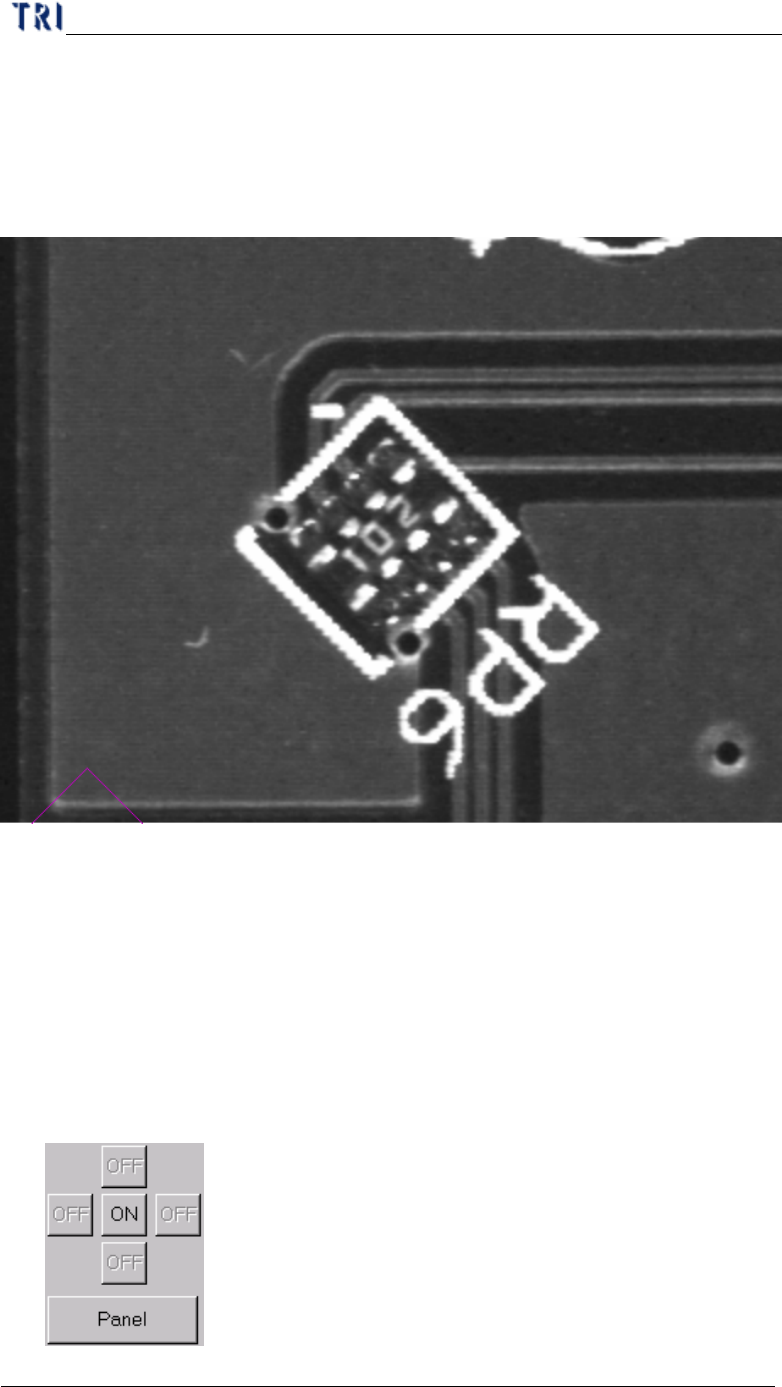
6.6.3. Rotate
l Press the button to rotate the multi-function window.
6.6.4. Angle
Chapter 4 Train dialog function
TR7500 USER MANUAL
257
l Input the angle and press [Rotate] to rotate the multi-function window.
6.6.5. 2X
l Show the double size of FOV image. The display area is the multi-function
location and the image is reviewed for test.
6.6.6. Load
l You can load a saved FOV image for review or test, but the image isn’t saved in
the project.
6.6.7. INSPECT
l Inspect current FOV and display the result.
6.7. Switch FOV
Chapter 4 Train dialog function
TR7500 USER MANUAL
258
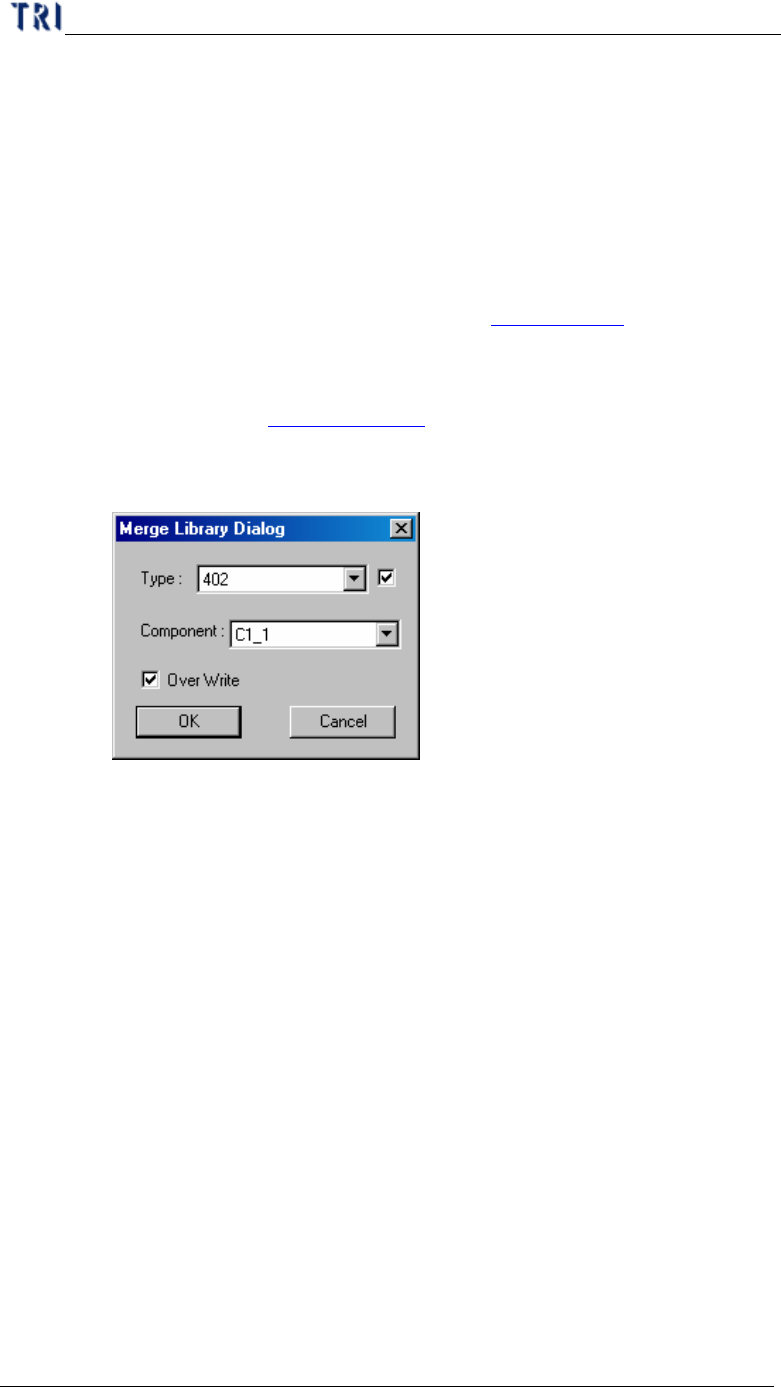
l Panel/Set – [Panel] means to review all the FOVs in the whole PCB; [Set] means
to review set FOVs for multi-board.
l Top Camera – [ON] means to review the FOVs and the FOVs display as red
boxes; [OFF] means not to review and the red boxes are disappeared.
6.8. Merge
l You can press the button to merge the specific library to component. After
merging you should capture FOV images again. (Chapter 2 7.3. ).
l Merge Steps
Step1. Press [Merge] and there is a library window appeared. The detailed
functions are in Chapter 3 10.1.2. . You should select a library and press
[OK].
Step2. Input the object component type or name then press [OK].
l Type – Select the objective type. The check box means merge the
library to all components with the type.
l Component – If you want to merge the library to a single
component you should not select the check box and choose a
component.
l Over Write – Select to over write the data or it just merge the
component don’t have inspection boxes.
Step3. Capture FOV images again.
6.9. Histogram
l The curve displays the distribution of gray level in multi-function window. The
horizontal axis means the gray level; the vertical axis means the pixel counts; the
red line means the gray level where the mouse cursor is on.