TR7500E_Manual_en_v28 - 第268页
C h a p t e r 4 T r a i n d i a l og f u n c t i on T R 7500 U S E R M A N U AL 2 61 Y e s N o 6 . 1 1 . T r a i n / U n t r a i n / T e s t / U n t e s t 6.11.1. T r ai n l T r a i n t h e s e l ec t e d i n s p ec t i …
Chapter 4 Train dialog function
TR7500 USER MANUAL
260
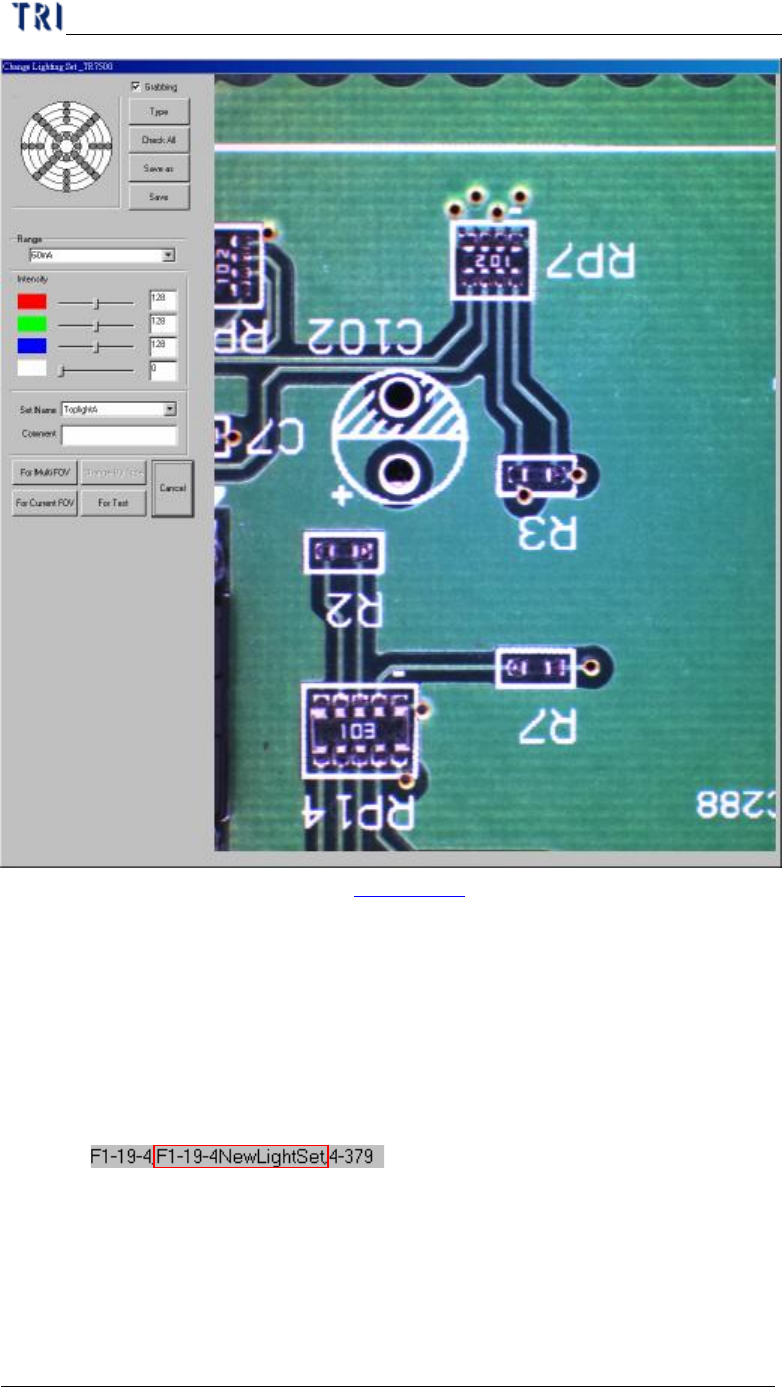
n The way to set lighting is in Chapter 3 9. . [For Multi FOV] means to set
the light to relative FOVs in other multi-board; [For Current FOV] means
only set the light to the current FOV; [Change By Type] means set the light
to FOVs that contain the component with specified type; [For Test] means
the light just display for test and the FOV will be inspected by original
lighting. You should press above selection to set lighting or press [Cancel]
not to change and close the window.
n The changed lighting will be named according to the FOV name.
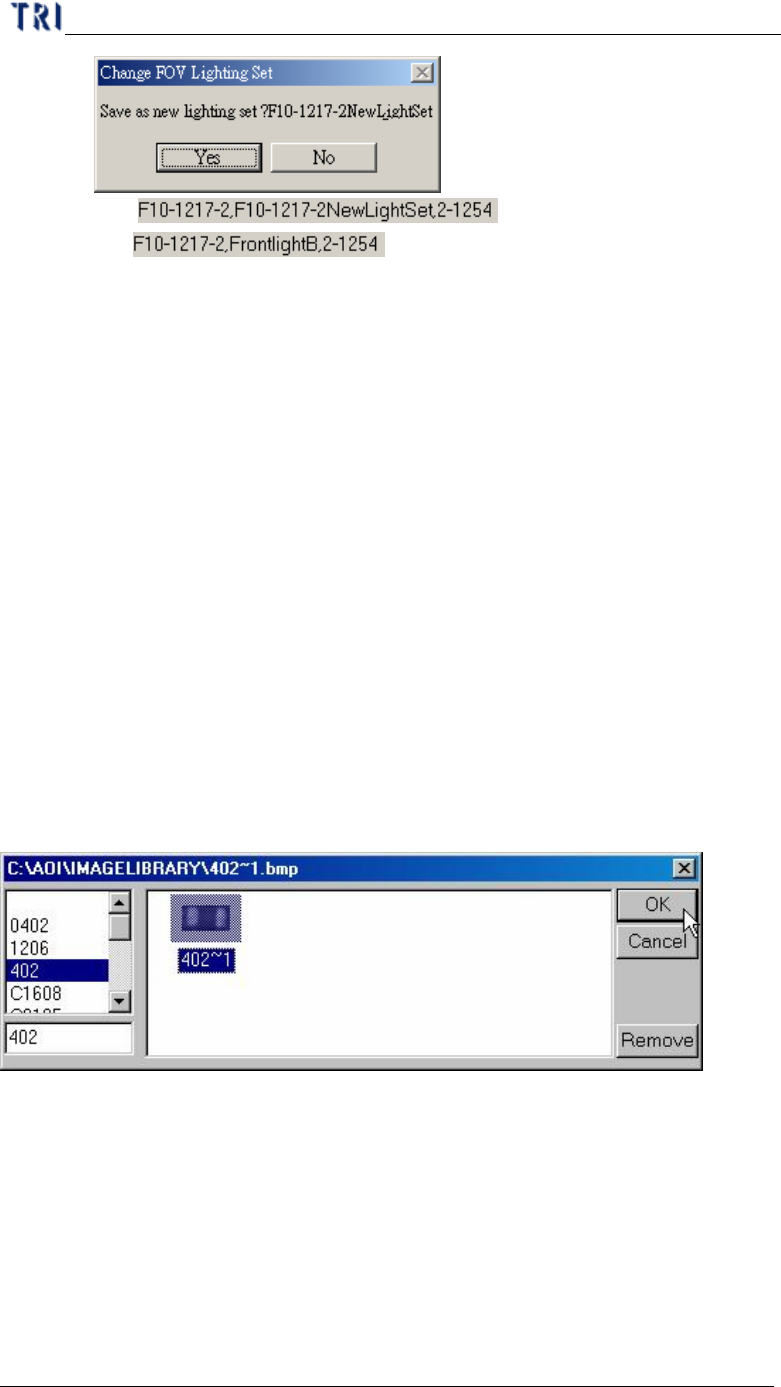
n If you change the lighting with the other default lighting, the system will
ask whether you want to set the lighting with a new name according to the
FOV name or set the lighting with original lighting name.
Chapter 4 Train dialog function
TR7500 USER MANUAL
261
Yes
No
6.11. Train/ Untrain/ Test/ Untest
6.11.1. Train
l Train the selected inspection box.
n For all FOV – Train all inspection boxes.
n For untrained – Train all untrained inspection boxes.
6.11.2. UnTrain
l Untrain the selected inspection box
n For all FOV – Untrain all inspection boxes.
6.11.3. Test
l Set the selected inspection box as test.
6.11.4. Untest
l Set the selected box as untest.
6.12. Image Library
6.12.1. Load
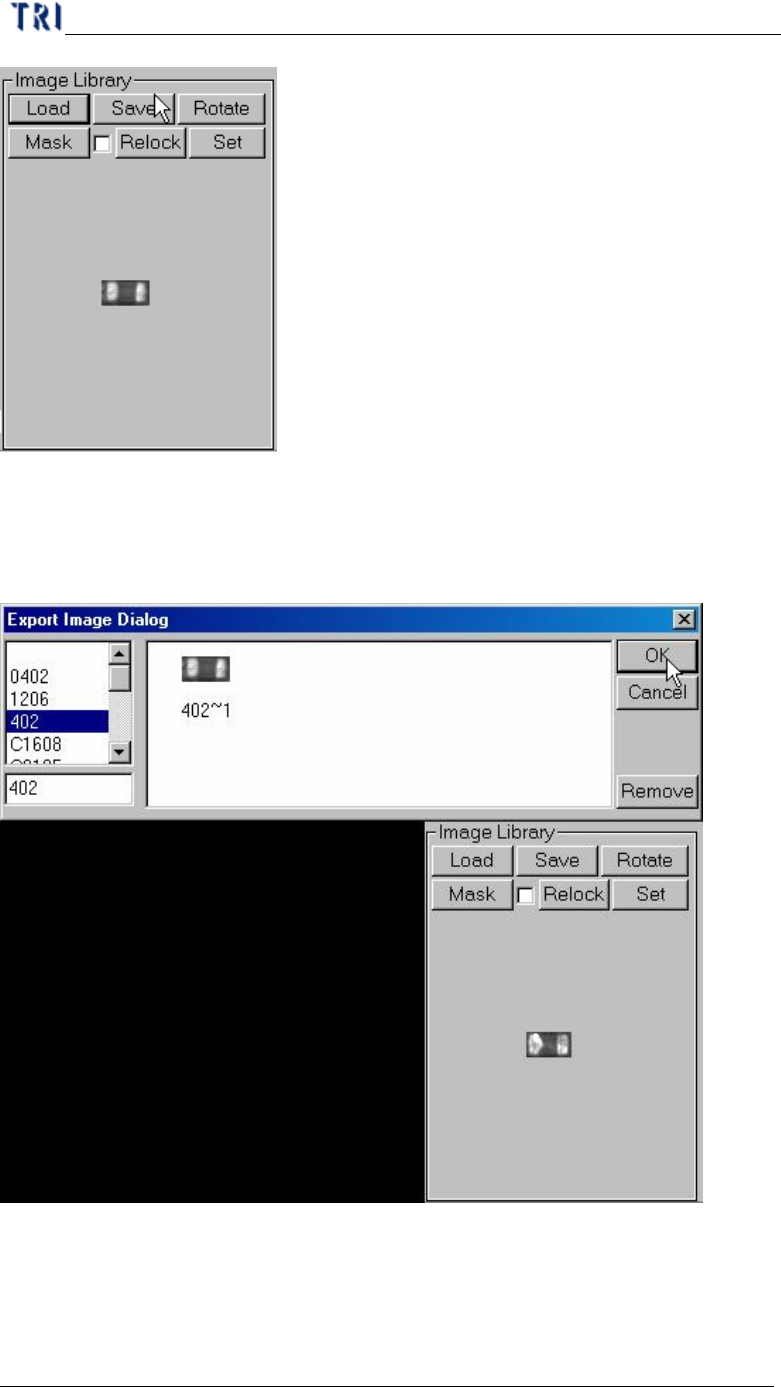
l You can load the saved image to use. You can see the image after loading.
Chapter 4 Train dialog function
TR7500 USER MANUAL
262
6.12.2. Save
l Save the image in the image area to [ImageLibrary] folder. You should select a
type to save in.