TR7500E_Manual_en_v28 - 第270页
C h a p t e r 4 T r a i n d i a l og f u n c t i on T R 7500 U S E R M A N U AL 2 63 6.12.3. R o t a t e l R o t a t e t h e c u rr e n t i m a g e . I t r o t a t e s 9 0 d e g r e e f o r on e c l i c k . 6.12.4. M a s…
Chapter 4 Train dialog function
TR7500 USER MANUAL
262
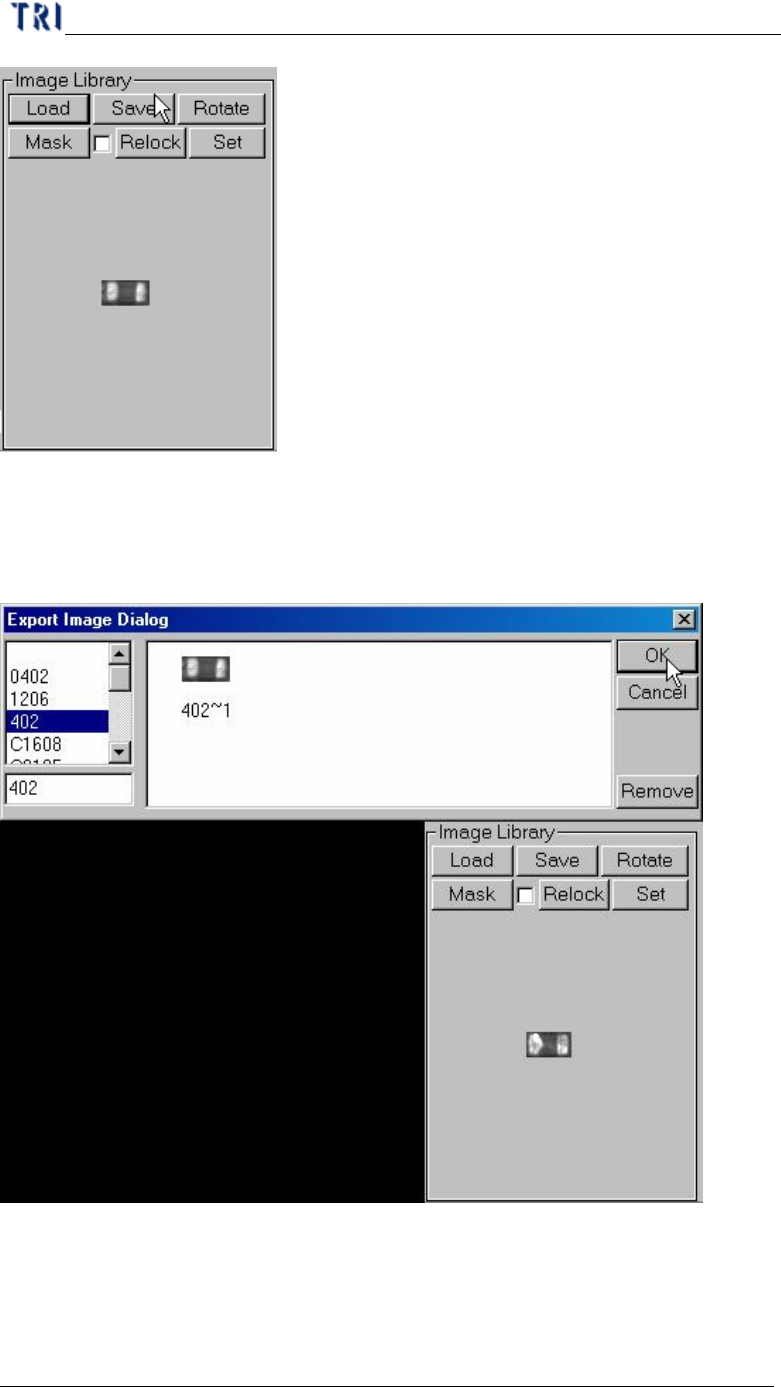
6.12.2. Save
l Save the image in the image area to [ImageLibrary] folder. You should select a
type to save in.
Chapter 4 Train dialog function
TR7500 USER MANUAL
263
6.12.3. Rotate
l Rotate the current image. It rotates 90 degree for one click.
6.12.4. Mask
l You also can set the mask of image here.
6.12.5. Relock
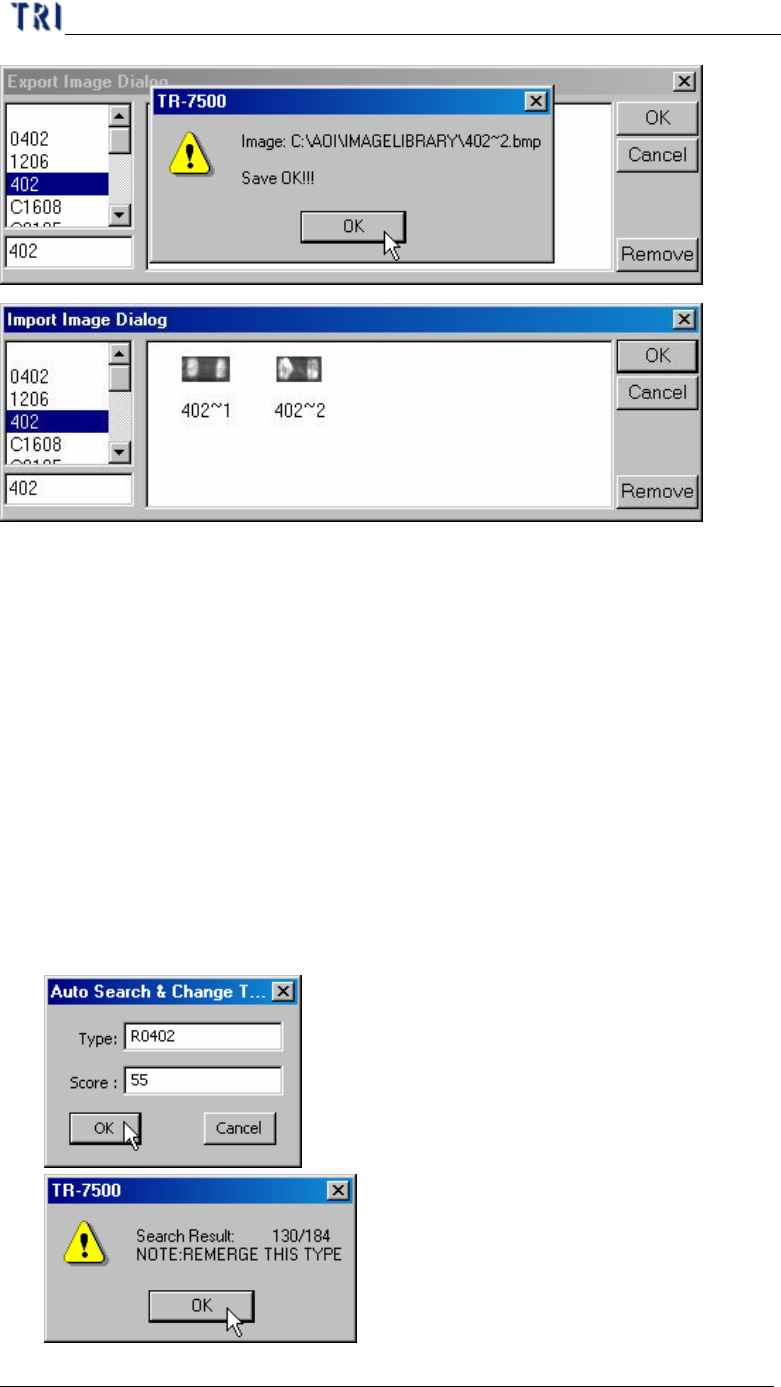
l The system will relocate the inspection box according to the image in image
area.
l If you select the check box the following dialog is appeared. The system will
change the type name when the similarity is up to the score. The system will tell
you how many components are changed.

Chapter 4 Train dialog function
TR7500 USER MANUAL
264
6.12.6. Set image
l Grab the image in multi-function window into the image area.
6.13. Find FOV by Type/Name
6.13.1. Type
l Input or select a type as a condition.
6.13.2. Name
l Input or select a name as a condition.
6.13.3. Trained
l Select to set trained component as a condition.
6.13.4. UnTrained
l Select to set untrained component as a condition.
6.13.5. Test
l Select to set test component as a condition.
6.13.6. UnTest
l Select to set untest component as a condition.
6.13.7. Single Void/Pin
l Select to find the single [Void] or [Pin] window in order to find the FOV that
need to add [Warp].
6.13.8. Previous
l Press the button the system will find the previous FOV according to the above
conditions.
6.13.9. Next
l Press the button the system will find the next FOV according to the above
conditions.
6.14. Change FOV
6.14.1. Previous
l Review the previous FOV.
6.14.2. Next
l Review the next FOV.
6.14.3. OK
l Close the [Train] dialog.