00195193-02 SG D4 FSE en (1).pdf - 第322页
Sitest PCB mapping Basic description of all calibration steps Student Guide SIPLACE D4 (FSE) EN 09/2006 Sitest 303 12.3 - 4: Position mapping plate and convey or side position for single and dual conve yor 12.3.8.2 Proce…
Sitest
Basic description of all calibration steps PCB mapping
Student Guide SIPLACE D4 (FSE)
Sitest EN 09/2006
302
12.3.7.3 PCB fixed corner
X Select gantry 1 or 2.
X Select PCB reference corner position right or PCB reference corner position left (dual conveyor)
X Moves the active gantry with the PCB camera over the reference corner position and switches the
screen display to the PCB camera for checking purposes. The reference corner position is visible in
the camera's field of view. Teach the gantry at the top right edge of the board, so that the PCB
reference corner is in the center of the camera's field of vision. (see Section 12.2.8 Calibrate the PCB
reference corner [J 293]).
X This board reference corner determines the coordinate source for the programmed placement
position, fiducial position and inkspots in the machine.
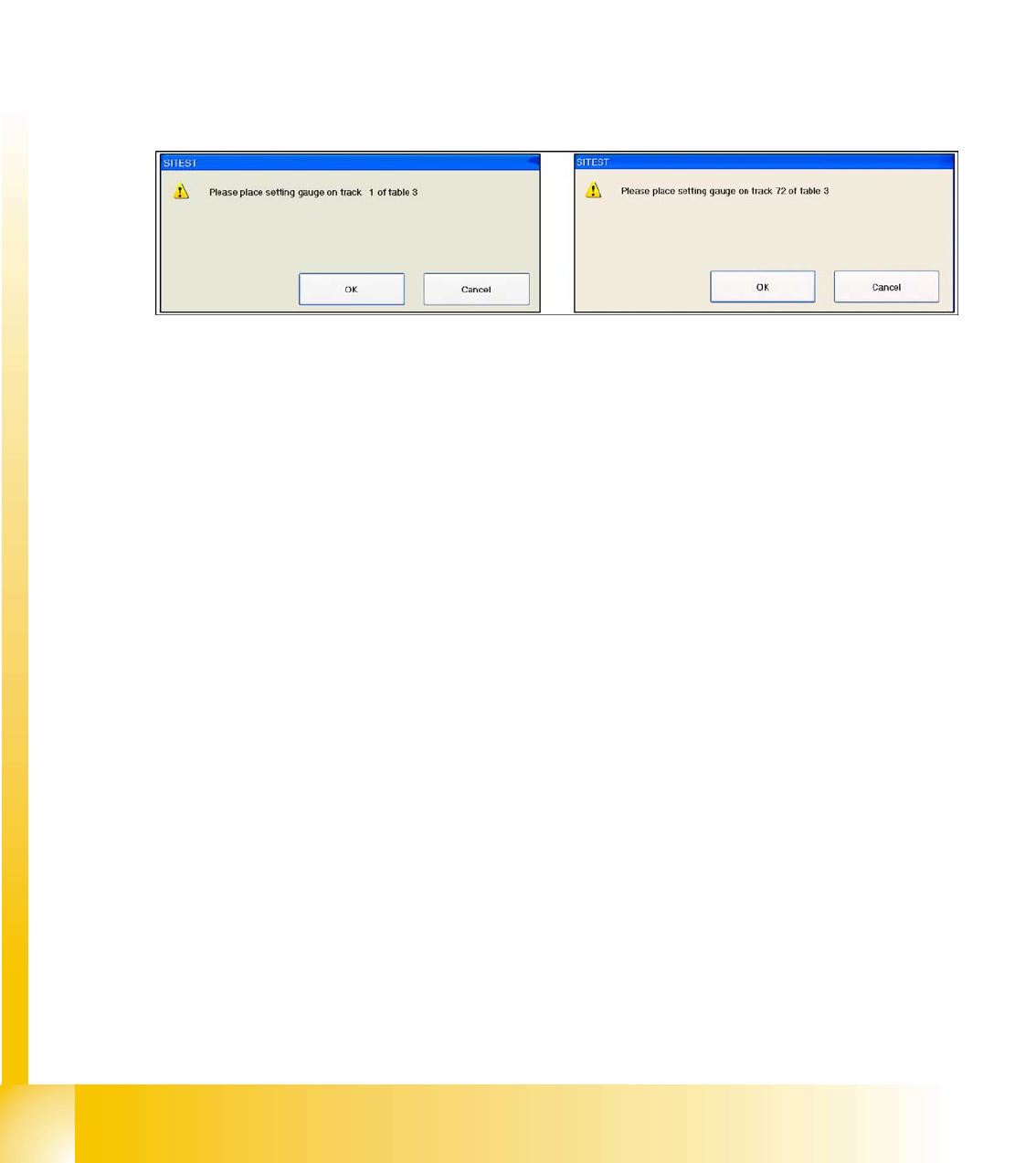
12.3.7.4 Pickup Position (Calibrate the Component Table Track 1- 72)
Determines the X and Y positions for tables 1 to 4 with the reference tracks 1 and 72.
12.3 - 3: Calibrate the Component table
12.3.8 PCB mapping
With the PCB mapping the linearity of the X- and Y-guidance for PCB-camera movement is measured
in the placement area. The PCB-camera center the cross fiducials on a high precise glass plate. This
mapping plate has been measured with a measuring device and the dimensions are taken into account
during the mapping procedure.
12.3.8.1 Preparation for Mapping
X At the single conveyor the SITEST move the transport sides to 508mm wide the mapping plate is 90
degree turned.
X At dual conveyor the SITEST SW move all the conveyor sides depend of the conveyer which is
selected the conveyor for mapping to 450 mm wide the other track to 0mm. This enables you to use
the dual conveyor as single conveyor. The Mapping must be carried out for the maximum conveyor
width.
X To prepare the board and RV mapping procedure, the SITEST SW automatically sets the conveyor
sides, so that the mapping plate fits into the relevant conveyor side.
X The C&P12 must be equipped with nozzle type 956.
X The calibration tools are in the calibration pocket.

Sitest
PCB mapping Basic description of all calibration steps
Student Guide SIPLACE D4 (FSE)
EN 09/2006 Sitest
303
12.3 - 4: Position mapping plate and conveyor side position for single and dual conveyor
12.3.8.2 Procedure:
X Place the mapping disk or CD-ROM in the station computer and copy the measurement data for this
mapping plate.
X Put the mapping plate in the input conveyor for placement area 1 or in the intermediate conveyor for
placement area 2.
X Now appears the teach menue to teach the fixed PCB corner OK.
X PCB mapping is running.
X Then the gantry axes move the camera up to the start position. The light-colored fiducial cross will
now be centered with the help of a synthetic image.
X This results are set for the nominal coordinates. 40.000 µm in X- respectively Y- direction added for
the next fiducial nominal position.
X The deviation of the structure to this theoretical position is measured.
Sitest
Basic description of all calibration steps Head Mapping (C&P Head)
Student Guide SIPLACE D4 (FSE)
Sitest EN 09/2006
304
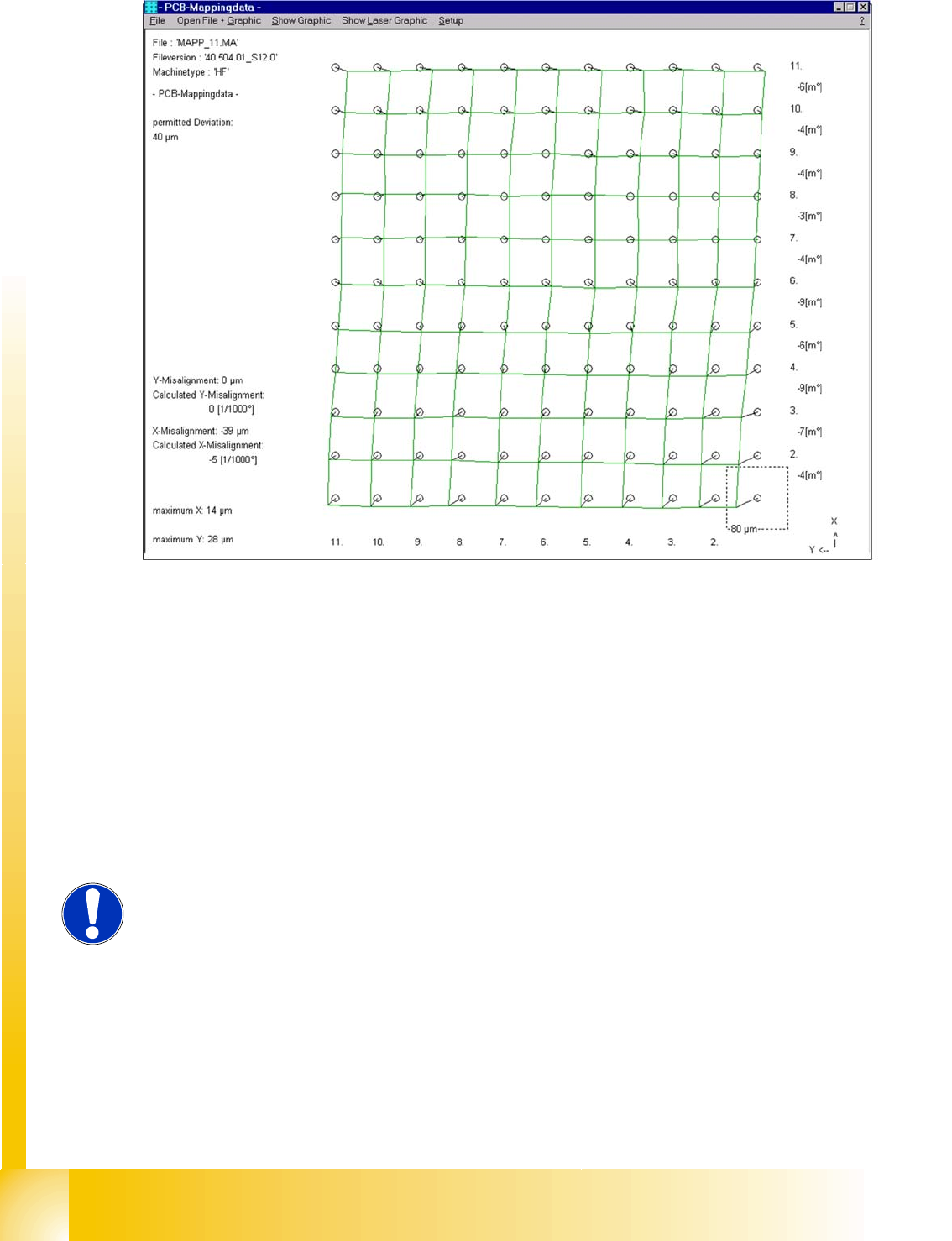
12.3 - 5: Result of PCB mapping
The results will be saved in the file
MAPP_xy.MA
(x= gantry number, y= conveyor lane).
12.3.9 Head Mapping (C&P Head)
Head mapping measures the linearity of the C&P head X/Y guidance.
The C&P head places the calibration tool precisely on the default positions of the mapping plate.The
PCB-camera measure the placement accuracy of this placements for the whole placement area.
After the PCB mapping the placement head place at the theoretical positions of the PCB-mapping
the calibration tool.
The PCB camera measures the placement accuracy with the help of the 4 calibration tool fiducials
on the calibration tool upper side.
NOTE:
All described automatically calibration steps above, can you do manually step
by step under the sub menus (see chapter 12.1).