80S-20用户手册 - 第170页
4 Placement functions SIPLACE 80S-20 /F4 User Manual 4.3 Feeders Soft ware version S R.407.xx 01/2001 US Edition 170 4.3.3 "T rays" vie w The "Upd ate invent ory level s" functio n can be us ed to upd…
SIPLACE 80S-20/F4 User Manual 4 Placement functions
Software version SR.407.xx 01/2001 US Edition 4.3 Feeders
169
4.3.2.1 Meaning of the entries in the tables of the "Omit components" view
– Loc.
Number of the location
– Tr D T
Number of the track and of the feeder division or the number of the waffle pack tray compart-
ment and the level in the waffle pack changer
– CmpName
Name of the component
– GF no.
Number of the package form
4
4.3.2.2 Omit component
Å Select the entry for the component that is to be omitted in the "Empty tracks" table. The line
selected is highlighted in light blue in the table.
The "Omit components" button is active.
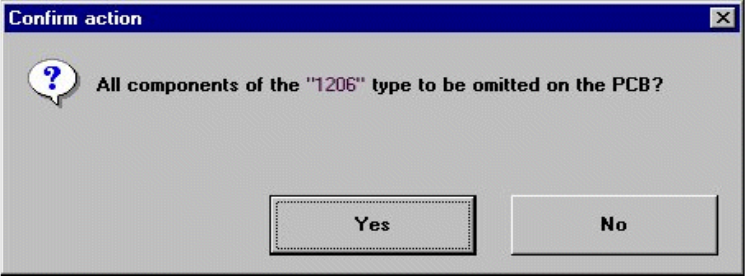
Å Click on the Omit components button. The following selection box is opened.
4
Å Confirm the query with Yes.
The entries for all tracks whose feeders or waffle pack trays contain the components that are
not to be used to populate the current PCB are displayed in the "Omitted components with al-
ternate tracks:" table.
4
4 Placement functions SIPLACE 80S-20/F4 User Manual
4.3 Feeders Software version SR.407.xx 01/2001 US Edition
170
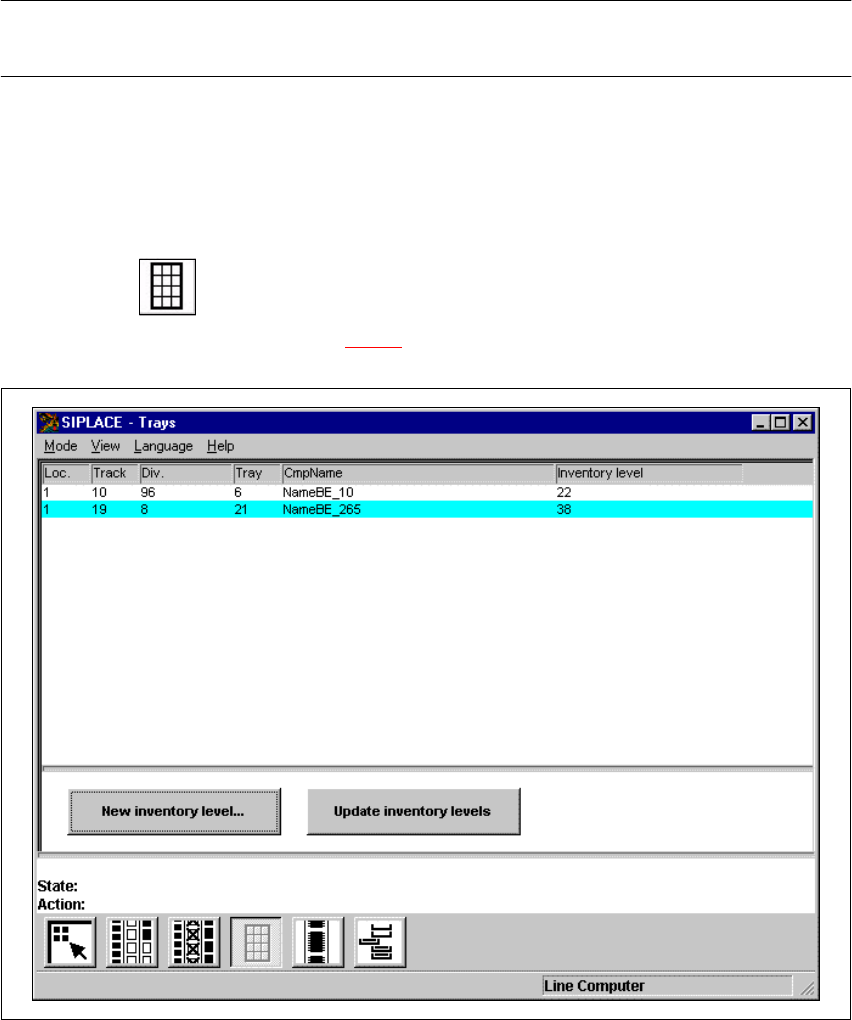
4.3.3 "Trays" view
The "Update inventory levels" function can be used to update the display of the inventory levels
for all waffle pack trays in this view as required. 4
NOTE
Display of the inventory levels is not updated automatically during placement. 4
When waffle pack trays have been refilled with components, it is possible to enter the number of
components in each waffle pack tray which has been refilled. It is not possible to enter a value
higher than the predefined maximum value. 4
4
4
Å Click on the icon.
The "Trays" view appears (see Fig. 4.3 - 4
).
4
Fig. 4.3 - 4 "Trays" view
SIPLACE 80S-20/F4 User Manual 4 Placement functions
Software version SR.407.xx 01/2001 US Edition 4.3 Feeders
171
4.3.3.1 Updating inventory levels
Å Click on the Update inventory levels button.
The current inventory level for each waffle pack tray is shown in the table.
4.3.3.2 Entering new inventory levels
Å After a waffle pack tray has been refilled with components, choose the entry in the table for the
waffle pack tray which has been refilled.
The selected line is shown in light blue in the table.
The "New inventory level..." button is activated.
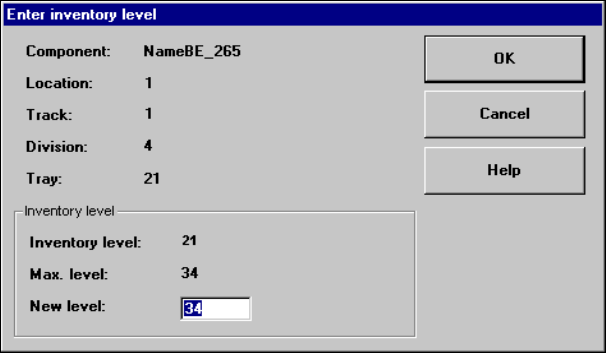
Å Click on the New inventory level... button.
The following dialog box appears.
4
Å In the text box, enter the actual number of components contained in the waffle pack tray and
confirm your entry with OK.
The dialog box closes and the new inventory level is shown in the table for the selected waffle
pack tray.
4
4
4