80S-20用户手册 - 第172页
4 Placement functions SIPLACE 80S-20 /F4 User Manual 4.3 Feeders Soft ware version S R.407.xx 01/2001 US Edition 172 4.3.4 "Linear fee der" view When refi lling the li near feede rs with compo nents, the ope ra…
SIPLACE 80S-20/F4 User Manual 4 Placement functions
Software version SR.407.xx 01/2001 US Edition 4.3 Feeders
171
4.3.3.1 Updating inventory levels
Å Click on the Update inventory levels button.
The current inventory level for each waffle pack tray is shown in the table.
4.3.3.2 Entering new inventory levels
Å After a waffle pack tray has been refilled with components, choose the entry in the table for the
waffle pack tray which has been refilled.
The selected line is shown in light blue in the table.
The "New inventory level..." button is activated.
Å Click on the New inventory level... button.
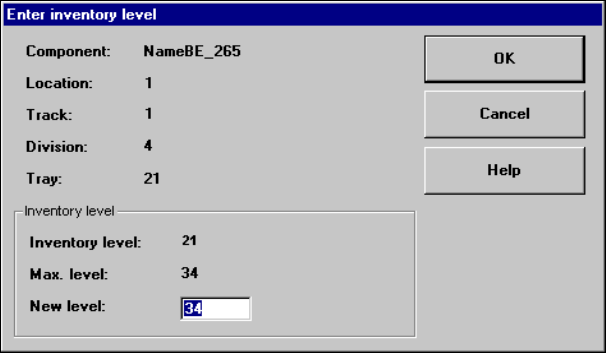
The following dialog box appears.
4
Å In the text box, enter the actual number of components contained in the waffle pack tray and
confirm your entry with OK.
The dialog box closes and the new inventory level is shown in the table for the selected waffle
pack tray.
4
4
4
4 Placement functions SIPLACE 80S-20/F4 User Manual
4.3 Feeders Software version SR.407.xx 01/2001 US Edition
172
4.3.4 "Linear feeder" view
When refilling the linear feeders with components, the operator must select the correct component
in the Setup view to refill an empty track (see Section 4.1.1
). The track with the corresponding lin-
ear feeder must be vibrated so that the new components move to the front after the tray has been
inserted. 4
4
Å Click on the icon.
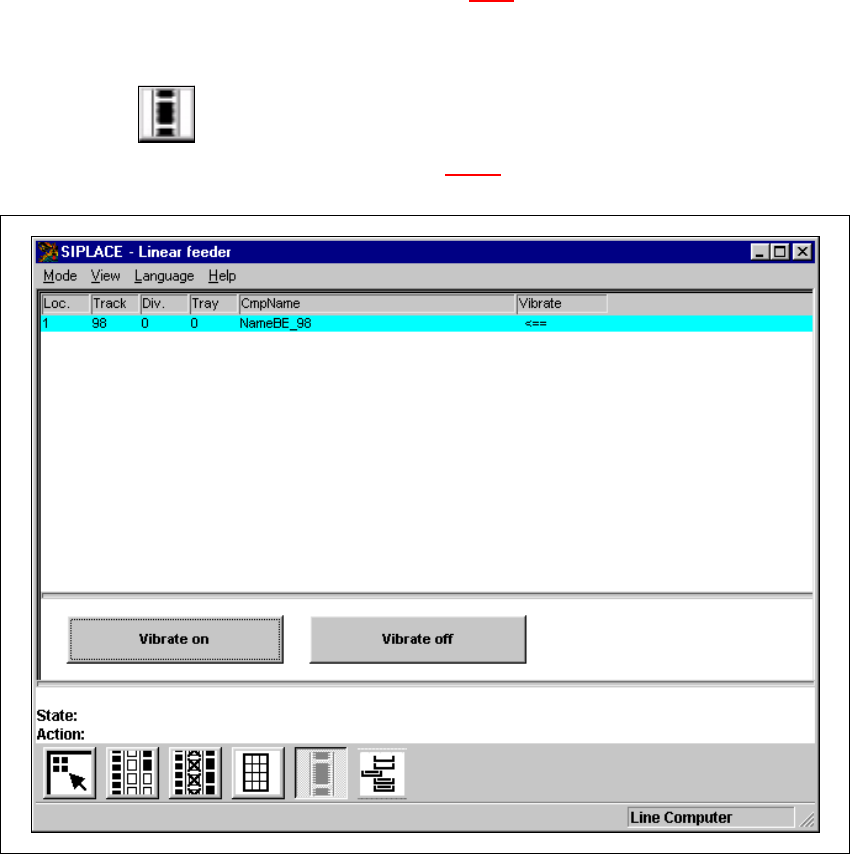
The "Linear feeder" view is displayed (see Fig. 4.3 - 5
).
4
Fig. 4.3 - 5 "Linear feeder" view

SIPLACE 80S-20/F4 User Manual 4 Placement functions
Software version SR.407.xx 01/2001 US Edition 4.3 Feeders
173
4.3.4.1 Meaning of the entries in the table for the linear feeder
– Loc.
Number of the location
– Track
Number of the track
– Div.
Number of the feeder division
– Tray
This column is not relevant for the linear feeder table.
– CmpName
Name of the component
– Vibrate
If the "<==" symbol is displayed in this column, then this means that the linear feeder on the
corresponding track is currently being vibrated.
4
4.3.4.2 Vibrate track with linear feeder
Å Select the entry in the table for the track with the linear feeder that has been refilled and that
is to be vibrated now.
The selected line is highlighted in light blue in the table. The "Vibrate on" button is active.
Å Click on the Vibrate on button.
The components used to refill the track are vibrated to the front.
The "Vibrate off" button is active.
Å Click on the Vibrate off button when the vibrating is to be switched off.
Vibration stops.
NOTE
If the user interface is switched to a different view, then vibration will also stop. 4