EN 3.pdf - 第120页
Model DECAN Series Company SAMSUNG TECHWIN Module 3.8 IT , L TS V ersion 01 Tit le 2D BAR CODE SETTING Page 3-8-3 Note 4. Load the PCB and clamp it in the W ork Station and then select the [Bar Code] menu. 5. Barcode Set…
Model
DECAN Series
Company
SAMSUNG TECHWIN
Module
3.8 IT, LTS
Version
01
Title
2D BAR CODE SETTING
Page
3-8-2
Note
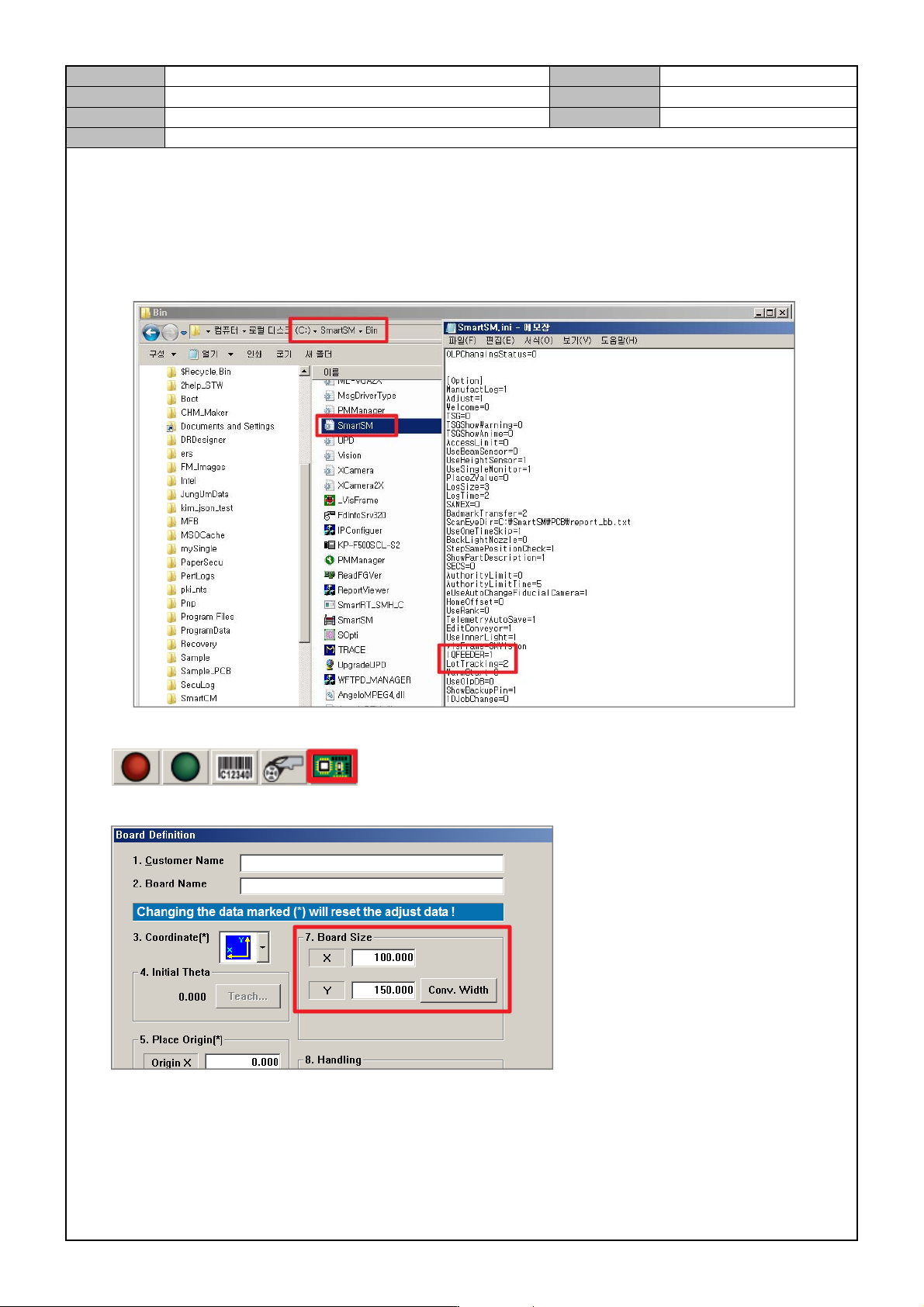
[2D BAR CODE SETTING]
1. In the SmartSM.ini file, set the [OPTION] item.
Lot T racking: 2
IQFEEDER: 1(Full IT), 2(Common IT)
User Barcode: 1
2. In the upper right corner of the MMI screen, check the icon.
3. In the PCB Edit menu, set the PCB size.
Model
DECAN Series
Company
SAMSUNG TECHWIN
Module
3.8 IT, LTS
Version
01
Title
2D BAR CODE SETTING
Page
3-8-3
Note
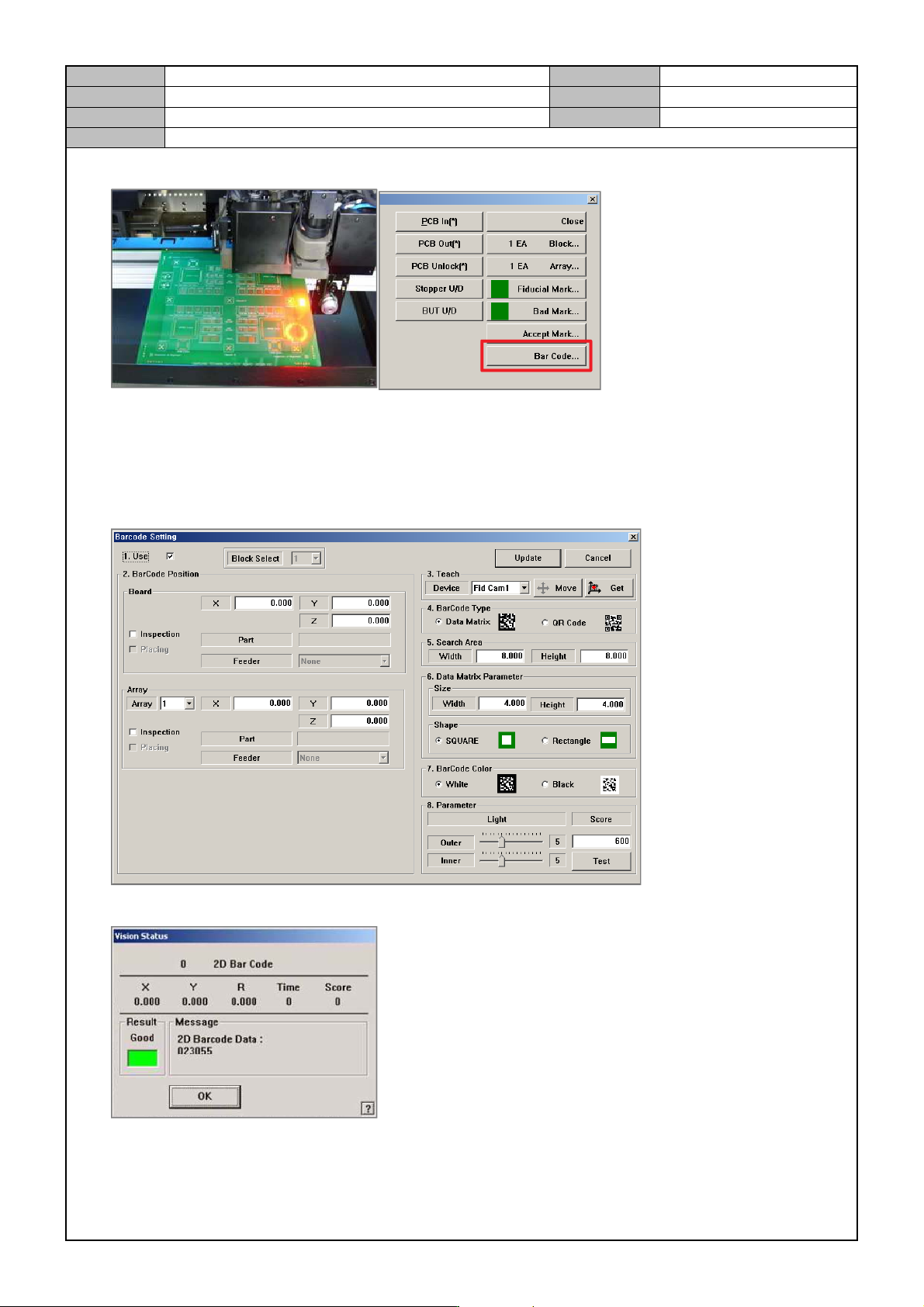
4. Load the PCB and clamp it in the Work Station and then select the [Bar Code] menu.
5. Barcode Setting
Use: check
Let the fiducial camera face the 2D barcode, press [Get].
Barcode Type setting
Shape setting
Barcode Color setting
6. Press [Test] to check barcode detection.
Model
DECAN Series
Company
SAMSUNG TECHWIN
Module
3.8 IT, LTS
Version
01
Title
IT FUNCTION INSTALLATION(MMI)
Page
3-8-4
Note
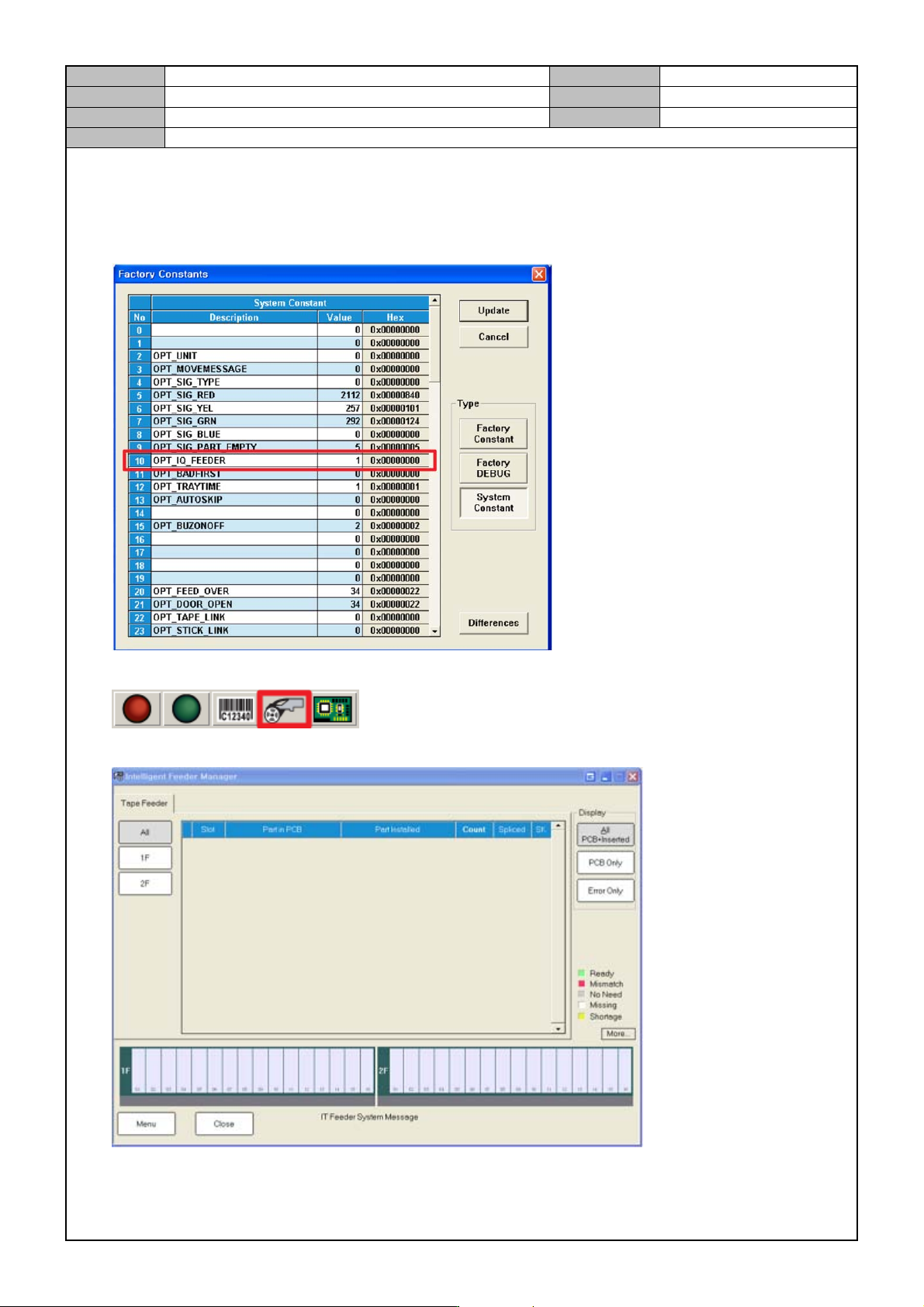
[IT FUNCTION INSTALLATION(MMI)]
1. After installing the MMI, change the System Constant settings.
System Constant 10 <OPT IQ FEEDER> item: 0 → 1
2. In the upper right corner of the MMI, click the <IT Manager > button.
3. Select the Setup menu of <IT Manager>.