00196715-01_IM_SSW_704_DE_EN.pdf - 第31页
Installation Manual, Station Software Version 704.01 04/2010 Edition Fig. 5-2: TouchWare Properties → Open the Multiple Monitors tab. Fig. 5-3: TouchWare Properties – Multiple Monitors tab → Click the Map Touch Screens b…
Installation Manual, Station Software Version 704.01 04/2010 Edition
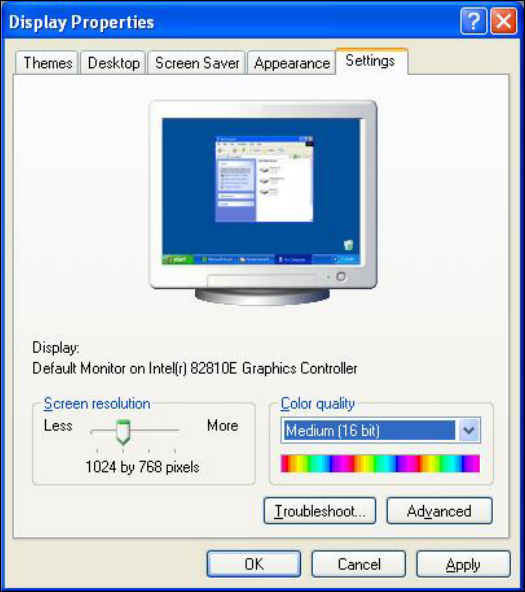
5.3.2 Changing the display settings
→ Choose Start Æ Settings Æ Control Panel Æ Display.
→ Click the Settings tab.
→ Set the "Screen resolution" slider to "1024 by 768 pixels".
Fig. 5-1: Screen settings
→ Confirm the settings by clicking OK.
5.3.3 Calibrating the touchscreen
5.3.3.1 Calibrating the touchscreen for the X-Series
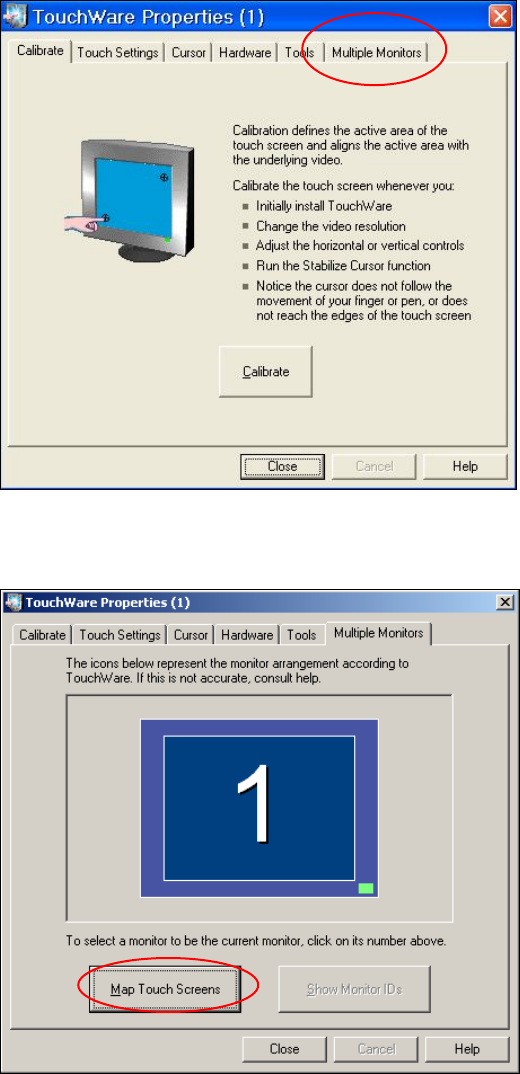
→ Choose Start Æ Settings Æ TouchWare to start the TouchWare Properties program.
30 of 60
Installation Manual, Station Software Version 704.01 04/2010 Edition
Fig. 5-2: TouchWare Properties
→ Open the Multiple Monitors tab.
Fig. 5-3: TouchWare Properties – Multiple Monitors tab
→ Click the Map Touch Screens button.
The "Multiple Monitor Layout" dialog box appears.
31 of 60
Installation Manual, Station Software Version 704.01 04/2010 Edition
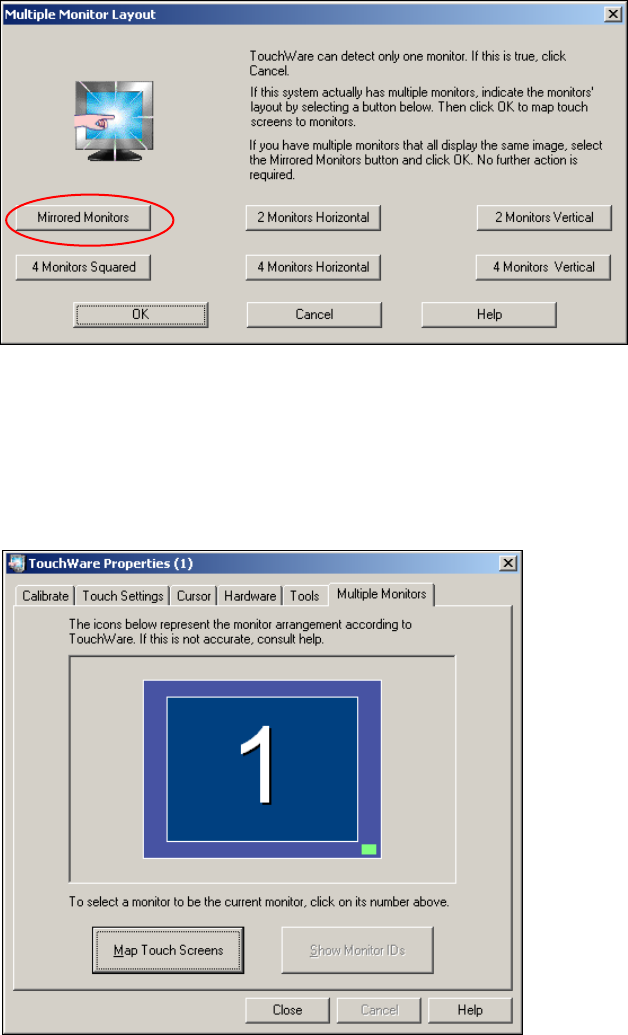
Fig. 5-4: "Multiple Monitor Layout" dialog box
→ Click the Mirrored Monitors button.
→ Confirm your entry with OK.
The touchscreens are now mapped and the "Multiple Monitors" tab is displayed again.
Fig. 5-5: TouchWare Properties – Multiple Monitors tab (example for Monitor 1)
32 of 60