00196715-01_IM_SSW_704_DE_EN.pdf - 第38页
Installation Manual, Station Software Version 704.01 04/2010 Edition 5.4.6 Entering the Machine Identification Number (MID) Fig. 5-13: Entering the Machine Identification Number (MID) → In the text box, enter the 8-digit…
Installation Manual, Station Software Version 704.01 04/2010 Edition
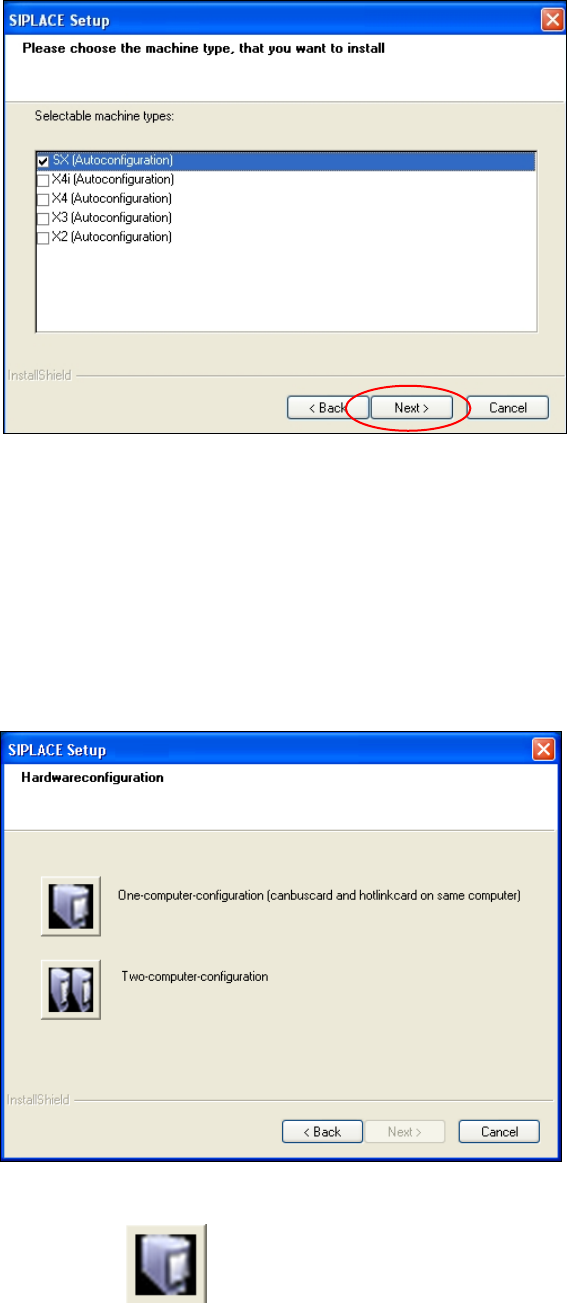
5.4.4 Selecting the machine type
Fig. 5-11 Selecting the machine type
→ Select the option for the machine type for which the software is to be configured.
→ Click the Next button.
5.4.5 Selecting the hardware configuration
The "SIPLACE Setup" dialog box is opened, in which you configure the hardware for one-computer or two-
computer operation. One-computer operation is default for the SX placement machines.
Fig. 5-12: "SIPLACE Setup" dialog box
→ Click the "One-computer-configuration" button.
→ Click the Next button.
37 of 60
Installation Manual, Station Software Version 704.01 04/2010 Edition
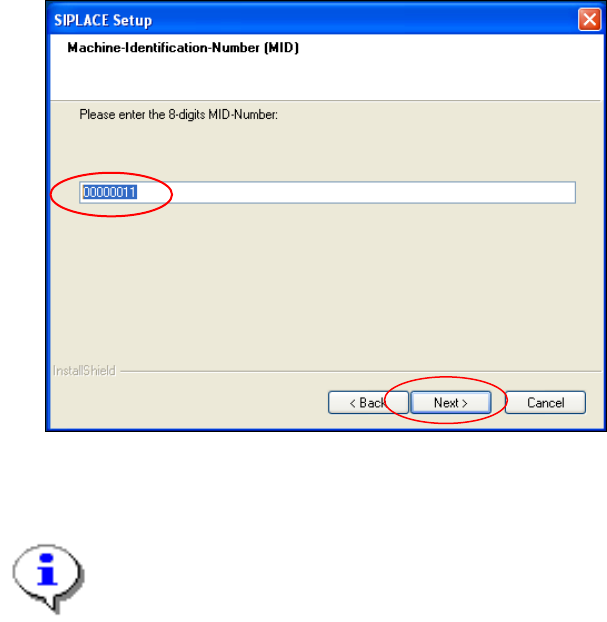
5.4.6 Entering the Machine Identification Number (MID)
Fig. 5-13: Entering the Machine Identification Number (MID)
→ In the text box, enter the 8-digit machine identification number.
Note:
- You will find the MID on an adhesive label on the side of the protective covers directly
below the label for the number of the relevant location. The number following the dash after
the MID
specifies the location and is not entered here (e.g. 00000001-2 stands for location 2).
- After upgrading (from 60x and 70x) the correct MID is already inserted.
→ Click the Next button.
38 of 60
Installation Manual, Station Software Version 704.01 04/2010 Edition
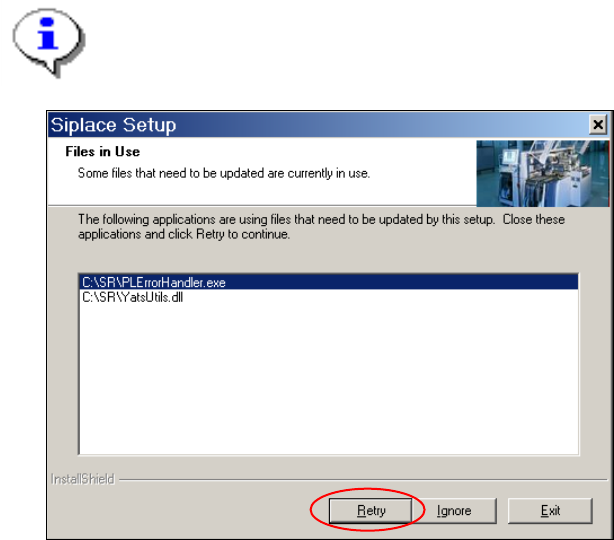
Note:
The following screen only appears if applications are open which use files which must be
updated during installation of SIPLACE.
Fig. 5-14: Open applications
→ Close the applications or processes listed here by using the Windows Task Manager and then click
the Retry button.
The installation program now installs additional programs on the machine computer.
39 of 60