2OM-1088-002.pdf - 第98页
Tg0699-PM-D2 2.1 Navigations in Window 0207-001 Chapter 1 2-39 2.1.3 Saving a Pattern Program This session describes how to save a newly created or an edited pattern program. • Operation Procedure (1) Click "File&qu…
Tg0699-PM-D2
2.1 Navigations in Window
0207-001 Chapter 1 2-38
(4) Selection of Set Value
A combo box is like a text box and a list box combined and pro-
vided to make it easier to select a specific value from a list of
pre-defined values.
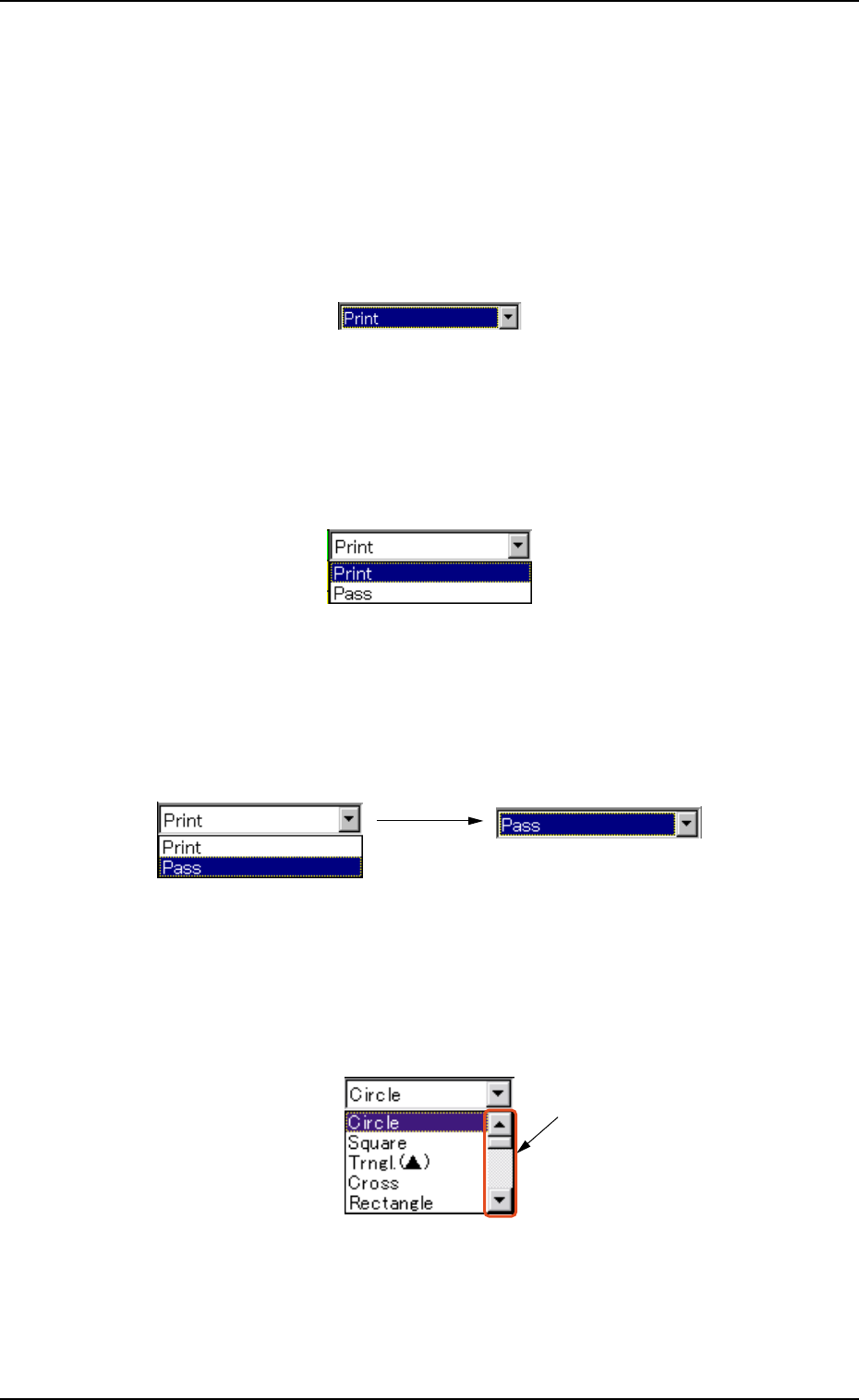
Step 1
When you double-push a text box quickly, the text box is
changed to a combo box that has a down arrow on the right
side.
Fig. 3B80
Step 2
When you push the down arrow, a drop-down list box opens,
showing the rows of data to be selected.
Fig. 3B81
Step 3
When you push the desired data in the list, it is reflected in the
text box.
Fig. 3B82
When too many options are in the list box, a scrollbar appears
on the right side of the list box. Scroll the list and select the
desired option.
Fig. 3B83
Step 4
When another text box is selected, the combo box is changed to
a text box.
Scrollbar
Tg0699-PM-D2
2.1 Navigations in Window
0207-001 Chapter 1 2-39
2.1.3 Saving a Pattern Program
This session describes how to save a newly created or an edited
pattern program.
• Operation Procedure
(1) Click "File" on the menu bar. The pull-down menu opens. Select
"Save" or "Save As..." from the pull-down menu.
Save : Select this to replace the source pattern program
with the edited one.
Save As... : Select this to save a newly created pattern pro-
gram or an edited pattern program as another one
(different from the source program).
(2) When you select "Save", the active pattern program is saved
with the same name (model name) as that of the source pattern
pro-gram. The source pattern program is replaced with the
active one.
When the program is saved, a "File save complete" message
ap-pears on the status bar of the "Pattern Program" window.
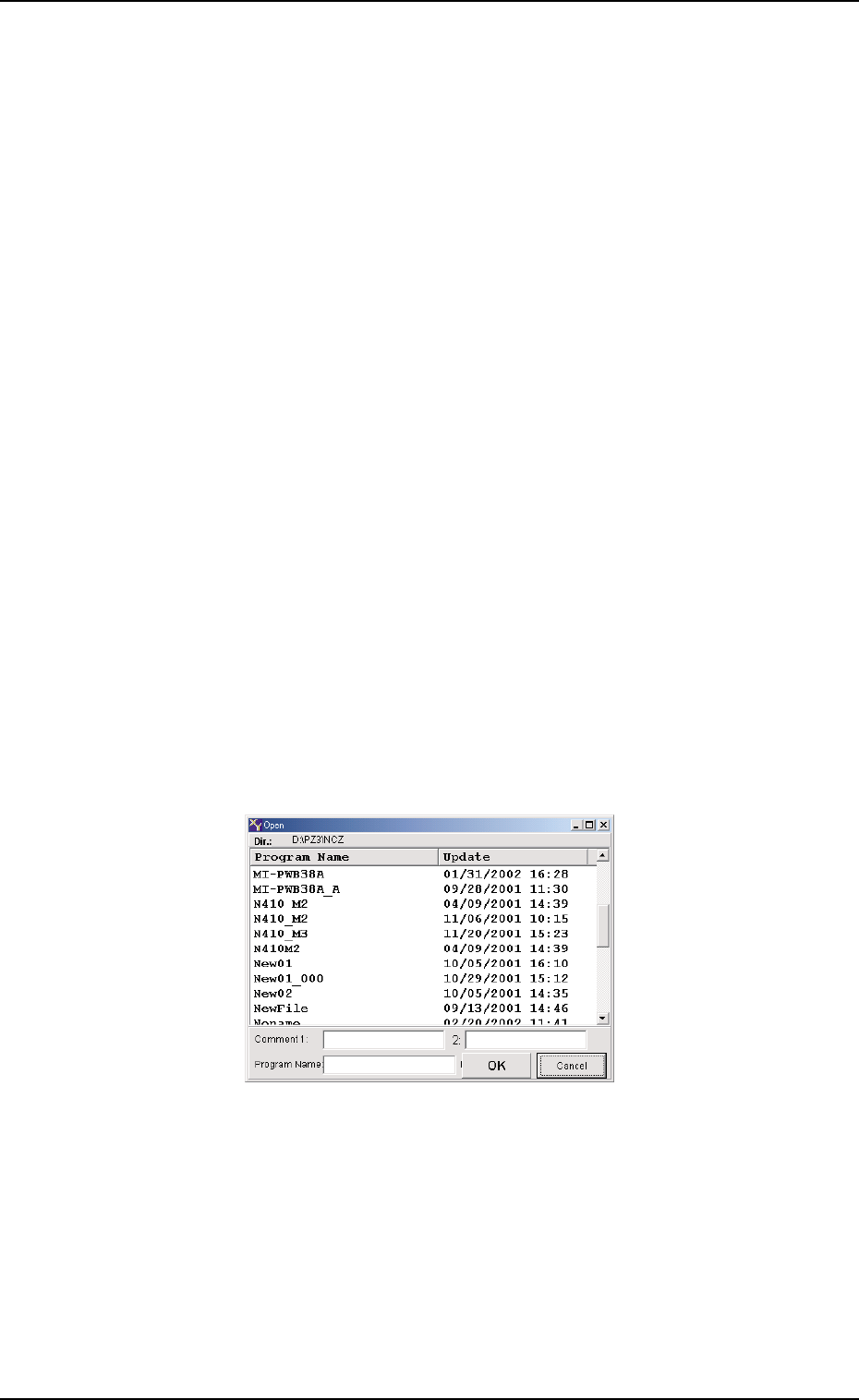
(3) When you select "Save As...", the "Virtual Keyboard" (Fig. 3B79)
and the following "Save" window open.
Fig. 3B84 "Save" Window
(4) Enter a comment (up to 16 characters) on the selected program
in the "Comment 1" and "Comment 2" text boxes and the pro-
gram name (up to 24 characters) in the "Program Name" text
box, using the "Virtual Keyboard" .

Tg0699-PM-D2
2.1 Navigations in Window
(5) Press the [OK] button in the "Save" window.
The pattern program displayed in the edit sheet is saved with
entered file (program) name.
(a) When a long string of characters is entered in the
"Program Name" text box, the name may not be fit
inside the text box, making the last few characters
invisible. It is advisable that up to 24 characters
should be used.
(b) The following characters can not be used as a
pattern program name.
* (asterisk), ? (question mark), : (colon),
" (double quotation), / (slash), | (vertical line),
< (smaller than), > (larger than), (comma),
. (period)
(c) The ", "(comma) cannot be used as a comment.
0207-001 Chapter 1 2-40