00191369-01.pdf - 第114页
3 Introduction and Basic Concepts User’ s M anual SIPLACE HS -50 3.3 User Interface - Views and Menus Software Version SR.501.xx Edition 01/99 112 NOTE The next two men u options belong to the gro up of visio n functio n…

User’s Manual SIPLACE HS-50 3 Introduction and Basic Concepts
Software Version SR.501.xx Edition 01/99 3.3 User Interface - Views and Menus
111
NOTE
The following 6 menu options belong to the group of single functions.
The single functions are used to execute specific actions following fatal errors as well as to set
up and test the machine since they allow you to address the various functional modules in a
defined manner.
Execution of the single functions is described in Chapter 5 "Single Functions".
*DQWU\ )
This allows you to call the single functions for gantry 1. These functions can be used, for
example, to test the revolver head functions.
NOTE
Each of the 4 gantries can be addressed separately.
The functions are identical for all the gantries.
*DQWU\ )
Single functions for gantry 2
*DQWU\ 6KLIW
Single functions for gantry 3
*DQWU\ 6KLIW
Single functions for gantry 4
7UDQVSRUW)
Single functions for PCB conveyor 2 (= left conveyor track in the case of twin conveyors)
NOTE
The single functions for Conveyor 2 cannot be called unless twin conveyors are configured.
The functions are identical to the functions for Conveyor 1.
7UDQVSRUW)
Used to call the single functions for PCB conveyor 1 (= right conveyor track in the case of twin
conveyors). These are used to test and set the functional modules for PCB conveyor as well
as to set the conveyor width.

3 Introduction and Basic Concepts User’s Manual SIPLACE HS-50
3.3 User Interface - Views and Menus Software Version SR.501.xx Edition 01/99
112
NOTE
The next two menu options belong to the group of vision functions.
These functions are used to teach and test fiducials, measure components and change
package form data.
The vision functions cannot be executed at the "Operator" access level.
7HDFKILGXFLDO)
This menu item is used to call the functions for the processing of fiducials for PCB position
detection.
For a more extensive description of the procedure refer to Chapter 6 "Vision Functions".
7HVWFRPSRQHQW)
This menu item is used to call the functions for the processing of package forms for component
centering.
For a more extensive description of the procedure refer to Chapter 6 "Vision Functions".
6WDUW6,7(67)
This automatically starts the SITEST test program for machine set-up and calibration.
The user interface, together with the procedure for the execution of the functions, is described
in the separate User’s Manual for the SITEST test program.
NOTE
The SITEST test program cannot be started from the "Operator" access level.
*(0 )
This menu item is used to call the GEM interface functions.
For a more extensive description of the procedure refer to Chapter 13.
NOTE
The GEM interface functions cannot be called unless the GEM interface has been configured.
At the "Operator" access level, only the function "Send and receive messages" is available.
The GEM interface functions are not available in the current software version.
User’s Manual SIPLACE HS-50 3 Introduction and Basic Concepts
Software Version SR.501.xx Edition 01/99 3.3 User Interface - Views and Menus
113
2SWLRQV0HQX
The "Options" menu is only available in the main view. This menu contains all the supple-
mentary functions.
Å Click the required menu item and then make the appropriate settings or selections in the
corresponding windows or dialog boxes.
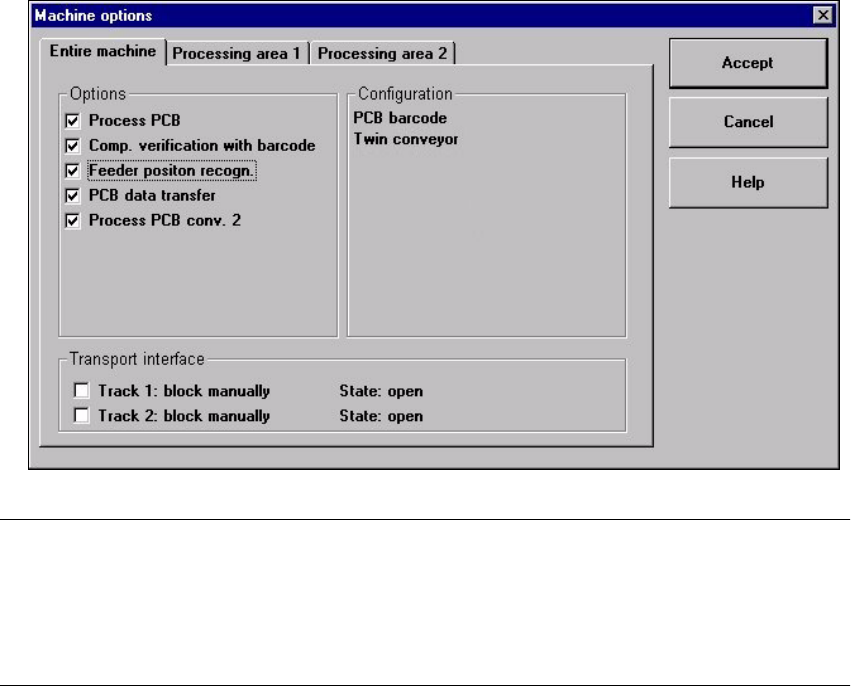
0DFKLQHRSWLRQV
Depending on access level, you can obtain information about the station configuration
("Operator") or activate or deactivate the displayed machine options ("Line engineer",
"Service").
Å Click the menu item 0DFKLQHRSWLRQV
The following window is displayed.
NOTE
Only those machine options are displayed which are configured at the current station.
The different machine options and the associated functions are described in Chapter 4
"Placement Functions", Chapter 6 "Vision Functions" and chapter 13 "Station Extensions/
Software“.
Å Click the checkboxes corresponding to the machine options which you want to activate or
deactivate.