00191369-01.pdf - 第122页
3 Introduction and Basic Concepts User’ s M anual SIPLACE HS -50 3.3 User Interface - Views and Menus Software Version SR.501.xx Edition 01/99 120 NOTE This funct ion c annot be ex ecuted in "Oper ator" acc ess…
User’s Manual SIPLACE HS-50 3 Introduction and Basic Concepts
Software Version SR.501.xx Edition 01/99 3.3 User Interface - Views and Menus
119
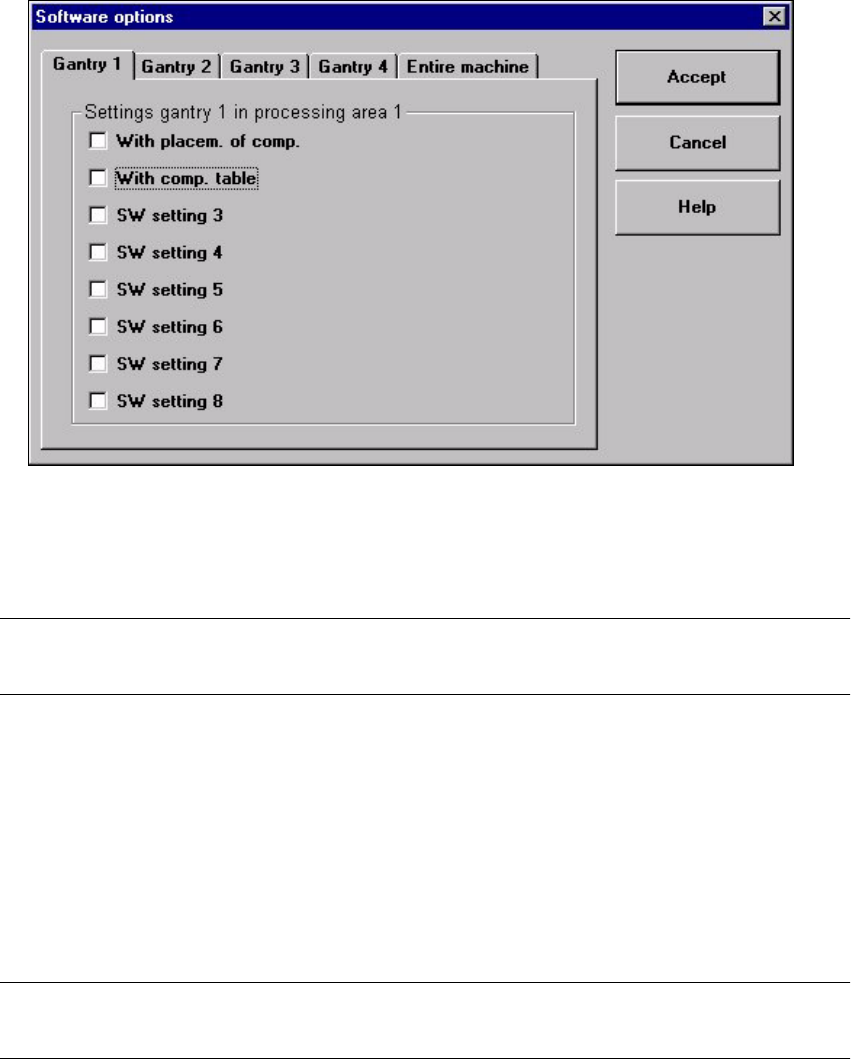
Å Select the tab corresponding to the required machine component and activate/deactivate
the test commands by clicking the corresponding checkboxes.
Å Click $FFHSW to set the software options.
NOTE
When the station is rebooted, the software options are reset to their original settings.
&\FOHPRGH$ OWW
You use this menu item to switch the station to cycle mode (e.g. to localize errors).
Å Click the menu item &\FOHPRGHor press the key combination$/7+W. The "Cycle mode"
settings box is opened.
Å Click the 2Qradio button to activate cycle mode or the 2II radio button to deactivate it.
Å Click the 2. button. Cycle mode is now either activated or deactivated.
NOTE
In cycle mode, you must press the Start button on the machine for every operating step.
/RDGWDEOHSURJUDP
This menu item allows you to reload the table program into the memory of the table program
controller. You may need to do this, for example, if a machine error has resulted in the loss of
the table program.
3 Introduction and Basic Concepts User’s Manual SIPLACE HS-50
3.3 User Interface - Views and Menus Software Version SR.501.xx Edition 01/99
120
NOTE
This function cannot be executed in "Operator" access mode.
Å Click the menu item "Load table program".
The program is loaded. (The loading process can take some time).
9LGHRLPDJH3$!$ OW
In the case of certain actions, it may be necessary to display the camera image of the MVS
system on-screen(vision evaluation unit) during assembly.
Å Click the menu item 9LGHRLPDJH!or press the key combination $/7+.
The display area is switched to the MVS system camera image in processing area 1.
Å Press then (6& key to restore the display area to the normal view.
9LGHRLPDJH3$!$ OW
Switch to the MVS system camera image in processing area 2.
&OXVWHUIRUILQHFDOLEUDWLRQ
In the "Stand alone" control mode, you can use this menu item to load the data of a selected
cluster (placement program) from the station computer’s hard disk.
NOTE
The data for the cluster selected in the box is designed for the assembly of special glass
components on a glass PCB. The assembled glass PCB is then used for fine calibration in
conjunction with the SITEST test program.
Å Click the menu item &OXVWHUIRUILQHFDOLEUDWLRQ
Å In the box which is now displayed, select the entry corresponding to the required cluster
and click 2. to confirm your selection.
The cluster data is now loaded.
NOTE
The menu item "Cluster for fine calibration ..." cannot be activated in the current version of the
SC software.
User’s Manual SIPLACE HS-50 3 Introduction and Basic Concepts
Software Version SR.501.xx Edition 01/99 3.3 User Interface - Views and Menus
121
*(0'HIDXOWV
You use this item to specify the GEM parameters which are used as the default parameters
when the station is switched on.
Å Click the menu item *(0'HIDXOWV
The window in which you set the GEM default parameters is now opened.
For a detailed description, refer to Chapter 13.
NOTE
This menu item cannot be activated in the current software version since the "GEM Interface"
option is not yet implemented.
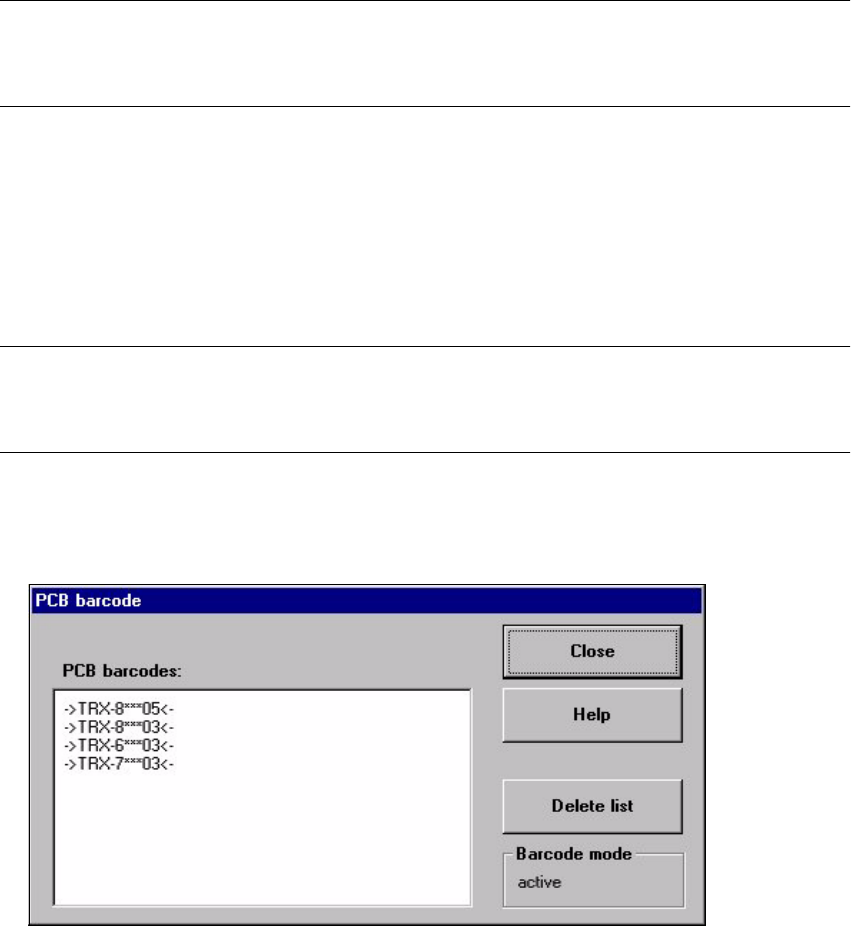
3&%EDUFRGH
You use this item to display a dialog box with a list of the barcodes most recently read by the
PCB barcode reader.
This dialog box also informs you if an error occurred while reading the barcode, if the file
format is incorrect or if no data is available.
NOTE
You cannot call the menu item "PCB barcode ..." unless the PCB barcode reader has been
installed in the machine (see Chapter 12) and has been activated in the machine options.
Å Click the menu item 3&%EDUFRGH
The "PCB barcode" dialog box is opened.