00191369-01.pdf - 第130页
4 Placement Functions User’s Manual SIPLACE HS -50 4.1 Setup Display Software Version SR.501.xx Edition 01/99 128 – &2%& This column shows whether o r not a c ompone nt barcode h as bee n specif ied for th e cor…

User’s Manual SIPLACE HS-50 4 Placement Functions
Software Version SR.501.xx Edition 01/99 4.1 Setup Display
127
.H\WR)LJ
(1) Display the setup for location 1
(2) Display the setup for location 2
(3) Display the setup for location 3
(4) Display the setup for location 4
0HDQLQJRIWKH(QWULHVLQWKH6HWXS7DEOH
– /RF
The number of the location whose setup is to be displayed is entered in this column. (See
Chapter 3, Fig. 3.1 - 2
for the position of the locations)
– 7UDFN
The number of the track on which the corresponding feeder is located is entered here.
– 'LY
The number of the feeder division from which the component in the corresponding feeder
is to be picked is entered in this column.
NOTE
The number for a tray division can also be entered here for other types of machines in the
SIPLACE series.
– 7UD\
This column is irrelevant when setting up the locations of a SIPLACE HS-50.
(Only valid for automatic machines with wafflepack changers).
– &PS1DPH
The name of the corresponding component is entered in this column.
– *)QR
The number of the package form for the corresponding component is entered here.
– 7UDFNEDUF
The track barcode assigned to the corresponding track is entered in this column.

4 Placement Functions User’s Manual SIPLACE HS-50
4.1 Setup Display Software Version SR.501.xx Edition 01/99
128
– &2%&
This column shows whether or not a component barcode has been specified for the corre-
sponding component in the setup using the "***" or "-" symbol.
A barcode is specified for the component.
The "Comp. verification with barcode ..." button is active when you click
on these lines in the table (see Section 4.1.2
).
- No barcode is specified for the component.
(The "Comp. verification with barcode ..." button is not active).
&RPSRQHQW9HULILFDWLRQ:LWK%DUFRGH
You prevent a track from being refilled with the wrong components with this function when re-
filling components with a specified component barcode.
The operator reads the track barcode and then the component barcode with the barcode rea-
der (see Chapter 12) . The two barcode assignments are compared with the help of the SC
software. Incorrect assignments are not accepted.
5HTXLUHPHQWV
– The barcode reader must be connected to the station computer.
– The "Track BC" option must be activated on the line computer (in the configuration editor)
for the corresponding station. (Only then will the "Component verification with barcode" op-
tion be displayed in the machine options on the station computer).
– The barcodes for the corresponding components must have been entered on the line com-
puter with the help of the component editor.
(A maximum of 6 different barcodes can be entered for a component at the present time).
– The "Component verification with barcode" option must be active in the machine options.
3URFHGXUH
Å Open the 2SWLRQVmenu in the Main view and click on the 0DFKLQHRSWLRQVmenu op-
tion. The "Machine options" window is opened (see Chapter 3).
Å Activate the checkbox for "Component verification with barcode".
Å Click on $SSO\. The window closes.
Å Switch the user interface to the "Setup location x" view.
Å Click on the icon in the toolbar for the desired location (see Fig. 4.1 - 1).
User’s Manual SIPLACE HS-50 4 Placement Functions
Software Version SR.501.xx Edition 01/99 4.1 Setup Display
129
Å Select the entry in the setup table for the track for which you want to execute a component
verification (or read the track barcode on the barcode bar using the barcode reader). The
line selected is highlighted in light blue in the table.
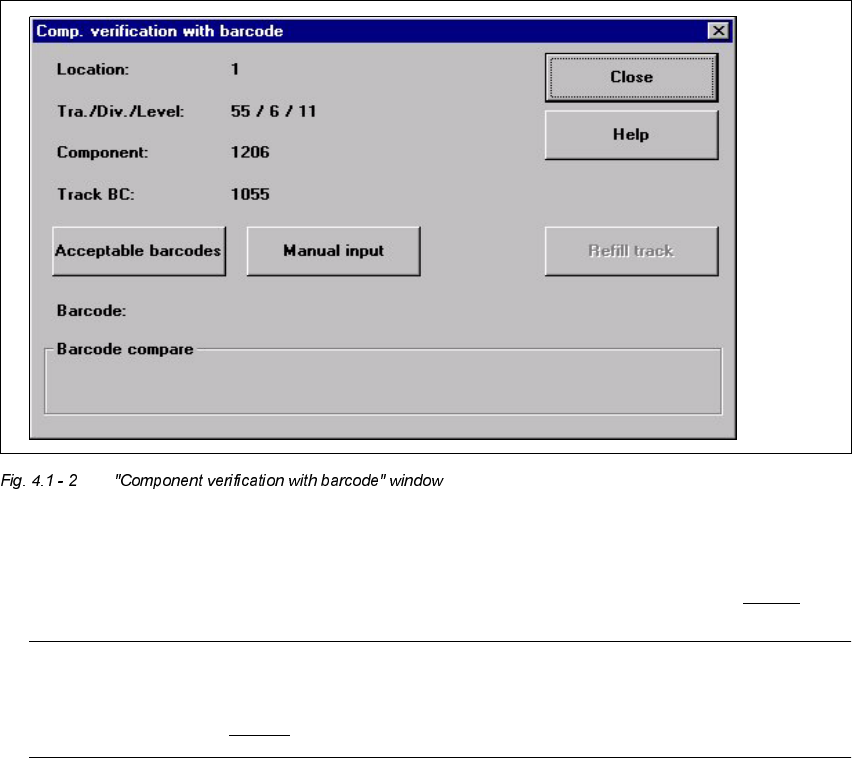
Å Click on the &RPSYHULILFDWLRQZLWKEDUFRGH button
The following window is opened. The data for the selected track is displayed so you can
check the data.
Å Read the component barcode in from the corresponding component reel with the
barcode reader. The barcode read in is displayed in the "Barcode:" line (see Fig. 4.1 - 3
).
NOTE
If the component barcode cannot be read in, then enter it manually. The procedure is
described in Section 4.1.2.2.